
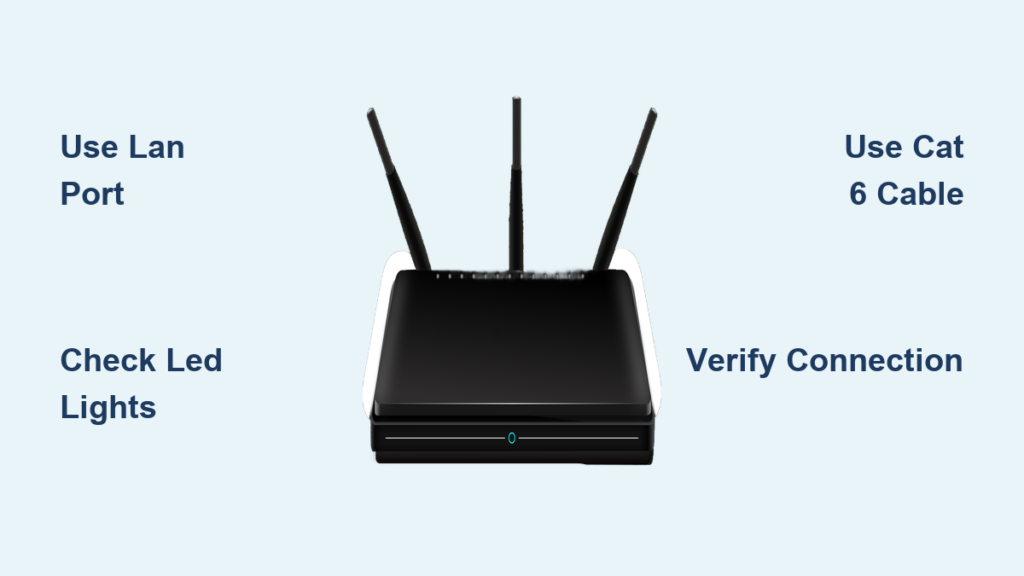
You just unboxed a new gaming console or set up a home office and need a stable connection immediately. Connecting an Ethernet cable to your wireless router is the fastest way to stop lag and boost your internet speeds.
This guide shows you exactly how to connect ethernet cable to wireless router hardware step by step. You will learn to identify ports, choose the right cables, verify your settings, and fix common connection errors without technical jargon.
Identify Correct Router Ports for Device Connection
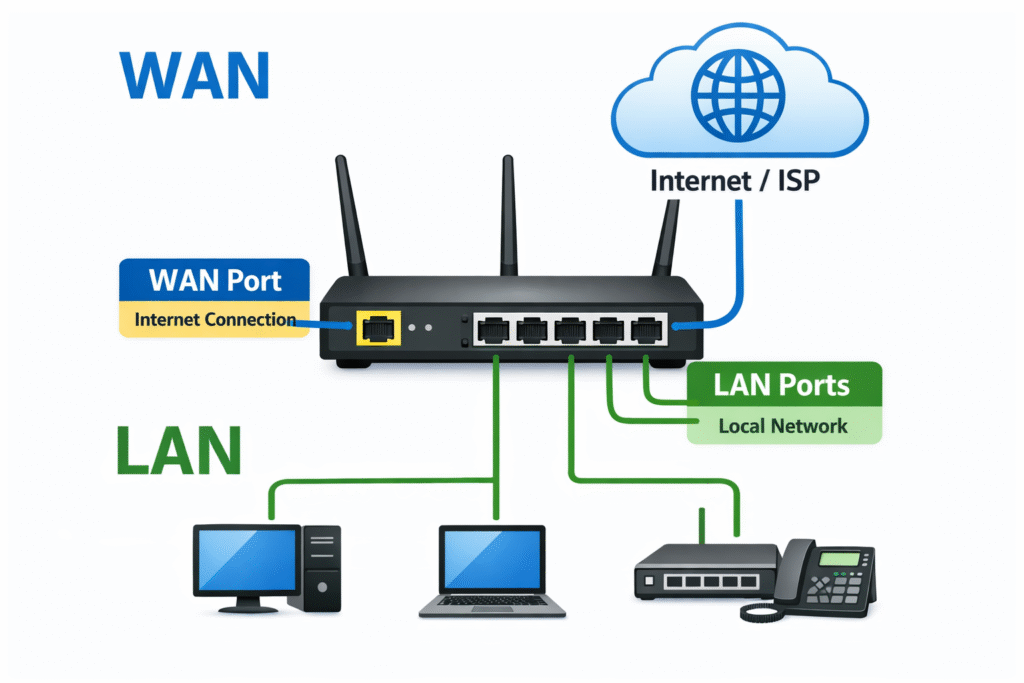
Your wireless router has multiple ports on the back panel that serve different functions. Plugging your device into the wrong port will prevent internet access entirely.
Distinguish Between LAN and WAN Ports
You must plug your computer into a LAN port to get online. These ports are usually grouped together and labeled with numbers like 1, 2, 3, or 4.
- LAN Ports: Connect your local devices like laptops and smart TVs.
- WAN Port: Labeled “Internet” or “WAN,” this connects only to your modem.
Never plug your computer directly into the WAN port. That specific port is reserved for the upstream connection from your modem to the router.
Interpret LED Indicator Lights
Each LAN port has a small LED light next to it that confirms physical status. A solid light means the link is active while a blinking light shows data transfer.
If you see no light at all, the cable is likely loose or defective. Try unplugging and reinserting the connector firmly until you hear a click.
Select the Optimal Ethernet Cable Type

Not all cables deliver the same performance levels. Your choice determines whether you get basic speeds or maximum throughput for heavy tasks.
Compare Cat 5e and Cat 6 Performance
Cat 5e cables support speeds up to 1 Gbps and work well for most home internet plans. Cat 6 cables handle up to 10 Gbps over shorter distances and offer better shielding against interference.
- Use Cat 5e for standard browsing and streaming under 500 Mbps.
- Use Cat 6 for gigabit plans or large file transfers between devices.
Adhere to Length Limits
Keep your cable under 328 feet (100 meters) to avoid signal degradation. Coiling excess cable tightly can also cause interference and reduce speed.
Inspect the Locking Tab
The RJ45 connector has a plastic tab on top that locks it into the port. Press this tab down gently when inserting to hear a soft click.
A broken or loose tab often leads to intermittent disconnections. Replace any cable where the tab fails to snap securely into place.
Execute Physical Connection Steps
Follow these precise actions to establish a hardwired link between your device and the network.
Plug Cable into Router LAN Port
- Locate an open numbered port on your router.
- Align the connector with the port opening.
- Push firmly until the locking tab clicks into place.
Ensure the cable sits flush against the port. A partially inserted cable will not transmit data reliably.
Connect Cable to Your Device
Find the Ethernet port on your computer or console. Desktops usually have this port on the back panel while laptops place it on the side.
Some ultrathin laptops require a USB-to-Ethernet adapter. Insert the cable end until it clicks just like on the router side.
Verify Physical Link Status
Check the LED light on the router port you just used. It should turn solid or begin blinking immediately.
- Solid Light: Physical link established.
- Blinking Light: Data is transferring.
- No Light: Check cable seating or try a different port.
Confirm Network Recognition on Computer
Your operating system must detect the new hardware before you can browse the web.
Check Windows Network Settings
Press Win + I and go to Network & Internet. Click Ethernet to view the hardware status.
You should see “Connected” along with your current speed like 1.0 Gbps. If the adapter is grayed out, right-click it and select Enable.
Verify Automatic IP Configuration
Most home networks assign addresses automatically without user input.
- Right-click the Ethernet adapter and select Properties.
- Double-click Internet Protocol Version 4 (TCP/IPv4).
- Ensure both options are set to obtain addresses automatically.
Only change these settings if your network administrator provides specific static IP details.
Observe System Tray Icons
Look at the bottom-right corner of your screen for a network icon. A wired connection looks like a computer monitor with a cable attached.
This icon replaces the Wi-Fi symbol when the system prioritizes the Ethernet link. If the icon does not appear, restart your computer to refresh the network drivers.
Test Internet Functionality and Speed
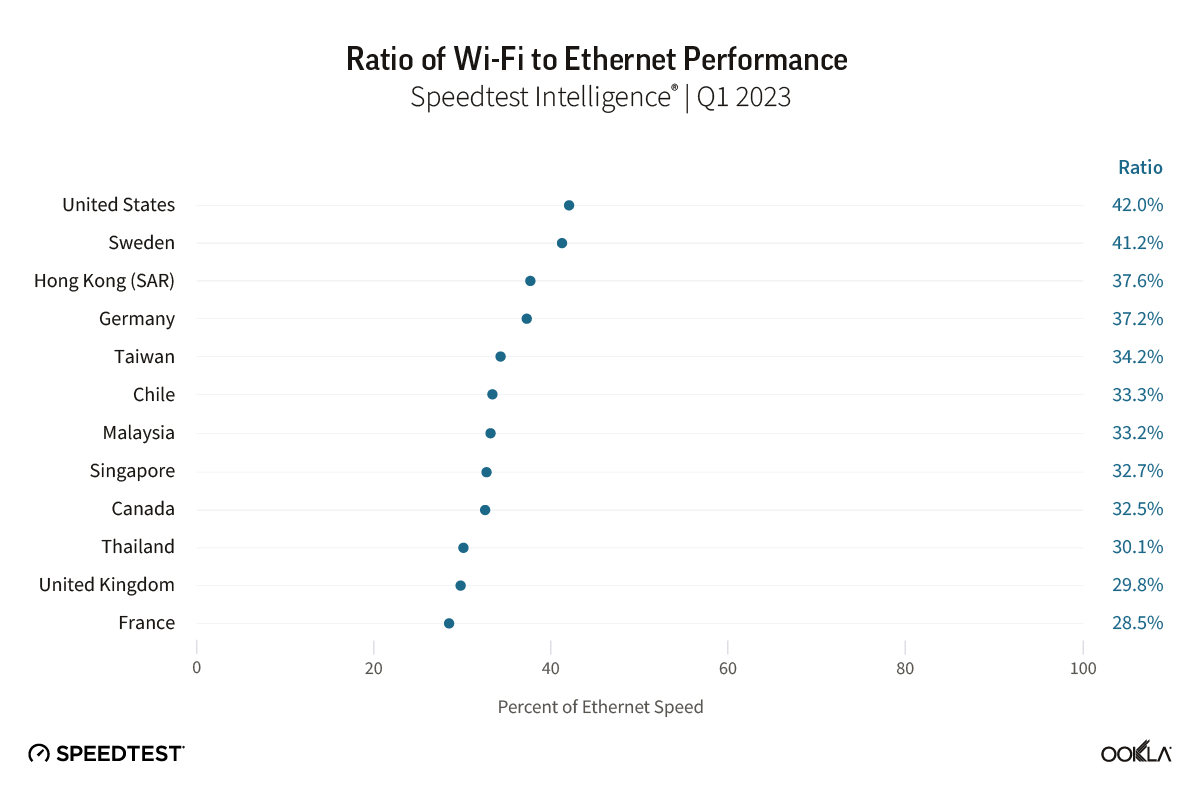
Verify that data is actually flowing through your new wired connection.
Load Web Pages Successfully
Open a browser and visit a reliable site like Google or Fast.com. If the page loads instantly, your connection is active.
Try playing a high-definition video to test stability. Smooth playback confirms you have successfully switched from Wi-Fi to Ethernet.
Run a Speed Test Comparison
Visit a speed test website to measure your actual throughput. Compare this number against your Wi-Fi performance.
You should see lower latency and more consistent speeds on the wired connection. This proves the cable is handling your bandwidth correctly.
Troubleshoot Common Connection Failures
Use these steps if your device fails to recognize the network or performs poorly.
Resolve No Connection Detected
Swap your current cable with a known working one to rule out hardware failure. Try a different LAN port on the router to ensure the first port is not damaged.
Restart both your router and your computer to reset the network handshake. Check the Ethernet port on your device for any bent pins inside.
Fix Slow Wired Speeds
If your speed test shows 100 Mbps instead of 1 Gbps, your cable might be old or damaged. Replace it with a certified Cat 6 cable.
Ensure your router supports Gigabit speeds. Older routers may only support Fast Ethernet which caps at 100 Mbps regardless of your cable quality.
Stop Intermittent Dropouts
Check if the locking tab on your connector is broken. A loose fit causes random disconnections during use.
Move Ethernet cables away from power cords. Running them parallel to electrical wires can cause interference that drops your signal.
Configure Router for Initial Setup
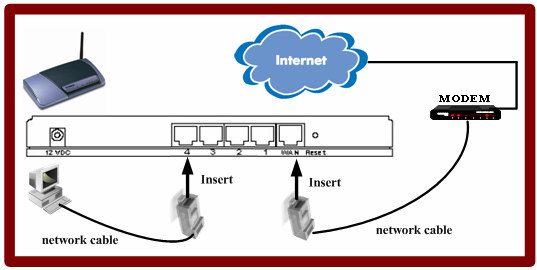
Setting up a new router requires connecting the modem before connecting your devices.
Link Modem to Router WAN Port
Use one Ethernet cable to connect your modem to the WAN port on the router. This is the only time you use the WAN port for an incoming signal.
Power on the modem first and wait two minutes. Then power on the router to establish the internet uplink.
Connect PC for Configuration
Use a second cable to connect your computer to a LAN port. Open a browser and enter the router IP address to configure settings.
A wired connection ensures the setup process does not interrupt due to Wi-Fi instability.
Navigate Institutional Network Rules
Schools and offices often have strict rules about personal networking equipment.
Avoid Unauthorized Router Use
Many institutions ban personal routers to prevent security breaches and IP conflicts. Plugging one in can get your account suspended or lead to disciplinary action.
Always check the acceptable use policy before adding hardware to a school network.
Use Direct Ethernet Instead
Plug your laptop directly into the wall Ethernet port if available. This provides a stable connection without violating network policies.
Contact your IT department if you need help registering your device MAC address.
Configure Only If Authorized
If you have explicit permission to use a router, disable the DHCP server first. This prevents your router from conflicting with the main network.
Assign a static IP within the allowed range and connect the wall port to your router WAN. Even then, monitoring systems may still block the device.
Optimize Connection for Long Term Use
Protect your investment and maintain high speeds with proper cable care.
Prevent Physical Cable Damage
Avoid sharp bends or crushing the cable under heavy furniture. Pull the cable by the connector head rather than the cord itself.
Damaged internal wires cause slow speeds and frequent dropouts over time.
Keep Ports Clean and Clear
Dust can accumulate in unused LAN ports and interfere with connections. Use compressed air to clean ports periodically.
Upgrade to Cat 6 cables if you plan to increase your internet speed in the future. Older hardware will bottleneck faster plans.
Frequently Asked Questions About Connecting Ethernet to Wireless Router
Can I connect my computer to the WAN port?
No, you cannot connect a computer to the WAN port for internet access. The WAN port is exclusively for connecting the router to the modem. Using it for a device will result in no connection.
Why is my Ethernet connection slower than Wi-Fi?
Your cable might be damaged or too old to support high speeds. Check if you are using a Cat 5 cable instead of Cat 5e or Cat 6. Also ensure your router supports Gigabit speeds.
Do I need to configure settings after plugging in the cable?
Most modern systems configure automatically via DHCP. You usually do not need to change settings unless your network administrator requires a static IP address.
How do I know if the Ethernet cable is working?
Look for a solid or blinking LED light next to the router port. On your computer, check for the wired network icon in the system tray and test a web page.
Can I use any Ethernet cable for my router?
You can use any standard Ethernet cable, but performance varies. Cat 5e supports up to 1 Gbps while Cat 6 supports up to 10 Gbps. Choose based on your internet plan speed.
What if the LED light does not turn on?
The cable may not be seated fully or the port could be disabled. Press the connector firmly until it clicks or try a different LAN port on the router.
Key Takeaways for Connecting Ethernet Cable to Wireless Router

Connecting an Ethernet cable to your wireless router provides superior speed and stability compared to Wi-Fi. By using the correct LAN ports, selecting high-quality Cat 6 cables, and verifying your LED indicators, you ensure a robust network experience.
Remember to avoid the WAN port for devices and respect institutional rules in schools or offices. Plug in your cable today to enjoy lag-free gaming and smoother video calls immediately.



