
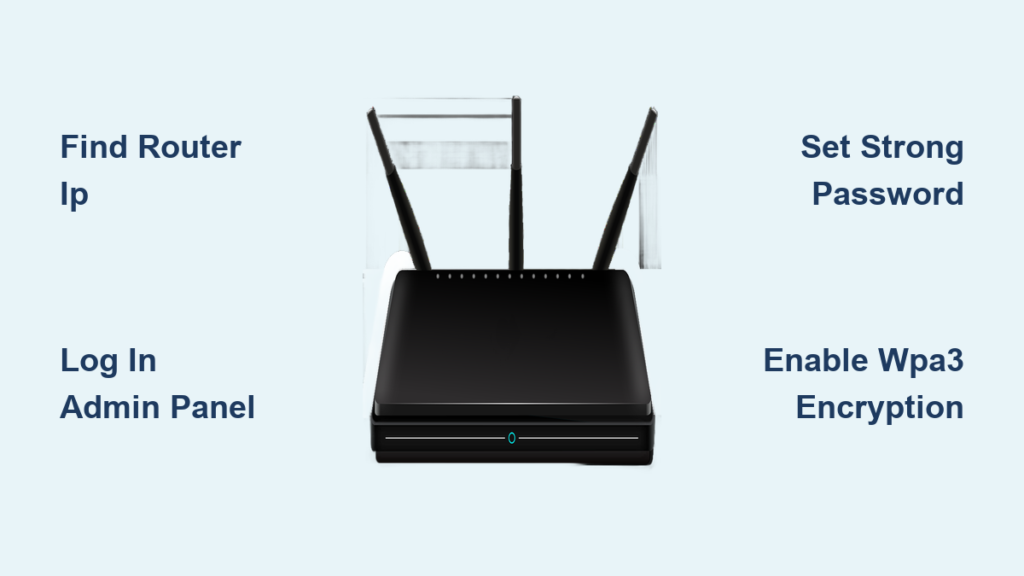
Your internet feels slow or you suspect neighbors are stealing your Wi-Fi signal. The fastest solution to secure your network is to learn how to change the password in WiFi router settings immediately. This simple action blocks unauthorized users and protects your personal data from prying eyes.
This guide walks you through finding your router IP, logging into the admin panel, and setting a strong new password. You will also learn how to update security encryption and reconnect all your devices without confusion. Follow these steps to take full control of your home network security today.
Locate Your Router IP Address and Admin Login
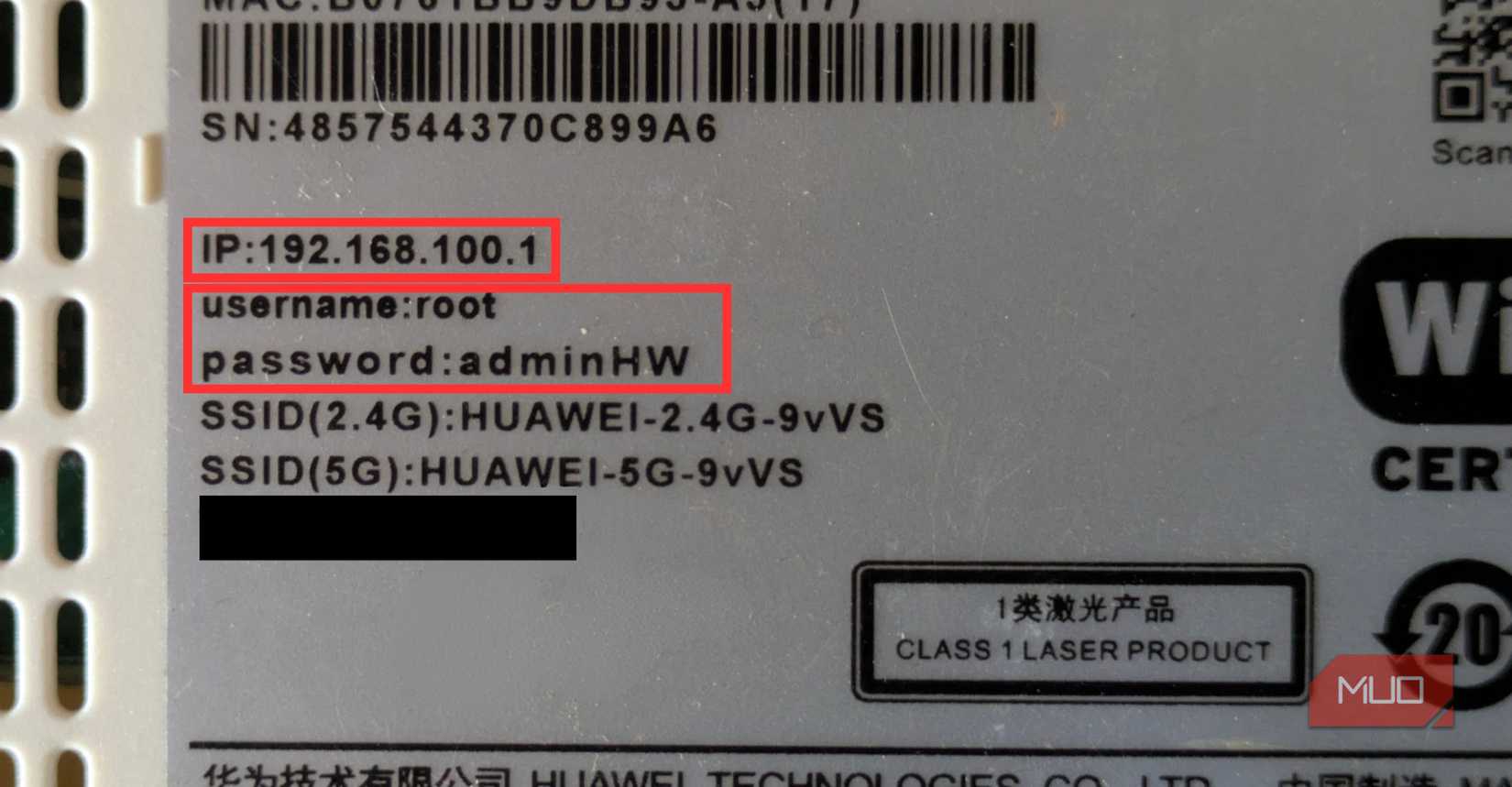
You cannot change your settings without first accessing the router’s internal control panel. This requires finding the specific IP address assigned to your device, often called the default gateway. Most routers use common addresses like 192.168.1.1, 192.168.0.1, or 10.0.0.1. Check the sticker on the bottom or back of your hardware for this number.
How to Find the Default Gateway on Windows
If the label is missing, your computer can tell you exactly where to go.
1. Press the Windows key and R simultaneously to open the Run box.
2. Type cmd and press Enter to open the Command Prompt.
3. Type ipconfig /all and hit Enter.
4. Look for the line labeled Default Gateway to see your router IP.
How to Find the IP Address on Other Devices
Mac users can find this by going to System Settings, selecting Network, clicking Wi-Fi, then Details, and choosing TCP/IP. Mobile users may need a network scanner app or should search online using their specific router model number. Once you have the number, type it directly into your web browser address bar and press Enter.
Enter Administrator Credentials
The login screen will ask for a username and password distinct from your Wi-Fi credentials. Common defaults include admin for the username and admin or password for the passcode. If you changed these previously and forgot them, you must reset the router to factory settings using the physical pinhole button.
Navigate to Wireless Security Settings
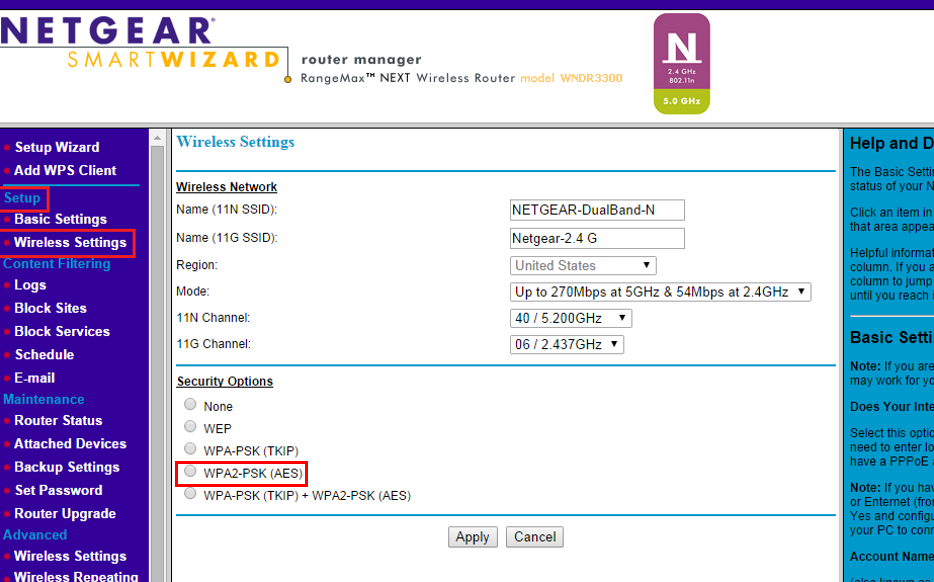
Once logged in, the interface will look different depending on your brand. You need to find the section controlling your wireless network. Look for menu items labeled Wireless, Network, Wi-Fi Settings, or Advanced Settings. The exact path often involves clicking Settings followed by Wireless Security.
Manage Dual-Band Frequency Options
Modern routers often broadcast two signals: 2.4 GHz and 5 GHz. Your interface might show one password field for both or separate fields for each band. If you see separate settings, you must update the password for both frequencies to ensure full coverage. Ensure the Enable Wi-Fi Access toggle is on before proceeding.
Check Firmware Before Making Changes
Before typing a new password, check if your router needs a firmware update. Many systems prompt you automatically upon login. You can also look for a Firmware Update section in the menu. Installing the latest version patches security holes and ensures your new password protocol works correctly.
Create a Strong Wi-Fi Password and SSID
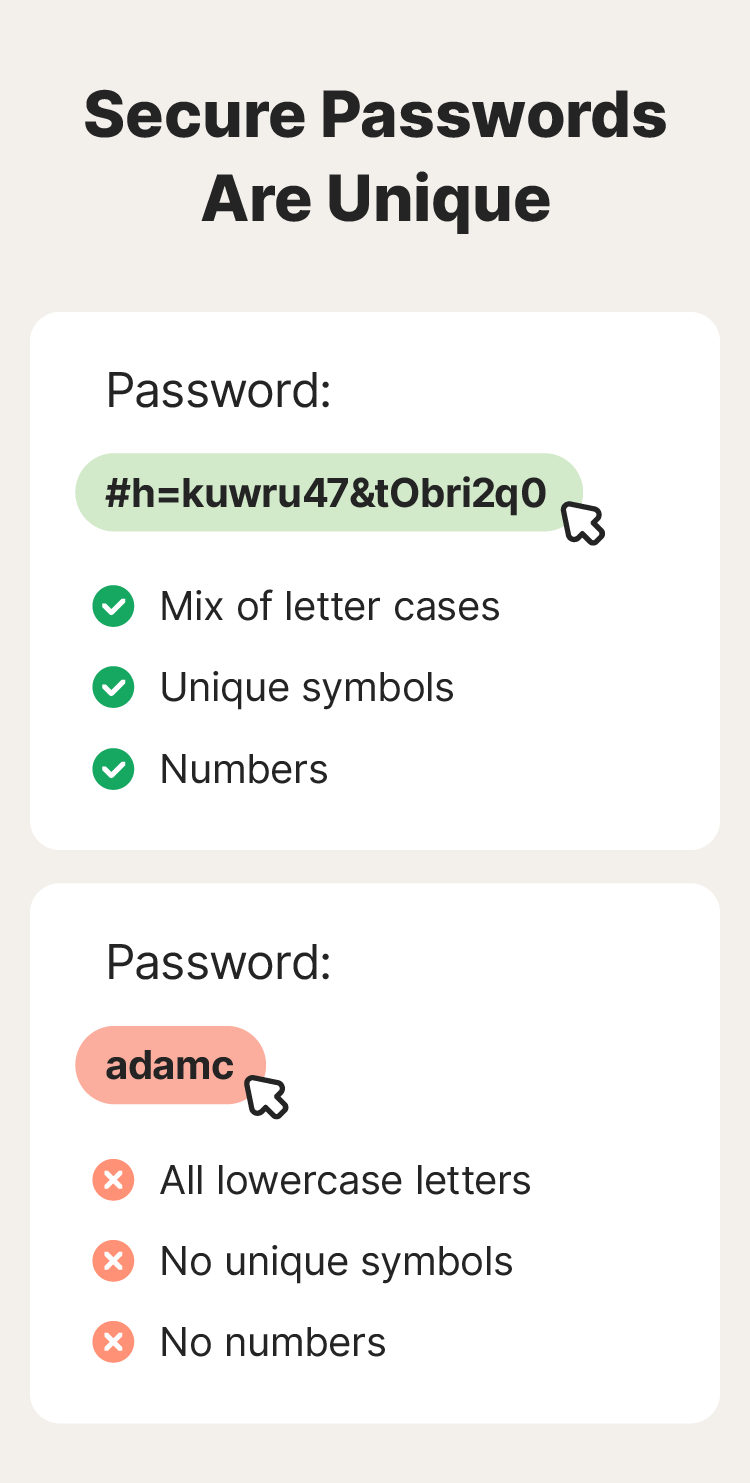
Now you are ready to input your new credentials. Find the text box labeled Password, Passphrase, WPA Key, or Network Key. Delete the existing text completely before typing your new choice. This is the most critical step in learning how to change the password in WiFi router configurations effectively.
Requirements for a Secure Password
A weak password invites hackers back onto your network. Follow these rules when creating your new key:
* Use at least 12 characters for maximum difficulty.
* Mix uppercase and lowercase letters throughout the string.
* Include numbers and special symbols like ! or #.
* Avoid personal details like names, birthdays, or addresses.
* Do not use common dictionary words or simple sequences.
Update Your Network Name (SSID)
While you are in this menu, change your SSID to something unique. Avoid using your last name or apartment number in the title. A generic but recognizable name helps you identify your network in crowded areas while protecting your privacy. This small change adds an extra layer of obscurity against casual snoopers.
Enable WPA3 Encryption and Disable Risks
Changing the text is not enough. You must ensure the router uses the strongest available encryption standard to protect data transmission. Look for a dropdown menu labeled Security Mode, Authentication, or Encryption Type.
Select WPA3 or WPA2 Security Protocols
Choose WPA3-Personal if your router supports it, as this is the current gold standard. If WPA3 is unavailable, select WPA2-Personal (AES). Never select WEP or original WPA options, as hackers can break these in minutes. Some routers offer a transitional mode that supports both older and newer devices safely.
Turn Off Vulnerable Features
Scan the advanced settings for features that create security gaps.
* WPS (Wi-Fi Protected Setup): Disable this feature immediately because it is vulnerable to brute-force attacks.
* Remote Management: Turn this off unless you specifically need to access your router from outside your home.
Disabling these options reduces the surface area for potential attacks. This step takes only seconds but significantly hardens your network defense.
Save Changes and Reboot the Router
Your new settings will not take effect until you apply them. Review your new password carefully for typos, as they are case-sensitive. Click the button labeled Save, Apply, or Update. The system will likely warn you that the connection will be lost.
Wait for the System to Restart
The router will reboot to apply the new configuration. This process usually takes one to two minutes. During this time, your internet connection will drop, and the Wi-Fi signal will disappear from your device list. Do not unplug the power during this phase. Wait until the indicator lights stabilize to confirm the system is ready.
Verify the New Configuration
Once the lights are steady, open a browser on your phone or laptop. Try to load a webpage to confirm internet access is restored. If the page loads, your new password is active and working. If not, double-check that you entered the password correctly on your device.
Reconnect All Devices to the Network
Every device that previously connected to your Wi-Fi is now locked out. You must manually reconnect each one using the new credentials. This includes smartphones, tablets, laptops, smart TVs, and printers.
Steps to Reconnect Your Devices
- Open the Wi-Fi settings on your device.
- Find your updated network name (SSID) in the list.
- Select the network and enter the new password when prompted.
- Confirm the connection and test by loading a website.
Handle Smart Home and IoT Devices
Smart plugs, cameras, and thermostats often require extra steps. Some may need you to “forget” the old network in their specific app before reconnecting. Others might require a physical reset if they fail to join automatically. Be patient with these devices as they re-establish their connection to the secure network.
Special Instructions for Verizon Fios Users
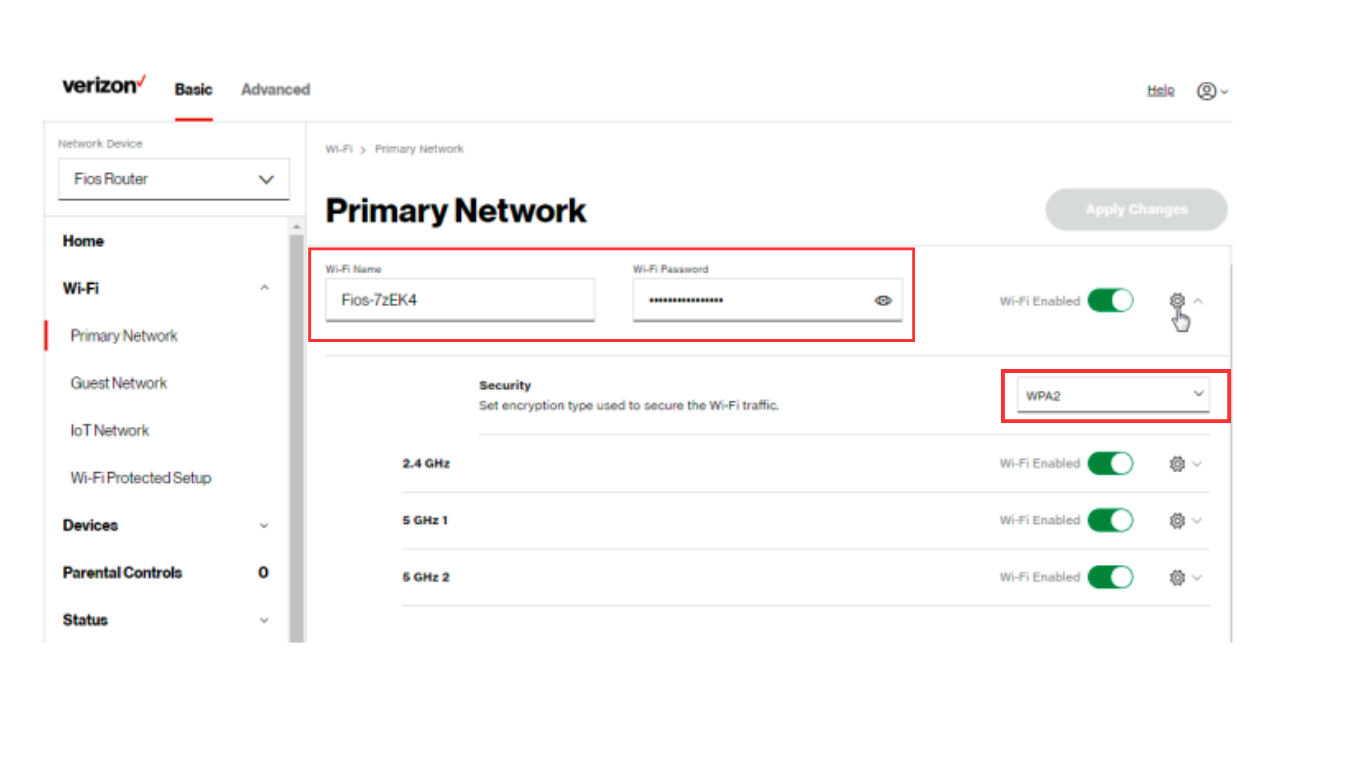
Verizon Fios customers have a unique advantage with dedicated tools for management. You can change your credentials without typing an IP address if you prefer the portal method. This applies to Quantum Gateway and Advanced Router models.
Use the My Verizon Portal
- Log in to your account at the My Verizon website.
- Navigate to Home and select Internet under Services.
- Find My Network and click Manage next to your specific network.
- Edit the Network Name and Password fields directly.
- Click Save Changes to apply updates instantly.
Manual Configuration for Fios Routers
If you prefer the manual method or have an older model, use the standard IP approach. Enter 192.168.1.1 in your browser, log in with your admin credentials, and navigate to Wireless Settings. The process mirrors the general steps outlined earlier in this guide. Both methods achieve the same result of securing your home network.
Troubleshoot Common Connection Issues
Sometimes things do not go smoothly after a password change. You might face login errors or connection failures. Understanding these common pitfalls helps you resolve them quickly without panic.
Forgotten Admin Login Credentials
If you cannot log into the admin panel because you forgot the custom username or password, you must reset the router. Locate the small pinhole button on the back of the unit. Press and hold it for 10 to 15 seconds until the lights flash. This restores factory defaults, allowing you to log in with the credentials on the label. Note that this erases all custom settings.
Devices Fail to Connect
If a device refuses to join, check for case-sensitive typos in the password. Ensure the device is trying to connect to the correct security type (WPA2 or WPA3). You can also try forgetting the network on the device and searching for it again. Clearing your browser cache or using incognito mode can fix admin page loading errors.
Frequently Asked Questions About Changing Router Passwords
How often should I change my Wi-Fi password?
You should change your password every three to six months. It is also wise to update it immediately after guests visit your home or if you suspect unauthorized activity on your network.
Will changing the password disconnect my devices?
Yes, every device currently connected to your Wi-Fi will lose internet access. You must manually reconnect each device using the new password once the router finishes rebooting.
What happens if I forget my new password?
If you forget the new Wi-Fi password, you can log into the router admin panel to view or reset it. If you also forget the admin login, you must physically reset the router to factory defaults using the pinhole button.
Can I change the password from my phone?
Yes, you can change the password from a smartphone as long as it is connected to the Wi-Fi network. You simply access the router IP address via your mobile browser or use the provider’s specific app.
Is WPA3 better than WPA2 for home networks?
Yes, WPA3 is the newest and most secure encryption standard available. It offers stronger protection against password guessing attacks. However, WPA2 is still considered secure if your devices do not support WPA3.
Key Takeaways for Securing Your Wi-Fi Network
Learning how to change the password in WiFi router settings is a fundamental skill for digital safety. By accessing your admin panel, selecting WPA3 encryption, and creating a complex password, you effectively block unauthorized users. Remember to reconnect all your devices and update your firmware regularly to maintain a secure environment.
Take action today by logging into your router and updating your credentials. Your personal data and internet speed depend on keeping your network protected from intruders.



