
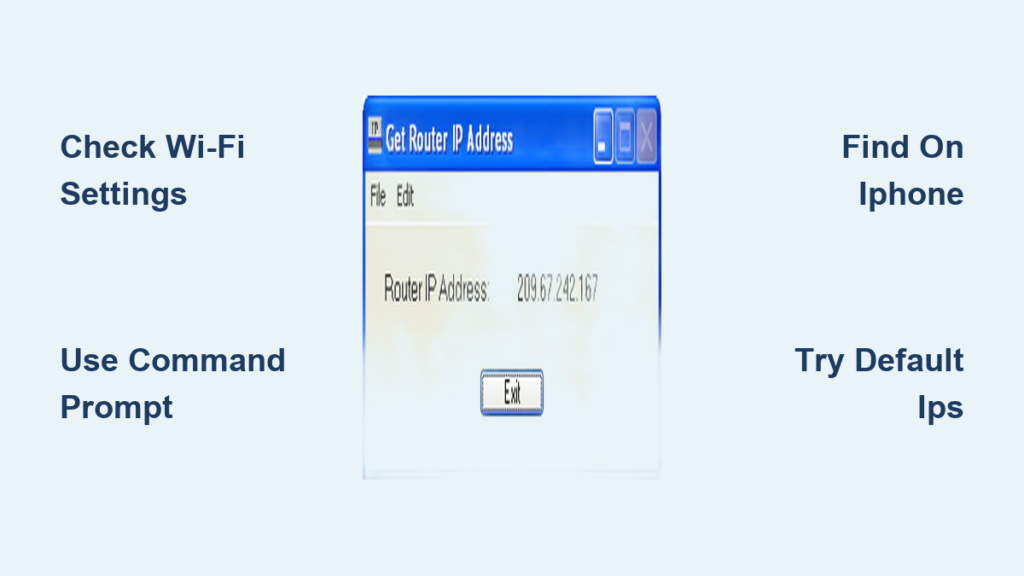
You are trying to change your Wi-Fi password or set up parental controls but cannot access the settings page. The missing piece of the puzzle is often simply how to find WiFi router IP address on your specific device. Without this unique number, your network administration panel remains locked and unreachable.
This guide provides exact steps to locate that address on Windows, Mac, iPhone, Android, and Samsung devices. You will learn multiple methods to identify your gateway so you can manage your network security and performance immediately.
Locate Router IP on Windows Using GUI or Command
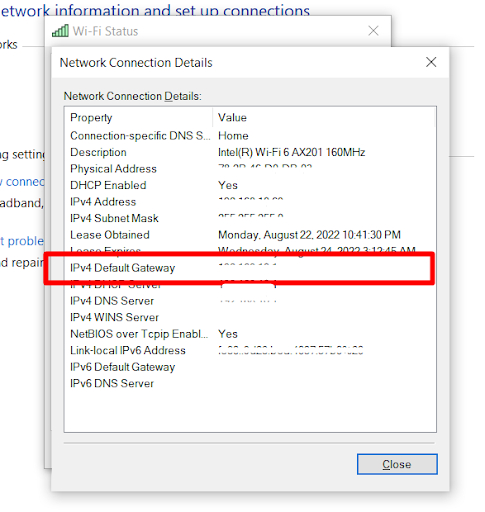
Windows users have two reliable ways to discover their gateway address without installing extra software. You can use the visual network settings or a quick command line tool depending on your preference. Both methods yield the same accurate result in seconds.
Use Network Connection Details Menu
This method works well for users who prefer clicking through menus rather than typing commands. It displays all connection stats including your specific gateway number.
- Click the network icon in your taskbar to open status options.
- Select Network & Internet settings from the popup menu.
- Click on Change adapter options to view active connections.
- Double-click your current Wi-Fi or Ethernet connection icon.
- Press the Details button to open the network information window.
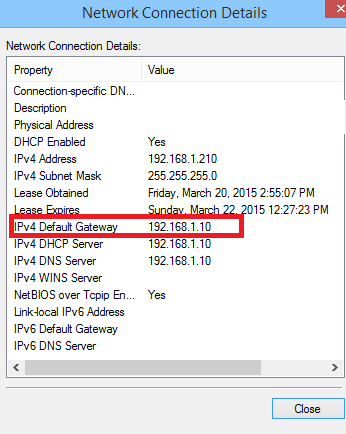
- Find the line labeled IPv4 Default Gateway to see your router IP.
Pro Tip: Ensure you are checking the active connection if you have multiple adapters enabled on your computer.
Run IPConfig Command in Terminal
Power users often prefer this method because it lists all network data in one clean text block. It is the fastest way to get your numbers if you know the command.
- Press Windows + R keys together to open the Run dialog box.
- Type
cmdinto the field and hit Enter to launch Command Prompt. - Type
ipconfigin the black window and press Enter again. - Scroll through the text to find your active Wi-Fi or Ethernet section.
- Locate the Default Gateway entry to identify your router address.
Quick Copy: You can highlight the IP address with your mouse and press
Ctrl + Cto copy it for pasting later.
Find Gateway Address on macOS Systems
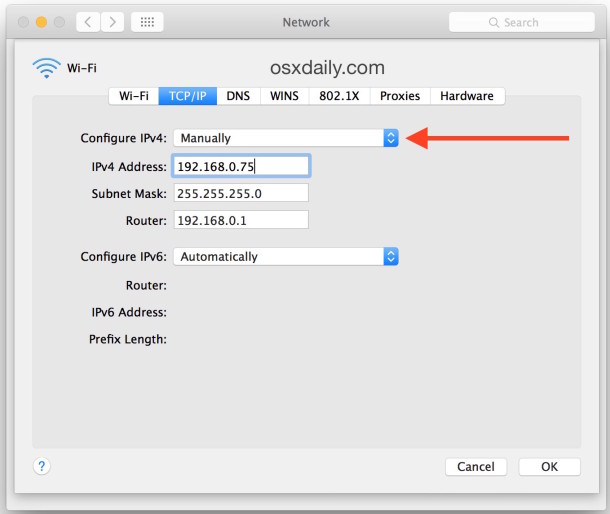
Apple devices store network configuration data within the system preferences menu. The process is consistent across recent versions of macOS and requires only a few clicks.
Access TCP/IP Tab in Network Settings
You do not need to be a technical expert to navigate the Mac interface for this information. The router address is clearly labeled under the TCP/IP protocol settings.
- Click the Wi-Fi icon located in the top right menu bar.
- Select Open Network Settings or Open Network Preferences.
- Click the Advanced button next to your connected network name.
- Navigate to the TCP/IP tab at the top of the new window.
- Read the number next to Router which represents your gateway IP.
Note: Do not confuse the Router field with the IPv4 Address field as these are two different numbers.
Retrieve Router IP on iPhone and iPad

iOS makes it very simple to view network details directly from the home screen settings. You do not need to download any third-party applications to see this data.
Check Wi-Fi Information Page
The interface is clean and displays the gateway address prominently below your device IP. This method works on all modern iPhones and iPads running recent iOS versions.
- Open the Settings app on your home screen.
- Tap on Wi-Fi to view your wireless connections.
- Tap the blue Info (i) icon next to your connected network.
- Scroll down slightly to find the section labeled Router.
- The number displayed here is the IP address you need for admin access.
Visual Cue: The Router field sits directly below the Subnet Mask line in the list of details.
Identify Gateway on Android and Samsung Phones
Android interfaces vary by manufacturer but the core path to network details remains similar. Most devices show the gateway under the specific Wi-Fi network properties.
Standard Android Network Details
Most Android phones follow a logical path through the main settings menu to reveal IP information. You may need to tap a few times to expand the full details.
- Open the Settings application on your phone.
- Go to Network & Internet and select Wi-Fi.
- Tap directly on the name of the network you are currently using.
- Scroll down to find the Gateway entry in the list.
- The number shown is your router IP address for browser access.
On Some Devices: You might need to tap an Advanced arrow to expand the hidden network details section.
Samsung Galaxy Specific Instructions
Samsung devices include a dedicated shortcut that sometimes opens the login page directly. This feature saves you the step of manually typing the address into a browser.
- Tap the Settings icon on your Samsung device.
- Select Connections and then tap Wi-Fi.
- Tap on your active network name to view status.
- Press the gear icon to open network management options.
- Tap Manage router to see the IP or launch the admin page.
Shortcut: The Manage router option may automatically open your web browser with the correct IP loaded.
Google Pixel Device Steps
Google Pixel phones group advanced network data under a specific details menu within the Wi-Fi settings. The layout is clean and easy to read.
- Open Settings on your Pixel phone.
- Tap Network & internet followed by Wi-Fi.
- Tap the name of your connected network.
- Press the gear icon to access more options.
- Select Advanced and look under Network details for the Gateway IP.
Access Router Admin Panel with IP
Once you have the number, you must enter it into a web browser to reach the control panel. This step transforms a string of numbers into a functional management interface.
Enter Address in Web Browser
Any standard browser works for this task including Chrome, Safari, Firefox, or Edge. You must type the number exactly as it appears in your settings.
- Open your preferred web browser application.
- Click inside the address bar at the top of the window.
- Type or paste the router IP address like
192.168.1.1. - Press Enter on your keyboard to load the page.
- Wait for the router login screen to appear with username fields.
Success Signal: A login prompt branded with your router manufacturer logo indicates success.
Input Administrator Credentials
You need valid credentials to enter the system and make changes to your network. These are often found on a sticker on the bottom of the device.
- Default Logins: Common pairs include admin/admin or admin/password.
- Custom Logins: Use your personalized credentials if you changed them previously.
- Sticker Info: Check the physical label on the router for factory defaults.
Login Fails: Try resetting the router if you do not know the custom password you set previously.
Why Knowing Your Router IP Matters
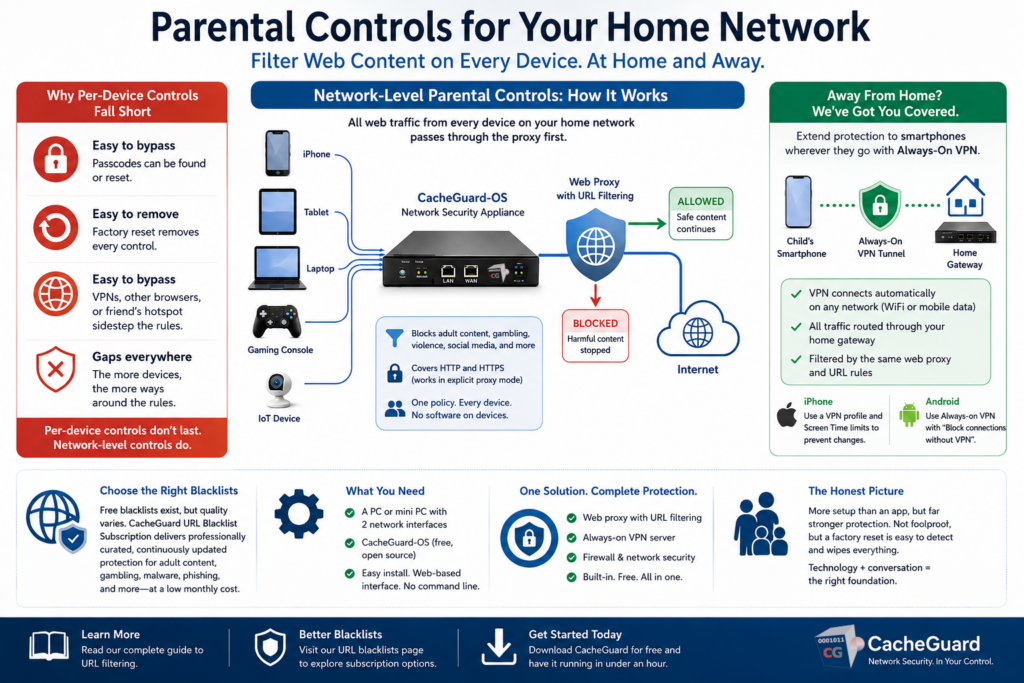
Finding this address is not just a one-time fix but a key to ongoing network health. It allows you to customize how your internet works for your specific household needs.
Secure and Customize Network Settings
You can change your network name and password to prevent unauthorized access. This keeps neighbors from using your bandwidth and protects your personal data.
- Update your SSID to something unique and identifiable.
- Create a strong password to block intruders.
- Monitor which devices are currently connected to your network.
Optimize Performance and Parental Controls
Advanced settings let you manage screen time and improve signal stability in crowded areas. You can reduce lag by selecting better channels for your devices.
- Set schedules for internet access on specific devices.
- Block inappropriate websites for children automatically.
- Switch Wi-Fi channels to avoid interference from neighbors.
Troubleshoot IP Address Access Issues
Sometimes the correct number does not load the page immediately due to connection glitches. Verifying your setup can resolve most of these common access problems.
Verify Connection and Accuracy
Ensure your device is talking to the correct router before assuming the IP is wrong. A simple disconnection can cause the device to pull data from a different source.
- Confirm you are connected to the correct Wi-Fi network name.
- Disconnect and reconnect to refresh the network handshake.
- Double-check that you typed every digit of the IP correctly.
Try Alternative Default Addresses
If your specific gateway IP fails, the router might be using a standard default address. Many manufacturers ship devices with the same factory IP configuration.
- Test
192.168.0.1in your browser address bar. - Try
192.168.1.1which is very common for many brands. - Attempt
10.0.0.1if the others do not work.
Check the Label: Flip your router over to find the default IP printed on the bottom sticker.
Prevent Future Access Problems
Saving your network details now saves you time when you need to make changes later. A little organization prevents frustration during future troubleshooting sessions.
Save and Bookmark Login Information
Storing your IP and password securely ensures you never lose access again. Digital password managers are excellent for keeping this sensitive data safe.
- Save the IP and password in a secure password manager app.
- Write the details on a physical label and stick it to the router.
- Bookmark the admin page in your browser for one-click access.
Security Tip: Change your default admin password to something strong and unique immediately.
Frequently Asked Questions About Finding Router IP
What is the most common default router IP address?
The most frequently used default addresses are 192.168.1.1, 192.168.0.1, and 10.0.0.1. However, your specific network may assign a different dynamic address if conflicts exist.
Can I find my router IP if I am not connected to Wi-Fi?
No, your device must be connected to the router via Wi-Fi or Ethernet cable to retrieve the gateway address. Without a connection, the device cannot communicate with the router to get the IP.
Why does typing the IP address not load the login page?
This usually happens if the device is not connected to the correct network or if the IP was typed incorrectly. Ensure there are no extra spaces and that you are using the exact Default Gateway number.
Is the router IP the same as my public IP address?
No, the router IP (Default Gateway) is a private address for local network management. Your public IP is what the internet sees and is different from the internal address used to access settings.
How do I find my router IP on an iPhone?
Open Settings, tap Wi-Fi, and click the blue Info icon next to your network. Scroll down to the Router field to see the IP address listed there.
Key Takeaways for How to Find WiFi Router IP Address
Knowing how to find WiFi router IP address gives you full control over your home network security and performance. Whether you use Windows, Mac, or mobile devices, the gateway address is always available in your network settings. Save this number and your login credentials today to avoid future lockouts.
Take action now by locating your router IP using the steps above for your specific device. Once you have the address, log in to change your password and optimize your Wi-Fi channels for better speed.



