Trying to change your Wi-Fi password or fix a connection glitch often requires accessing your router settings, yet finding the gateway address on an iPhone feels hidden. You do not need complex commands or extra apps because the solution lies directly within your standard Wi-Fi settings.
This guide reveals exactly how to find router IP address on iPhone using only the Settings app. You will learn to locate the specific number needed to log in, copy it instantly, and troubleshoot any access issues that might arise during the process.
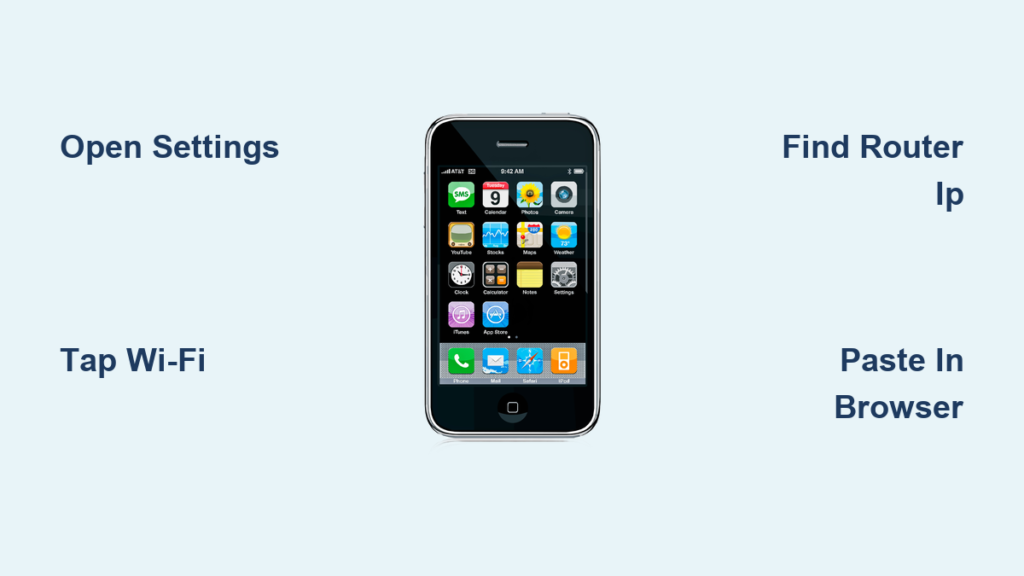
Open iPhone Wi-Fi Settings to Begin Search
The journey to your network controls starts with the central configuration hub on your device. You must access the specific menu where your current connection details are stored and managed.
Launch the Settings Application
Tap the gray gear icon labeled Settings on your home screen. This application serves as the command center for all system functions including sound, privacy, and network connections.
Select the Wi-Fi Menu Option
Find and tap Wi-Fi in the left-hand column or main list. Ensure the toggle switch at the top is green, indicating that your wireless radio is active and searching for networks.
Note: Your iPhone must be actively connected to the specific network you wish to manage. If you are using cellular data, the router IP displayed will not match your home gateway.
Locate Router IP in Network Information Screen
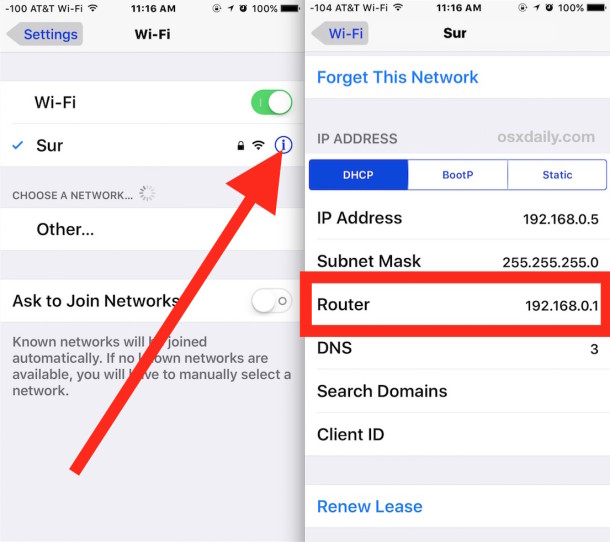
Once you are in the Wi-Fi menu, your device displays all technical details about your current connection. This screen holds the specific numerical address required for administrative access.
Tap the Blue Information Icon
Look for the blue circle with an “i” inside it next to your connected network name. Tapping this icon opens the detailed status page for that specific wireless connection.
Identify the Router Field Value
Scroll down until you see the section titled IPv4 Address. Look for the line explicitly labeled Router to find your target number.
* The IP Address line shows your phone’s local location.
* The Router line shows the gateway address you need.
* Ignore any IPv6 addresses as they are rarely used for admin login.
✅ Key Tip: The number next to Router is your default gateway. It usually looks like
192.168.1.1or10.0.0.1.
Copy and Enter IP Address in Browser
Now that you have identified the correct numerical address, you need to transfer it to a web browser to reach the login page. This step bridges the gap between viewing the number and using it.
Copy the Address to Clipboard
Tap directly on the numbers listed next to the Router label. Your iPhone will briefly display a “Copied” confirmation, saving the address to your clipboard for instant pasting.
Paste Address into Web Browser
Open Safari, Chrome, or Firefox and tap the address bar at the top. Select Paste to insert the IP address and hit Go to load the administrative interface.
Log In with Credentials
Enter your username and password when prompted by the router page. These credentials are often found on a sticker on the router itself and are separate from your Wi-Fi password.
* Common defaults include admin for both fields.
* Some ISPs use unique passwords printed on the device label.
Understand Common Default Gateway Addresses
:max_bytes(150000):strip_icc()/192-168-1-0-818388-e4e6538cfb554e209588ab3be9c48e5f.png)
Most home networks utilize standard private IP ranges for their gateways. Knowing these common patterns helps you verify if the number you found looks correct.
| Common IP Address | Typical Manufacturers |
|---|---|
192.168.1.1 |
TP-Link, Netgear, D-Link |
192.168.0.1 |
Linksys, some ISP modems |
10.0.0.1 |
Xfinity, AT&T, Motorola |
If your iPhone shows a different variation, it is likely still correct as some providers customize their gateway schemes.
Troubleshoot Router IP Access Problems
Sometimes entering the address does not immediately load the login page. Several common configuration issues can block this local connection attempt.
Verify Active Wi-Fi Connection
Confirm that you are still connected to the correct network and not switching to cellular data. A blank Router field often indicates a lost connection or a guest network restriction.
Disable iCloud Private Relay
Apple’s privacy features can sometimes interfere with local network requests.
1. Go to Settings and tap your name.
2. Select iCloud and then Private Relay.
3. Toggle the switch off temporarily to test the connection.
Switch Web Browsers for Compatibility
Security settings in one browser might block local IP addresses while another allows them. Try switching from Safari to Chrome or Firefox if the page fails to load.
Avoid Common Mistakes When Finding IP
Even simple tasks can go wrong if you misinterpret the data on your screen. Avoiding these frequent errors saves time and frustration.
Confusing IPv4 with IPv6 Addresses
The Router field you need is always under the IPv4 Address section. Do not attempt to use the long alphanumeric IPv6 address for admin access as most interfaces do not support it.
Using the Wrong Network Source
Ensure you are not connected to a neighbor’s open Wi-Fi or a coffee shop network. The IP address you find will belong to their router, not your home device.
Typing IP into Search Engines
Never type the IP address into Google or Siri. You must paste it directly into the browser’s address bar so the device treats it as a destination URL rather than a search query.
Manage Network Settings After Login
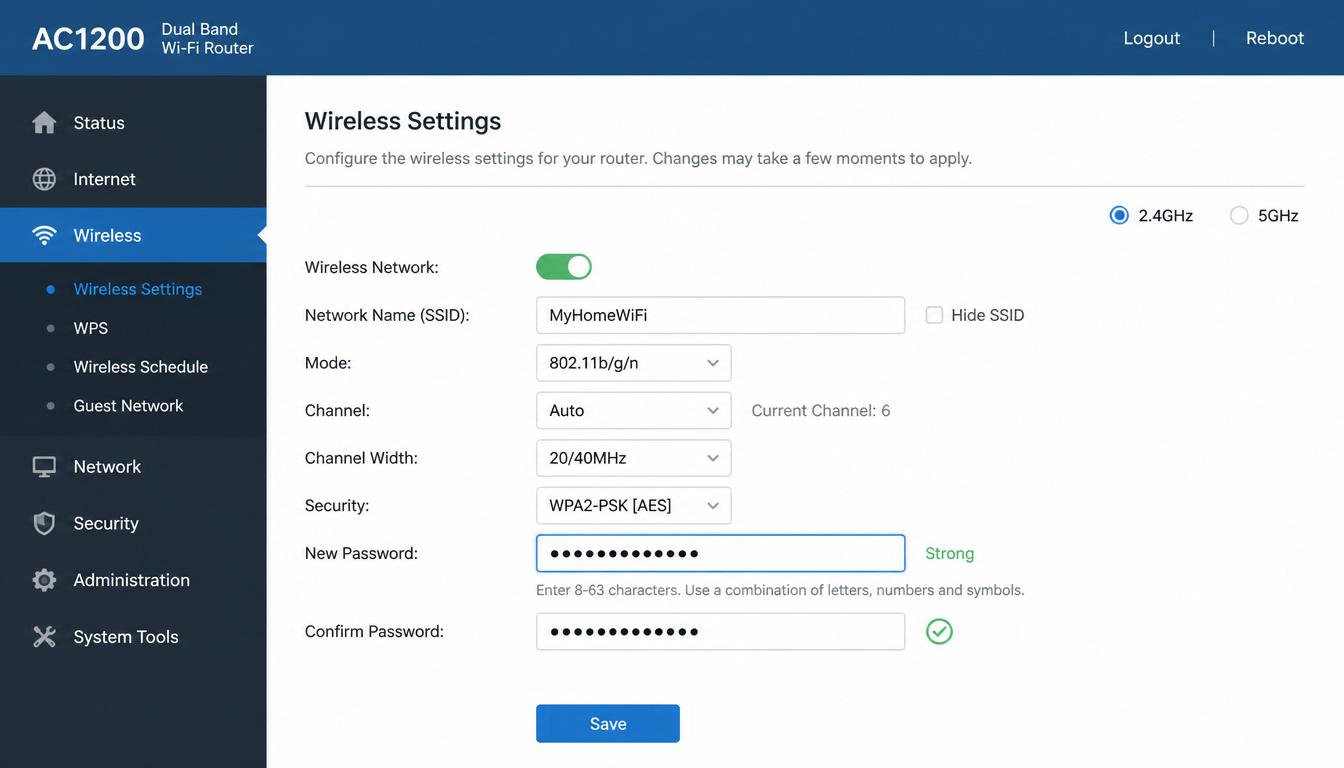
Successfully entering the IP address grants you full control over your home network infrastructure. This access allows for critical security and performance adjustments.
Update Security Credentials
Change your Wi-Fi password and network name (SSID) to prevent unauthorized access. You can also enable guest networks to isolate visitor devices from your main computers.
Optimize Performance Settings
Adjust Wi-Fi channels to reduce interference from neighbors. You can also set up Quality of Service (QoS) rules to prioritize streaming or gaming traffic.
Perform Maintenance Tasks
Check for firmware updates to patch security vulnerabilities. You can also view connected devices to identify any unknown users on your network.
💡 Pro Tip: Save your router configuration to a file once logged in. This backup allows you to restore settings quickly if you ever need to reset the device.
Compare iPhone Method to Other Devices
Finding the gateway address on an iPhone is often faster than on desktop computers. The graphical interface eliminates the need for command-line tools.
| Platform | Method | Difficulty Level |
|---|---|---|
| iPhone | Settings > Wi-Fi > “i” Icon | Very Easy |
| Windows | Command Prompt (ipconfig) |
Moderate |
| Mac | Network Preferences > Advanced | Easy |
| Android | Varies by Manufacturer | Variable |
The iPhone approach wins for consistency since the menu structure remains the same across all modern iOS versions.
Frequently Asked Questions About Router IP on iPhone
What if the Router field is blank on my iPhone?
A blank field usually means your device is not properly connected to the network. Try toggling Wi-Fi off and on again or forgetting the network and rejoining it.
Can I find my router IP without being connected to Wi-Fi?
No, your iPhone must be connected to the specific network to display its router IP address. Cellular data connections will not show your home router details.
Why does 192.168.1.1 not load in my browser?
Your router might use a different default address like 192.168.0.1. Check the sticker on your router or the Router field in your iPhone settings for the exact number.
Is the router IP address the same as my public IP?
No, the router IP is a private local address (like 192.168.x.x) used inside your home. Your public IP is what websites see and is different from the gateway address.
Do I need an app to find my router IP on iPhone?
No, you do not need any third-party applications. The built-in Settings app provides this information natively for all networks you join.
Key Takeaways for Finding Router IP Address on iPhone
Mastering how to find router IP address on iPhone gives you direct control over your home network security and performance. By simply tapping the “i” icon in your Wi-Fi settings, you can locate the gateway, copy it, and log in to make essential changes.
Remember to verify you are on the correct network and use the IPv4 address specifically. Start by opening your Settings today to secure your Wi-Fi and optimize your connection speed.