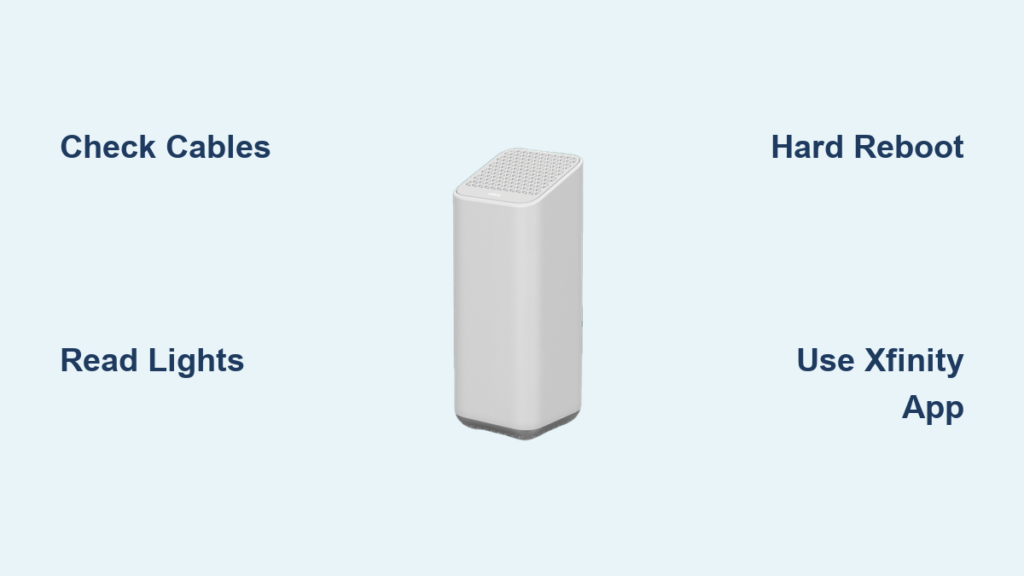
Your streaming stops and devices disconnect when your Xfinity router WiFi stops working unexpectedly. Blinking lights or a sudden loss of signal often points to a simple fix you can do yourself right now.
This guide shows you how to read indicator lights, secure loose cables, and perform a hard reboot to restore your connection. You will learn specific steps to diagnose power issues and verify service status using the Xfinity app.
Verify Power Supply and Coaxial Cable Connections
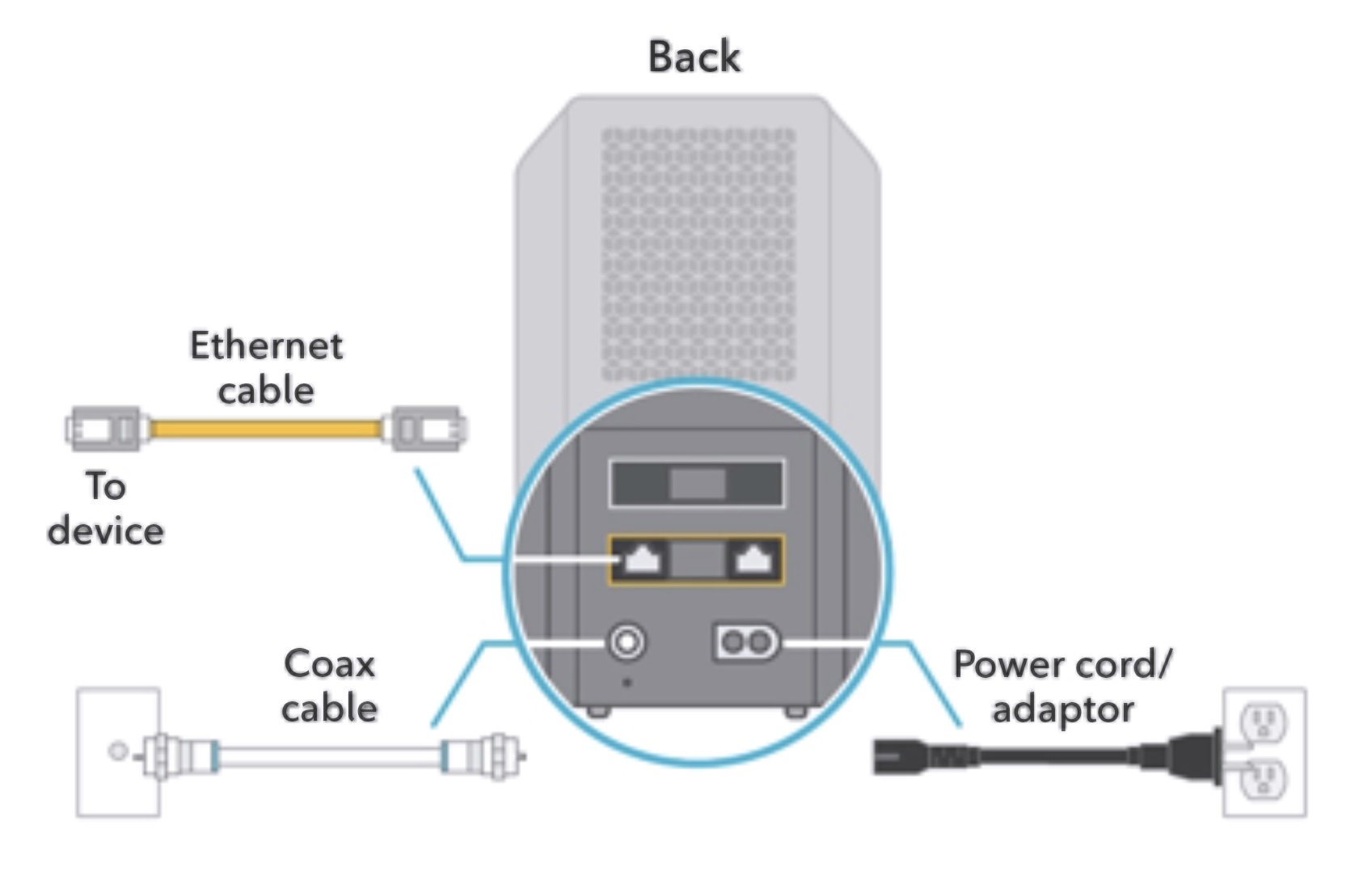
A loose cable or faulty outlet often causes connection failures before you even need to troubleshoot software. Checking these physical links first saves time and rules out the most common hardware culprits immediately.
Test the Wall Outlet and Power Cord
Start by ensuring your gateway receives consistent electricity from the wall. A complete lack of indicator lights usually means the device has no power source at all.
* Confirm the white power cord is firmly seated in the gateway and the wall outlet.
* Plug a different device like a lamp into the same outlet to verify it works.
* Inspect the power adapter for swelling, burn marks, or excessive heat.
Replace any damaged cords only with Xfinity-approved parts to avoid further hardware damage. If the outlet fails the test, check your home circuit breaker before proceeding.
Secure Coaxial Connections to Specification
Signal loss frequently stems from a coaxial cable that is not tight enough or is damaged. You must ensure the cable connecting your gateway to the wall is secure at both ends.
* Tighten the coaxial connector on the back of the gateway until it is fingertight.
* Trace the line to the wall outlet and ensure that connection is equally snug.
* Look for kinks, crushing, or exposed wiring along the length of the cable.
Warning: Do not overtighten the connector as this can strip threads or bend internal pins. If you see physical damage to the line, contact Xfinity for a replacement rather than trying to splice it.
Decode Indicator Light Patterns on Your Gateway
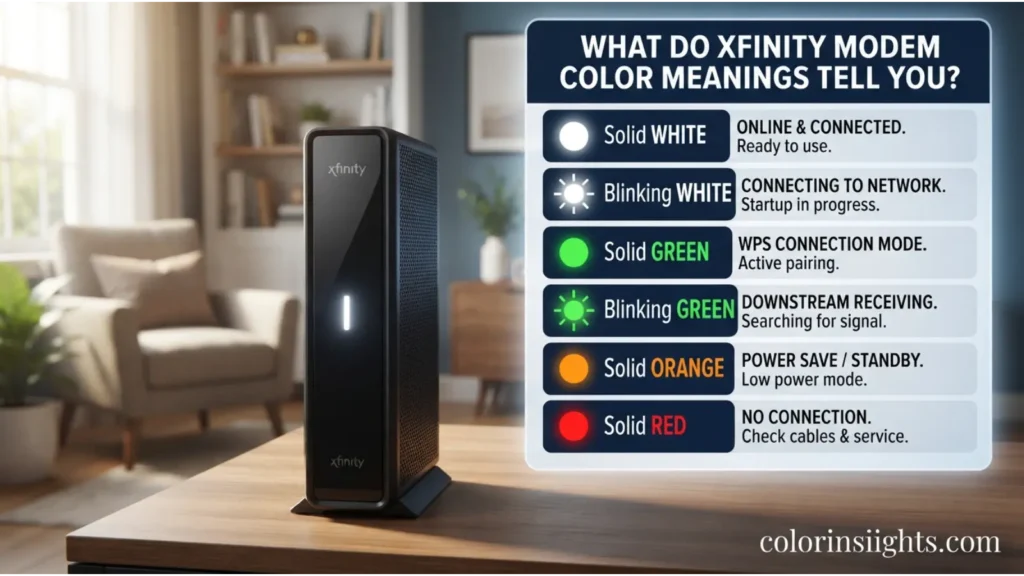
The LED light on your Xfinity router provides immediate clues about why your WiFi is not working. Interpreting these colors correctly tells you whether to wait, reboot, or call for help.
Solid White Means WiFi Is Active
A solid white light indicates your gateway is online and broadcasting normally. If you see this light but cannot connect, the issue likely lies with your specific device or login credentials. Try connecting a different smartphone to confirm the network status.
Blinking White Indicates Connection Progress
A blinking white light means the gateway is booting up or attempting to reconnect to the network. This is normal behavior immediately after a power outage or restart. Wait up to 10 minutes for the light to turn solid white before taking further action.
Blinking Orange Signals Update or Weak Signal
A blinking orange light suggests the device is downloading a firmware update or detecting a weak signal from the coaxial line. If this persists for more than 20 minutes, check your coaxial connections for looseness. Persistent orange blinking may indicate line interference requiring a technician.
Red Light Indicates Hardware or Outage Emergency
A red light signals a critical failure such as hardware malfunction or a confirmed service outage. Do not attempt complex fixes when you see red. Open the Xfinity app immediately to check for area-wide service interruptions.
No Light Confirms Total Power Failure
If there is no light at all, power is not reaching the gateway unit. Recheck your outlet with a working device and try a different power socket if available. If the outlet works but the router remains dark, the power cord or internal components may be damaged.
Perform a Hard Reboot Using the 60-Second Rule
A proper hard reboot clears network conflicts and resolves most Xfinity router WiFi not working scenarios. You must follow the specific timing to ensure the device memory clears completely.
Execute the 60-Second Reset Procedure
Simply unplugging and replugging quickly often fails to reset the network settings properly. Follow these exact steps to ensure a successful reboot.
1. Unplug the power cord directly from the gateway unit.
2. Wait exactly 60 seconds to allow internal memory to clear fully.
3. Plug the power cord back in and wait 5 to 10 minutes for the boot sequence.
4. Watch for the solid white light which confirms WiFi restoration.
Avoid pressing the small reset button unless instructed by support, as this factory resets your custom settings.
Schedule Monthly Maintenance Reboots
Prevent future slowdowns by rebooting your Xfinity router every 1 to 2 months. Set a calendar reminder to perform this maintenance task regularly. This process clears cached data and prevents firmware glitches from accumulating over time.
Use the Xfinity App to Diagnose Service Outages
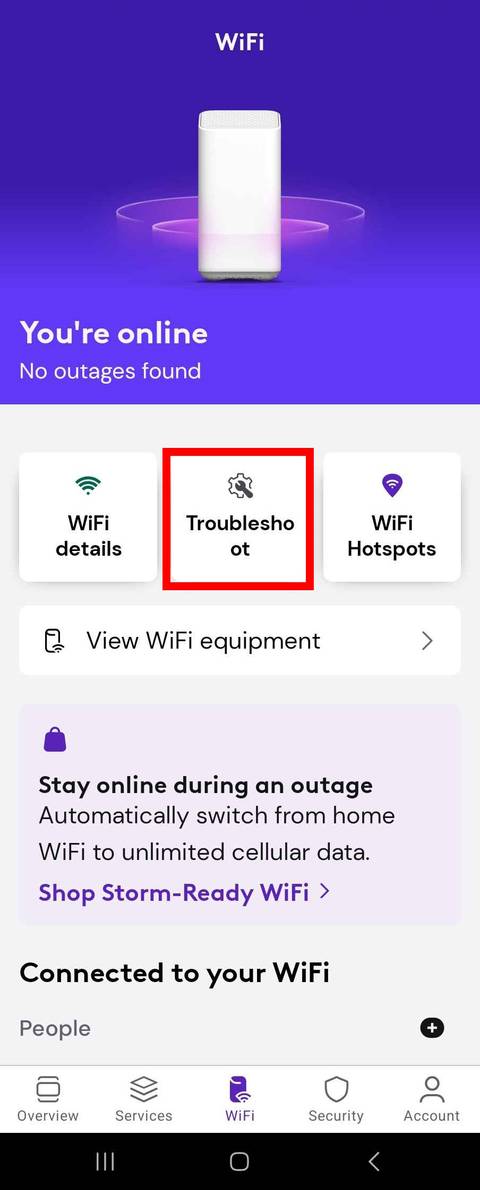
The Xfinity mobile app offers powerful tools to verify service status and run automated diagnostics remotely. Using this resource helps you determine if the problem is on your end or part of a larger network issue.
Check Service Status and Gateway Health
Open the Xfinity app and tap the “Wi-Fi” tab at the bottom of the screen. If your gateway shows “Online” with no listed outages, the issue is local to your home network. If an outage is reported, wait for Xfinity to resolve it while monitoring push notifications for updates.
Run Automated Troubleshooting Tools
If the app shows your gateway is offline or unresponsive, use the built-in diagnostic features.
* Tap the “Troubleshoot” button within the app interface.
* Follow the on-screen prompts to run deep-dive diagnostics.
* Allow the tool to test signal strength and internal hardware status.
If the automated tool cannot fix the issue, it will connect you directly to live support. This method resolves cases faster than calling support without prior diagnostics.
Fix Browser-Specific Connectivity Issues
Sometimes your Xfinity router WiFi works fine but websites fail to load due to browser settings. Disabled JavaScript can mimic a total internet outage on specific devices.
Enable JavaScript in Chrome Settings
- Click the three-dot menu and select Settings.
- Go to Privacy and security then Site Settings.
- Click JavaScript and toggle the switch to Allowed.
Turn On JavaScript in Firefox Options
- Click the three-line menu and select Settings.
- Navigate to Privacy & Security on the left panel.
- Scroll to Permissions and ensure Enable JavaScript is checked.
Permit Scripting in Microsoft Edge
- Click the three-dot menu and choose Settings.
- Go to Privacy, search, and services then JavaScript.
- Toggle the switch to Allow sites to run JavaScript.
Activate JavaScript in Safari Preferences
- Open Safari and click Safari then Preferences.
- Select the Security tab in the window.
- Check the box labeled Enable JavaScript.
Note: Refresh your web page after making these changes to apply the new settings immediately.
Follow the Ultimate Troubleshooting Flow

Use this proven workflow to resolve Xfinity router WiFi not working issues efficiently without skipping steps. Following a logical sequence prevents wasted time and ensures you address the root cause.
Step-by-Step Fix Sequence
- Inspect physically: Check power and coaxial cables for security and damage.
- Read the lights: Identify if the light is red, orange, white, or absent.
- Check the app: Confirm service status and rule out area outages.
- Hard reboot: Unplug for 60 seconds and wait 10 minutes for recovery.
- Run diagnostics: Use the “Troubleshoot” tool in the Xfinity app.
- Test browser: Enable JavaScript if web pages fail to load.
- Escalate: Contact support via the app if the red light persists.
Common Mistakes to Avoid
- Skipping the wait time: Failing to wait 60 seconds defeats the purpose of a hard reboot.
- Overtightening cables: Excessive force damages connector threads and causes signal loss.
- Ignoring the app: The app provides real-time status that manual checks cannot reveal.
- Assuming total failure: Test multiple devices to see if the issue is isolated to one unit.
Prevent Future WiFi Disruptions
Maintaining your equipment and optimizing placement reduces the frequency of connection drops. Proactive measures keep your Xfinity router WiFi working smoothly for longer periods.
Update Firmware and Position Router
Xfinity gateways update automatically, so avoid unplugging the router overnight. Place your gateway in a central location away from microwaves and thick walls to improve signal coverage.
Monitor Network Usage and Equipment Age
Use the Xfinity app to track connected devices and disconnect unused ones. If your router is over 3 years old, frequent issues may indicate it is time for an upgrade.
Frequently Asked Questions About Xfinity Router WiFi Not Working
Why is my Xfinity router blinking orange?
A blinking orange light means the gateway is updating firmware or detecting a weak coaxial signal. Wait 20 minutes for the update to finish, or check that your coaxial cable is fingertight at both ends.
What does a solid red light mean on my Xfinity gateway?
A solid red light indicates a critical hardware failure or a confirmed service outage in your area. Check the Xfinity app immediately for outage reports before attempting other fixes.
How long should I wait when rebooting my Xfinity router?
You must wait exactly 60 seconds with the power unplugged to clear the device memory. After plugging it back in, allow 5 to 10 minutes for the gateway to fully reboot and establish a connection.
Why won’t websites load even though my WiFi says connected?
Your browser may have JavaScript disabled, which prevents many sites from loading correctly. Enable JavaScript in your browser settings and refresh the page to restore functionality.
How often should I reboot my Xfinity router?
It is recommended to perform a hard reboot every 1 to 2 months for preventative maintenance. This clears cached data and refreshes IP assignments to prevent slowdowns.
Key Takeaways for Fixing Xfinity Router WiFi Not Working
Restoring your connection often starts with checking physical cables and interpreting the indicator lights correctly. A solid white light means your network is active, while red or orange lights require specific actions like rebooting or checking for outages.
Perform a hard reboot by unplugging the device for 60 seconds if you experience persistent connectivity issues. Use the Xfinity app to run diagnostics and verify service status before contacting support for further assistance.