
You need to configure a new device or secure your Wi-Fi network, but you cannot proceed without the router’s IP address. Locating this number is the essential first step for any Xfinity user managing their home network settings.
This guide explains exactly how to find IP address on Xfinity router using phones, PCs, and Macs. You will learn multiple methods to access your gateway details quickly without needing advanced technical skills.
Use the Xfinity xFi Portal and App

The fastest way to locate your gateway information involves the official Xfinity cloud tools. These platforms display your network status and router details without requiring complex commands.
Log Into the xFi Web Portal
You can view your primary gateway details directly through a web browser. This method works on any computer or tablet connected to your network.
- Open your preferred web browser and navigate to the Xfinity website.
- Sign in using your specific Xfinity username and password credentials.
- Select the Devices tab from the main navigation menu.
- Click on your listed gateway or router to view detailed information.
- Locate the Gateway IP Address field within the device details section.
Note: The portal typically displays the internal IP address used for local network management under network information.
Check Details in the xFi Mobile App
Your smartphone provides another convenient option for checking router status and IP details on the go. The app offers a user-friendly interface for all Xfinity customers.
- Download and open the Xfinity xFi application on iOS or Android.
- Log in with your existing Xfinity account credentials.
- Tap the Network icon located at the bottom of the screen.
- Scroll down to find the Gateway or Router Info section.
- Read the IP Address field to see your local router address.
Pro Tip: The mobile app also displays firmware versions and connection status to help diagnose performance issues instantly.
Find IP Address Using Windows Command Prompt
:max_bytes(150000):strip_icc()/2019-03-19_16h09_50-5c914cb946e0fb0001770166.png)
Windows users can discover their router address instantly using built-in system tools. This method provides accurate data directly from your network adapter.
Run the Ipconfig Command
The Command Prompt reveals critical network configuration data with a single text command. It is the most reliable way to see your current default gateway.
- Press the Windows key + R to open the Run dialog box.
- Type
cmdinto the text field and press Enter to launch Command Prompt. - Type
ipconfigin the black window and hit Enter. - Locate your active connection labeled Wi-Fi or Ethernet.
- Find the Default Gateway line to see your Xfinity router IP.
Visual Cue: Most Xfinity users will see
10.0.0.1, though some older models display192.168.1.1.
Troubleshoot Connection Errors
Sometimes the command returns incomplete data if the network handshake fails. You must address these errors before retrieving the correct address.
- If Default Gateway shows
0.0.0.0, your PC is not receiving network information. - Restart your router and reconnect your computer to the Wi-Fi network.
- Run
ipconfig /releasefollowed byipconfig /renewto refresh the connection.
Warning: Avoid changing network settings manually unless you understand the specific impact on your connectivity.
Locate Router IP on Mac Systems
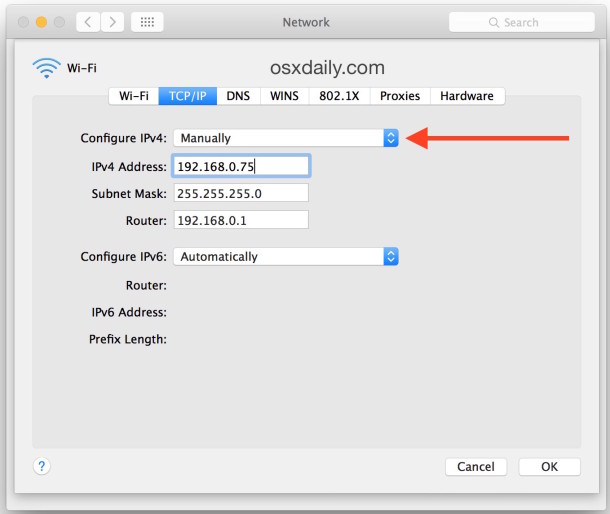
Mac owners can find their gateway address through system preferences or the terminal. Both methods provide immediate access to network configuration data.
Open Network Preferences Menu
The graphical interface on macOS makes viewing network details simple for all users. You do not need to type any code to see your router information.
- Click the Apple menu in the top left corner of your screen.
- Select System Settings or System Preferences depending on your macOS version.
- Click Network in the sidebar to view connection options.
- Select your active Wi-Fi or Ethernet connection from the list.
- Click Details or the Advanced button to open the TCP/IP tab.
- Read the number next to Router to find your Xfinity gateway IP.
Example: If the screen displays “Router: 10.0.0.1,” that specific number is your target address.
Use Terminal for Quick Results
Power users often prefer the Terminal for faster access to network statistics. This command line tool bypasses multiple menu clicks.
- Open Terminal by pressing
Cmd + Spaceand typing “Terminal”. - Type the command
netstat -nr | grep defaultinto the window. - Press Enter to execute the search query.
- View the IP address listed immediately after the word “default”.
Expert Note: The Terminal method is significantly faster for experienced users who want to avoid graphical interface navigation.
Check Gateway IP on Mobile Devices
You can identify your router address using only your smartphone or tablet. This approach is ideal when a computer is unavailable.
Find IP on iPhone and iPad
iOS devices display network details clearly within the standard settings menu. You can access this information in seconds.
- Open the Settings app on your Apple device.
- Tap Wi-Fi to see your current network connections.
- Tap the blue Info (i) icon next to your connected network name.
- Scroll down to the Router line to see the gateway IP address.
Find IP on Android Phones
Android interfaces vary by manufacturer, but the network details remain accessible. Most devices hide this under an advanced menu.
- Go to Settings and select Network & Internet.
- Tap Wi-Fi and then select your connected network name.
- Choose Advanced or Network Details to expand the view.
- Look for the Gateway entry to identify your router IP.
Limitation: Some Android models hide full network info. Use a Wi-Fi analyzer app like Fing if the gateway is not visible.
Access the Router Login Page
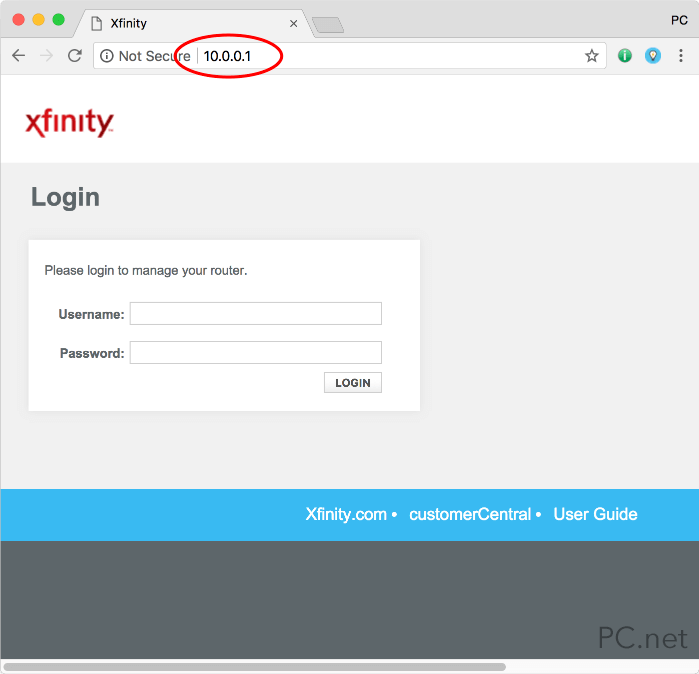
Once you have the IP address, you must verify it by accessing the admin interface. This step confirms you have the correct number.
Enter IP in Your Browser
Typing the address directly into the address bar initiates the login process. Ensure you are connected to your home network first.
- Open any web browser like Chrome, Safari, or Firefox.
- Type
http://10.0.0.1orhttp://192.168.1.1into the address bar. - Press Enter to load the Xfinity gateway login page.
Expected Result: A secure login screen should appear asking for your Xfinity credentials.
Handle Common Login Errors
Users sometimes encounter issues when trying to reach the admin panel. Understanding these errors saves time during troubleshooting.
- Page Not Found: Double-check the IP digits and ensure you are on the home network.
- Login Fails: Use your Xfinity account credentials, not your Wi-Fi password.
- Redirect Loop: Try clearing your browser cache or using an incognito window.
Security Note: Never enter your Xfinity login details on a site that does not use a secure HTTPS connection.
Reset Router If Locked Out
A factory reset restores default settings if you cannot access the interface. Use this only if other methods fail.
Perform a Hard Reset
Resetting erases custom configurations and returns the device to factory defaults. Proceed with caution to avoid losing settings.
- Locate the small Reset button on the back of your Xfinity router.
- Press and hold the button for 10 to 15 seconds using a paperclip.
- Release the button when the lights on the device begin to flash.
- Wait 2 to 3 minutes for the router to fully reboot.
After Reset: Your Wi-Fi name and password revert to the defaults printed on the sticker.
Reconnect and Recheck IP
Your network will return to its standard configuration after a reset. You must reconnect your devices to continue.
- Reconnect your computer or phone to the Xfinity network.
- Repeat the
ipconfigor mobile method to confirm the IP is standard. - Log in using the default credentials found on the device label.
Pro Tip: Write down your new login info immediately after resetting to prevent future lockouts.
Identify Your Xfinity Router Model
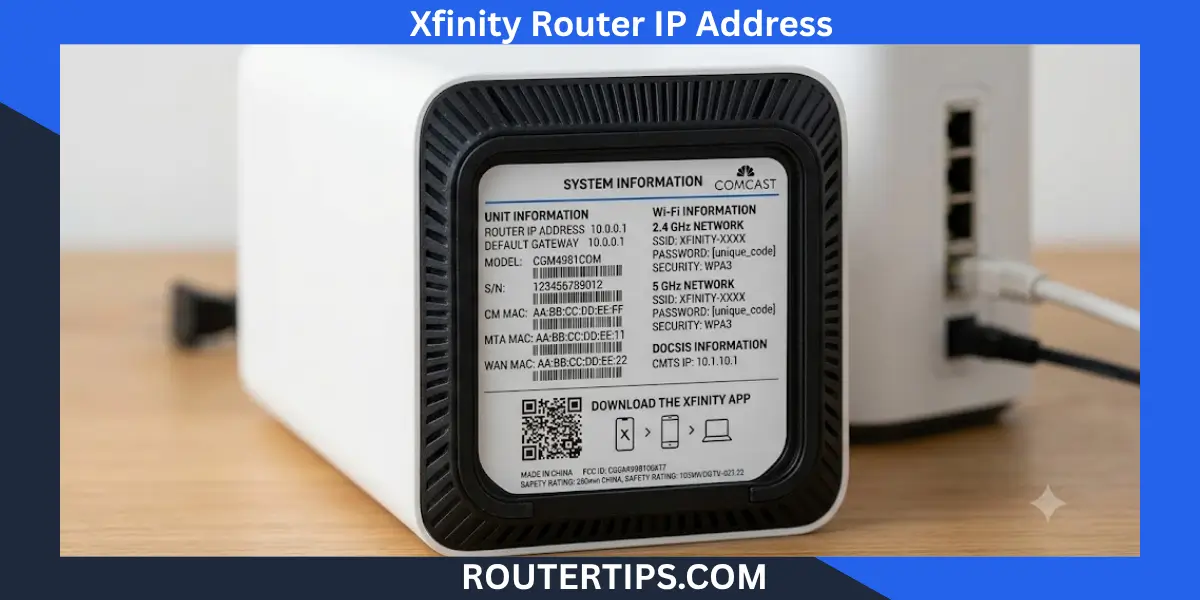
Different Xfinity hardware models may use slightly different default addresses. Knowing your model helps predict the correct IP.
Find Model Number and Match IP
Check the physical label on your device to identify the specific hardware version. This ensures you use the correct troubleshooting steps.
| Model Series | Typical IP Address | Notes |
|---|---|---|
| XB7, XB8 | 10.0.0.1 |
Uses xFi cloud interface primarily |
| Older XB3, XB4 | 192.168.1.1 |
May allow full local admin access |
| Partner Modems | 192.168.100.1 |
Common for DOCSIS modem combos |
Fact: Newer Xfinity gateways restrict full local admin access to encourage use of the xFi app ecosystem.
Prevent Future Access Issues
Adopting best practices ensures you can always reach your router settings. Simple organization prevents frustration later.
Save IP and Login Info
Keeping a record of your network details speeds up future troubleshooting efforts. Digital or physical notes work well for this.
- Store the router IP in your phone notes app or password manager.
- Take a clear photo of the router label for reference.
- Write down any custom passwords you create for the admin panel.
Enable Advanced Settings
Xfinity offers an Advanced Management Mode for users needing more control. This feature unlocks additional local configuration options.
- Log into your account at the Xfinity website.
- Navigate to Connect > Devices > Gateway.
- Enable the Advanced Settings toggle switch.
- Apply local configurations as needed for your network.
Caveat: Full administrative control like port forwarding may still be disabled on newer gateway models.
Frequently Asked Questions About Finding Xfinity Router IP
What is the default IP address for most Xfinity routers?
Most modern Xfinity gateways use 10.0.0.1 as the default IP address. Older models or specific partner devices might use 192.168.1.1 or 192.168.100.1.
Can I find my Xfinity router IP without being connected to Wi-Fi?
No, you must be connected to the local network to see the gateway IP address. Your device needs an active link to the router to retrieve this data.
Why does the ipconfig command show 0.0.0.0 instead of an IP?
This error means your computer is not receiving valid network information from the router. Restarting your router and running the renew command usually fixes this issue.
Do I need my Xfinity password to view the router IP address?
No, you do not need a password to find the IP address using command prompts or network settings. You only need credentials to log into the admin panel itself.
What should I do if 10.0.0.1 does not load the login page?
Verify you are connected to the correct Wi-Fi network and try the alternative address 192.168.1.1. If neither works, check your specific router model label for the correct gateway.
Key Takeaways for Finding Your Xfinity Router IP
Finding your Xfinity router IP address is a simple process using built-in tools on any device. Whether you use the xFi app, Command Prompt, or Network Settings, the default gateway is usually 10.0.0.1.
Keep your router model number and default credentials handy for faster troubleshooting. Save this guide to quickly resolve network issues whenever they arise.



