
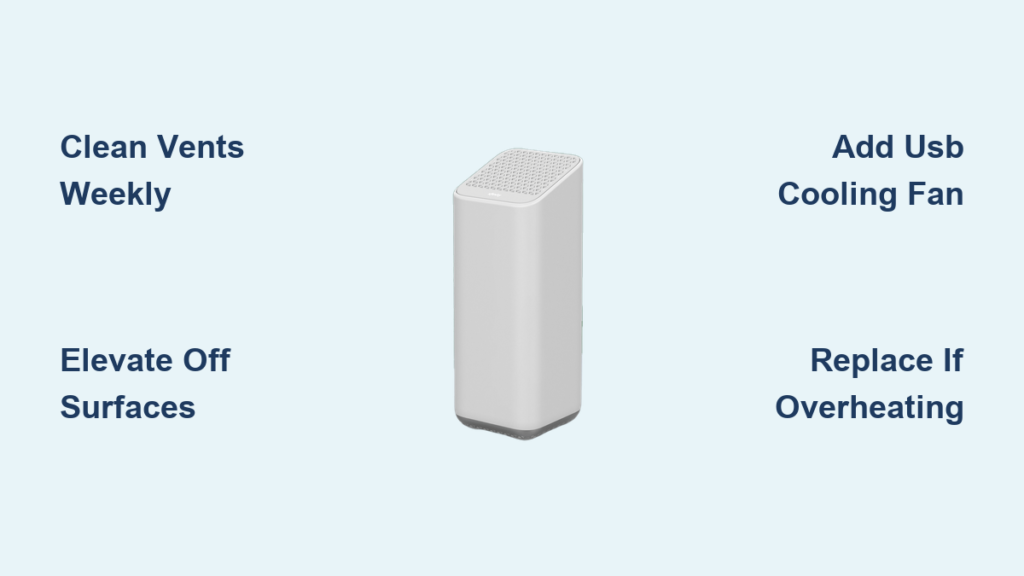
If your Xfinity router feels burning hot and drops your internet during movies, your device is likely suffering from Xfinity router overheating. This common issue plagues the XB6 model because it lacks an internal fan to manage heat generated by heavy streaming or gaming.
You can stop these random outages by diagnosing thermal throttling, cleaning critical vents, or installing a low-cost cooling fan. This guide explains exactly how to lower your router temperature and restore stable speeds without needing advanced technical skills.
Identify Signs of Xfinity Router Overheating Early

Your internet connection often fails because the hardware cannot dissipate heat fast enough. Recognizing the specific symptoms of Xfinity router overheating helps you act before permanent damage occurs.
The Device Casing Feels Dangerously Hot
Place your hand on the top and sides of the router carefully. If the plastic is too hot to touch for more than a second, the internal components are in thermal distress. Normal operation should feel warm, not scalding.
Internet Drops While App Shows No Outages
You may lose connection on your computer even when the Xfinity app says Wi-Fi is up. This mismatch indicates local hardware failure rather than a network-wide service interruption.
Speeds Throttle During High-Definition Streaming
Your high-speed plan delivers slow performance when multiple devices stream 4K video simultaneously. The router intentionally slows down to reduce heat generation, a process known as thermal throttling.
Temporary Relief After Rebooting
Power cycling the device restores connection briefly until heat builds up again. If drops return within minutes of heavy use, the root cause is physical overheating rather than a software glitch.
Understand Why Xfinity Routers Overheat Frequently
The root cause lies in the design choices made for models like the XB6. Understanding these limitations helps you choose the right mitigation strategy.
Passive Cooling Design Lacks Active Fans
The XB6 relies entirely on passive heat dissipation without an internal fan. It depends on weak natural airflow through grilles on the bottom and back of the unit.
Heavy Loads Spike Internal Temperatures
Streaming three 4K videos at once can push internal temperatures to 105°C. This level is near the failure threshold for consumer electronics and triggers safety shutdowns.
Dust Accumulation Blocks Airflow Vents
Dust clogs the bottom and rear grilles, acting as insulation that traps heat inside. Even a thin layer of debris can starve the router of the little airflow it relies on.
Poor Placement Restricts Natural Convection
Placing the router on carpet or inside a cabinet blocks the bottom intake grilles. Enclosed spaces prevent hot air from escaping, turning the device into a mini oven.
Diagnose Xfinity Router Overheating in Three Steps
Confirm your suspicions with these simple tests before attempting repairs. These steps verify if heat is the actual culprit behind your connectivity issues.
Perform a Manual Touch Test
Carefully touch the casing to gauge surface temperature. If you cannot hold your hand there for three to five seconds, the device is overheating.
Check Airflow Using the Paper Test
Hold a piece of tissue near the bottom and back vents. If the paper does not flutter or stick slightly, passive airflow is insufficient to cool the unit.
Run a High-Load Stress Test
Simulate heavy usage by streaming 4K content on three different devices simultaneously. If the router disconnects or slows within fifteen minutes, overheating is confirmed.
Pro Tip: Repeat the stress test after cleaning the vents. If problems persist, you likely need active cooling or a replacement.
Apply Immediate Fixes for Xfinity Router Overheating
Stop the bleeding with these quick actions. These steps provide immediate relief and may stabilize your connection temporarily.
Clean Vents Weekly to Remove Dust
Use a small vacuum or compressed air to clear debris from the grilles. Unplug the router, vacuum the bottom and back vents, and wipe the casing with a dry cloth.
Elevate the Router Off Flat Surfaces
Place the device on a stand or book to open up the bottom intake. Avoid placing it directly on carpet, wood, or fabric which blocks airflow.
Relocate Away From External Heat Sources
Move the router out of enclosed cabinets and away from TVs or direct sunlight. Ensure at least six inches of clearance on all sides for better air circulation.
Warning: Never use liquids or excessive force when cleaning, as moisture can damage internal circuits.
Install Active Cooling to Prevent Xfinity Router Overheating
A simple hardware modification can drastically reduce operating temperatures. This solution addresses the fundamental design flaw of passive cooling.
Add a USB-Powered Cooling Fan
Attach a small USB blower to the side of the router using Velcro strips. Position the fan to blow air upward and away from the back to prevent recirculating hot exhaust.
Connect Power and Adjust Settings
Plug the fan into a USB port on the router or a wall adapter. Set the fan to low or medium speed for quiet and effective cooling.
Monitor Temperature Reduction Results
This hack can lower average temperatures from 100°C to 72°C. Peak temperatures drop significantly, eliminating connection drops during heavy use.
User Feedback: Over 90% of users report stable gigabit speeds and no more random drops after installing this cooling hack.
Request an Official Replacement for Failing Hardware
If your unit is already damaged, cooling hacks may not be enough. Xfinity offers replacement options for customers experiencing hardware failure.
Identify When Replacement Is Necessary
Replace the router if it is burning hot, constantly dropping connection, or failing to power on. No amount of cooling will fix degraded internal components.
Visit a Local Xfinity Store for Fast Swap
Bring your router and account information to a local store for same-day replacement. Use the online store locator to find the nearest facility.
Request a Mail-Order Replacement Unit
Send a direct message to Xfinity Support with your name and address to request a shipped unit. You must return the defective unit using the provided prepaid label.
Prevent Future Xfinity Router Overheating Issues
Maintenance is key to long-term stability. Adopt these habits to keep your network running smoothly year-round.
Schedule Weekly Cleaning Reminders
Set a calendar alert to vacuum vents every seven days. Dust is the enemy of passive cooling systems and accumulates quickly.
Keep Cooling Fans Running During Peak Hours
If you install a USB fan, run it during evenings when streaming demand is highest. Automate it with a smart plug if possible.
Monitor for Early Warning Signs
Watch for slight warmth on the casing or occasional speed dips. Address these signs immediately before they escalate into total failure.
Compare Cooling Hacks Versus Router Replacement
Decide the best path forward by weighing cost against effort and longevity. Both options have merit depending on your specific situation.
| Factor | USB Fan Hack | Official Replacement |
|---|---|---|
| Cost | Under $20 | Free for rental customers |
| Time to Fix | 10 minutes | 1 day in store or 5 days by mail |
| Temp Reduction | Up to 28°C drop | Full reset until new unit heats |
| Best For | Prevention and budget fixes | Units already physically failing |
Expert Tip: Use the fan hack on your new replacement router to prevent future overheating issues from recurring.
Avoid Common Mistakes When Fixing Overheating
Many users waste time on ineffective solutions. Steer clear of these errors to ensure your troubleshooting efforts succeed.
Blocking Bottom Intake Vents
Never place the router directly on soft surfaces like carpet or fabric. These materials seal off the intake grilles and guarantee overheating.
Using Excessively Powerful Fans
A loud, high-power industrial fan is unnecessary and may cause vibration issues. Low to medium speed USB fans are sufficient for this application.
Ignoring Regular Dust Removal
Even with an external fan, clogged vents will reduce cooling efficiency. Cleaning remains a non-negotiable part of any solution.
Expecting Software Updates to Fix Hardware
Restarting or resetting the device will not solve a physical design flaw. Only hardware interventions like cleaning or active cooling work long-term.
Frequently Asked Questions About Xfinity Router Overheating
How hot is too hot for an Xfinity router?
If the casing is too hot to touch comfortably for more than a second, it is overheating. Internal temperatures reaching 100°C indicate critical thermal stress requiring immediate action.
Why does my internet drop only when I stream 4K video?
High-bandwidth activities generate significant heat. Without adequate cooling, the router throttles performance or shuts down to protect itself from damage.
Can I fix Xfinity router overheating without buying new equipment?
Yes, regular cleaning and improving ventilation often help. For severe cases, a sub-$20 USB fan provides active cooling that solves the passive design flaw.
Does Xfinity replace overheating routers for free?
Yes, if you rent your equipment, Xfinity typically replaces failing units at no cost. You can visit a store or request a mailed replacement through support.
How often should I clean my router to prevent overheating?
Clean the vents once a week in standard environments. If you live in a dusty area or have pets, daily cleaning may be necessary to maintain airflow.
Key Takeaways for Resolving Xfinity Router Overheating
Xfinity router overheating is a documented design limitation in models like the XB6 that rely on passive cooling. You can resolve this by combining regular vent cleaning with active cooling solutions like USB fans or by requesting an official hardware replacement.
Take action today by testing your device temperature and clearing any dust buildup. Implementing these fixes will restore your high-speed performance and prevent permanent hardware failure.



