
Gamers often struggle with lag because they do not know how to use BotLobbies VPN on Xfinity router systems effectively. The default Xfinity gateway creates network layers that block optimized traffic, causing high ping and unstable connections during critical matches.
This guide provides clear steps to fix double-NAT issues and configure your network for peak performance. You will learn to enable bridge mode, install the client, and share the connection to your console for a smoother gaming experience.
Enable Bridge Mode on Your Xfinity Gateway

Xfinity gateways combine a modem and router, which creates a double-NAT situation that interferes with VPN traffic. Disabling the internal routing functions allows your personal router to manage the connection directly. This step is essential for BotLobbies to function correctly.
Access the Xfinity Admin Panel
Open a web browser on a connected device and enter 10.0.0.1 in the address bar. Log in using your specific Xfinity username and password credentials. Navigate to the Gateway section and select At a Glance to verify your current device model and status.
Activate Bridge Mode Settings
Go to Gateway then Advanced Settings followed by Router Settings. Find the toggle for Router Mode or Enable Router and switch it to Off to enable Bridge Mode. Confirm your selection when prompted, as the gateway will reboot immediately to apply changes.
Warning: Your Wi-Fi will disconnect after this step. Ensure you have a separate router ready to restore wireless access.
Verify Successful Bridge Activation
Wait for the gateway lights to stabilize and check the WAN IP address on your personal router. A successful setup shows a public IP address instead of a private range like 10.x.x.x or 192.168.x.x. You now have full control over network traffic routing.
Configure Your Personal Router for Gaming
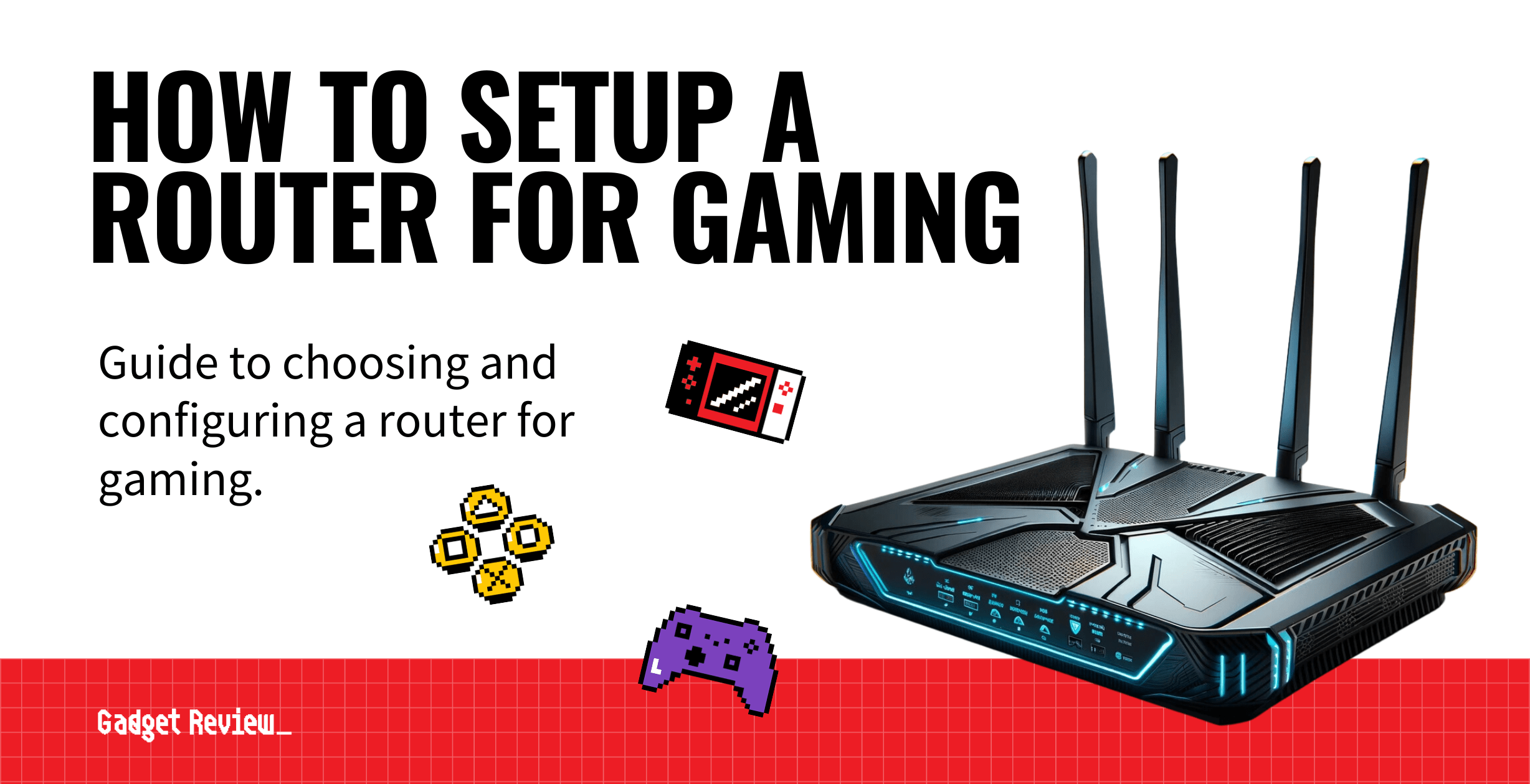
Once the gateway acts only as a modem, your personal router becomes the primary network manager. Connecting a high-quality router ensures better handling of VPN packets and improved stability for online games.
Establish Physical Connection
Connect an Ethernet cable from the Xfinity gateway to the WAN port of your personal router. Power on the new router and wait for it to boot up completely. Access its admin panel via its default IP address, often found on the device label.
Set Up DHCP and Static IP
Ensure your router is set to obtain an IP address automatically via DHCP from the modem. Navigate to LAN settings and find DHCP Reservation to assign a permanent local IP to your gaming PC or console. This prevents IP changes that can break VPN configurations.
Test Network Connectivity
Connect a device to the new router and verify internet access is working properly. Run a speed test to ensure you are receiving your full subscribed bandwidth from Xfinity. Your network is now ready for the BotLobbies software installation.
Install and Configure BotLobbies Software
BotLobbies operates by routing game data through optimized servers to reduce latency. You must install this software on a Windows PC that is connected to your newly configured network.
Download the Official Client
Visit the official BotLobbies website and log in to your account. Download the Windows client installer and run it on your gaming PC. Follow the on-screen prompts to complete the installation process successfully.
Choose Optimal Server Locations
Launch the application and select a server location closest to your game’s host region. For North American players, East US or Central US servers often provide the best results for titles like Fortnite and Call of Duty.
Initiate the VPN Connection
Click the Connect button within the app to start the service. The software will create a virtual network adapter and begin routing your traffic through their optimized path. Your public IP address will change to reflect the BotLobbies server location.
Share VPN Connection from PC to Console
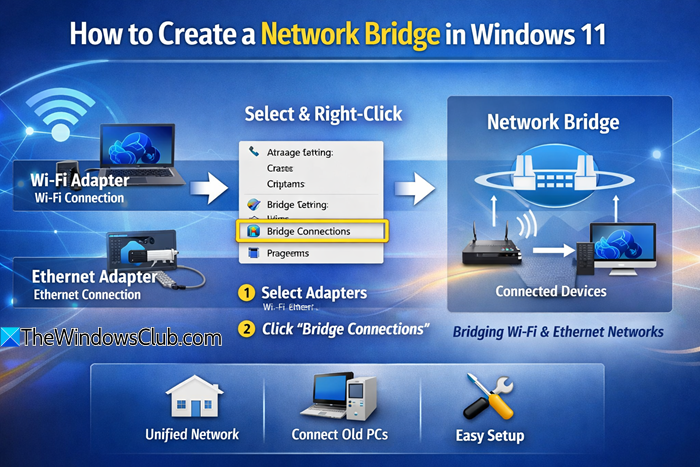
Consoles cannot run the BotLobbies client directly, so you must share the PC’s connection. This process routes your console’s traffic through the VPN tunnel created on your computer.
Enable Internet Connection Sharing
Open Settings on Windows and go to Network & Internet then Status. Select Change adapter options, right-click your BotLobbies virtual adapter, and choose Properties. Click the Sharing tab and check the box to allow other network users to connect.
Bridge Network Adapters
Connect your console to the PC using an Ethernet cable. Hold the Ctrl key and select both the BotLobbies adapter and the physical Ethernet port in the network window. Right-click the selection and choose Bridge Connections to link them together.
Configure Console Network Settings
On your gaming console, navigate to network settings and select Wired Connection. Set the configuration to automatic so it receives an IP address from your PC. Test the connection to confirm traffic is routing through the VPN successfully.
Pro Tip: Turn off Wi-Fi on your console to force it to use the wired bridge connection exclusively.
Troubleshoot Common Connection Problems
Even with careful setup, you might encounter issues preventing smooth gameplay. These solutions address the most frequent errors users face when configuring this setup.
Resolve No Internet on Console
Check that Internet Connection Sharing is enabled on the correct virtual adapter in Windows. Ensure the network bridge status shows as active in your network connections window. Restart both the PC and the console to refresh the IP assignment.
Fix High Ping or Lag Spikes
Verify that the BotLobbies app shows an active connection before launching your game. Switch to a different server location within the app if the current one feels congested. Close any background downloads or streaming apps on the PC to free up bandwidth.
Address App Connection Failures
Restart the BotLobbies application and attempt to connect again. Use the built-in repair tool to reinstall the TAP driver if the virtual adapter is missing. Run the application as an administrator to bypass permission errors.
Optimize Network Performance for Gaming
Fine-tuning your router and PC settings can further reduce latency and improve stability. These advanced tweaks ensure your connection remains robust during long gaming sessions.
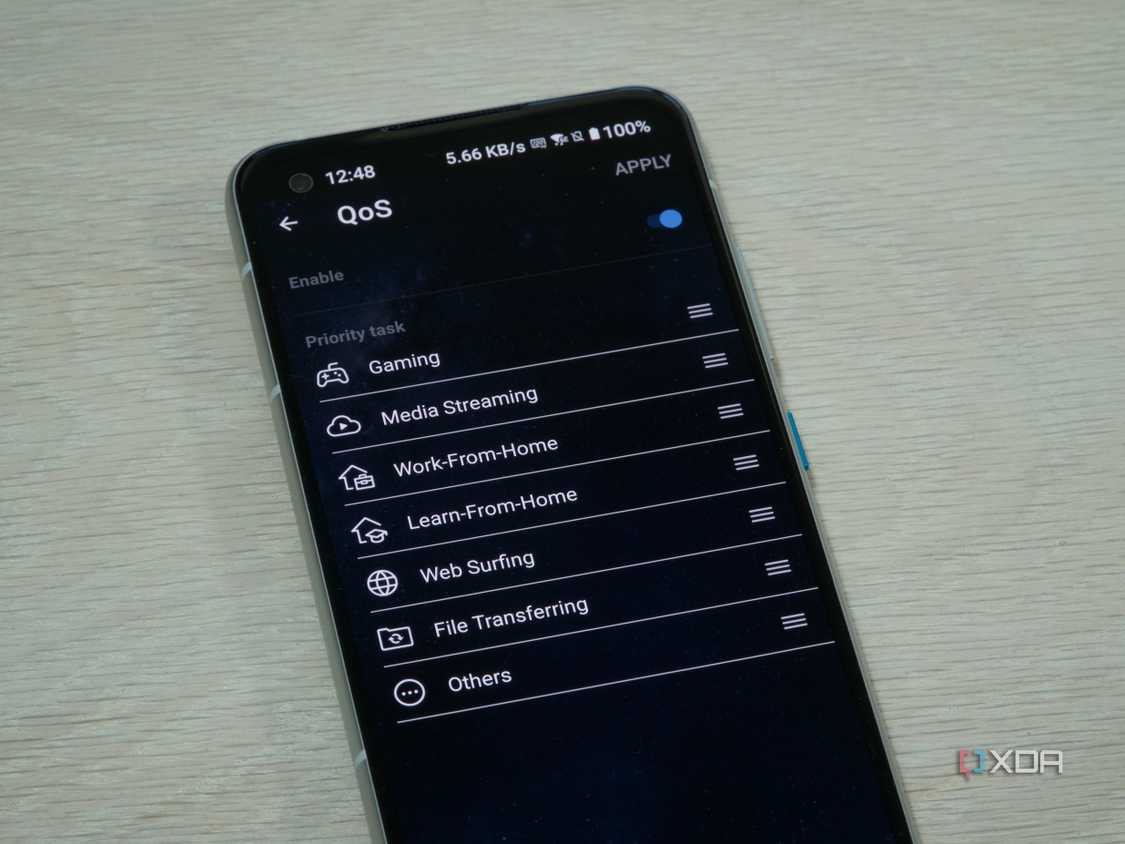
Enable Quality of Service (QoS)
Log into your router admin panel and locate the QoS settings menu. Prioritize traffic for your gaming device IP address to prevent other devices from slowing down your game. This ensures BotLobbies packets get through first.
Update Router Firmware Regularly
Check the manufacturer’s website for the latest firmware version for your specific router model. Install updates to fix bugs and improve NAT handling capabilities. Updated firmware often includes security patches and performance boosts.
Monitor Latency Consistently
Use the command prompt to run ping 8.8.8.8 -t while gaming to watch real-time latency. Look for consistent response times under 50ms for the best experience. Significant spikes indicate a need to change server locations or check cables.
Alternative Methods Without Bridge Mode
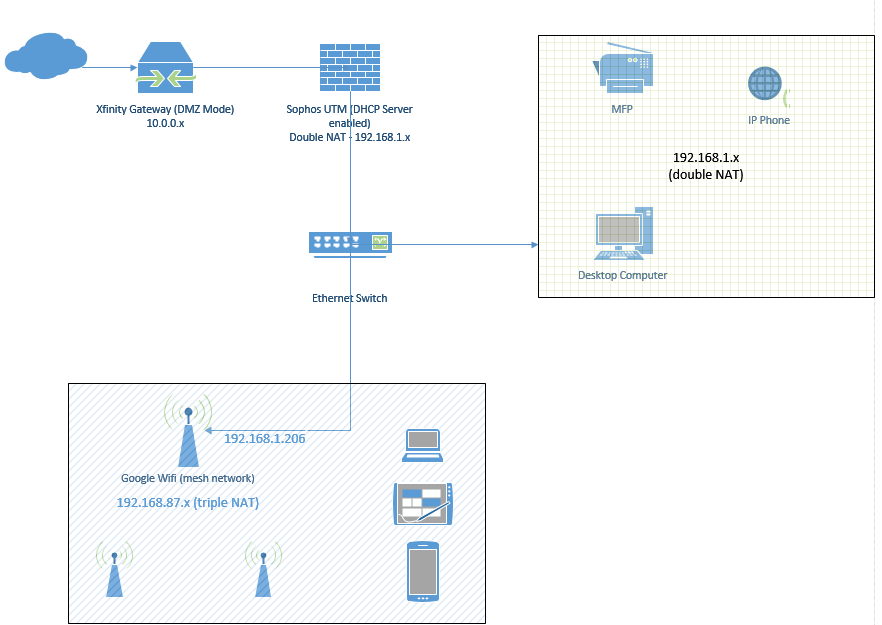
Some users cannot enable bridge mode due to ISP restrictions or specific phone service requirements. In these cases, DMZ or IP Passthrough can mimic the necessary network environment.
Configure DMZ Host Settings
Log into 10.0.0.1 and navigate to Firewall then Advanced Settings and DMZ. Enter the local IP address of your personal router to forward all external traffic to it. This bypasses most NAT issues but requires strong firewall security on your router.
Warning: DMZ exposes your device to the internet. Only use this method if your personal router has robust security features enabled.
Utilize IP Passthrough Feature
Check if your Xfinity gateway supports IP Passthrough in the advanced settings. Assign your personal router’s MAC address to receive the public IP directly from the modem. This method acts similarly to bridge mode without fully disabling the gateway.
Frequently Asked Questions About BotLobbies on Xfinity
Does BotLobbies work directly on PS5 or Xbox?
No, consoles cannot run the BotLobbies client natively. You must install the software on a Windows PC and share that connection to your console via Ethernet bridging or a hotspot.
Will using a VPN ban me from games?
Using a VPN for connection optimization is generally allowed, but cheating is not. BotLobbies routes traffic and does not modify game files, but always check specific game terms of service to be safe.
Why is my console showing a strict NAT type?
Strict NAT usually results from double-NAT issues caused by the Xfinity gateway. Enabling bridge mode or using DMZ on the gateway typically resolves this by giving your router a public IP.
Can I use Wi-Fi instead of Ethernet for the console?
While possible, Wi-Fi introduces instability and higher latency. For the best BotLobbies performance, a wired Ethernet connection between your PC and console is highly recommended.
Do I need a specific router for this setup?
You do not need a specific brand, but your router must support custom DNS or bridge mode compatibility. Most modern routers from ASUS, Netgear, and TP-Link work well with this configuration.
Key Takeaways for Using BotLobbies VPN on Xfinity Router
Mastering how to use BotLobbies VPN on Xfinity router setups requires disabling the default gateway routing functions. Enabling bridge mode gives your personal router full control, eliminating double-NAT issues that cause lag. Sharing the PC connection to your console completes the chain for optimized gameplay.
Start by accessing your Xfinity admin panel to enable bridge mode, then install the BotLobbies client on your PC. Share this connection to your console for immediate improvements in ping and matchmaking stability. Regular firmware updates and QoS settings will keep your network running at peak efficiency.



