
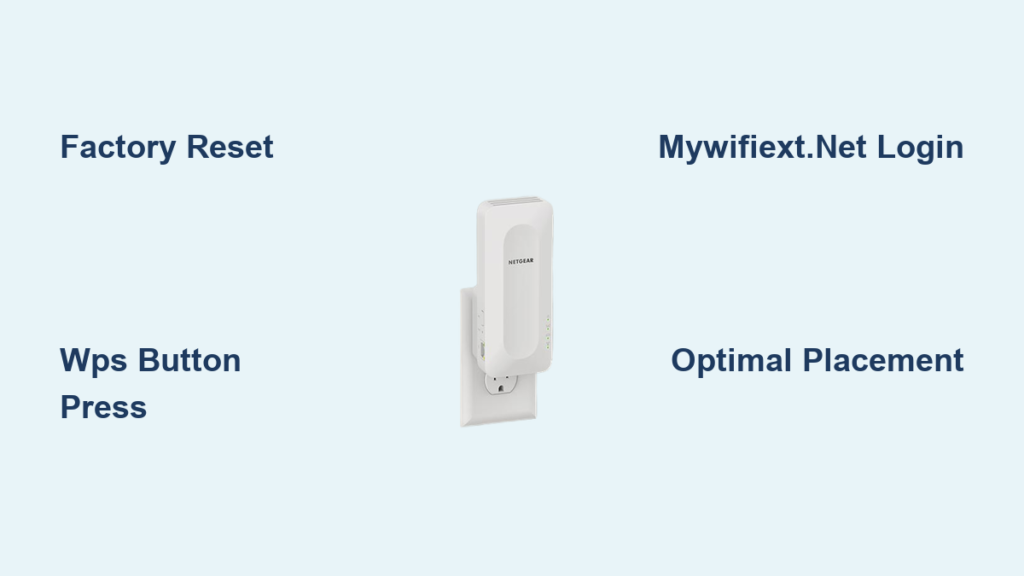
Switching to a new internet provider often leaves your Netgear extender stranded without a connection. You need to reset the device and reconfigure it to link with your new router effectively.
This guide details every method to reconnect your hardware using WPS, a web browser, or the Nighthawk app. You will learn how to clear old settings and restore full WiFi coverage quickly.
Reset Your Netgear Extender Before New Router Setup

You must clear previous network data before attempting to connect Netgear WiFi extender to new router hardware. A factory reset ensures the device does not try to find an old network that no longer exists.
Perform a Complete Factory Reset
Locate the small reset hole on the side or back of your unit. Press and hold the internal button with a paperclip for 7 to 8 seconds until the power LED flashes. Wait for the light to turn solid green or blue to confirm the erase is complete.
Verify Reset Indicators
Check the lights on the front panel to ensure success. The power LED should be solid while the router LED remains off or amber. If lights blink rapidly or stay red, repeat the reset process.
Understand Why Resetting Matters
Extenders automatically attempt to reconnect to the last known network source. Skipping this step causes connection timeouts and setup failures during the new configuration. Always reset when changing routers or updating WiFi passwords.
Use WPS to Connect Netgear WiFi Extender to New Router
WPS offers the fastest way to connect Netgear WiFi extender to new router systems without typing passwords. This method works best when both devices have a dedicated WPS button available.
Confirm WPS Compatibility First
Inspect your new router for a button labeled WPS on the front or rear panel. Check your extender for a similar button, often located in the middle of the control row. Skip this method if either device lacks this specific feature.
Execute the Two-Button Connection
- Plug the extender into an outlet near your new router.
- Wait for the power LED to become solid green or blue.
- Press the WPS button on the extender to start the search mode.
- Press the WPS button on your new router within two minutes.
- Wait for the WPS light on the extender to turn solid.
Verify Successful Band Extension
Watch for the router LED to turn solid green or blue indicating a successful link. You may need to repeat the button press sequence to extend the 5 GHz band separately. Your device will now see networks ending in _2gext and _5gext.
Configure Setup via mywifiext.net Website

The web interface provides full control when you connect Netgear WiFi extender to new router networks manually. This method works with any router model regardless of WPS support.
Join the Default Extender Network
- Plug the extender into a power source near the router.
- Open WiFi settings on your laptop or phone.
- Select the network named NETGEAREXT or NETGEAR_EXT.
- Enter “password” if prompted for a credential.
Access the Configuration Portal
Open a browser and type mywifiext.net into the address bar. You can also try mywifiext.com or the IP address 192.168.1.250 if the domain fails. Ensure you are connected to the extender network to load the page correctly.
Input New Router Credentials
Click New Extender Setup and create an admin username like admin. Select your new router’s WiFi name from the scanned list and enter the correct password. Choose whether to keep default extended names or enable One WiFi Name.
Finalize and Relocate Device
Click Next to apply settings and wait for the system to reboot. Once the router LED is solid, unplug the unit and move it to your desired location. Plug it back in and verify the lights remain stable.
Install Using the Nighthawk App Method
The Nighthawk app simplifies the process to connect Netgear WiFi extender to new router systems via smartphone. This approach guides you through each step with visual prompts and automatic detection.
Download and Launch Application
Install the Nighthawk app from the Apple App Store or Google Play Store. Open the application and tap the option to set up a new Nighthawk system. Select Range Extender from the list of available products.
Link Mobile Device to Extender
Tap Next and allow the app to search for the device automatically. If prompted, go to your phone settings and join the NETGEAREXT network manually. Return to the app and confirm that WiFi is connected.
Select Networks and Update Firmware
Choose your new router’s 2.4 GHz and 5 GHz networks from the list. Enter the WiFi password for each band and let the app configure the connection. Tap Update if firmware patches are available to ensure security.
Complete Installation Steps
Create an admin account and answer security questions for future recovery. Wait for the Power and Router LEDs to turn solid green or blue. Unplug the extender and move it halfway between the router and your dead zone.
Optimize Placement for Best Signal Strength
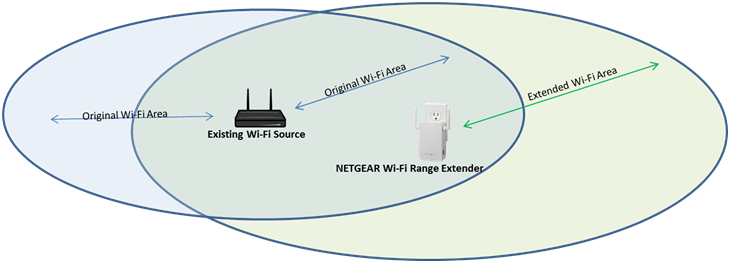
Proper placement ensures you successfully connect Netgear WiFi extender to new router signals with maximum efficiency. Poor positioning can cut your internet speed in half despite correct settings.
Identify the Ideal Location
Place the unit halfway between your main router and the area with weak signal. It must receive a strong signal from the router to rebroadcast it effectively. Avoid placing it directly inside the dead zone you are trying to fix.
Avoid Physical Interference Sources
Keep the device away from metal objects, mirrors, and thick concrete walls. Microwaves and cordless phones can also disrupt the wireless signal path. Position the extender in an open area for best results.
Interpret LED Status Lights
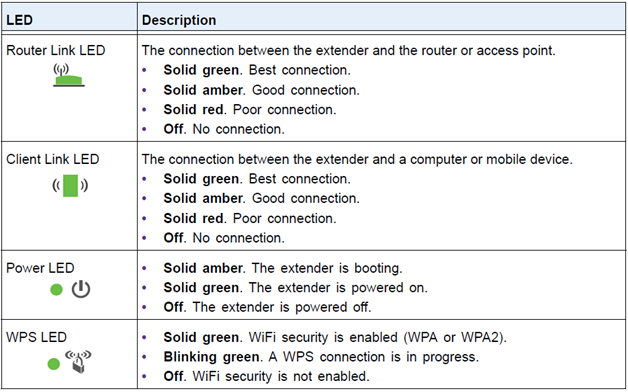
Use the Router LED color to judge signal quality at the new spot. Solid green or blue means the location is perfect for operation. Amber or red lights indicate you need to move the unit closer to the main router.
Troubleshoot Connection Issues Effectively
Users often encounter hurdles when they connect Netgear WiFi extender to new router systems. These solutions address the most common failure points during installation.
Resolve Missing Network Names
Reset the extender if you cannot find the NETGEAREXT network in your list. Wait two full minutes after resetting before refreshing your device WiFi settings. Move your phone or laptop closer to the extender during this search.
Fix mywifiext.net Loading Errors
Ensure your device is connected to the extender network and not mobile data. Try typing 192.168.1.250 directly if the web address does not load. Clear your browser cache or switch to a different browser like Chrome.
Address WPS Connection Failures
Press the router button within the two-minute window after pressing the extender button. Restart both devices if the lights continue to blink without turning solid. Switch to the web browser method if WPS repeatedly fails.
Verify and Maintain Your Extended Network
Confirmation steps ensure your decision to connect Netgear WiFi extender to new router was successful. Regular maintenance keeps your extended coverage running smoothly over time.
Test Connectivity Across Devices
Connect a phone, laptop, and tablet to the new extended network. Open websites and stream video content to confirm stable speeds. Check that devices switch seamlessly if you enabled One WiFi Name.
Check Final LED Indicators
Ensure the Power and Router LEDs remain solid green or blue. Blinking lights suggest the unit is still searching or has a weak connection. Red lights indicate a total loss of connection to the main router.
Perform Regular Maintenance Tasks
Update the firmware monthly using the Nighthawk app to fix bugs. Reboot the extender by unplugging it for 10 seconds once a month. Rename the device in the app for easier management in the future.
Frequently Asked Questions About Connecting Netgear Extenders
Do I need to reset my extender for a new router?
Yes, you must factory reset the device to clear old network settings. Holding the reset button for 7 seconds ensures it searches for your new router instead of the old one.
What is the default login for mywifiext.net?
The default username is usually admin and the password is password. You will be asked to create new credentials during the initial setup process for security.
Why is my extender blinking orange or amber?
An amber light usually means the signal from the main router is too weak. Move the extender closer to the router until the light turns solid green or blue.
Can I use the same WiFi name as my router?
Yes, select the One WiFi Name feature during setup if your model supports it. This allows your devices to switch between the router and extender automatically without manual changes.
What if I cannot find the WPS button on my router?
Some ISPs disable WPS on their provided routers. In this case, use the mywifiext.net web method or the Nighthawk app to complete the connection manually.
Key Takeaways for Connecting Netgear WiFi Extender to New Router
Successfully linking your extender requires a factory reset before starting any configuration method. Whether you use WPS, a browser, or the app, placing the device in the correct spot is critical for speed.
Follow the LED indicators to find the perfect location halfway between your router and dead zones. Regular firmware updates and monthly reboots will keep your extended network performing at its best.



