
Your NETGEAR router acts as the digital front door for every device in your home. Leaving default settings active invites hackers to steal data or hijack your connection instantly.
This guide reveals the three critical NETGEAR router security changes you must make today. You will learn to secure admin access, enable advanced encryption, and isolate guest devices effectively.
Replace Default Admin Credentials Immediately

The admin password controls your entire network configuration. It is distinct from the code devices use to join Wi-Fi. If hackers guess this login, they can redirect your traffic to fake websites or disable your firewall entirely.
Most NETGEAR routers ship with public credentials like “admin” and “password.” These defaults appear in online databases that attackers scan constantly. Anyone within range can access your settings if you do not change them.
Why Default Logins Are Dangerous
Leaving factory settings active creates severe vulnerabilities for your household. Attackers target these known combinations to gain full control over your network infrastructure.
Common risks include:
* Complete lockout from your own router settings
* DNS hijacking that sends you to fraudulent banking sites
* Malware distribution through your internet connection
Step-by-Step Password Replacement
Follow these steps to secure your administrative access panel. This process takes less than two minutes but provides massive protection.
- Open a web browser and type
routerlogin.netin the address bar. - Enter your current username and password to log in.
- Navigate to Advanced then Administration and select Set Password.
- Create a new password with at least 12 characters using mixed case and symbols.
- Click Apply to save your changes immediately.
Pro Tip: Store this new password in a secure password manager. Never reuse your email or banking credentials here.
⚠️ Warning: Forgetting this password may require a factory reset. This action erases all your custom configurations.
Activate WPA3 Encryption for Wi-Fi Protection

Your wireless security mode dictates how safely data travels between devices and the router. Older standards like WEP or WPA1 can be cracked in minutes using free software tools available online.
NETGEAR routers support modern encryption protocols designed to stop these attacks. You must select the correct mode to ensure your data remains private and secure from interception.
| Mode | Security Level | Recommendation |
|---|---|---|
| WPA3-Personal | Highest | ✅ Use if all devices support it |
| WPA2/WPA3 Mixed | High | ✅ Best for homes with older gadgets |
| WPA2-Only | Moderate | ⚠️ Acceptable short term only |
| WPA1 or WEP | None | ❌ Never use these modes |
Benefits of WPA3 Technology
WPA3 offers significant improvements over previous encryption standards. It prevents attackers from guessing passwords through brute force methods even if your password is weak.
This protocol also encrypts each device connection individually. This means captured data remains useless without full authentication for that specific session.
How to Enable WPA3 on NETGEAR
Updating your encryption setting is a straightforward process within the router interface. Ensure you have your new admin password ready before starting.
- Log in to
routerlogin.netusing your secure credentials. - Select Wireless Settings from the main menu.
- Choose WPA3-Personal under Security Options if possible.
- Select WPA2/WPA3 Mixed Mode if you have older smart home devices.
- Enter a strong Wi-Fi password and click Apply to finish.
Troubleshooting Connection Issues
Some legacy devices manufactured before 2018 may fail to connect under strict WPA3 modes. Smart TVs and older printers often fall into this category.
Try these solutions if a device refuses to connect:
* Switch temporarily to WPA2/WPA3 Mixed Mode.
* Check the manufacturer website for firmware updates.
* Replace hardware that no longer receives security support.
❌ Do not downgrade to WPA2-only or disable encryption entirely. The security risk far outweighs the convenience.
Isolate Devices with a Guest Network
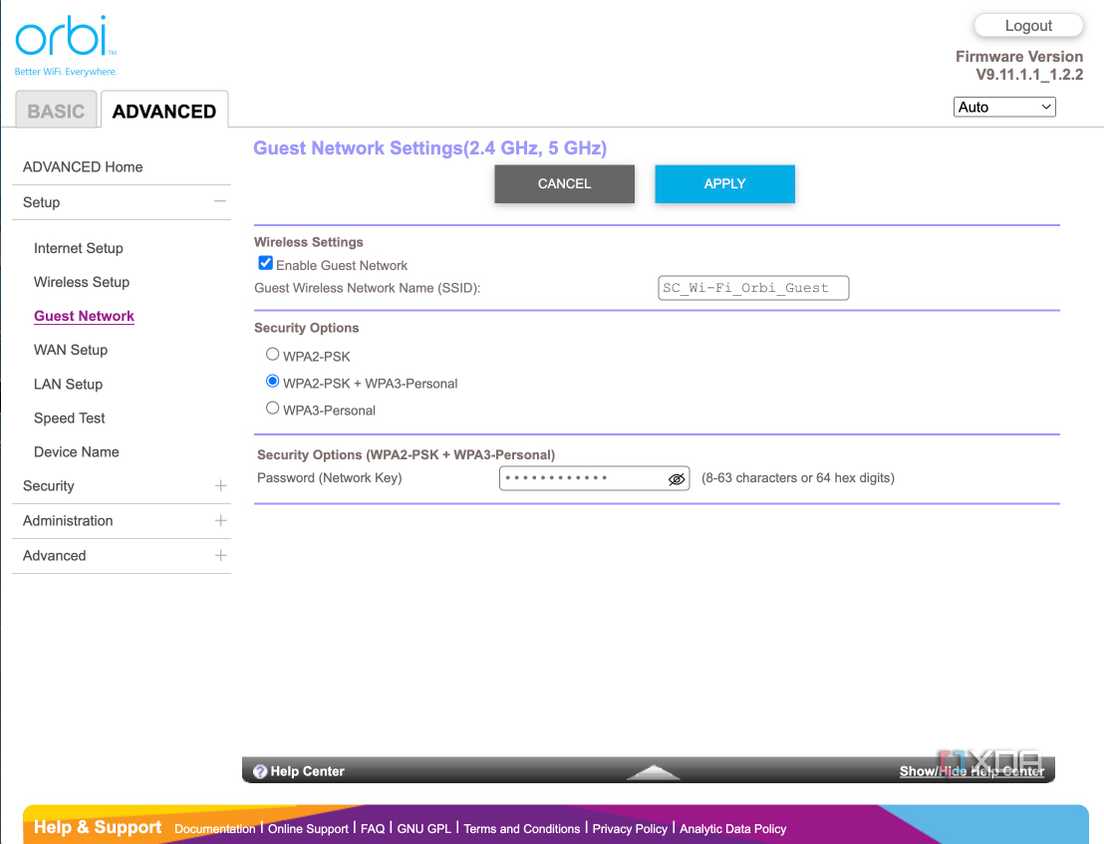
A guest network creates a separate wireless zone for visitors and smart devices. This segmentation prevents external devices from accessing your primary computers or shared files.
Using this feature is essential for modern home security. It ensures that a compromised smart bulb cannot scan your laptop for vulnerabilities.
Risks of a Flat Network Structure
Without segmentation, every device shares the same network space. A single infected phone brought by a guest could spread malware to your entire system.
Potential consequences include:
* Unauthorized access to personal documents and photos
* Smart home devices attacking your primary computers
* Hackers exploiting file-sharing settings on your main network
Enabling Guest Access on NETGEAR
Setting up this isolated network is simple and highly recommended for all users. You can manage access levels and device limits easily.
- Access your router dashboard at
routerlogin.net. - Go to Advanced and select Guest Network.
- Check the box to Enable Guest Network.
- Create a unique network name and a strong password.
- Select the band (2.4 GHz or 5 GHz) and click Apply.
✅ Best Practice: Enable this feature on both frequency bands and limit connections to 5–10 devices.
Advanced Guest Controls
You can refine how guests interact with your network through additional settings. These options provide granular control over access duration and permissions.
Useful features include:
* Auto-disconnect: Expire guest access after a set number of hours.
* Internet-only access: Prevent device discovery on the local network.
* Device naming: Label networks clearly as “Guest” or “IoT”.
💡 Pro Tip: Connect all smart home gadgets to this network. Isolating cameras and plugs protects your personal data if they are hacked.
Consequences of Ignoring Router Security
Neglecting these settings leaves your digital life exposed to automated attacks. Tools like Reaver scan for weak Wi-Fi and default admin panels constantly.
| Setting | Real-World Risk |
|---|---|
| Default admin password | Hacker changes DNS to steal banking info |
| Outdated encryption | Data interception and fake hotspot creation |
| No guest network | Infected IoT device spreads ransomware to laptops |
These threats are not theoretical. Thousands of NETGEAR routers are scanned daily for these exact vulnerabilities.
Manage Security via NETGEAR App
You do not need a computer to maintain your network safety. The NETGEAR app allows you to manage critical settings from your smartphone anywhere.
Key App Features
The application provides quick access to essential security functions. You can monitor your network status in real time.
Useful capabilities include:
* Changing admin and Wi-Fi passwords remotely
* Toggling guest network access on or off
* Viewing all currently connected devices
* Running speed tests and rebooting the router
Setting Up Remote Management
Download the app from your device store to begin. The setup wizard guides you through linking your router securely.
- Install the “NETGEAR” app from your app store.
- Connect your phone to the router’s Wi-Fi network.
- Open the app and follow the on-screen instructions.
- Log in with your new administrative credentials.
- Enable push notifications for immediate security alerts.
✅ Time Saver: Use the app to disable guest access instantly after visitors leave your home.
Enhance Defense with NETGEAR Armor
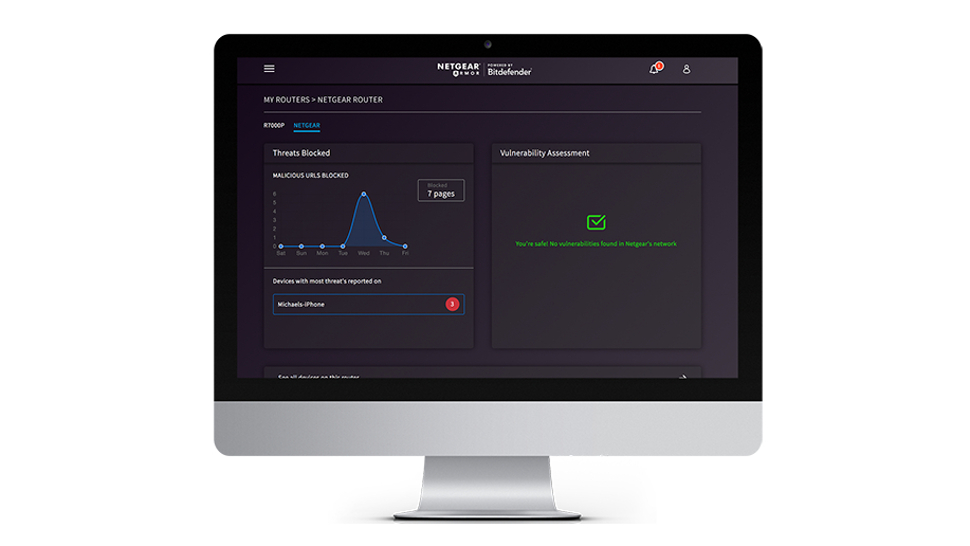
For comprehensive protection, enable NETGEAR Armor. This built-in suite uses Bitdefender technology to block threats before they reach your devices.
Protection Capabilities
This service operates at the network level to stop attacks early. It scans all connected hardware including smart TVs and cameras.
Key benefits include:
* Blocking malware and phishing websites automatically
* Detecting botnet activity on any connected device
* Providing parental controls and safe search options
* Monitoring the dark web for compromised credentials
Activating Armor Services
You can activate this service directly through your router interface. A free trial is often available for new users.
- Open the NETGEAR app or log in to
routerlogin.net. - Navigate to Security and select NETGEAR Armor.
- Click Activate Free Trial or choose a subscription plan.
- Verify that protection status shows as “Active” for all devices.
🛡️ Bonus: Premium plans include dark web monitoring to alert you if your email appears in data breaches.
Frequently Asked Questions About NETGEAR Router Security
Is the admin password the same as the Wi-Fi password?
No. The admin password controls router settings while the Wi-Fi password connects devices to the internet. You should use different strong passwords for both to ensure maximum security.
What should I do if a device fails to connect after enabling WPA3?
Switch your security mode to WPA2/WPA3 Mixed. This setting maintains high security for newer devices while allowing older hardware to connect using WPA2 protocols.
Does hiding my Wi-Fi network name improve security?
No. Hiding your SSID provides negligible security benefits and often causes connection issues. Hackers can still detect hidden networks easily using standard tools.
How often should I change my Wi-Fi password?
Change your password only when necessary such as after a guest visit or suspected breach. Regular firmware updates and active monitoring provide better ongoing protection than frequent changes.
Can NETGEAR Armor replace antivirus software on my computer?
No. Armor protects the network level but does not replace device-level antivirus. You still need dedicated security software on computers and phones for complete coverage.
Key Takeaways for NETGEAR Router Security
Securing your NETGEAR router requires changing three specific settings immediately. You must replace default admin passwords, enable WPA3 encryption, and activate a guest network.
These steps prevent unauthorized access and protect your personal data from common attacks. Ignoring them leaves your home network vulnerable to automated hacking tools.
Take action today by logging into your router dashboard. Spend ten minutes applying these changes to secure your digital home effectively.



