
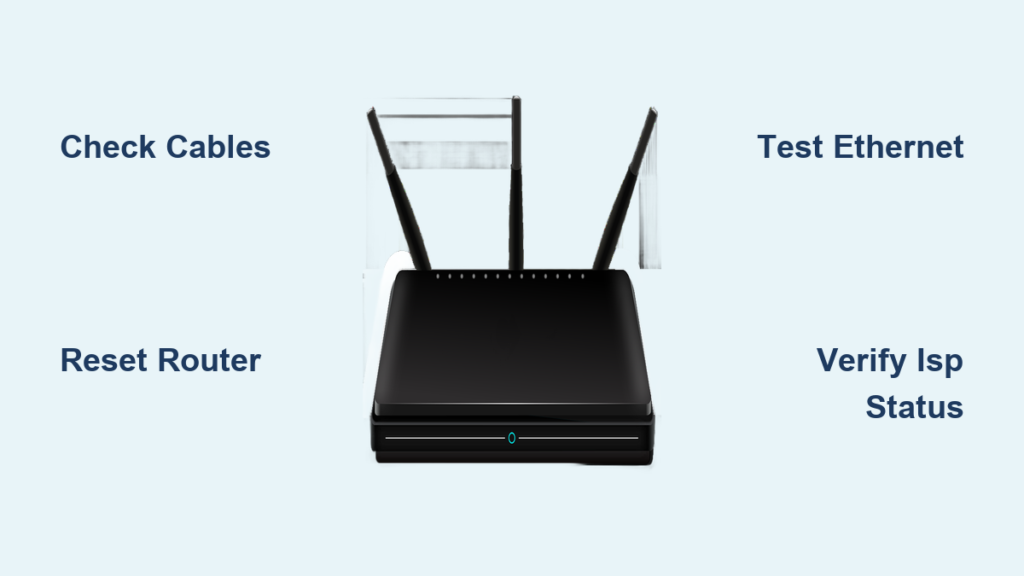
You set up your new router or rebooted your system only to find no internet access. This frustrating scenario happens often, but most causes are simple to resolve without technical expertise. Whether you use a RAIN LTE device or a standard home modem, the troubleshooting steps remain consistent across most brands.
This guide explains exactly how to fix router not connecting to internet issues step by step. You will learn to diagnose physical faults, interpret LED lights, and distinguish between device errors and service outages. Follow these instructions to restore your connection quickly and efficiently.
Inspect Physical Power and Cable Connections
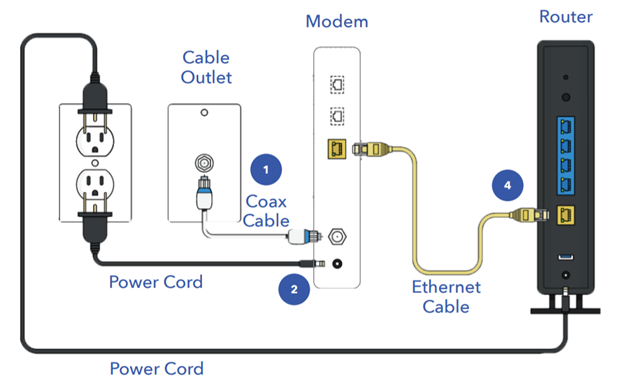
Loose or faulty cables cause many connection failures before you even check software settings. A quick visual inspection can save you significant time and frustration.
Verify Power and Ethernet Plugs
- Ensure the power cable connects firmly to both the router and a working wall outlet.
- Check that the Ethernet cable sits securely in the WAN port, often colored yellow or labeled “Internet.”
- For LTE routers, confirm the SIM card is inserted correctly and does not feel loose.
Wait one to two minutes after powering on because routers need time to boot fully. Rushing this process often makes the problem appear worse than it actually is.
Visual cue: All LED lights should stabilize within three minutes. If they stay off or flash erratically, check your power source immediately.
Interpret Router LED Light Status Codes
Your router lights act as the primary diagnostic tool for network health. Understanding these colors helps you pinpoint where the breakdown occurs.
What the Light Colors Indicate
- Solid green or blue: Your connection is active and healthy.
- Flashing red or amber: The router detects a signal issue or line fault.
- No light on WAN port: The device cannot detect any incoming connection.
Refer to your specific manual since color meanings vary slightly by manufacturer model. If you see no light on the WAN port, try unplugging and reconnecting the Ethernet cable firmly.
Pro tip: For LTE routers, look for signal bars on the display or within the provider app to confirm cellular reception.
Perform a Complete Power Cycle Restart
Rebooting clears temporary memory glitches and forces the router to re-establish a fresh link with your ISP. This simple action resolves most transient connectivity issues.
Steps for a Proper Reboot
- Unplug the power cable completely from the back of the router.
- Wait 30 seconds to allow internal capacitors to discharge fully.
- Plug the power back in and wait two to three minutes for lights to stabilize.
Do not skip the waiting period because plugging it in too soon prevents a full system reset. Once the internet light turns solid, test your connection on a phone or laptop.
Warning: Skipping the 30-second wait often results in the same error persisting after reboot.
Verify Wi-Fi Network and Device Settings
Sometimes the router works fine, but your specific device fails to connect properly to the network. Ensuring you join the correct network is essential.
Confirm SSID and Password Details
- Check the SSID name and password printed on the router label.
- Ensure you are not accidentally joining a neighbor’s network or a guest network with limited access.
- Select forget network on your device and reconnect using the correct credentials.
Test the connection on multiple devices like a tablet or second phone. If only one device fails, the issue lies with that specific gadget rather than the router itself.
Common mistake: Typing the password incorrectly due to case sensitivity. Double-check every character before submitting.
Test Internet Access via Ethernet Cable
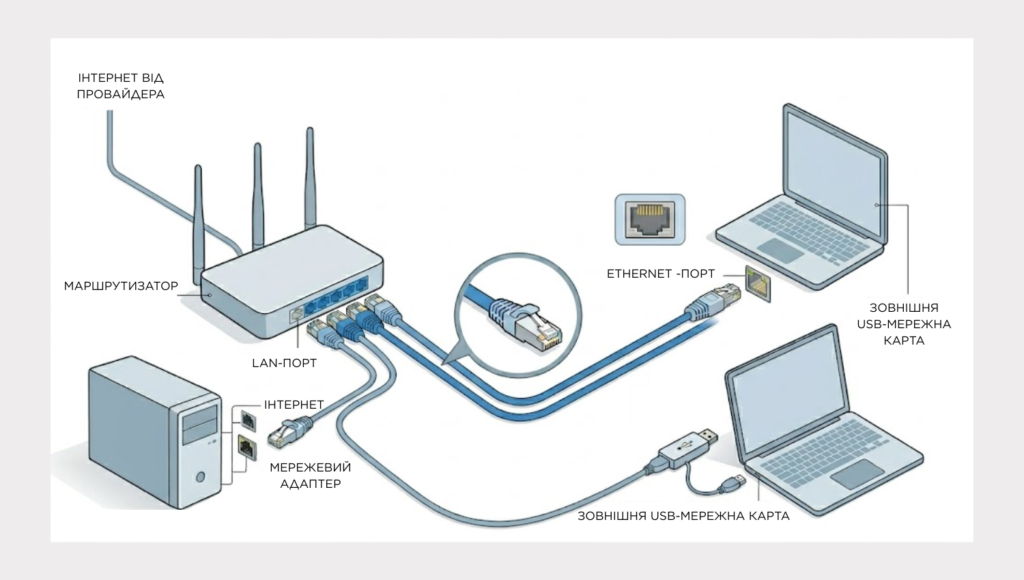
Connecting directly with a cable determines if the problem is wireless interference or a total service failure. This step isolates the Wi-Fi radio from the core internet connection.
Direct Connection Procedure
- Connect a laptop directly to a LAN port on the router using an Ethernet cable.
- Wait for the network icon to indicate a wired connection is active.
- Open a browser and attempt to load a website.
If the internet works over Ethernet, your Wi-Fi signal or settings are the culprit. If there is still no internet, the issue likely involves the router hardware or your ISP service.
Pro tip: Turn off Wi-Fi on your test laptop to ensure it uses the wired connection exclusively.
Check for ISP Service Outages
Your router cannot connect if the internet provider is experiencing a widespread outage in your area. Verifying service status prevents unnecessary troubleshooting on your end.
How to Confirm Service Status
- Visit the RAIN status page at status.rain.co.za to view current incidents.
- Check the RAIN app for real-time service updates and alerts.
- Look for active outage reports specific to your geographic region.
Most outages resolve within a few hours without user intervention. Avoid repeatedly resetting your router during a confirmed outage as this will not restore service.
Note: If no outage is listed but you remain offline, proceed to advanced troubleshooting steps.
Reset Router to Factory Default Settings
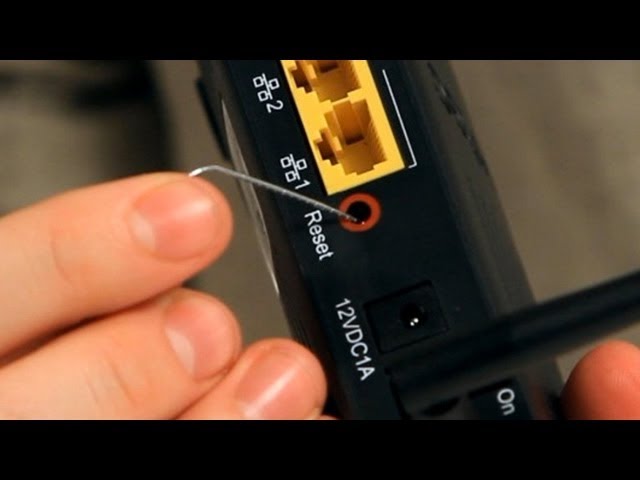
Perform a hard reset only if previous steps fail, as this erases all custom configurations. This action returns the device to its original state.
When and How to Reset
- Use this method after multiple reboots yield no internet connection.
- Locate the small reset pinhole on the back or bottom of the unit.
- Press and hold the button for 10 to 15 seconds using a paperclip while powered on.
Release the button when the lights flash to indicate the reset process has started. Wait three to five minutes for the router to reboot completely with default settings.
Warning: Resetting deletes custom passwords and port forwarding rules. You must reconfigure these manually afterward.
Reconfigure Router After Factory Reset
Your router needs to re-authenticate with the ISP automatically after a reset. LTE devices usually reconnect instantly, while DSL units may need manual input.
Configuration Steps by Type
- LTE Routers: The SIM should reconnect automatically. Wait for the LTE light to turn solid green.
- DSL/Fiber Routers: You may need to enter PPPoE credentials provided by your ISP.
- Access the admin page via browser at 192.168.1.1 if manual setup is required.
Ensure your account is active and your data allowance has not been exhausted. If the SIM is not recognized, remove and reinsert it carefully.
Expert note: Contact your ISP immediately if you do not know your PPPoE username and password.
Contact ISP Support for Advanced Assistance
Escalate to professional support if every troubleshooting step fails to restore your connection. Your provider can check line health and account status remotely.
When to Call Support
- The internet light remains off after a full reset and reboot.
- Service status shows no outage, yet you cannot connect.
- The router fails to recognize the SIM card or LTE signal.
Call RAIN Customer Care at 0861 724 626 or use the live chat feature in the app. Have your account number and router serial number ready for faster service.
Why this matters: Support teams can detect activation delays or network-side faults invisible to home users.
Prevent Future Connection Issues
Regular maintenance reduces the likelihood of recurring connectivity problems. Simple habits keep your network running smoothly over time.
Routine Maintenance Checklist
- Reboot your router monthly to clear memory and refresh the connection.
- Update firmware regularly via the router admin page or provider app.
- Place the router centrally away from microwaves and thick walls.
- Use strong passwords to prevent unauthorized usage that slows your speed.
Bookmark your provider’s status page for quick access during future issues. Enabling push notifications in your provider app ensures you receive instant outage alerts.
Pro tip: Give your Wi-Fi network a unique name to avoid confusion with nearby networks using default titles.
Frequently Asked Questions About Fixing Router Connection Issues
Why is my router light flashing red?
A flashing red light usually indicates a signal loss or line fault between your router and the ISP. Check physical cables first, then verify if there is a service outage in your area.
How long should I wait before resetting my router?
Wait at least 30 seconds after unplugging the power before plugging it back in. This ensures the internal memory clears completely for a fresh start.
Can a bad Ethernet cable cause no internet?
Yes, a damaged or loose Ethernet cable can prevent the router from receiving a signal. Try swapping the cable to rule out hardware damage.
What if only one device cannot connect to Wi-Fi?
If other devices work, the issue is specific to that device. Forget the network on the problematic device and reconnect, or restart the device itself.
Does resetting my router delete my internet plan?
No, a factory reset only clears router settings like Wi-Fi names and passwords. Your internet plan and account details remain safe with your ISP.
Key Takeaways for Fixing Your Router Connection
Most connection issues resolve by checking cables, restarting the device, and verifying service status. Understanding LED light codes helps you diagnose whether the fault lies with your hardware or the ISP.
Take action by performing a full power cycle today if you haven’t already. If problems persist after a reset, contact your ISP support team with your troubleshooting details for faster resolution.



