
You want better privacy or streaming access, but your Spectrum router blocks native VPN apps. This is a common hurdle because standard ISP gateways lack the software to run OpenVPN or WireGuard directly.
This guide explains exactly how to connect VPN to Spectrum router setups using compatible hardware or smart workarounds. You will learn to replace your gateway, flash custom firmware, or share a secure connection from your computer to protect your entire network.
Replace Spectrum Gateway with VPN-Compatible Router

Spectrum’s default equipment acts as a modem and router combo that does not allow third-party VPN installations. To achieve network-wide encryption, you must introduce a secondary router that supports custom firmware or has built-in VPN client capabilities.
Select a Router Supporting Custom Firmware
Not every wireless router can handle VPN protocols. You need hardware specifically known for community support and open-source compatibility.
* DD-WRT supported models like the Netgear R7000 or Linksys WRT3200ACM
* Tomato firmware devices such as the ASUS RT-AC68U
* Native VPN routers that include OpenVPN or WireGuard clients out of the box
Always verify your specific model number on the DD-WRT database before purchasing to ensure full feature support.
Activate Bridge Mode on Spectrum Equipment
You must disable the routing functions of your Spectrum device to prevent network conflicts. This process turns your ISP gateway into a simple modem.
1. Connect a computer to the Spectrum router via Ethernet cable.
2. Open a web browser and enter the gateway IP address, usually 192.168.0.1.
3. Log in using the admin credentials found on the device label.
4. Navigate to the Internet or Router Mode settings section.
5. Change the mode from Router to Bridge and save changes.
Your internet connection will restart. Once complete, the Spectrum device passes the public IP directly to your new router.
Install and Configure Your New Router
Connect your new VPN-capable router to the Spectrum gateway using an Ethernet cable. Plug the cable into the WAN port of the new device. Power on the unit and access its administration panel, typically at 192.168.1.1. Follow the on-screen wizard to establish an internet connection. Ensure you update the firmware to the latest version before configuring any security features.
Configure OpenVPN Client on DD-WRT Firmware
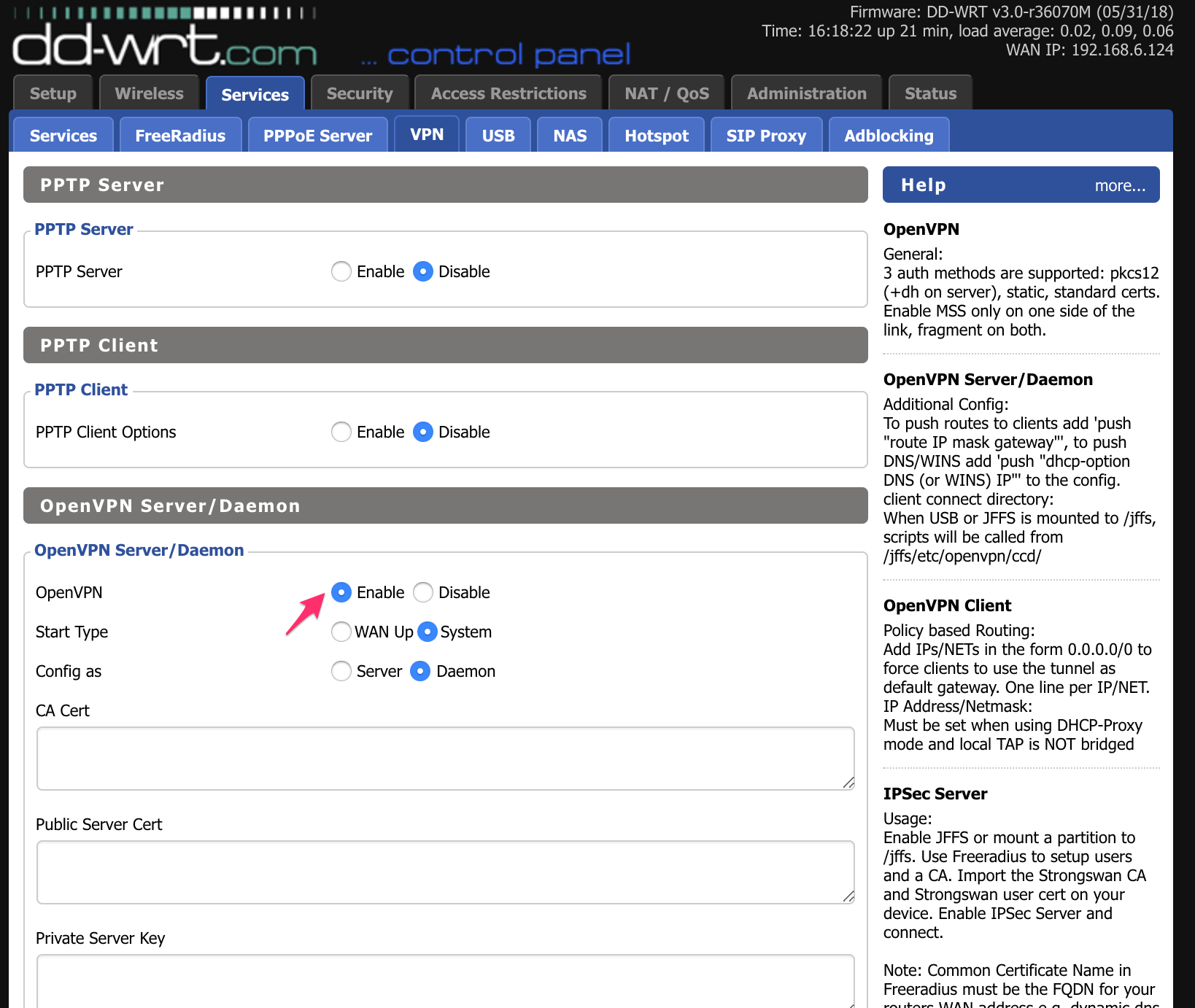
DD-WRT is a popular Linux-based firmware that allows you to run a VPN client directly on the router. This method encrypts traffic for every device connected to your Wi-Fi without individual apps.
Access the DD-WRT Administration Interface
Log into your router’s control panel using your web browser. Enter your router’s local IP address and your administrative credentials. Navigate to the Services tab in the top menu. Look for the VPN subsection where you will find the OpenVPN client settings. Enable the OpenVPN Client option to reveal the configuration fields.
Input Provider Configuration Details
Your VPN service provider supplies specific configuration files and credentials. You must transfer these details accurately into the router interface.
* Set Start OpenVPN Client to Enable.
* Enter the Server IP or hostname provided by your VPN.
* Input the correct Port number, often 1194 or 443.
* Select TUN for the tunnel device and UDP for the protocol.
* Choose AES-256-CBC for encryption and SHA256 for the hash algorithm.
* Paste your CA Certificate, TLS Auth Key, and user credentials into their respective text boxes.
Click Apply Settings and wait roughly 30 seconds for the connection to initialize.
Verify Active VPN Encryption
Confirm that your traffic is routing through the VPN server correctly. Visit a site like whatismyipaddress.com on a connected device. Compare the displayed IP address with your actual Spectrum public IP. If the addresses differ, your router successfully established a secure tunnel. If speeds seem slow, try switching to a server geographically closer to your location.
Flash Alternative Firmware Like OpenWrt
OpenWrt and Tomato are powerful alternatives to DD-WRT that offer modern interfaces and support for newer protocols like WireGuard. These systems provide granular control over your network security.
Install OpenWrt on Supported Hardware
Flashing custom firmware replaces the factory software entirely. Proceed with caution as interrupting this process can damage the router.
1. Download the correct firmware image for your specific router model from openwrt.org.
2. Access your current router administration panel.
3. Locate the Firmware Update or System Tools section.
4. Upload the downloaded OpenWrt binary file.
5. Wait for the device to reboot without powering it off.
Once finished, access the new interface at the default IP address to begin configuration.
Deploy WireGuard for High-Speed Performance
WireGuard is generally faster and more efficient than OpenVPN. OpenWrt makes setting this up straightforward through its interface.
* Go to Network > Interfaces and click Add New Interface.
* Name the interface “VPN” and select WireGuard VPN as the protocol.
* Generate a private key or paste your existing one.
* Add peer details including the public key, endpoint server address, and allowed IPs.
* Assign the interface to the wan firewall zone.
Save your settings and enable the interface. Check the Status menu to ensure the tunnel is active and passing traffic.
Purchase Pre-Flashed VPN Router Solutions

Flashing firmware involves technical risks that may void warranties or brick devices. Buying a pre-configured router eliminates these risks while delivering the same result.
Choose a Factory-Configured Device
Specialized retailers sell routers with VPN software already installed and tested. Brands like FlashRouters or providers like ExpressVPN offer hardware ready for immediate use. These devices come with user-friendly dashboards that simplify server selection. You avoid complex coding or configuration files entirely.
Connect and Activate Protection
Setup involves simple plug-and-play steps. Connect the pre-flashed router to your Spectrum modem via Ethernet. Power on the device and wait for it to boot. Connect your phone or laptop to the new Wi-Fi network. Open the provided app or web dashboard to select a server location. Click connect to secure your entire home network instantly.
Secure Individual Devices Without Router Changes
If replacing hardware is not an option, you can still protect your data by installing VPN software on specific devices. This method secures only the device with the app installed.
Install Native VPN Applications
Most major VPN providers offer dedicated applications for all major operating systems.
* Download the official app for Windows, macOS, Android, or iOS.
* Install the software and log in with your account details.
* Select a server location and toggle the connection on.
Your internet traffic is now encrypted even though the Spectrum router remains unchanged.
Utilize Split Tunneling Features
Many apps allow you to choose which applications use the VPN connection. This is useful if you want to stream local content on one app while keeping your browser traffic private. Find this option under Settings or Preferences labeled as Split Tunneling. Select the apps you wish to route through the secure tunnel.
Share VPN Connection via Windows Hotspot
You can turn a Windows PC into a virtual router that shares its VPN connection with other devices like gaming consoles or smart TVs.
Establish VPN Connection on PC
Launch your VPN application on your Windows computer. Connect to your desired server location. Verify that your IP address has changed to confirm the secure tunnel is active.
Enable Mobile Hotspot Sharing
Route this secure connection to other devices on your local network.
1. Open Settings and go to Network & Internet.
2. Select Mobile hotspot from the left menu.
3. Under “Share my Internet connection from,” select your VPN adapter.
4. Toggle the Mobile hotspot switch to On.
5. Connect your other devices to this new Wi-Fi network using the displayed password.
Your connected devices now route traffic through your PC’s VPN connection. Note that the computer must remain powered on for this to work.
Troubleshoot Common Connection Errors
Technical issues can occur during setup. Understanding common pitfalls helps you resolve them quickly without frustration.
Resolve No Internet Access Issues
If devices lose internet access after enabling the VPN, check your configuration. Ensure your firewall rules allow traffic through the tunnel interface. Verify that you are using TUN mode rather than TAP. Update your DNS settings to use reliable servers like 1.1.1.1 or 8.8.8.8. Lowering the MTU size to 1400 can also fix packet loss issues.
Address Slow Speed Performance
VPN encryption adds overhead that can reduce throughput. Connect to a server closer to your physical location for better speeds. Switch from OpenVPN to WireGuard if your router supports it, as it is more efficient. Use Ethernet cables instead of Wi-Fi to maximize bandwidth potential.
Fix Modem Connection Failures
If your new router cannot reach the internet after bridge mode, check physical connections. Ensure the Ethernet cable connects the Spectrum LAN port to the new router’s WAN port. Reboot both the modem and the new router. Check for any pending firmware updates on the Spectrum gateway that might reset your bridge settings.
Maintain Router Security and Stability
Regular maintenance ensures your VPN connection remains secure and reliable over time. Neglecting updates can leave your network vulnerable to exploits.
Perform Regular Firmware Updates
Manufacturers and open-source communities frequently release patches for security vulnerabilities. Check for updates every three months. Back up your current configuration before applying any updates. Re-apply your VPN settings if the update resets the device to defaults.
Monitor Network Performance
Keep an eye on your connection stability using network tools. Use speed test sites to check for throughput degradation. Review router logs periodically to detect unexpected disconnections. Some routers allow you to set up email alerts for connection drops.
Rotate Server Locations
Changing your exit server periodically enhances your privacy profile. Switch to a different geographic location every few weeks. Use obfuscated servers if you are in a region with strict internet controls. Enable auto-reconnect features to maintain protection if the connection drops.
Frequently Asked Questions About Connecting VPN to Spectrum Router
Can I install a VPN app directly on my Spectrum router?
No, standard Spectrum routers do not support direct VPN app installation. You must use a compatible third-party router, flash custom firmware, or share a connection from a PC to achieve this functionality.
Does using a VPN slow down my Spectrum internet speed?
Yes, encryption processes can reduce speed by 10-30%. Using modern protocols like WireGuard or connecting to nearby servers minimizes this impact significantly.
Will this setup work with Spectrum fiber internet?
Yes, the bridge mode and third-party router method works with both cable and fiber Spectrum connections. Ensure your new router supports the speed tier of your fiber plan.
Do I need a separate modem if I buy a new router?
No, you do not need a separate modem. You simply put your existing Spectrum gateway into bridge mode and connect your new router to it.
Is it legal to use a VPN with Spectrum internet?
Yes, using a VPN is legal in the US and most countries. It is a standard tool for privacy and security, though it does not permit illegal activities online.
Key Takeaways for Connecting VPN to Spectrum Router
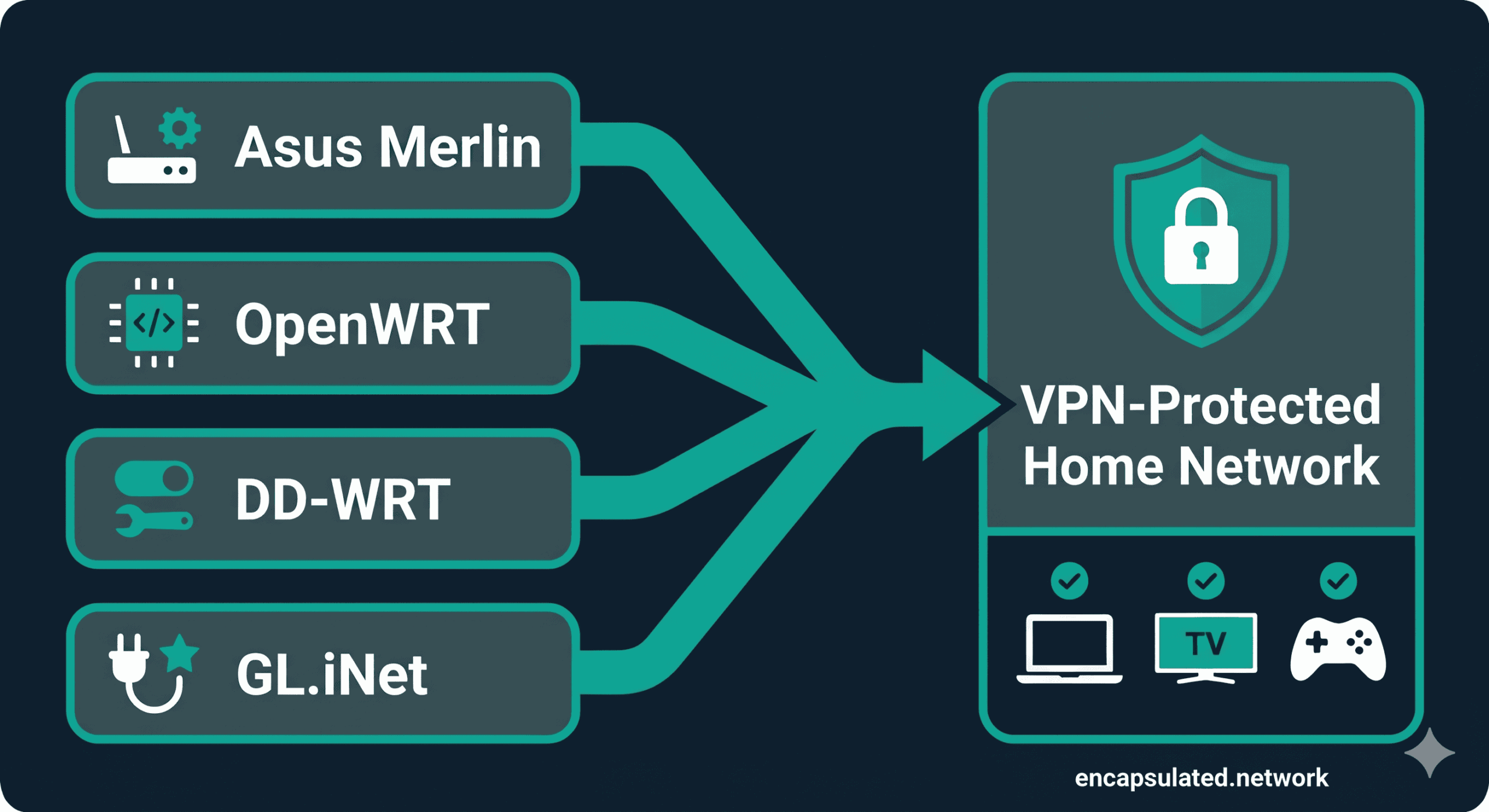
Connecting a VPN to a Spectrum router requires bypassing the default hardware limitations through bridge mode and third-party equipment. Your best options include flashing custom firmware like DD-WRT, buying a pre-configured router, or sharing a PC connection. Each method provides robust privacy and security for your home network.
Start by checking if your current router supports custom firmware or consider investing in a pre-flashed model for ease of use. Follow the steps above to secure your entire home network today.



