
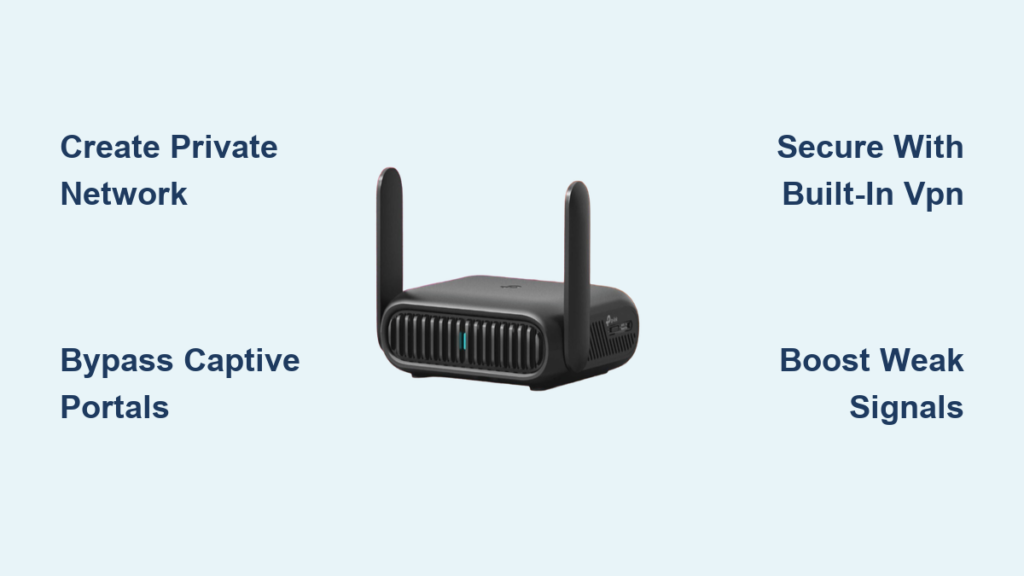
You arrive at a hotel only to find the Wi-Fi limits connections or forces every device through a login screen. This frustrating scenario is exactly why you need to understand how a travel router works to solve these issues instantly.
This guide explains how these compact devices create a private network from public sources to protect your data and connect all your gadgets. You will learn about encryption, signal boosting, and bypassing restrictive portals without technical jargon.
Create a Private Network Anywhere
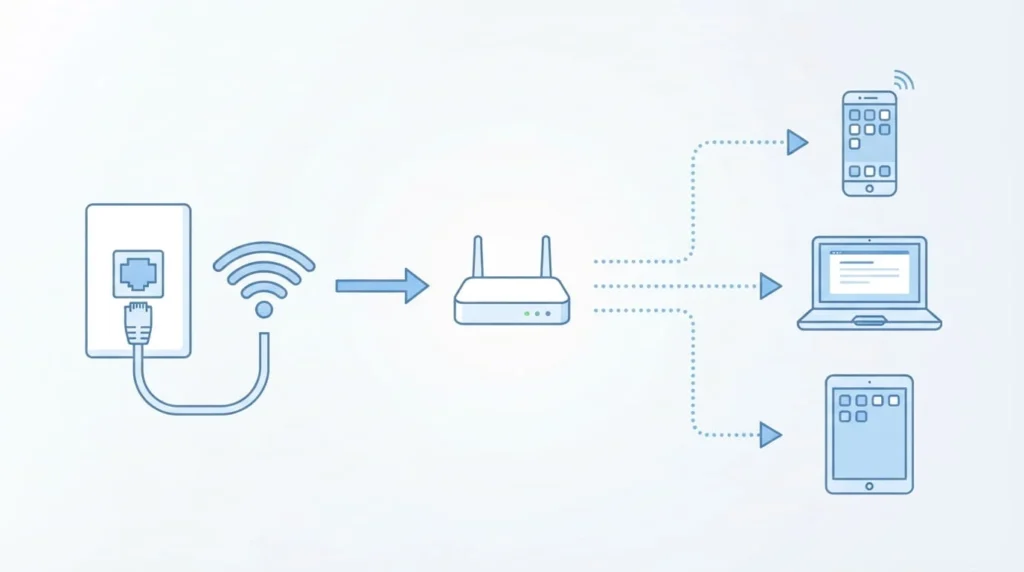
Public networks in hotels and airports often restrict how many devices can connect at once. A travel router solves this by acting as a single client to the main network while hosting its own local Wi-Fi for your gadgets.
Bypass Public Network Limits
Venues frequently cap connections at one or two devices per room to save bandwidth. Your travel router connects once and assigns private IP addresses to your phones, laptops, and tablets behind the scenes. This setup allows you to connect 10 or even 50 devices without triggering the venue’s device cap or paying extra fees.
Isolate Devices from Public Risks
Direct connections to public Wi-Fi expose your data to packet sniffing and malware attacks from other users. The router acts as a firewall that places a secure barrier between your personal gadgets and the outside world. Your sensitive banking details and passwords stay off the public grid because data flows through an encrypted local network first.
Handle Captive Portals Like a Pro
Captive portals are those annoying browser pages that require you to accept terms or enter a room number before accessing the internet. Many smart devices cannot open these pages, leaving your tablet or gaming console offline until you solve the problem.
Solve Login Page Problems
Devices like Apple TVs and game consoles lack web browsers to complete hotel logins. You simply connect your laptop to the travel router, open a browser, and complete the login form once for the entire network. Every device connected to your router now accesses the internet immediately without needing individual authentication.
Stay Connected During Re-Authentication
Some networks demand you log in again every few hours, which breaks your streaming or video calls. Advanced routers maintain the session automatically or use scripts to re-authenticate in the background without your input. This feature ensures your connection remains stable for hours without manual intervention on every single device.
Secure Your Connection with Built-In VPN
Hardware-level VPN support is a standout feature that encrypts all traffic leaving your local network. Instead of installing apps on every phone, you configure the router to tunnel data through secure protocols like WireGuard or OpenVPN automatically.
Route All Traffic Through Encryption
Every packet leaving your network travels through a secure server that hides your IP address and location. This setup protects even “dumb” devices like smart TVs that cannot run VPN software natively. You gain end-to-end encryption for your entire digital environment, which is crucial when working with sensitive company data.
Choose Different VPNs Per Device
High-end models support policy-based routing that lets you assign different VPN tunnels to specific gadgets. You can route your work laptop through a corporate server while sending your streaming stick to a US-based server for content access. This granular control allows you to customize security and geographic location for each device individually.
Maximize Speed with Hardware Offload
Running encryption usually slows down internet speeds, but modern routers use hardware acceleration to maintain performance. Technologies like Dual Channel Offload allow WireGuard speeds to exceed 480 Mbps even with active encryption. You can stream 4K video or hold high-definition video conferences without noticing any lag or buffering.
Boost Weak Wi-Fi Signals

Hotel Wi-Fi coverage is often terrible in bedrooms despite being strong in the lobby. A travel router can capture these weak signals and rebroadcast them as a stronger, more reliable network for your personal use.
Extend Spotty Hotel Internet
Place the router near a window or closer to the hallway where the hotel signal is stronger. In Repeater Mode, the device captures the existing weak signal and amplifies it for your room. You get better stability and range, allowing you to use the internet comfortably from your bed or desk.
Optimize Bandwidth in Crowded Areas
Congested environments like conferences overload the standard 2.4 GHz band with interference from neighboring networks. Your router lets you switch to the 5 GHz band for faster speeds or narrow the channel width to 20 MHz to avoid overlap. Some newer models even bond bands together for a more resilient connection in busy areas.
Connect via Ethernet for Stability
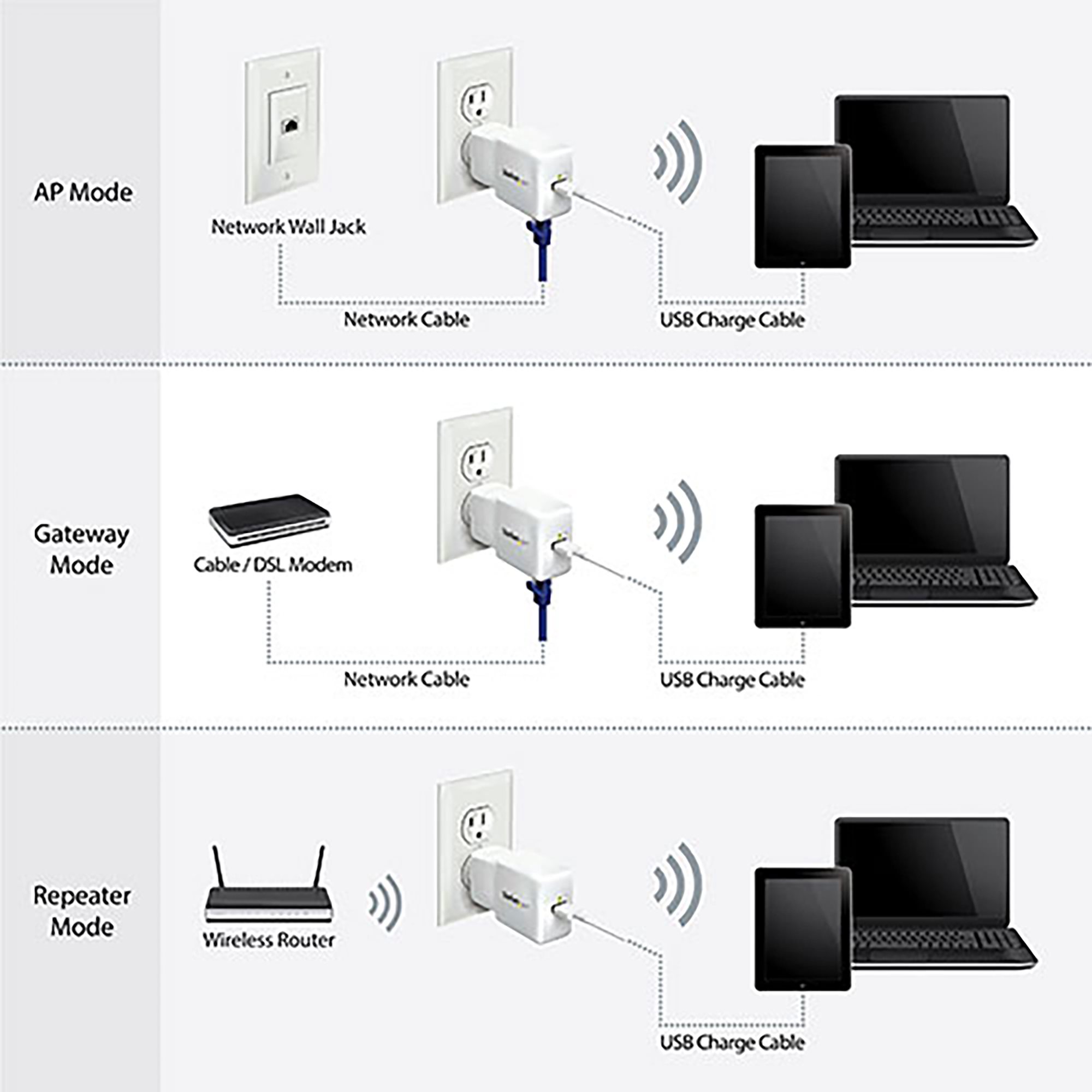
Wired connections offer superior speed and stability compared to wireless signals whenever an Ethernet port is available. Plugging your travel router directly into a wall jack eliminates wireless interference and ensures maximum throughput for critical tasks.
Use Wired Internet When Available
Insert the Ethernet cable into the WAN port of your router to distribute the connection wirelessly to all your devices. This method bypasses flaky hotel Wi-Fi entirely and provides a direct pipeline to the internet. High-end models feature dual 2.5 Gbps ports that handle fiber speeds without creating a bottleneck.
Turn Wired into Wireless for Any Device
Older desktops or gaming consoles often lack Wi-Fi but have Ethernet ports for wired connections. You can plug these devices into the router’s LAN port to give them wireless internet access instantly. This client bridge mode is perfect for connecting a PS5 or smart TV that struggles with captive portals.
Share Cellular Data Like a Pro
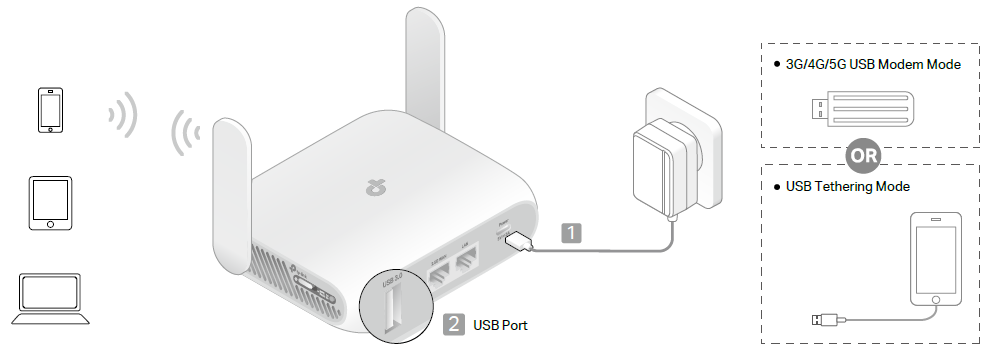
Using your phone as a hotspot drains its battery quickly and limits how many devices can connect. A travel router offers a superior alternative by tethering to your phone via USB or using a dedicated cellular dongle.
Tether Your Phone Without Draining the Battery
Connect your smartphone to the router via USB so the router broadcasts the Wi-Fi network instead of your phone. This setup prevents battery drain on your phone and avoids the sleep-mode disconnects that plague native hotspots. You can support over 10 devices simultaneously compared to the typical limit of four or five on phones.
Use USB 4G/5G Dongles for Dedicated Data
Insert a USB cellular modem with a local SIM card to create a fully independent mobile hotspot. This method is ideal for long stays or remote locations where fixed broadband is unreliable or unavailable. Advanced routers can automatically switch between Ethernet, Wi-Fi, and cellular sources if one connection fails.
Customize with OpenWRT and Plugins
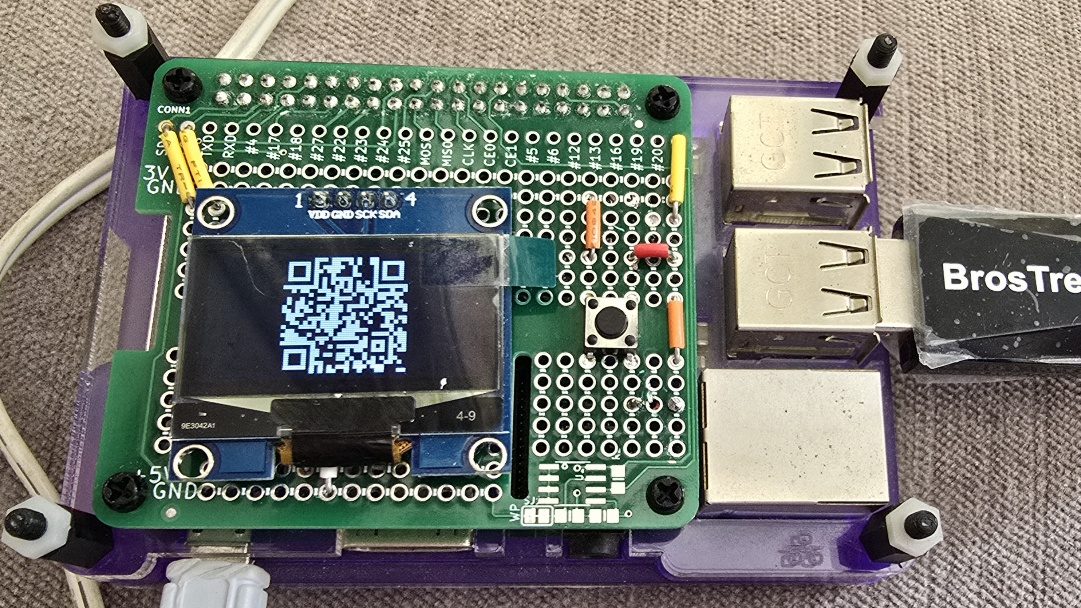
Many travel routers run on OpenWRT, a Linux-based operating system that turns the device into a powerful mini-computer. This platform allows you to install custom software packages to expand functionality far beyond basic routing.
Run Linux Apps on Your Router
Access over 1,000 available packages to install tools like Pi-hole for network-wide ad-blocking. You can even run media servers like Jellyfin or home automation platforms like Home Assistant directly on the device. Tech enthusiasts appreciate this flexibility as it transforms a simple router into a portable server lab.
Expand Storage with USB Drives
Most units include USB ports that accept flash drives or external hard drives for extra storage. You can store files for sharing across your network or back up photos from your trip without needing cloud access. This feature bypasses the limited internal storage of the router itself.
Control Your Network Instantly
Modern travel routers include hardware features that make managing your network quick and intuitive without needing a computer. These physical controls allow you to monitor status and change settings with a simple glance or touch.
Use Touchscreen for Real-Time Monitoring
Premium models feature built-in screens that display current connection speeds and active device counts. You can see your VPN status and data consumption at a glance without logging into a complex web interface. A QR code on the display also lets guests join your network instantly without typing passwords.
Toggle Features with Physical Switches
Dedicated hardware switches let you enable or disable Wi-Fi broadcasting and VPN protection instantly. Flipping a switch to turn off Wi-Fi when not in use saves power and increases security. These tactile controls are invaluable when you need to change settings quickly in a hurry.
Set It Up Before You Go
Configuring your device at home ensures a smooth experience when you arrive at your destination. Taking time to set up security settings and update firmware beforehand prevents headaches during your trip.
Configure at Home for Smooth Travel
Power on the router and access the web interface to change the default admin password immediately. Rename your SSID to something recognizable and test your VPN settings while you have a stable connection. Once configured, your devices will automatically reconnect whenever the router powers on at your hotel.
Avoid Network Conflicts
Change the router’s LAN IP address to a non-standard subnet like 192.168.10.1 to prevent conflicts with hotel networks. This step ensures your router does not clash with the venue’s infrastructure if they use common default settings. Proper configuration guarantees seamless operation in any environment you visit.
Fix Common Issues Fast
Understanding how to troubleshoot minor issues ensures your network remains stable throughout your journey. Simple adjustments can resolve connectivity problems and optimize performance for your specific needs.
Prevent Double NAT Problems
Using a router behind another router can cause Double NAT issues that break video calls or gaming. Switch your device to Bridge Mode or Extender Mode to disable NAT and allow seamless device discovery. This adjustment is essential if you need to cast content to a smart TV or use peer-to-peer applications.
Optimize for Speed and Range
Select the 5 GHz band for high-speed tasks like gaming and use 2.4 GHz for better range through walls. Enable 20 MHz channel width in crowded areas to reduce interference from neighboring networks. Small tweaks to these settings can dramatically improve your overall internet performance.
Frequently Asked Questions About Travel Routers
Can a travel router bypass hotel device limits?
Yes, the router connects as a single device to the hotel network while allowing you to connect dozens of your own gadgets. The hotel only sees one connection, so you avoid extra fees or connection caps entirely.
Do travel routers work with captive portals?
Absolutely, you log in once using a laptop or phone connected to the router, and then all devices gain access. This solves the problem for smart TVs and gaming consoles that cannot open browser login pages.
Does using a VPN on a travel router slow down internet speed?
Modern routers with hardware acceleration maintain high speeds even with encryption active. You can expect over 480 Mbps with WireGuard, which is sufficient for 4K streaming and video calls.
Can I use a travel router without a phone or computer?
Yes, many models support USB cellular dongles or have touchscreens for direct configuration. You can manage settings and monitor connections directly on the device without needing an external controller.
How many devices can connect to a travel router?
Most models support between 10 and 50+ simultaneous connections depending on the specific hardware. This capacity far exceeds the typical four or five device limit found on smartphone hotspots.
Key Takeaways for Understanding How a Travel Router Works
Understanding how a travel router works empowers you to create a secure, private network anywhere in the world. These devices bypass public restrictions, encrypt all your traffic with built-in VPNs, and boost weak signals for reliable connectivity.
Start by configuring your router at home to ensure all security settings and updates are ready before you leave. Invest in a quality model that fits your needs to enjoy seamless, protected internet access on your next trip.



