
You are streaming a movie while your partner video calls a client and a smart thermostat updates its settings. This seamless digital dance happens because two specific devices work in tandem to manage data flow. Understanding how does modem and router work together reveals the secret behind your reliable home connectivity.
The modem acts as a translator that brings the internet signal from your provider into your house. The router then takes that single connection and distributes it safely to every phone, laptop, and tablet you own. This guide explains their distinct roles, the technology behind signal conversion, and how to optimize your specific setup for maximum speed.
The Modem Functions as Your Internet Translator
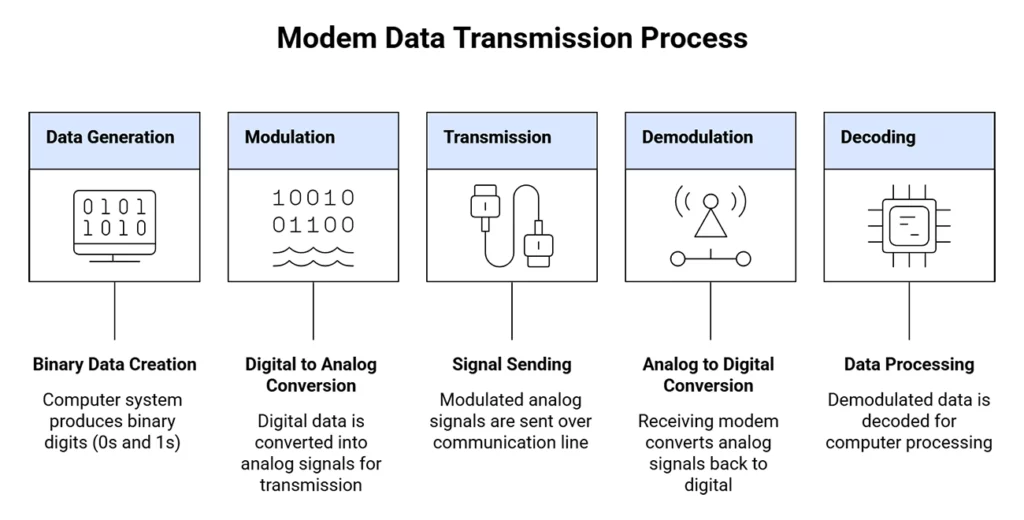
Your modem serves as the critical gateway between your home network and the global internet. It connects directly to your Internet Service Provider (ISP) through a dedicated line like coaxial cable or fiber optics. Without this device, your computer cannot interpret the signals arriving from outside your home.
Converting Analog Signals to Digital Data
The primary job of the modem is signal conversion. Data travels from your ISP as an analog wave, which looks like a continuous electrical fluctuation. Your devices only understand digital binary code consisting of ones and zeros. The modem performs demodulation to turn incoming analog waves into digital data. When you send an email, it performs modulation to turn your digital text back into analog waves for transmission.
Connecting Via Dedicated Physical Lines
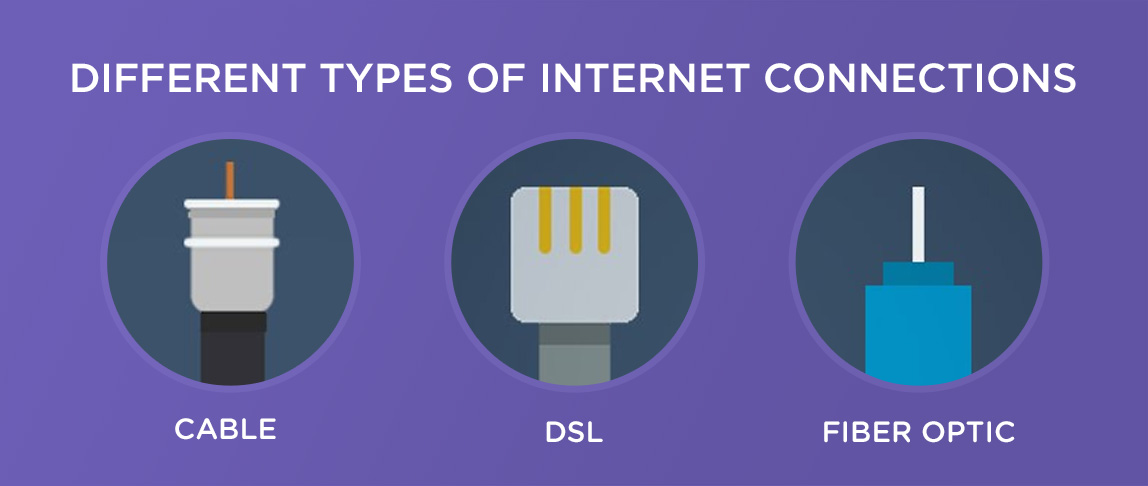
Different internet technologies require specific physical connections. You will see one of three main input types on the back of your device.
* Coaxial ports accept cable internet lines similar to TV connections.
* Telephone ports (RJ11) connect DSL services over copper wires.
* Fiber terminals receive light pulses through glass strands for ultra-fast speeds.
Outputting Clean Data Through Ethernet
Once the signal is translated, the modem sends clean digital data out through an Ethernet port. Most standard modems feature a single Gigabit Ethernet port designed to connect to a router. Some advanced models include multiple LAN ports, allowing you to bypass a router for a single wired computer, though this limits you to one device.
The Router Manages Your Local Network Traffic
While the modem brings the internet to your door, the router acts as the internal traffic cop. It creates a Local Area Network (LAN) that allows multiple devices to share that single connection simultaneously. It ensures data packets reach the correct destination without colliding or getting lost.
Distributing Connections to Multiple Devices
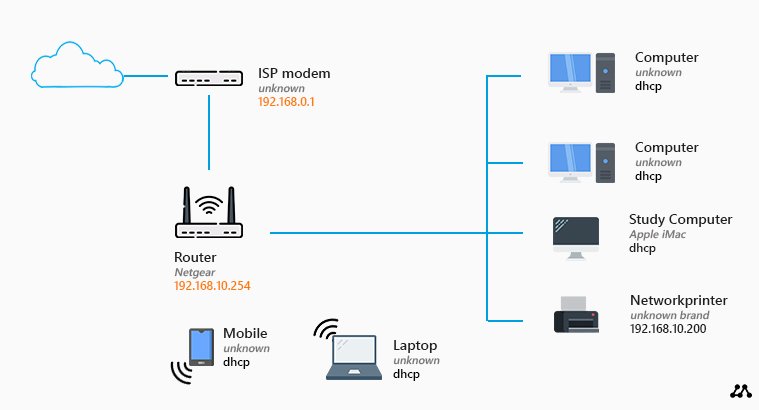
The router assigns a unique local IP address to every smartphone, laptop, and smart speaker in your home. When you load a webpage, the request travels from your device to the router, then to the modem, and finally to the internet. The response follows the reverse path, with the router directing the data precisely back to your specific screen.
Managing Data Flow and Bandwidth
Every online action generates small bundles of information called data packets. The router reads the tags on these packets to route traffic efficiently. It balances incoming downloads and outgoing uploads across all connected gadgets. If you enable Quality of Service (QoS) settings, you can prioritize video calls over background downloads to prevent lag.
Creating Secure WiFi Networks
Your router broadcasts a wireless signal known as an SSID that your devices detect. It protects this network with encryption protocols like WPA2 or WPA3 to keep hackers out. Additional security layers often include firewalls that block malicious external threats and NAT features that hide your internal device addresses from the public web.
How Modem and Router Work Together Step-by-Step
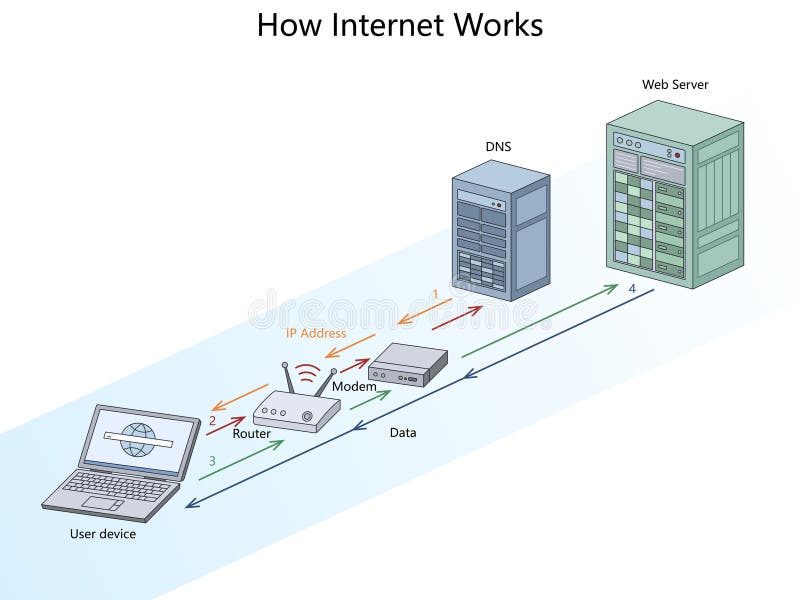
These two devices operate in a precise sequence to deliver internet access. A failure in any step of this chain will result in a loss of connectivity for your entire home network. Understanding this flow helps you troubleshoot issues faster when they arise.
- ISP Connection: The modem connects to the wall jack and establishes a link with your provider.
- Signal Demodulation: The modem converts the incoming analog signal into digital data.
- Data Transfer: The modem sends this digital data to the router via an Ethernet cable.
- IP Assignment: The router assigns local addresses to your phones, computers, and tablets.
- Signal Broadcast: The router broadcasts WiFi or provides wired ports for device connection.
- Live Access: All devices gain simultaneous access to the global internet.
Why You Need Both Devices
Think of the modem as your front door and the router as your hallway system. The front door lets you enter the house, but the hallway allows you to move between rooms. A modem alone provides internet to only one wired device with no wireless capability. A router without a modem has no external connection to distribute. You need both for a functional modern home network.
Real-World Example of Simultaneous Usage
Imagine a scenario where three people use the network at once. One person streams 4K video, another plays an online game, and a third works on a video conference. The modem pulls the total bandwidth from the ISP, perhaps 500 Mbps. The router then splits this bandwidth intelligently, sending large video chunks to the TV while prioritizing low-latency data for the gamer. Each device gets what it needs without interference.
Different Modem Technologies Explained
Not all modems are built the same. The type of modem you use depends entirely on the infrastructure available in your area. Each technology offers different speeds and reliability levels based on how it transmits data.
Cable Modems Use Coaxial Infrastructure
Cable modems utilize the same coaxial cables that deliver cable television. They offer high speeds up to 1 Gbps and are widely available in urban areas. However, performance can dip during peak evening hours when many neighbors use the network simultaneously. This shared bandwidth model means your speed might fluctuate based on local demand.
DSL Modems Rely on Telephone Wires
Digital Subscriber Line (DSL) modems use existing copper telephone lines to transmit data. They are often the only option in rural locations where cable or fiber has not reached. Speeds are generally lower than cable, and performance degrades significantly the farther you live from the provider’s central hub.
Fiber-Optic Modems Deliver Light-Speed Data
Fiber modems convert light pulses traveling through glass fibers into digital signals. This technology offers the fastest speeds and lowest latency available today. It supports symmetrical upload and download speeds, making it ideal for heavy cloud usage. Availability remains limited compared to cable and DSL options.
VoIP Modems Support Landline Phones
Some modems include an Analog Telephone Adapter to support traditional landline phones. This feature allows voice calls to travel over the internet rather than copper lines. These units are common in bundled packages that combine internet and phone services from a single provider.
Router Features That Enhance Performance

Modern routers include advanced features that go beyond simple data distribution. These tools help you manage security, prioritize important tasks, and control access for different users in your home.
WiFi Standards Define Speed Capabilities
Newer routers support updated WiFi standards like WiFi 6 and WiFi 6E. These standards improve efficiency in crowded networks and reduce latency for gaming. Upgrading to a router with these standards ensures your hardware does not bottleneck your internet plan.
Parental Controls and Guest Networks
Many routers allow you to create a separate guest network for visitors. This keeps your main devices secure while giving guests internet access. Parental controls let you block inappropriate content or set time limits for specific devices. These features provide essential management tools for families.
Port Forwarding for Gamers
Gamers and server hosts often require port forwarding to function correctly. This feature manually directs external traffic to a specific internal device. While useful, you should only open ports you trust to avoid creating security vulnerabilities in your network.
Separate Units Versus Combo Gateways
You can buy a modem and router as two separate boxes or as a single combination unit called a gateway. Each approach has distinct advantages depending on your technical needs and budget.
Benefits of Separate Devices
Using separate units gives you dedicated hardware for each task. You can upgrade your router to the latest WiFi standard without replacing your modem. This approach often yields better performance and provides more granular control over network settings. It also eliminates monthly rental fees if you purchase your own equipment.
Convenience of Gateway Units
A gateway combines both functions into one physical box. ISPs often provide these units to simplify installation and support. They require less space and fewer power cords. However, they often suffer from shared processing power and limited customization options. You must replace the entire unit if either the modem or router technology becomes outdated.
Expand Coverage With Mesh and Extenders

Large homes often struggle with WiFi dead zones where signals cannot reach. You can expand your network coverage using extenders, mesh systems, or powerline adapters to ensure every room has strong connectivity.
WiFi Extenders Boost Signal Range
Extenders capture your existing WiFi signal and rebroadcast it further. They are affordable and easy to install by simply plugging them into an outlet. However, they often create a second network name and can reduce bandwidth by up to half. They work best for small dead zones rather than whole-home coverage.
Mesh Systems Create Seamless Networks
Mesh WiFi systems use multiple nodes to create a single unified network. Your device automatically connects to the nearest node as you move through the house. This seamless roaming eliminates the need to manually switch networks. Mesh systems are ideal for large or multi-story homes requiring consistent coverage.
Powerline Adapters Use Electrical Wiring
Powerline adapters send internet data through your home’s existing electrical circuits. One adapter connects to your router while another plugs into an outlet in a distant room. This method bypasses thick walls that block wireless signals. Performance depends on the quality of your home’s electrical wiring.
Optimize Speed and Security Best Practices
Proper setup and maintenance ensure your network runs smoothly and safely. Following a few key steps can prevent common issues and protect your personal data from external threats.
Match Hardware to Your Internet Plan
Ensure your equipment supports the speed you pay for. If you have a gigabit plan, your modem must support DOCSIS 3.1 and your router needs Gigabit Ethernet ports. Old hardware will bottleneck your connection regardless of how fast your ISP service is. Always check specifications before purchasing new devices.
Secure Your Network Against Threats
Change the default admin password on your router immediately upon setup. Enable WPA3 or WPA2 encryption to protect wireless transmissions. Turn off remote management features unless you specifically need them. Regularly update your firmware to patch security vulnerabilities and fix bugs.
Troubleshoot Common Connection Issues
If you lose internet, check the lights on your modem first. A missing online light usually indicates an ISP outage or loose cable. Reboot both your modem and router by unplugging them for 30 seconds. If speeds are slow, run a test while wired directly to the modem to isolate the issue.
Frequently Asked Questions About Modems and Routers
Can I use a router without a modem?
No, a router cannot connect to the internet on its own. It needs a modem to translate the signal from your ISP. Without a modem, a router can only create a local network for file sharing between devices but provides no web access.
Why does my internet slow down when many devices connect?
Your router splits the total available bandwidth among all active devices. When multiple users stream video or download files simultaneously, less speed is available for each individual device. Using QoS settings can help prioritize critical traffic.
How often should I replace my modem and router?
You should consider replacing your modem every 3 to 5 years as technology standards evolve. Routers typically last 3 to 4 years before newer WiFi standards offer significant improvements. Older devices may not support the full speed of your internet plan.
Is it better to buy or rent my equipment?
Buying your own equipment usually saves money in the long run by avoiding monthly rental fees. It also gives you full control over settings and upgrades. Renting is convenient for those who prefer ISP support and do not want to troubleshoot hardware issues.
What is the difference between WiFi 5 and WiFi 6?
WiFi 6 offers faster speeds, lower latency, and better performance in crowded networks compared to WiFi 5. It handles multiple devices more efficiently, making it ideal for smart homes. Older devices work on WiFi 6 networks but will not see speed improvements.
Key Takeaways for Understanding How Modem and Router Work
Understanding how does modem and router work together empowers you to build a faster and more secure home network. The modem translates the signal from your provider while the router distributes it to your devices. Investing in quality separate units and keeping firmware updated ensures optimal performance for all your digital activities.



