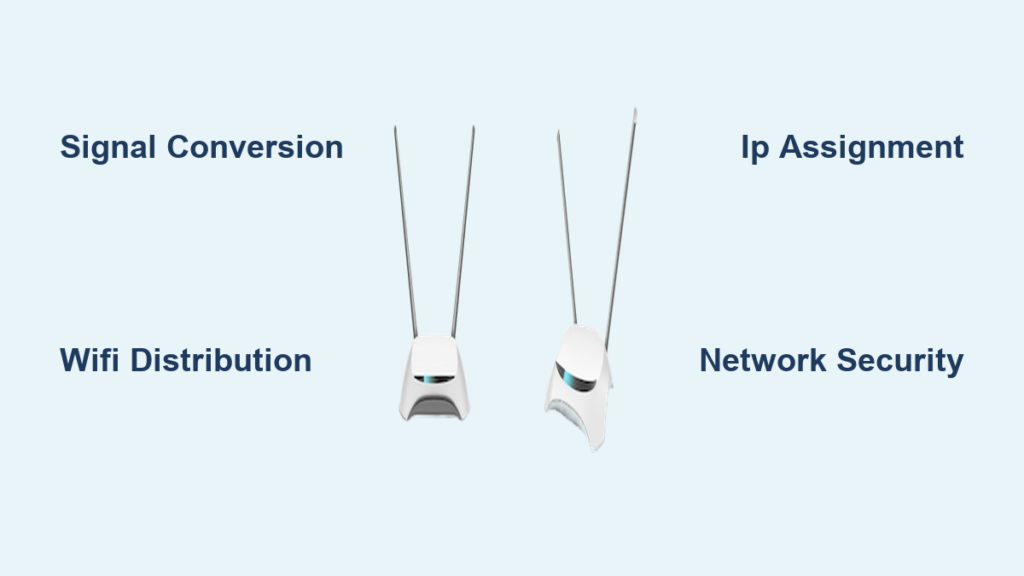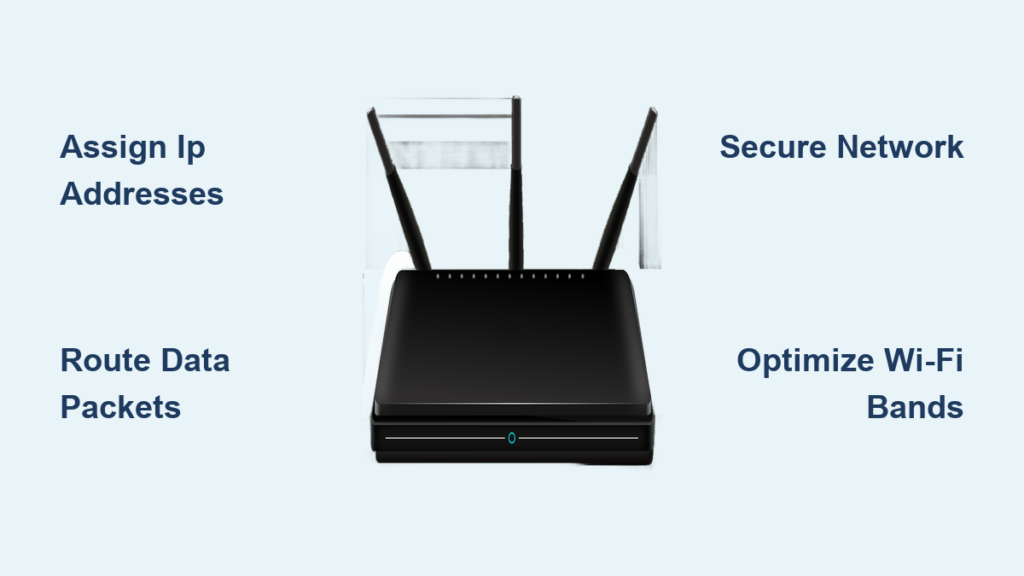
You stream movies, video call, and browse the web all at once thanks to a small device directing traffic behind the scenes. This intelligent hub manages data flow so every gadget gets exactly what it needs without chaos. But how does a router work to keep your connection fast? It acts as the brain of your network, sorting millions of data packets every second.
This guide explains the specific mechanics of data routing, IP assignment, and wireless transmission in simple terms. You will learn how your device distinguishes between a printer and a laptop while blocking outside threats. We will cover the difference between modems and routers, how security protocols protect your data, and ways to optimize your setup for better speed.
Connect Multiple Devices to One Internet Source
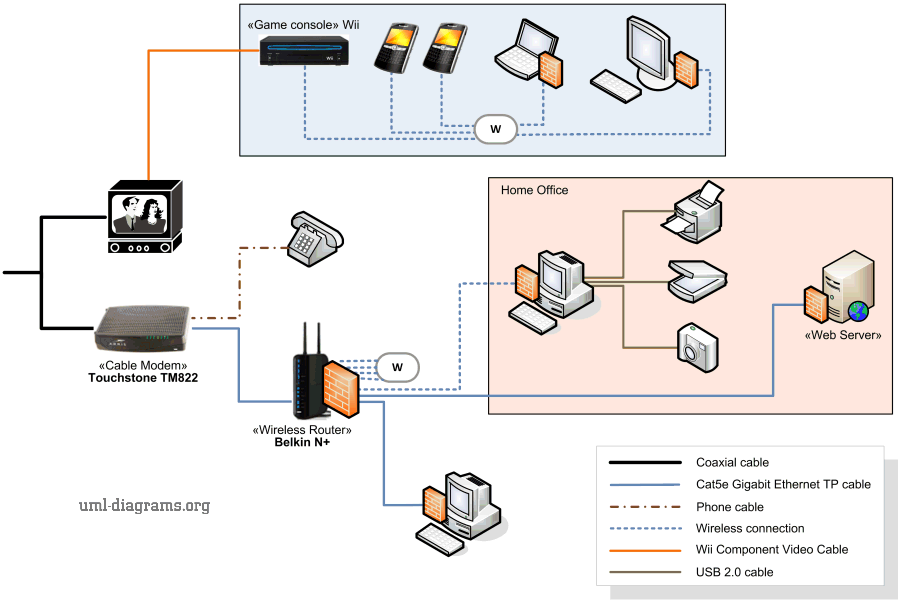
Your Internet Service Provider gives your home a single public connection, yet you likely have dozens of gadgets online simultaneously. The router solves this by creating a Local Area Network (LAN) that shares that one link efficiently. It ensures your phone, laptop, and smart TV all access the web without conflicting with each other.
Share a Single Public Connection
The router takes the single public IP address from your ISP and distributes it across your entire household. It uses a system called Dynamic Host Configuration Protocol (DHCP) to assign a unique private IP address to every device. This allows your laptop to load a webpage while your phone checks email, with the router tagging each request correctly.
Enable Local Device Communication
Beyond internet access, the router allows your devices to talk to each other directly. You can print documents from a laptop to a network printer or stream photos from a phone to a smart TV without using external bandwidth. The router tracks these internal requests using hardware identifiers known as MAC addresses.
Distinguish Between Routers and Modems
Many users confuse these two devices, but they perform completely different jobs in your network setup. Understanding the distinction helps you troubleshoot connection issues effectively.
Modem Brings Internet to Your Door
The modem connects directly to your ISP via cable, fiber, or DSL lines. Its sole job is converting the signal from your provider into digital data your devices can understand. Without a modem, you have no entry point to the global internet, but it cannot manage multiple devices on its own.
Router Distributes Traffic Internally
The router connects to the modem and manages all traffic inside your home. It directs data to the correct device, blocks unauthorized access, and prioritizes critical tasks like video calls. Think of the modem as the door to the internet and the router as the security guard and traffic cop inside.
Gateway Units Combine Both Functions
Many ISPs provide a single unit called a gateway that combines a modem and router. While convenient, these combo units often lack the advanced performance and customization of separate high-quality devices. Power users frequently disable the routing function of gateways to use dedicated routers for better control.
Route Data Packets Using Routing Tables
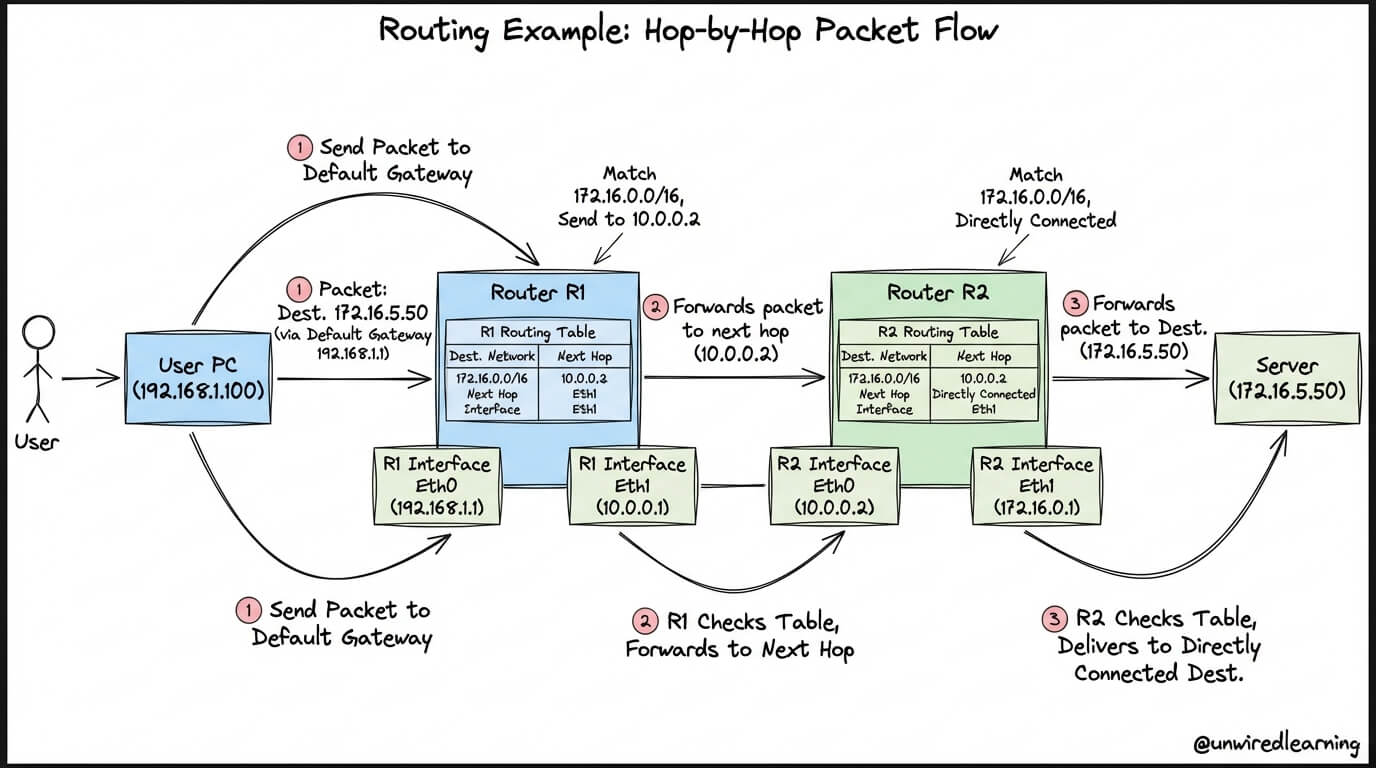
Data does not travel as whole files but breaks into small chunks called packets. Your router reads the header of each packet to decide where it needs to go next. This process happens in milliseconds to ensure seamless communication.
Consult Routing Tables for Paths
Every router maintains a database known as a routing table. When a packet arrives, the device checks the destination IP address against this table to find the best path. If multiple routes exist, it selects the one with the lowest metric value based on speed and reliability.
Handle Missing Routes and Errors
If the destination is not in the table, the router may send the packet to a default route or discard it entirely. Misconfigured tables often cause connectivity drops where data gets lost in transit. Resetting the device or updating settings usually resolves these routing errors.
Assign Unique IP Addresses Automatically
Every device needs a unique identifier to prevent data from going to the wrong place. The router handles this automatically so you never have to configure addresses manually.
Generate Private IP Addresses
The router assigns private IP addresses like 192.168.1.10 to each connected gadget. These addresses only work within your local network and keep your internal structure hidden from the outside world. The router keeps a log matching these IPs to specific hardware so it knows where to send returning data.
Translate Public and Private Addresses
Your router holds the single public IP address visible to the internet. It uses Network Address Translation (NAT) to swap private addresses for the public one when data leaves your home. This translation adds a crucial layer of security by hiding your internal network structure from external viewers.
Transmit Data Over Wireless Frequencies
Wireless routers convert digital data into radio signals to reach your devices without cables. They operate on specific frequency bands to balance speed and range effectively.
Choose Between 2.4 GHz and 5 GHz Bands
Routers typically broadcast on two frequencies with different strengths. The 2.4 GHz band offers longer range and better wall penetration but slower speeds. The 5 GHz band provides faster data rates ideal for streaming but has a shorter range and struggles with obstacles.
Support Modern Wi-Fi Standards
Newer routers follow standards like Wi-Fi 5 (802.11ac) and Wi-Fi 6 (802.11ax). These standards improve efficiency and allow more devices to connect simultaneously without lag. Upgrading to a Wi-Fi 6 router can significantly boost performance in homes with many smart devices.
Secure Your Network Against Threats
Your router acts as the first line of defense against cyberattacks and unauthorized users. It employs several built-in features to keep your data safe from external threats.
Block Intruders with Firewall Protection
A built-in firewall inspects all incoming and outgoing traffic for suspicious activity. It blocks unauthorized connection attempts before they reach your devices. This prevents hackers from scanning your network or accessing your files remotely.
Encrypt Wireless Data Transmission
Routers use encryption standards like WPA2 and WPA3 to scramble your data. This ensures that even if someone intercepts your signal, they cannot read your information without the key. Always choose WPA3 or WPA2 encryption and avoid outdated or open networks.
Isolate Guests on Separate Networks
Guest networks allow visitors to access the internet without touching your main devices. This isolation protects your personal files and smart home gadgets from potential malware on guest phones. You can also set time limits or speed caps for these temporary connections.
Optimize Traffic with Advanced Features
Modern routers offer powerful tools to manage bandwidth and improve performance for specific tasks. These features help you control how data flows through your network.
Prioritize Critical Traffic with QoS
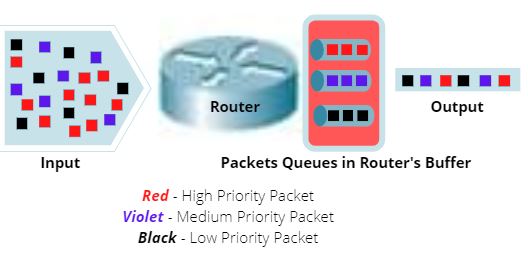
Quality of Service (QoS) lets you assign higher priority to specific activities. You can ensure your video conference stays smooth even if someone else is downloading large files. This feature reduces lag for gaming and streaming by managing bandwidth allocation dynamically.
Forward Ports for Remote Access
Port forwarding directs incoming internet traffic to a specific device on your network. This is useful for accessing security cameras or hosting game servers from outside your home. Be careful when using this feature, as opening ports can expose devices to potential attacks.
Monitor Bandwidth Usage Patterns
Many routers include tools to track which devices use the most data. You can see real-time upload and download speeds to identify bandwidth hogs. This monitoring helps you detect unusual activity or potential malware infections early.
Maintain Router Firmware for Security
The operating system running your router is called firmware. Manufacturers release updates regularly to fix bugs and patch security holes.
Check for Updates Regularly
Log into your router settings to check for available firmware updates. These updates often include critical security patches and performance improvements. Enable automatic updates if your model supports them to stay protected without manual effort.
Avoid Risks of Outdated Software
Running old firmware leaves your network vulnerable to known exploits. Hackers often target devices with outdated software to gain unauthorized access. Regular updates are essential to keep your network secure against emerging threats.
Expand Coverage with Multiple Routers

Large homes may need more than one device to eliminate dead zones and ensure full coverage. You can connect multiple routers or use mesh systems to extend your network range.
Prevent IP Conflicts When Expanding
When adding a second router, disable its DHCP server to prevent address conflicts. Connect the devices via Ethernet for the best performance and stability. Assign a static IP to the second unit to ensure smooth communication between them.
Use Mesh Systems for Seamless Roaming
Mesh Wi-Fi systems use multiple nodes to create a single seamless network. Your devices automatically switch to the strongest signal as you move around the house. This eliminates dead zones and provides consistent speeds throughout your entire home.
Prepare for the Future with IPv6
The internet is transitioning to a new addressing system called IPv6 to accommodate more devices. This newer protocol offers a vastly larger address space than the current IPv4 standard.
Enable IPv6 When Available
Check if your ISP supports IPv6 and enable it in your router settings. This allows your network to handle the newer address format alongside the traditional one. Enabling this feature future-proofs your connection as more websites adopt the standard.
Ensure Compatibility with Growing Networks
Modern routers support both IPv4 and IPv6 to ensure compatibility with all devices. As the internet evolves, having IPv6 ready ensures your network remains efficient. This transition helps maintain speed and security as the number of connected devices grows.
Frequently Asked Questions About How Routers Work
Can a router work without a modem?
Yes, a router can create a local network for file sharing and printing without a modem. However, you will not have access to the internet without the modem to connect to your ISP.
How often should I update my router firmware?
You should check for firmware updates monthly or enable automatic updates if available. Manufacturers release patches frequently to fix security vulnerabilities and improve performance.
Does using two routers slow down my network?
Improperly configured dual routers can cause slowdowns due to IP conflicts or signal interference. Correct setup with disabled DHCP on the second unit ensures smooth operation and extended coverage.
What is the difference between 2.4 GHz and 5 GHz bands?
The 2.4 GHz band offers longer range but slower speeds, while 5 GHz provides faster speeds with shorter range. Choose 5 GHz for streaming near the router and 2.4 GHz for devices farther away.
How do I know if my router is secure?
Check that you are using WPA2 or WPA3 encryption and have changed the default admin password. Regular firmware updates and disabling remote management also enhance your network security significantly.
Key Takeaways for Understanding How a Router Works
Your router is the intelligent core that manages data flow, assigns addresses, and secures your entire network. It distinguishes between devices, prioritizes critical traffic, and protects against external threats through firewalls and encryption. Regular maintenance like firmware updates ensures it continues to perform these tasks efficiently.
Take action today by logging into your router settings to check for updates and review your security configuration. Understanding how does a router work empowers you to optimize your setup for speed and safety. A well-configured router provides the reliable foundation your digital life depends on.