
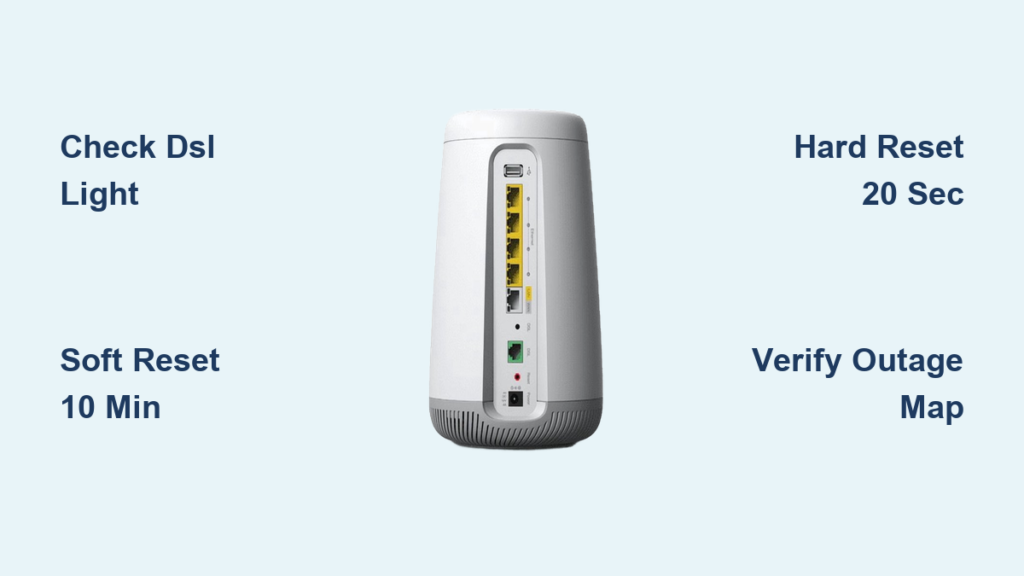
Picture this: you’re trying to stream a show, join a video call, or finish an important task, and your CenturyLink modem suddenly stops working. The lights blink, your devices won’t connect, and frustration builds quickly. The good news is that most CenturyLink modem issues can be resolved at home without calling support. This guide walks you through proven diagnostic steps, proper reset procedures, and smart fixes that restore your internet in under 30 minutes.
You’ll learn how to read your modem’s lights, perform soft and hard resets the right way, reconnect devices using default credentials, and know exactly when professional help is needed. Every step draws directly from CenturyLink’s troubleshooting protocols, so you can trust the process.
Read Your Modem’s DSL and WiFi Lights

What a Solid vs. Blinking DSL Light Means
The DSL light on your CenturyLink modem is your first diagnostic tool. A solid green DSL light confirms your modem is connected to CenturyLink’s network through phone or fiber lines. When the DSL light blinks red or green, no active internet connection exists. This state typically points to a service outage, line interference, or a hardware fault rather than a broken router. If the DSL light continues blinking for more than five minutes after a reboot, proceed with a full soft reset and check for local outages.
Decoding the WiFi Light Status
Your modem’s WiFi light reveals whether wireless broadcasting is active. A solid or steady WiFi light confirms your wireless network functions normally. When the light is off or blinking irregularly, WiFi is either disabled or experiencing a glitch. Before assuming hardware failure, log into the settings page and manually toggle the WiFi radio back on. Some modems disable wireless during extended reboots or after a factory reset.
Perform a Soft Reset the Right Way
Unplug Everything for 10 Minutes
A soft reset clears temporary glitches without erasing your custom settings. To execute it correctly, follow these steps:
- Unplug the modem from power.
- Unplug all connected devices, including routers, TVs, and computers.
- Wait 10 minutes to ensure capacitors fully discharge and memory resets.
- Plug the modem back in.
- Wait 2 to 3 minutes for lights to stabilize.
For smart TVs or streaming boxes, unplug them from the wall too. These devices often retain corrupted network states that block reconnection even after the modem resets.
When to Use a Soft Reset
Apply this method if your internet drops randomly, multiple devices lose connection simultaneously, speeds feel slower than usual, or the DSL light blinks after a power surge. This step resolves most transient issues caused by data congestion or firmware hiccups.
Execute a Hard Reset When Needed
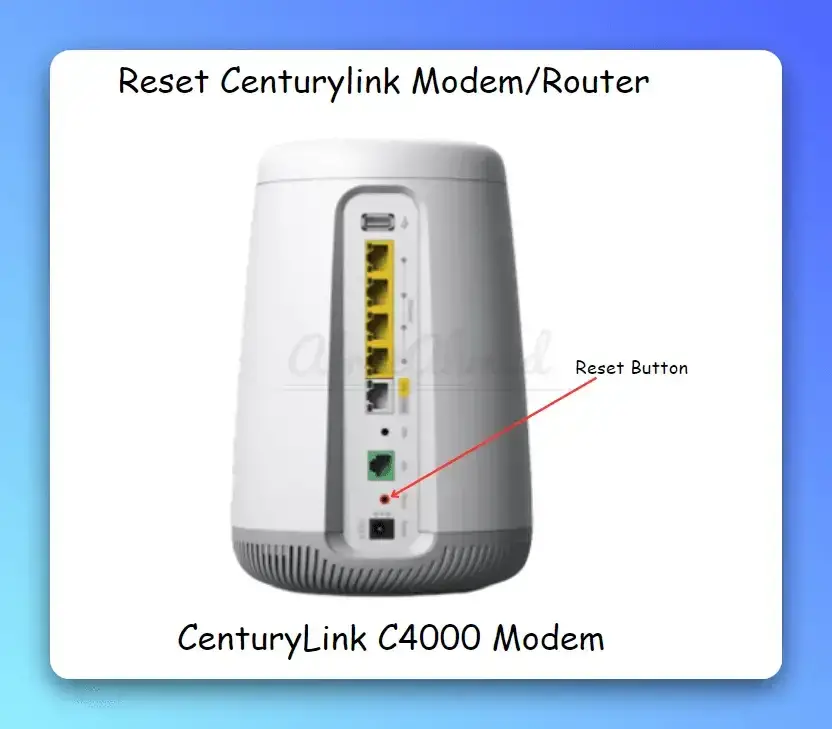
Hold the Reset Button for 20 Seconds
If a soft reset fails, perform a hard reset to restore factory defaults.
- Keep the modem powered on.
- Locate the small pinhole reset button on the back.
- Insert a paper clip or safety pin.
- Press and hold for exactly 20 seconds.
- Feel for a click and do not release early.
- Release the button and wait 3 minutes for the reboot to complete.
This process erases all custom settings, including your WiFi name and password. Only use this method when other fixes have failed.
Why 20 Seconds Matters
The 20-second hold triggers the full factory reset sequence. Releasing too early may only restart the modem without clearing configurations. The physical click confirms the internal switch engaged. If the DSL light remains off after the reboot, check physical connections or service outages before assuming hardware damage.
Reconnect Using Default Credentials
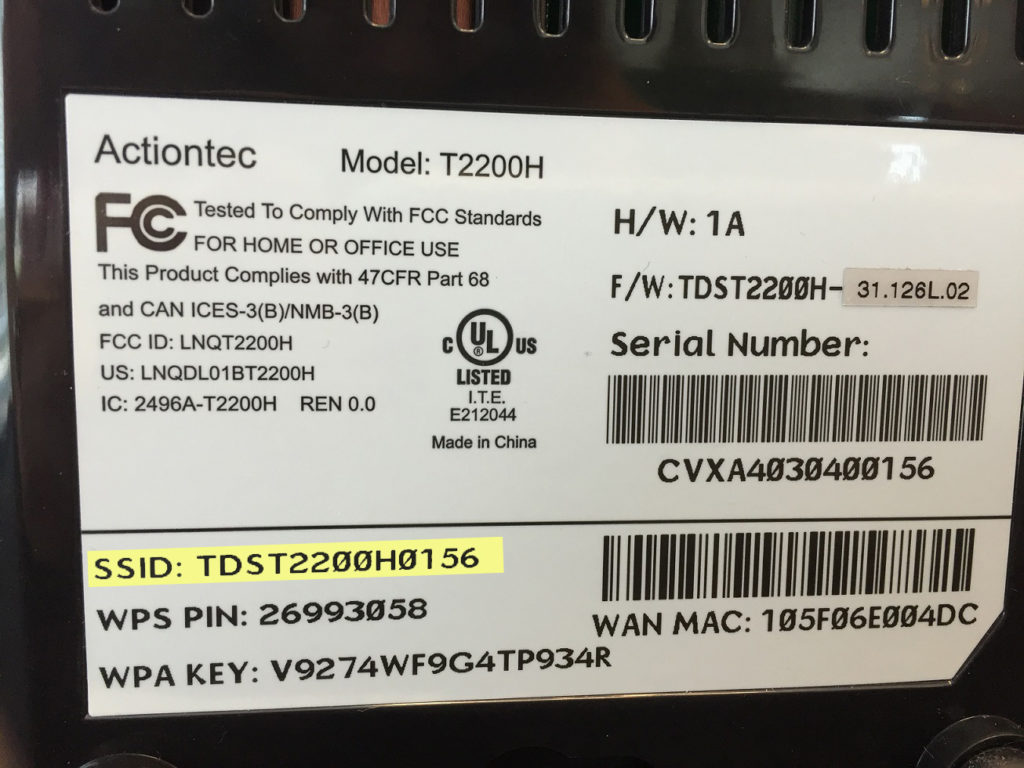
Find the Default SSID and Password
After a hard reset, your modem broadcasts a default WiFi network. Look at the sticker on the back of the modem and locate the SSID (such as CenturyLink-XXXX) and the Wireless Key (such as XXXX-XXXX-XXXX). On your device, select that SSID and enter the key. Do not try to use your old password because it no longer works.
Access the Modem Settings Portal
To customize your network, connect to the default WiFi, open a browser, and go to 192.168.0.1. Log in with the admin username and password found on the same sticker. Navigate to Wireless Settings to update your SSID and password. Write down the default credentials before making changes so you always have a fallback if needed.
Fix Common WiFi Connection Failures
Confirm the Correct Network and Password
Many connection issues come from simple errors like connecting to a neighbor’s network, typing the wrong case-sensitive password, or using an outdated saved password. Double-check the SSID and password on the modem sticker. Forget the network on your device and reconnect manually.
Password Accepted but No Internet?
If your device shows “Connected, No Internet,” log into the modem settings at 192.168.0.1. Go to the DHCP Client List or Connected Devices section and remove all devices from the list. Then reboot the modem. This clears IP address conflicts that block proper routing. After the reboot, reconnect your devices one at a time.
Solve Device-Specific Connection Problems
One Device Won’t Connect
If only one device fails to connect, update its WiFi driver through Device Manager under Network Adapters for Windows. Check for OS updates on Mac, Android, or iOS devices. Ensure the device supports WPA2 security, which most CenturyLink modems use. Older devices may not support modern encryption. If driver updates do not help, create a secondary network using WEP security, but reserve WEP only for legacy devices since it offers weaker protection.
Fix Connection Drops After Sleep Mode
Laptops and phones often lose WiFi after waking from sleep due to power-saving settings.
On Windows:
1. Open Device Manager.
3. Right-click your wireless adapter.
5. Choose Properties, then Power Management.
7. Uncheck “Allow the computer to turn off this device to save power.”
On Mac:
1. Go to System Settings, then Network, then WiFi.
3. Click Advanced and uncheck “Wake for Wi-Fi network access.”
Set your power mode to High Performance or Always On for the most stable connections.
Verify Physical Connections and Service Status
Check DSL Cable and Wall Jack
Loose or damaged cables rank among the top causes of DSL failures. Ensure the DSL cable is firmly plugged into the DSL port on the modem and the telephone wall jack. Avoid unnecessary splitters or phone filters. Test with a different DSL cable if one is available. If you have landline phone service, confirm filters are installed on all non-modem phone jacks to prevent signal interference.
Confirm No Service Outage in Your Area
Even a perfectly working modem cannot deliver internet during a service outage. Visit the CenturyLink Outage Map and enter your address to look for active outages or maintenance alerts. Alternatively, search “CenturyLink outage [your city]” on Google. If others in your area report issues, wait for restoration before continuing troubleshooting.
Improve WiFi Coverage Throughout Your Home

Add a WiFi Extender
If WiFi is weak in certain rooms, place a WiFi extender halfway between the modem and the dead zone. Match the extender’s security settings to your modem (WPA2 with the same password). Avoid placing the extender near microwaves, cordless phones, or thick walls. Extenders are affordable and available through major retailers.
Optimize Modem Placement
Place the modem off the floor and away from metal objects. Keep it centered in your home and avoid enclosing it in cabinets. Even small adjustments can dramatically improve coverage.
Secure Your Network After a Reset
Change the Default WiFi Password
After a factory reset, update your WiFi password immediately because default passwords are public knowledge. Log into 192.168.0.1, go to Wireless Security Settings, and change the password to a strong, unique phrase. Use WPA2-PSK (AES) for the best security. Avoid WEP unless you must support older devices.
Set Up a Guest Network
Some CenturyLink modems support guest networks. Enable this feature to provide visitors with internet access without sharing your main password. You can also limit bandwidth and set time restrictions for added control.
Use the CenturyLink App for Faster Management
Manage WiFi and Your Account from One Place
Download the CenturyLink app on iOS or Android to run speed tests, reboot the modem remotely, view connected devices, pay your bill, and access 24/7 support. The app includes a built-in troubleshooter that guides you through common issues with step-by-step instructions.
Access Built-In Support Tools
Key features in the app include Speed Test for measuring current download and upload speeds, Network Reset for performing a soft reset with one tap, Outage Alerts for notifications about local service disruptions, and Appointment Scheduler for booking technician visits. Using the app can save time and reduce the need for phone support.
Quick Troubleshooting Checklist
| Step | Action |
|---|---|
| 1 | Test with another device to rule out device-specific issues |
| 2 | Soft reset: unplug modem and devices for 10 minutes |
| 3 | Hard reset: hold reset button for 20 seconds if needed |
| 4 | Reconnect using the default SSID and password from the sticker |
| 5 | Verify the DSL light is solid green and the WiFi light is steady |
| 6 | Clear the DHCP list if connected but no internet |
| 7 | Check for outages at the CenturyLink outage map |
| 8 | Call 866-642-0444 if all else fails |
Frequently Asked Questions About CenturyLink Modem Troubleshooting
Why Is My CenturyLink DSL Light Blinking?
A blinking DSL light means your modem has no active internet connection. This usually indicates a service outage, line interference, or a hardware fault rather than a broken router. Wait five minutes after a reboot, then perform a soft reset and check the CenturyLink outage map.
How Long Should I Hold the Reset Button on My CenturyLink Modem?
Hold the reset button for exactly 20 seconds. Releasing too early may only restart the modem without triggering the factory reset sequence. You should feel a physical click confirming the internal switch engaged.
Where Do I Find My Default WiFi Password?
The default SSID and Wireless Key are printed on the sticker on the back of your modem. Look for labels like SSID and Key or Wireless Password. These credentials are also used to access the admin settings portal at 192.168.0.1.
What Should I Do If My Device Shows Connected but No Internet?
Log into 192.168.0.1, navigate to the DHCP Client List or Connected Devices section, and remove all devices. Then reboot the modem. This clears IP address conflicts that block internet access even when WiFi appears connected.
How Do I Fix WiFi Dropping After My Laptop Sleeps?
Change your power settings to High Performance or Always On. On Windows, uncheck “Allow the computer to turn off this device to save power” in the wireless adapter’s Power Management tab. On Mac, uncheck “Wake for Wi-Fi network access” under Advanced WiFi settings.
When Should I Call CenturyLink Support?
Call 866-642-0444 if the DSL light remains blinking after a hard reset, no lights illuminate at all, the outage map shows no issues but you have no connection, or you suspect line damage or internal wiring problems. Have your account number and modem serial number ready.
Final Takeaways for Resolving CenturyLink Modem Issues
CenturyLink modem problems are rarely hardware failures. Most stem from temporary glitches, incorrect settings, or service outages. By starting with light checks, performing proper resets, reconnecting with default credentials, and verifying service status, you can resolve nearly every common issue at home.
Remember that a 10-minute soft reset clears most transient faults, a 20-second hard reset restores factory settings when needed, and default credentials are always on the sticker. Check for outages before assuming your modem is broken.
If you have completed every step and still have no internet, contact CenturyLink support at 866-642-0444. The modem is likely functioning correctly, and the issue lies on the network side. With these tools, you will spend less time troubleshooting and more time enjoying a stable connection.



