
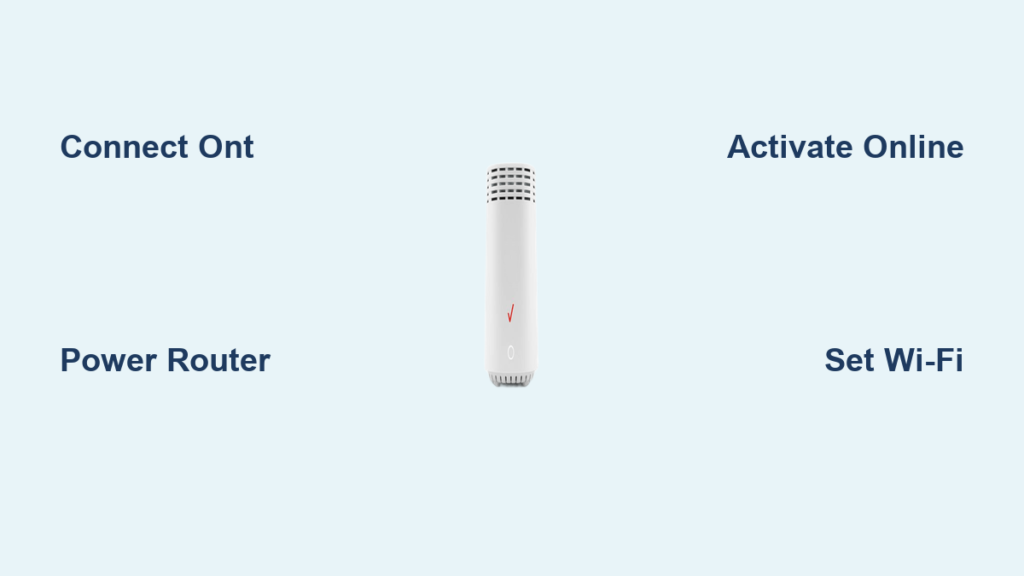
Setting up your Verizon Fios router does not need to be confusing or stressful. Whether you are activating new service or moving your existing equipment, this guide walks you through every phase of the Fios router setup process with clear instructions.
Most users get online in under 30 minutes using the self-install method provided by Verizon. You will learn how to connect your Optical Network Terminal, activate your account via My Verizon, and optimize your Wi-Fi settings for the best performance.
Prepare Your Home Environment for Fios Router Setup

Proper preparation ensures your Fios router setup goes smoothly without unnecessary delays. You need to verify eligibility and gather your tools before touching any cables.
Confirm Your Self-Install Eligibility
Verizon determines if you can self-install based on your specific address and equipment type. If you received a router and Optical Network Terminal (ONT) in the mail, you are likely eligible to proceed. Check your order status in the My Verizon portal if you are unsure about your specific situation.
Gather Required Equipment Components
Your installation kit typically includes several essential items you must locate before starting.
* Verizon Fios Gigabit Router or Actiontec model
* Optical Network Terminal (ONT) often inside a grey enclosure
* Power adapters for both the router and ONT
* Ethernet cables for data connection
* Coaxial cable if your plan includes TV service
Keep all components and their manuals together in one safe spot before beginning.
Select the Best Router Location
Place your router near the ONT, usually within 3 to 6 feet, to ensure a strong signal. Choose a central location in your home that is away from thick walls, microwaves, or cordless phones. Elevate the device on a shelf rather than placing it directly on the floor to improve coverage. Avoid enclosing the router in cabinets since proper airflow prevents overheating.
Connect the Optical Network Terminal Correctly

The ONT converts fiber-optic signals into data your router can use. This step is the foundation of a successful Fios router setup.
Locate and Power the ONT Unit
Find the grey ONT box mounted on a wall or placed near your main entry point. Plug the ONT into a power outlet using the provided adapter and wait 2 to 3 minutes for the lights to stabilize.
* Power light: Should show solid green
* Optical/LOS light: Must be solid green and not red or blinking
* Ethernet light: Will illuminate once the router is connected
If the Optical or LOS light appears red, contact Verizon Support immediately as this indicates a fiber signal issue.
Install and Link Your Fios Router
Now that the ONT is live, you can link your Fios router to establish your home network connection.
Power and Connect the Router
- Connect one end of the Ethernet cable to the Ethernet port on the ONT.
- Plug the other end into the WAN or Internet port on your router, which is usually yellow.
- Connect the router power adapter and plug it into an outlet.
- Wait 2 to 3 minutes for the router to boot up completely.
Router Light Indicators:
* Power: Solid white or blue indicates normal operation.
* Internet/WAN: Solid blue means connected while blinking means syncing.
* Wi-Fi: Should be on and may blink during data use.
Wait until the Internet light turns solid before moving to the next step.
Activate Your Fios Service Online
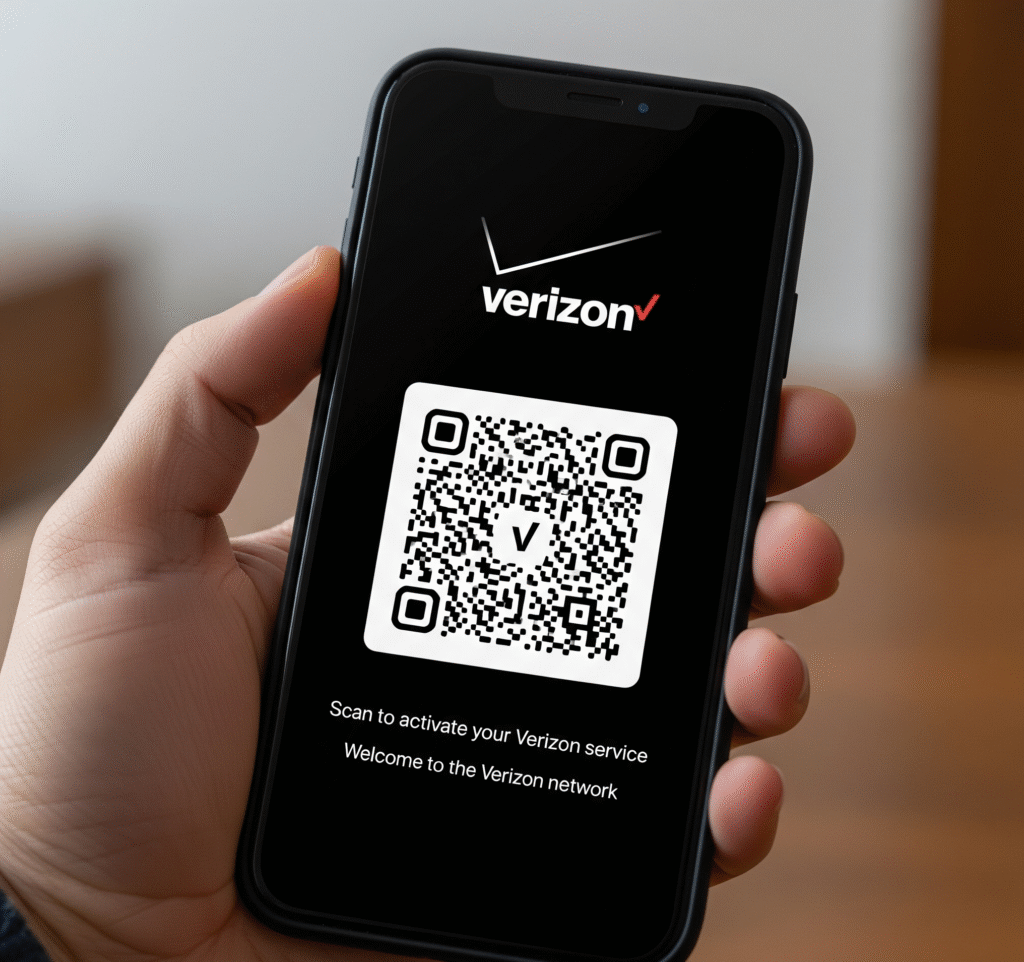
Activation finalizes your Fios router setup and officially connects you to the Verizon network.
Sign In to My Verizon Portal
Open a web browser on your smartphone, tablet, or computer. Go to the My Verizon website and log in or register if you do not have an account yet.
Start the Activation Wizard
- Click “Activate Device” or “Set Up Fios” within the My Verizon dashboard.
- Follow the prompts to scan the QR code on your router or enter the MAC address found on the label.
- Allow the system to verify your service and begin provisioning.
The entire activation process typically takes 10 to 20 minutes. Do not unplug any devices during this critical time.
Confirm Your Internet Connection
Once complete, the Internet light on your router should be solid blue. Connect a device via Wi-Fi or Ethernet and open a browser to visit any website to test the connection. If activation fails, reboot both the ONT and router then try again.
Configure Wi-Fi Network Settings
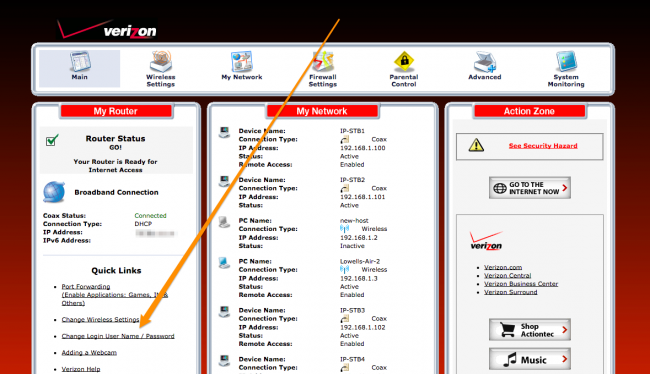
Personalize your network name and password to ensure security and convenience for all users.
Access Router Admin Settings
- Connect to your router using the default Wi-Fi network shown on the device label.
- Open a browser and go to
http://192.168.1.1. - Log in using the username “admin” and the password found on the router sticker.
Important: Never change the Service Name prefix “Fios-” unless instructed, as this may disrupt provisioning.
Set Custom Wi-Fi Name and Password
- Navigate to the Wireless Settings section in the admin panel.
- Change the Network Name (SSID) to your preferred custom name.
- Set a strong Wi-Fi password with at least 8 characters including letters and numbers.
- Save your settings and allow the router to reboot.
All your devices will need to reconnect using these new credentials.
Troubleshoot Common Setup Issues
Even with careful Fios router setup, you might encounter minor issues that require quick fixes.
No Internet Light on Router
This issue often stems from a loose cable or sync problem.
* Reconnect Ethernet cables at both the ONT and router ends.
* Test with a different Ethernet cable if available.
* Reboot the ONT first, wait 30 seconds, then reboot the router.
Router Stuck on Blinking Internet Light
A blinking light means the router cannot communicate with the ONT. Confirm the ONT lights are solid green and ensure you are using the correct Ethernet port labeled “Data” or “Router.” Power cycle both units by unplugging them for 60 seconds then plugging the ONT in first.
Wi-Fi Not Broadcasting
If devices cannot see your network, check if the Wi-Fi toggle button on the router is switched off. Log into the admin panel at 192.168.1.1 and verify that Wireless Mode is set to “Enable.”
Slow Speeds After Setup
Run a speed test using speedtest.net or the My Verizon app to compare results against your plan. Move closer to the router, limit connected devices, or use a wired connection for more accurate testing.
Set Up Fios TV and Phone Services
Integrate your TV and phone services now if your plan includes them.
Connect Fios TV One Box
- Plug the Fios TV One box into a power outlet.
- Connect to the router via Ethernet for best 4K streaming or use the setup wizard for Wi-Fi.
- Follow on-screen prompts to activate the box.
- Use the My Verizon app to scan the QR code on the set-top box.
You can activate your set-top box after the router is fully online.
Install Coaxial Router Connections
Some setups use coax instead of Ethernet for specific configurations. Connect the coax cable from the wall outlet to the Cable In port on your router. Power on the device and wait for lights to stabilize before proceeding with activation.
Optimize and Secure Your Network
Maximize performance and protect your Fios router setup for long-term reliability.
Update Router Firmware
Verizon typically pushes updates automatically, but you can check manually. Log into 192.168.1.1, go to Administration, and select Firmware Update. Keep auto-updates enabled to ensure you have the latest security patches.
Enable Network Security Features
Your Fios router uses WPA2 or WPA3 encryption by default. Ensure your Guest Network is password-protected and Remote Management is disabled unless you specifically need it. The firewall should remain enabled at all times.
Use the My Verizon App
Download the app to monitor connected devices, pause Wi-Fi for specific users, run network tests, and reboot your router remotely. This tool is ideal for parents or anyone managing a smart home.
When to Call Verizon Support
Even with self-install, professional help is available 24/7 if you get stuck.
Call If You Experience Persistent Issues
Contact support if the ONT Optical light stays red, activation fails twice, or the router does not power on. You should also call if you have no Ethernet or Wi-Fi signal after trying all troubleshooting steps. Have your router MAC address and account info ready before calling.
Frequently Asked Questions About Fios Router Setup
How do I know if my address is eligible for self-install?
Eligibility depends on your location, Fios service availability, and equipment compatibility. Verizon determines this when you place your order, and receiving equipment by mail usually confirms you can self-install.
Can I install my Fios service before my scheduled due date?
Yes, you may be able to activate your service early once you receive your equipment. Billing will begin once your equipment is activated, so check for any restrictions regarding early activation dates.
What should I do if I lost my user guide?
You can find complete user guides and step-by-step help on the Verizon equipment pages online. Visit the Fios Router User Guides section for digital copies of manuals in English and Spanish.
Can I take my Fios equipment if I move to a new home?
In most cases, you can take your router, set-top boxes, and wiring to your new location. Verizon will confirm compatibility when you place your move order, though some older equipment exceptions may apply.
What happens if I cannot install the service by my due date?
You can install the service at your convenience if you miss the due date. Billing will begin on your original due date regardless of when you complete the physical installation.
Key Takeaways for Successful Fios Router Setup
A successful Fios router setup relies on proper connections, correct activation, and smart configuration. By following these steps, you ensure fast internet, reliable TV, and clear phone service for your household.
Keep your router updated, secure your Wi-Fi with strong passwords, and use the My Verizon tools to stay in control of your network. If you are moving, take your equipment with you but confirm compatibility first to enjoy your Fios service with confidence.



