
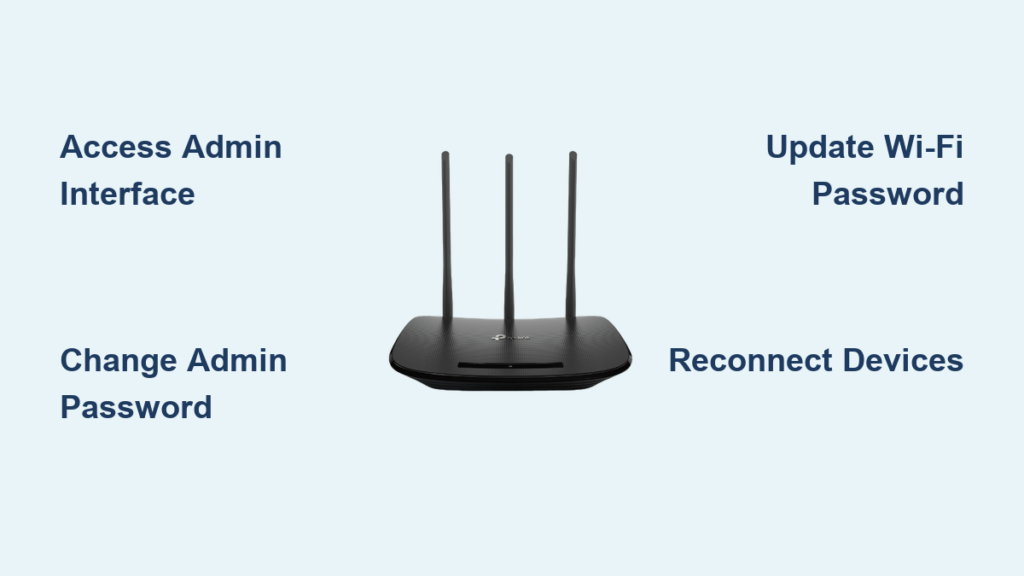
Is your home network feeling vulnerable to neighbors or hackers? Learning how to change TP-Link router password settings is the fastest way to stop unauthorized access and secure your data.
This guide walks you through updating both your admin login and Wi-Fi credentials using a browser or mobile app. You will learn specific steps for every device model and how to recover access if you forget your current code.
Access Your TP-Link Admin Interface First
You must log in to the management interface before altering any security settings. Your device needs a stable connection to the router via Ethernet cable or existing Wi-Fi to prevent setup interruptions.
Identify the Correct Login Address
Different TP-Link products use unique web addresses for access. Enter the specific URL for your hardware into your browser address bar to proceed.
- Wi-Fi Routers:
tplinkwifi.netor192.168.0.1 - DSL Modems:
tplinkmodem.netor192.168.1.1 - Range Extenders:
tplinkrepeater.netor192.168.0.254 - Powerline Adapters:
tplinkplc.net - Access Points:
tplinkap.net - Mobile Hotspots:
tplinkmifi.net
Try the IP address alternative if the domain name fails to load. These addresses work locally without an active internet connection.
Enter Current Admin Credentials
The login screen requires your current username and password to verify ownership. Default credentials are often printed on the sticker at the bottom of your router.
- Username: Typically
admin - Password: Your current custom password or default code
Warning: You cannot change the admin password without knowing the current one. A factory reset is required if you have lost this information.
Change Admin Password on Routers and DSL Modems
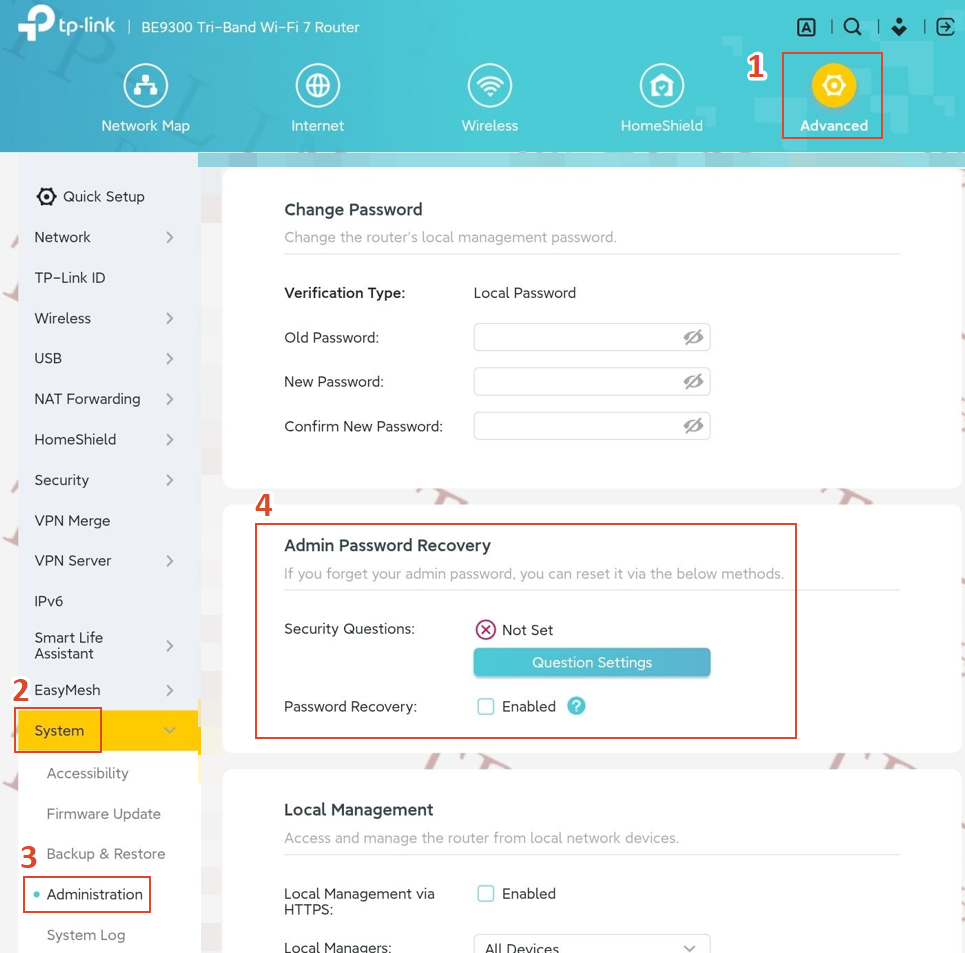
Updating the administrative login prevents strangers from altering your network configuration. The path varies slightly between standard Wi-Fi routers and DSL modem combinations.
Steps for Archer and AX Series Routers
Navigate through the menu to find the account management section for your specific firmware version.
- Log in to
tplinkwifi.netvia your browser. - Click Advanced in the top right corner.
- Select System or System Tools from the left menu.
- Choose Administration or Account Management.
- Enter your current password to authorize the change.
- Type your new password twice and click Save.
Newer models may group these settings under the System tab rather than System Tools.
Steps for DSL Modem Routers
DSL users follow a similar path but often access a different default gateway address.
- Open your browser and go to
tplinkmodem.net. - Navigate to Advanced > System Tools > Administration.
- Input your current credentials when prompted.
- Create and confirm your new secure password.
- Click Save to apply the update immediately.
Allow the device a moment to process the change before attempting to log in again.
Update Admin Credentials on Extenders and Powerline Adapters
Range extenders and Wi-Fi enabled powerline adapters have their own separate login credentials. You must update these individually to secure your entire network ecosystem.
Configure Range Extender Security
Extenders often use a different default IP address than your main router.
- Connect to your extender network and visit
tplinkrepeater.net. - Go to Settings > System Tools > Admin Account.
- Enter the current password to verify identity.
- Input the new password in the required fields.
- Click Save and wait for the device to reboot if prompted.
Configure Powerline Adapter Security
Only powerline kits with built-in Wi-Fi require an admin password change.
- Access the interface at
tplinkplc.net. - Navigate to Settings > Change Login Password.
- Some models place this under System Tools > Administration.
- Provide the current password and set the new one.
- Save your changes to lock the settings.
Non-WiFi powerline adapters do not have a configurable admin interface.
Manage Mobile Hotspot Passwords via Web or App
Mobile Wi-Fi devices like MiFi units often require specific apps or unique web paths for management. The process differs between 4G and 5G models.
Web Interface for MiFi Devices
Use this method for any mobile hotspot if you prefer a computer screen.
- Visit
tplinkmifi.netin your browser. - Go to Advanced > System Tools > Administration > Account Management.
- Alternatively, try Advanced > Device > Account Management.
- Enter current and new passwords then click Save.
The device will restart to finalize the new security credentials.
Using Tether and tpMiFi Apps
Mobile apps provide a convenient way to manage passwords without a computer.
- Standard Routers/5G MiFi: Use the TP-Link Tether app. Tap More > System > Manage Password.
- 4G MiFi Models: Use the tpMiFi app for models like M7750 or M7352. Tap Tools > System Tools > Manage Password.
Enter your current code, type the new one, and tap Save or Done to finish.
Change Wi-Fi Network Password to Disconnect Intruders
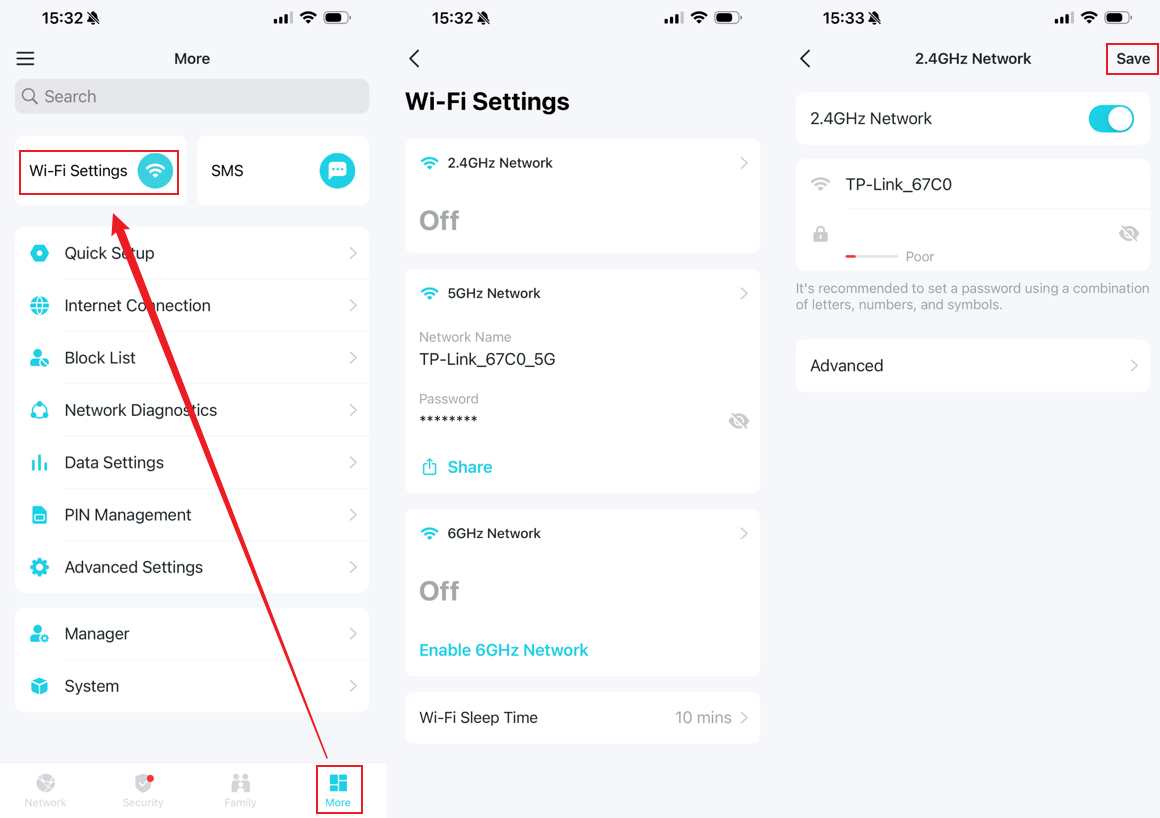
Changing your Wi-Fi password forces all devices to reconnect with new credentials. This is essential if you suspect unauthorized usage or want to refresh network security.
Locate Wireless Settings Menu
You must access the wireless configuration section distinct from system tools.
- Log in to
tplinkwifi.netusing your admin credentials. - Find the Wireless menu on the left sidebar.
- Select Wireless Settings from the submenu options.
Avoid clicking on “MAC Filtering” or “Statistics” as these do not change the password.
Update SSID and Network Key
Modify the visible name and the secret key required for connection.
- Network Name (SSID): Change this to a unique name if desired.
- Password: Delete the old string and enter your new strong password.
Click Save at the top of the page to apply changes. The router may restart briefly during this process.
Reconnect Your Devices After Change
All wireless devices will lose internet access immediately after you save the new Wi-Fi password. You must manually update each one.
- Open Wi-Fi settings on your phone or laptop.
- Select your network name and choose Forget or Remove Network.
- Re-select the network from the available list.
- Enter the new password to reconnect.
Note: Smart home gadgets like cameras and printers require manual re-authentication in their specific apps.
Recover Access If You Forget Admin Password
Losing your admin password locks you out of settings, but recovery options exist depending on your prior setup.
Reset Via TP-Link ID Account
If you previously linked your router to a TP-Link ID, recovery is simple.
- Click Forgot Password? on the login screen.
- Enter the email address associated with your TP-Link ID.
- Follow the email instructions to reset the credential.
This method preserves your custom settings like port forwarding and parental controls.
Perform a Factory Reset
A physical reset is necessary if no TP-Link ID is linked to the device.
- Locate the tiny Reset hole on the back of the router.
- Use a paperclip to press and hold the button for 10 seconds.
- Release when the lights flash to indicate a reset.
Warning: This erases all configurations including ISP settings and Wi-Fi names. You must reconfigure the router from scratch using default credentials.
Apply Strong Password Rules for Maximum Security
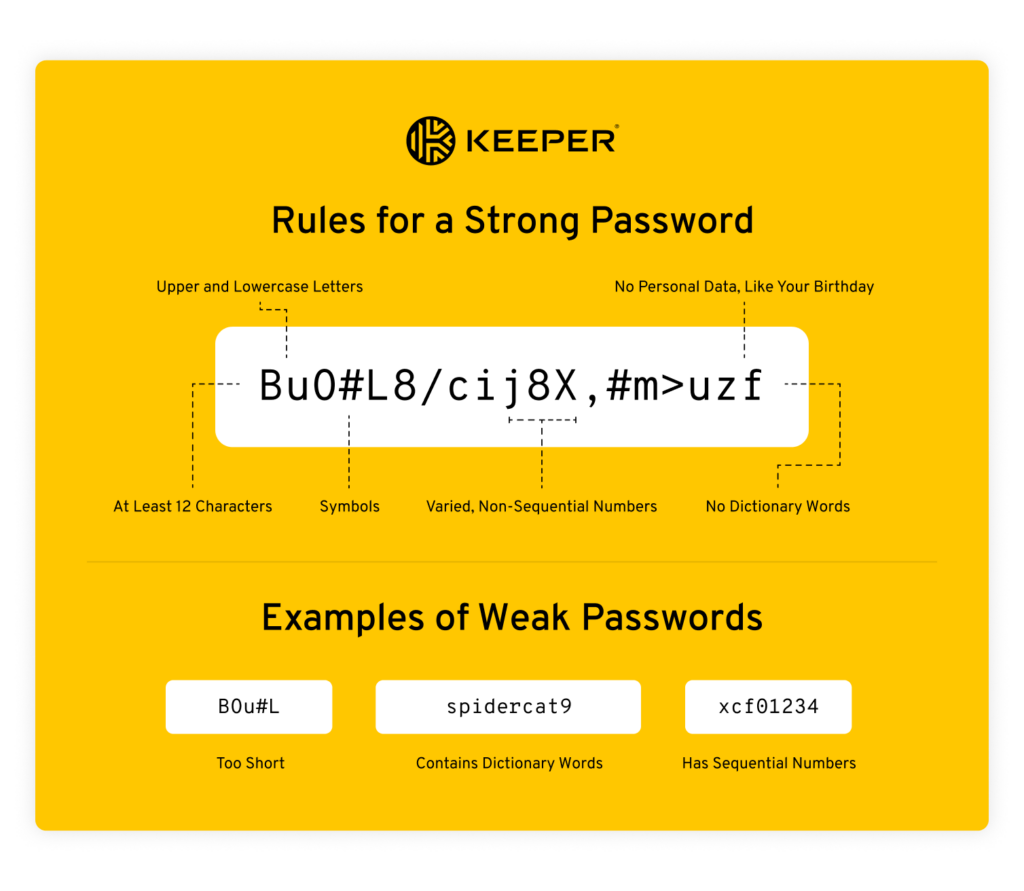
Weak passwords are the primary cause of network breaches. Follow strict composition rules to protect your data from brute-force attacks.
Create Complex Admin Credentials
Your admin password guards the settings panel and requires high complexity.
- Use at least 12 characters.
- Include uppercase and lowercase letters.
- Add numbers and special symbols like ! or @.
- Avoid dictionary words or birthdays.
Pro Tip: Use a password manager like Bitwarden or 1Password to generate and store random strings securely.
Set Robust Wi-Fi Network Keys
Your Wi-Fi password protects data in transit and should follow similar rules.
- Minimum length of 12 characters.
- Mix of all character types.
- Never reuse passwords from other accounts.
Do not write these codes on sticky notes or save them in unencrypted text files.
Avoid Common Mistakes When Changing Passwords
Users often confuse the two password types or skip critical reconnection steps. Understanding these differences prevents frustration.
Distinguish Admin From Wi-Fi Passwords
The admin password controls the router settings while the Wi-Fi password connects devices.
- Changing the admin password does not disconnect your phones.
- Changing the Wi-Fi password does disconnect all wireless devices.
Ensure you are editing the correct field for your specific goal.
Update Firmware Regularly
Outdated firmware can leave security holes even with strong passwords.
- Go to Advanced > System Tools > Firmware Upgrade.
- Check for updates or upload the latest file from the TP-Link support site.
- Install updates to patch known vulnerabilities.
Regular updates ensure your password protection mechanisms remain effective against new threats.
Frequently Asked Questions About Changing TP-Link Router Password
What is the default admin password for TP-Link routers?
Most older models use admin for both username and password. Newer models often require you to create a custom password during the initial setup. Check the sticker on the bottom of your device for specific default credentials.
Will changing the admin password disconnect my Wi-Fi devices?
No, changing the admin password only affects access to the router settings page. Your phones and laptops will stay connected. Only changing the Wi-Fi password will force devices to disconnect.
How do I change my password if I cannot log in?
If you do not know the current admin password and have no TP-Link ID linked, you must perform a factory reset. Press the reset button for 10 seconds to restore default login details.
Can I change my TP-Link password using my phone?
Yes, you can use the TP-Link Tether app for most routers or the tpMiFi app for mobile hotspots. Ensure your phone is connected to the network before opening the app.
How often should I update my router passwords?
Security experts recommend updating your Wi-Fi password every 3 to 6 months. Change your admin password immediately if you suspect it has been shared with untrusted individuals.
Key Takeaways for Securing Your TP-Link Network
Securing your network starts with knowing how to change TP-Link router password settings for both admin and Wi-Fi access. Remember that the admin password protects your configuration settings, while the Wi-Fi password controls device access to your internet.
Take action today by logging into your interface and updating weak credentials. Use the TP-Link Tether app for quick mobile management or the web interface for detailed control. Regular updates and strong, unique passwords will keep your digital life private and safe.



