
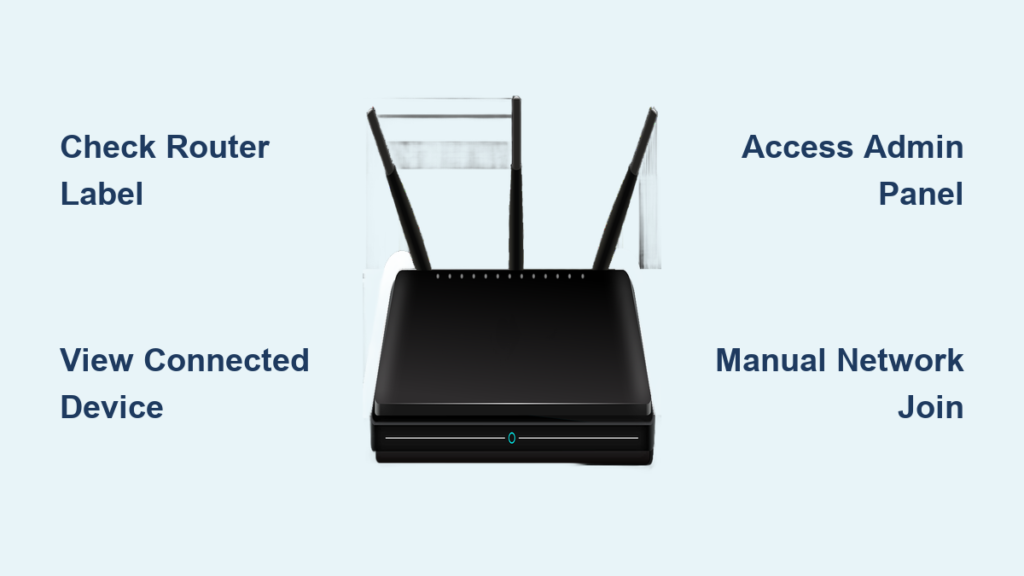
Your Wi-Fi network name, known technically as the SSID, is the first thing you need to connect any device to the internet. If you cannot locate this identifier, you will be unable to join your home network or configure your wireless settings properly.
This guide explains exactly how to find SSID on router hardware, connected computers, and mobile devices using proven methods. You will learn to check physical labels, navigate system settings, and access admin panels to retrieve your network name quickly.
Inspect the Physical Router Label for Default Name

The fastest way to identify your network is by looking at the router itself. Manufacturers place a sticker on the bottom or side of every unit containing the factory-assigned credentials.
Locate the Sticker and Default Credentials
Flip your router over to find the information label. This sticker typically sits near the barcode and includes:
* The default SSID or Network Name
* The pre-set Wi-Fi password or WPA key
* The router IP address for admin access
* The model and serial numbers
This method works best if you have never changed the default network name.
Recognize Common Manufacturer Naming Patterns
Router brands use specific formats for their default SSIDs. Identifying these helps you distinguish your network from neighbors in apartment complexes. Common patterns include:
* Netgear: Often starts with Netgear followed by numbers.
* Linksys: Usually begins with Linksys.
* TP-Link: Typically starts with TP-Link_.
* Xfinity: Frequently uses xfinitywifi.
Matching the model number on your sticker to the network name ensures you select the correct device.
View Active SSID on Windows Computers
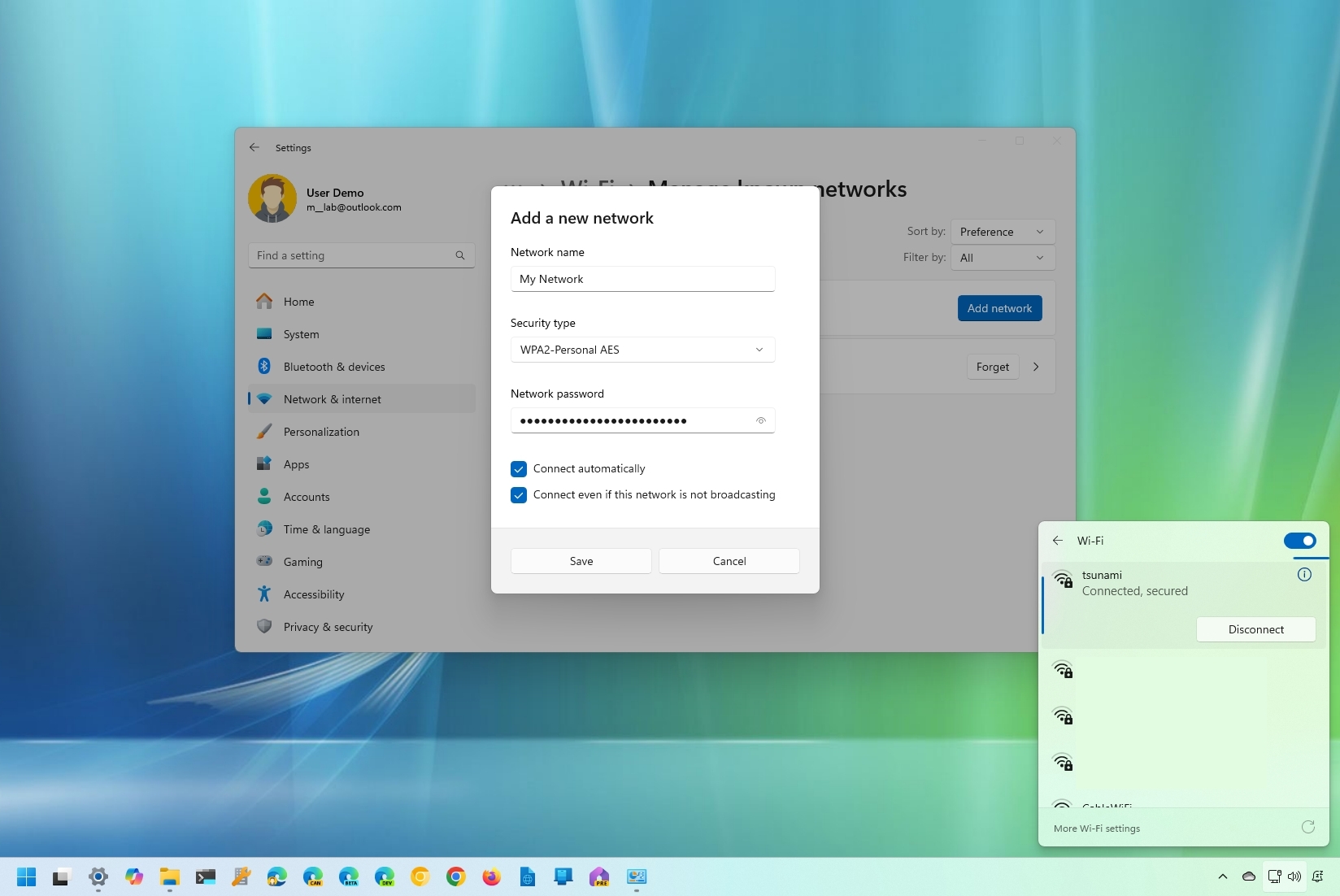
If your Windows laptop or desktop is already connected to the internet, the operating system displays the current SSID clearly.
Check the Taskbar Network Icon
- Click the Wi-Fi icon located in the bottom-right corner of your taskbar.
- Look at the list of available networks.
- The network marked Connected is your current SSID.
This visual cue confirms exactly which network your computer is using at that moment.
Access Detailed Network Properties
- Press the Start button and select Settings.
- Navigate to Network & Internet and click Wi-Fi.
- Read the name displayed under the Connected to header.
You can click the network name to view additional properties like signal strength and security type. This path is useful if the taskbar icon is hidden.
Identify Wi-Fi Name on macOS Devices

Apple computers provide a straightforward way to see your active network name through the menu bar or system settings.
Use the Menu Bar Wi-Fi Icon
- Click the Wi-Fi icon in the top-right corner of your screen.
- Find the network name with a checkmark next to it.
- This highlighted name is your active SSID.
If you do not see the icon, you can enable it through System Settings to make future checks faster.
Navigate System Settings for Verification
- Open System Settings from the Apple menu.
- Select Network from the sidebar and click Wi-Fi.
- The connected network name appears prominently under the Wi-Fi status.
Newer versions of macOS may show additional details like the IP address when you hover over or click the network name.
Retrieve SSID from Android Smartphones
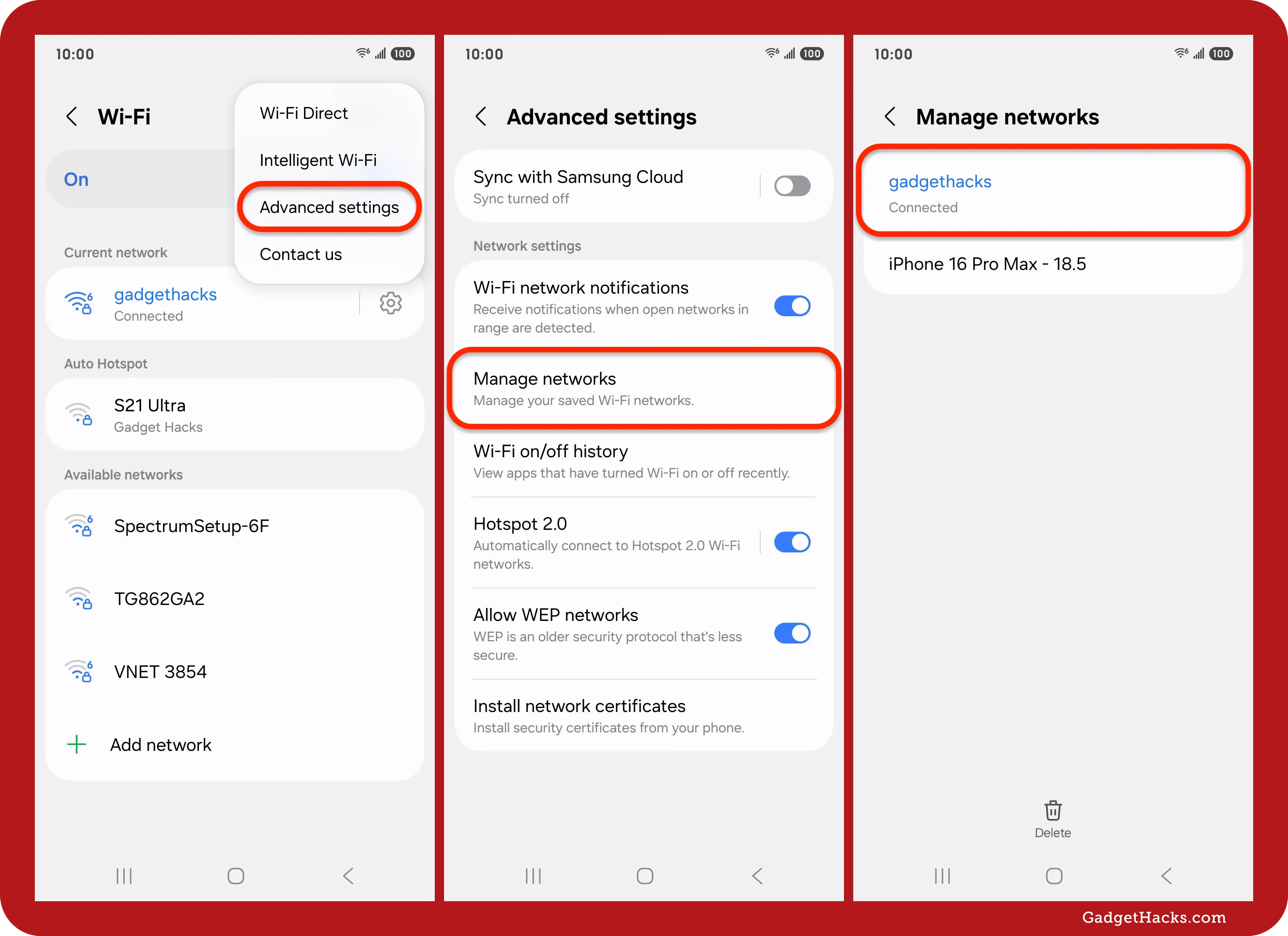
Android phones display the connected network name immediately upon opening the Wi-Fi settings menu.
Open Wi-Fi Settings Menu
- Tap Settings on your home screen or app drawer.
- Select Network & Internet or directly tap Wi-Fi.
- Look for the network labeled Connected or marked with a checkmark.
The connected network usually appears at the very top of the list for easy identification.
View Saved Network Details
Tap the gear icon next to the connected network to see more information. You can verify:
* Signal level and quality
* Security type (e.g., WPA2)
* IP address and MAC address
Your phone also stores previously connected SSIDs in the Saved networks section even if Wi-Fi is currently off.
Locate Network Name on iPhone and iPad
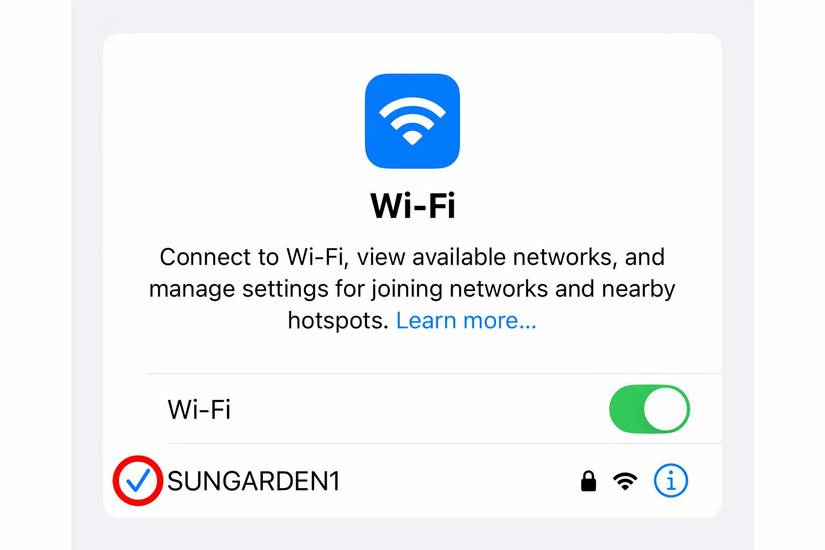
iOS devices make it simple to verify your current connection status and view the active SSID.
Access Wi-Fi Settings on iOS
- Open the Settings app on your device.
- Tap Wi-Fi in the left sidebar or main list.
- Identify the network with the blue checkmark.
This checked name represents your current SSID and appears near the top of the screen.
Confirm Connection Status Carefully
Ensure the blue checkmark is present next to your expected network name. If another network is checked, your device may have auto-connected to a different access point nearby.
Avoid selecting Other unless you know the exact SSID spelling, as manual entry errors prevent connection.
Access Router Admin Panel for Full Configuration
Logging into your router’s web interface provides the most accurate SSID information and allows you to change settings.
Connect and Enter Gateway IP Address
- Ensure your device connects to the router via Wi-Fi or Ethernet cable.
- Open a web browser and type the router IP address in the address bar. Common addresses include:
192.168.1.1192.168.0.110.0.0.1
- Press Enter to load the login page.
You must be connected to the local network to access this page successfully.
Log In and Navigate Wireless Settings
Enter your administrator username and password. These are often printed on the router sticker if you have not changed them. Once logged in, look for sections labeled:
* Wireless
* Wi-Fi Settings
* Network Name
The exact location varies by brand, but it is always within the wireless configuration menus.
Find SSID Settings by Brand
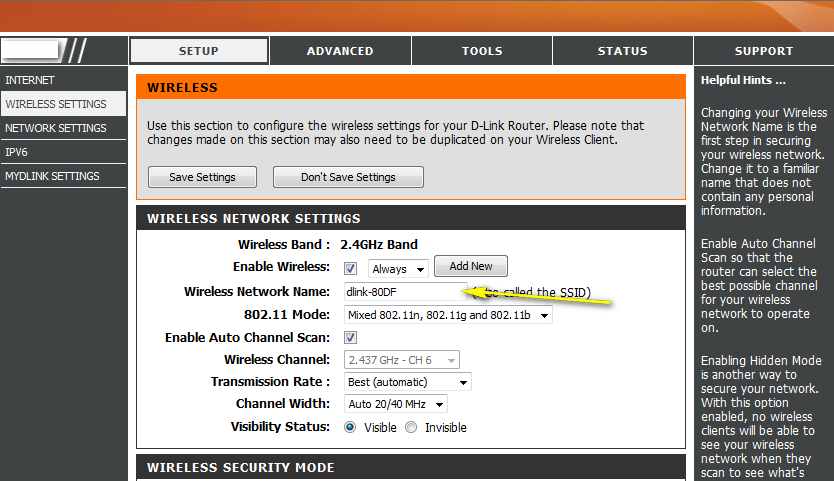
Different manufacturers organize their menus differently. Use these paths to locate your settings:
* D-Link: Go to Setup > Wireless Settings. The field is labeled SSID.
* Netgear: Click Basic > Wireless Settings. Look for Wireless Network Name.
* Belkin: Select the Wireless tab then Channel and SSID.
* Linksys: Navigate to Wireless > Basic Wireless Settings.
Firmware updates may change these layouts slightly, so consult your manual if you cannot find these exact terms.
Understand SSID Technical Limits and Rules
Your network name must follow specific technical constraints defined by IEEE 802.11 protocols.
Character Count and Case Sensitivity
An SSID can be up to 32 characters long. Names exceeding this limit will be truncated or rejected during setup. Additionally, SSIDs are case-sensitive.
This means HomeWiFi and homewifi are treated as two completely different networks. You must type the name exactly as it appears when connecting manually.
Allowed Characters for Network Names
You can safely use the following characters in your SSID:
* Letters (A through Z)
* Numbers (0 through 9)
* Hyphens (-), underscores (_), and periods (.)
Avoid using spaces or special symbols like @ or # as they may cause compatibility issues with older devices.
Troubleshoot Hidden or Missing Networks
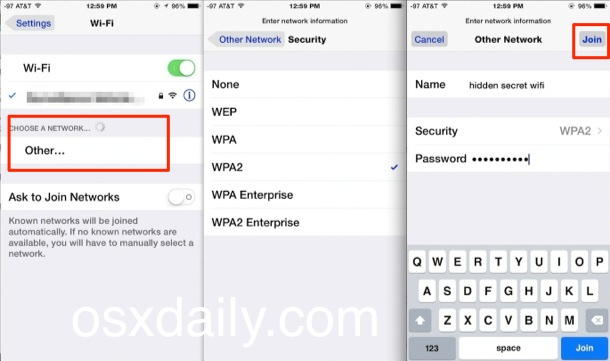
Sometimes your network does not appear in the list of available Wi-Fi signals.
Connect to a Hidden SSID Manually
If the router broadcast is disabled, the network name remains invisible to standard scans. To connect:
1. Select Add a network or Join Other Network in your device settings.
2. Type the exact SSID including correct capitalization.
3. Choose the correct security type (usually WPA2-Personal).
4. Enter the Wi-Fi password.
You must know the precise name beforehand since it will not appear automatically.
Reset Router to Restore Default Name
If you cannot remember the custom name or lose admin access, perform a factory reset.
1. Press and hold the reset button on the router for 10 to 15 seconds.
2. Wait for the lights to flash indicating a reboot.
3. Connect using the default SSID found on the physical sticker.
This action erases all custom settings including port forwards and parental controls.
Improve Security with Smart Naming Practices
Your choice of network name impacts both usability and security posture.
Avoid Revealing Router Models
Default names like NETGEAR123 tell hackers exactly what hardware you use. This allows them to target known vulnerabilities specific to that model. Change your SSID to something unique that does not reveal your equipment brand.
Protect Personal Information
Do not include your name, address, or apartment number in the SSID. Names like SmithFamilyWiFi or Apt4B expose personal details to anyone scanning for networks.
Understand Hidden Network Limitations
Disabling SSID broadcast offers false security. While it hides the name from casual users, the traffic is still detectable and the name can be intercepted.
* Use WPA3 or WPA2 encryption.
* Set a strong, complex password.
* Keep router firmware updated regularly.
Strong encryption provides far better protection than simply hiding the network name.
Frequently Asked Questions About Finding SSID
What is the difference between SSID and password?
The SSID is the public name of your Wi-Fi network that identifies it to devices. The password is the secret key required to gain access to that network. You need both to connect securely.
Can I change my SSID to anything I want?
Yes, you can customize your SSID through the router admin panel. You are limited to 32 characters and should avoid special characters that might cause device compatibility issues.
Why can’t I see my Wi-Fi network on my phone?
Your router might have the SSID broadcast disabled, making it hidden. You will need to manually add the network by typing the exact name and security details in your phone’s Wi-Fi settings.
Does hiding my SSID make my network secure?
No, hiding the SSID only makes the network invisible to casual scans. It does not encrypt your data. You must use strong encryption like WPA3 and a complex password for real security.
Where do I find the default SSID if I never changed it?
Check the sticker on the bottom or side of your router. It lists the factory-default SSID and password. You can also find it in the router’s admin interface under wireless settings.
Key Takeaways for Finding Your Router SSID
Locating your network name is a simple task when you know where to look. You can find the SSID on the physical router sticker, within the network settings of connected devices, or by logging into the router admin panel.
Always ensure your SSID is unique and does not reveal personal information or router models. Remember that hiding the network name is not a substitute for strong encryption and a secure password.
Take action today by checking your current network name and updating it if it still uses the default manufacturer settings. This small step significantly improves your home network security and manageability.



