
If your Brightspeed internet is slow, dropping connections, or not working at all, a modem reset may be the fix you need. Knowing how to reset Brightspeed modem properly, whether through a simple reboot or a full factory reset, can restore your connection and improve performance. Many connectivity issues resolve with a quick power cycle, saving you a call to support.
This guide walks you through every step based on your modem model, including the Calix u6, u6t, u4 WiFi Mesh, and common Brightspeed-branded units like the C4000 and C3510XZ. You will learn the difference between rebooting and resetting, when to use each method, and how to avoid common mistakes that could leave you offline longer than necessary.
Reboot vs Reset: Key Differences
When to Reboot Your Modem
A reboot, also called power cycling, restarts your modem without changing any settings. It clears temporary glitches and refreshes the connection. Use this first when your internet is sluggish, Wi-Fi drops intermittently, or devices cannot connect after an outage.
Rebooting takes 2 to 3 minutes and preserves your Wi-Fi name and password.
When to Perform a Factory Reset
A factory reset erases all custom settings and returns the modem to its original state. Only do this if a reboot does not fix the issue, Brightspeed support requests it, or you suspect corrupted configurations.
After a reset, you will lose your Wi-Fi network name (SSID) and password and may need to contact Brightspeed to restore service.
Critical Warnings Before Resetting
- You will lose internet access temporarily during both reboot and reset.
- After a factory reset, Wi-Fi settings are erased, so you will need to reconfigure them.
- Only reset if necessary, since a reboot is safer and faster.
- Have a paperclip or pin ready for recessed reset buttons.
- Keep your Brightspeed account details handy in case reactivation is needed.
Standard Reboot: Power Cycle Your Modem
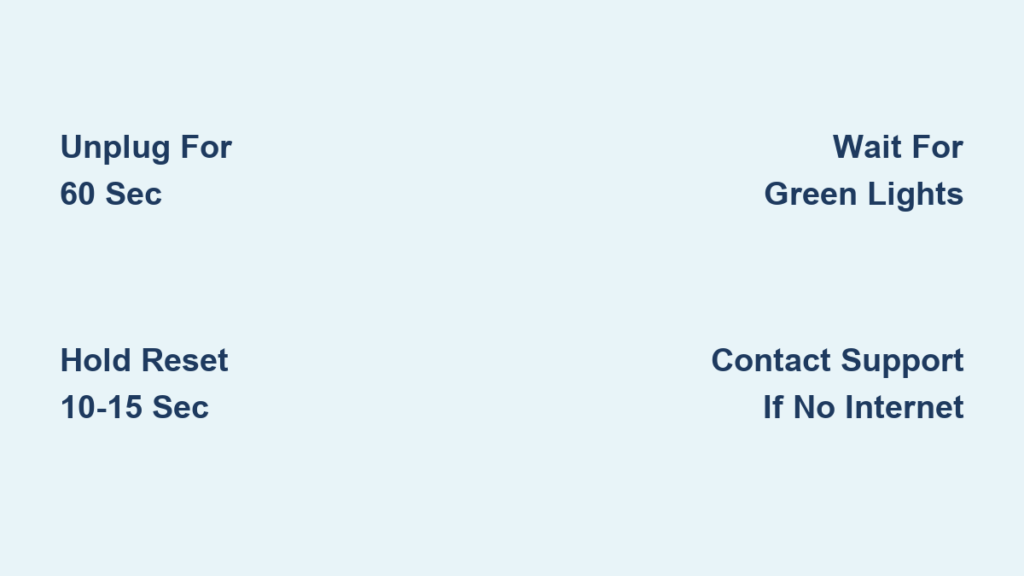
Unplug and Wait: The 60-Second Rule
- Unplug the power cord from the back of your Brightspeed modem.
- Confirm all lights turn off to ensure the modem is fully powered down.
- Wait 60 seconds for best results. This clears residual memory and resets internal components.
- Plug the power cord back in firmly.
Pro Tip: Some sources say 30 seconds is enough, but waiting a full minute gives the modem time to fully discharge and improves success rates.
Wait for Lights to Stabilize
After plugging in, wait 2 to 3 minutes for the modem to fully restart. Watch the indicator lights to confirm connection:
- C4000 model: A single green light ring means connected.
- C3510XZ or tower-style: Green Power, DSL, and Internet lights should all be solid.
Once lights stabilize, test your connection.
Common Reboot Mistakes to Avoid
- Plugging back in too soon (less than 30 seconds)
- Using a surge protector that does not fully cut power
- Not checking that all lights go off before restarting
- Expecting instant connection, since modems take time to sync with the network
Factory Reset: Restore Default Settings
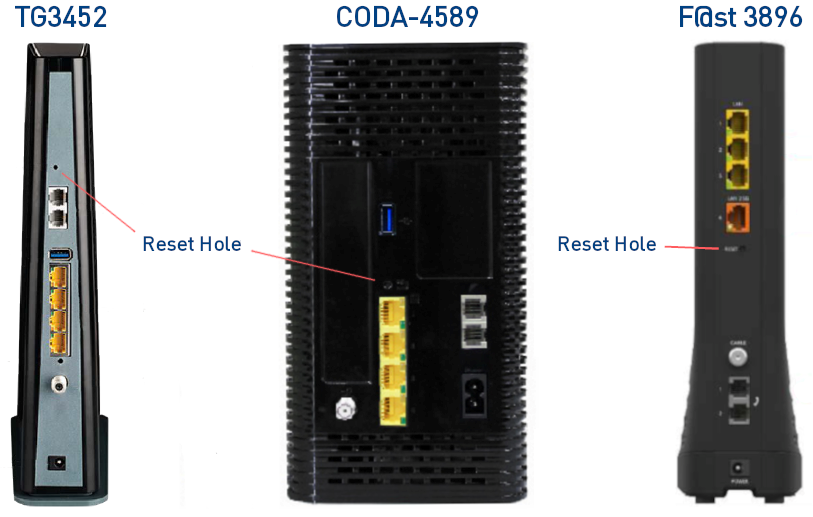
Locate the Reset Button
Find the small recessed hole labeled “Reset” on the back or bottom of your modem. Most Brightspeed modems have this button hidden to prevent accidental presses.
You will need:
– A paperclip or pin
– Steady hands
– 10 to 15 seconds of uninterrupted pressure
Press and Hold: 10 to 15 Seconds
- Ensure the modem is plugged in and powered on.
- Insert the paperclip into the reset hole.
- Press and hold the button for 10 to 15 seconds.
- Watch for blinking lights, which confirm the reset has started.
- Release the button and wait 2 to 3 minutes for the modem to reboot.
Warning: Do not unplug during reset. Interruptions can damage firmware.
Confirm Reset Completion
Look for these signs of a successful reset:
– All lights blink rapidly, then gradually stabilize.
– The modem cycles through startup phases (takes up to 3 minutes).
– Final state: Solid green power and internet lights (model-dependent).
If lights stay red, amber, or off, contact Brightspeed support.
Model-Specific Reset Instructions
Calix u6 or u6t Router
Soft Reboot (Keep Settings)
- Unplug for 30 seconds, then plug back in.
- Alternatively, press the RESET button for less than 3 seconds to reboot without erasing settings.
Factory Reset
- Press and hold the RESET button for at least 10 seconds.
- Wait for lights to flash, then reboot fully.
- Contact Brightspeed to re-provision the device if internet does not return.
Calix u4 WiFi Mesh Unit
Soft Reset (Configuration Preserved)
- Press the small red button on the side for less than 10 seconds.
- The unit restarts but keeps Wi-Fi settings.
Full Factory Reset
- Press and hold the RESET button for 10 or more seconds.
- Release when lights begin blinking.
- After reset, you must reconnect all devices to the default Wi-Fi network.
Note: The default SSID and password are usually on a sticker on the device.
Post-Reset Setup and Recovery
Reconnect to Wi-Fi
After a factory reset, your old Wi-Fi network will disappear. Look for the default network name (SSID) printed on the modem and connect using the default password found on the same label.
Reconfigure Your Network
To personalize your Wi-Fi after a factory reset:
1. Open a browser and go to the modem admin page (commonly http://192.168.1.1).
2. Log in with default credentials (often admin/admin or admin/password).
3. Change your Wi-Fi network name (SSID), Wi-Fi password, and admin password for security.
Security Tip: Always change the default admin password to prevent unauthorized access.
Contact Brightspeed If Service Does Not Return
Some modems require remote provisioning after a factory reset. Call Brightspeed Support at 1-833-800-7464 or use the Brightspeed app if the internet light stays red or off, the modem fails to sync after 5 minutes, or you cannot access the admin page.
Troubleshooting After Reset
No Internet After Reboot
Check these basics first:
– Power cord is securely plugged in
– All cables (coax, Ethernet) are tight
– Outlet is working (test with another device)
– Modem lights follow expected pattern
If the connection still does not return, try a second reboot, check for outages in your area via the Brightspeed app, or consider firmware issues. Only Brightspeed can update modem firmware remotely.
Devices Will Not Reconnect to Wi-Fi
If your phone or laptop does not auto-reconnect after a reset:
– Forget the old network in device settings.
– Search for the new or default SSID.
– Enter the correct password.
Mobile Tip: Restart your phone’s Wi-Fi or use “Renew Lease” in network settings.
Slow Speeds After Reset
Even after a successful reset, run a speed test at speedtest.net and compare results to your plan. If speeds are below 80% of expected, contact Brightspeed, since slow speeds post-reset may indicate line issues rather than modem problems.
Indicator Light Guide by Model
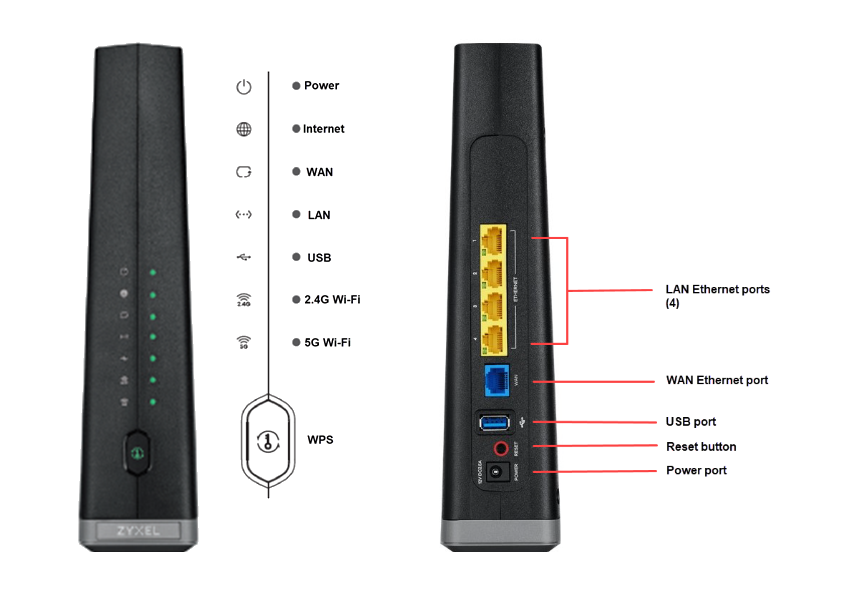
C4000 Modem Lights
| Light | Normal State | Issue Sign |
|---|---|---|
| Power | Solid green | Off = no power |
| Internet | Solid green | Blinking = syncing |
| Wi-Fi | Solid white or blue | Off = disabled |
After reset, wait for a solid green ring to confirm connection.
C3510XZ (Tower-Style) Lights
| Light | Normal | Problem |
|---|---|---|
| Power | Green | Red = hardware issue |
| DSL | Green | Blinking = line search |
| Internet | Green | Off = no service |
All three should be solid green when online.
Calix u6/u6t Status Lights
- Solid blue: Connected and stable
- Blinking blue: Booting or syncing
- Red or off: Error or no signal
Wait 3 minutes after reset before judging status.
Prevent Future Issues
Schedule Monthly Reboots
Even if everything works, reboot your modem once a month to clear memory leaks, refresh IP assignments, and prevent slowdowns. Set a calendar reminder, since the process takes less than 5 minutes.
Keep Firmware Updated
Brightspeed pushes updates automatically. You can help by avoiding prolonged outages that interrupt updates, not blocking remote access to the modem, and reporting issues early.
Note: You cannot manually update Brightspeed modem firmware. Only the provider can perform this task.
Protect Your Modem
- Use a surge protector, not just a power strip
- Place in a well-ventilated area
- Avoid stacking devices on top
- Keep away from moisture and heat
Frequently Asked Questions About Resetting a Brightspeed Modem
How long should I wait before plugging my Brightspeed modem back in?
Wait at least 30 seconds, though 60 seconds is recommended for best results. This allows residual power and memory to fully clear before restarting.
Will a factory reset delete my Wi-Fi name and password?
Yes. A factory reset erases all custom settings, including your Wi-Fi network name (SSID) and password. You will need to reconfigure them or use the default credentials printed on the modem.
How do I know if my Brightspeed modem reset was successful?
Watch for blinking lights during the reset process, followed by stabilization. For the C4000, look for a solid green ring. For tower-style modems, all three lights (Power, DSL, Internet) should turn solid green.
When should I contact Brightspeed support instead of resetting?
Contact support if your modem does not power on, lights stay red after reset, internet does not return within 5 minutes, or you need help re-provisioning your device after a factory reset.
Can I update Brightspeed modem firmware myself?
No. Brightspeed pushes firmware updates remotely. Users cannot manually update firmware, but they should avoid prolonged outages that can interrupt updates in progress.
What is the difference between a soft reset and factory reset on Calix modems?
A soft reset (holding the button for less than 3 to 10 seconds depending on model) reboots the device while preserving settings. A factory reset (holding for 10 or more seconds) erases all configurations and requires reconfiguration or provider assistance.
Key Takeaways for Resetting Your Brightspeed Modem
Start with a reboot before considering a factory reset. A simple power cycle resolves most connectivity issues and preserves your settings. Reserve a factory reset for persistent problems or when Brightspeed support specifically requests it, since you will lose Wi-Fi credentials and may need provider assistance to restore service. Always have your account details and a paperclip ready, and contact Brightspeed at 1-833-800-7464 if your modem does not reconnect within 5 minutes of any reset attempt.



