
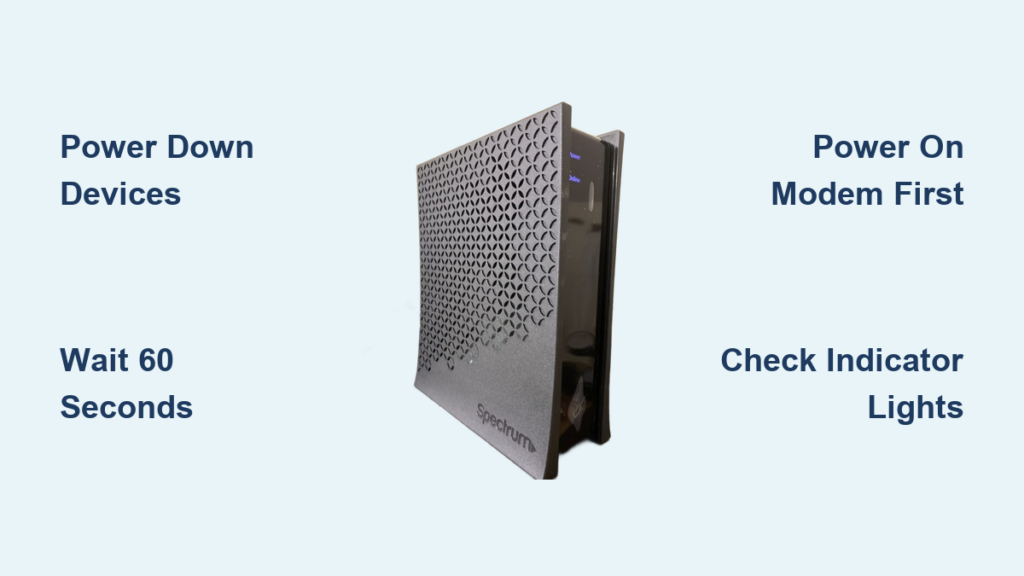
Is your Spectrum internet running slow or refusing to connect at all? A proper reset Spectrum modem procedure can often restore your connection in under five minutes. Whether you deal with constant buffering, random dropouts, or an unresponsive router, a full power cycle clears cached errors, refreshes your session with Spectrum, and brings your network back to life. Best of all, your Wi-Fi name and password stay exactly the same. This guide covers the correct manual reset, the remote app option, what to do if the reset fails, and how to read your modem’s indicator lights.
Manual Reset Steps for Your Spectrum Modem
Follow these exact steps to perform a full power cycle on any Spectrum modem, router, or gateway. This method works for every type of Spectrum equipment.
Power Down Modem and Router
- Turn off both the modem and router.
- Unplug their power cables from the wall or power strip.
- If your modem has a backup battery, remove it.
- Disconnect the Ethernet cable running between modem and router.
Why this matters: Removing all power sources ensures capacitors fully discharge and cached network data clears. Never unplug the coaxial cable unless support tells you to. Doing so can disrupt your service signal.
Pro Tip: Turn off your computer as well. This prevents IP conflicts when devices reconnect.
Wait at Least 60 Seconds
Let the equipment sit powered down for at least 60 seconds. Some sources recommend exactly one minute, but never less.
During the wait:
– Internal memory clears completely
– Network settings reset
– Modem disconnects fully from Spectrum’s network
Critical: Skipping or shortening this step leads to incomplete resets and lingering issues.
Power On the Modem First
- Plug the modem power cable back in.
- Wait 2 to 3 minutes for it to reconnect.
Watch the indicator lights. Do not power on the router yet.
Check Modem Lights
| Light | Correct Status | What It Means |
|---|---|---|
| Power | Solid green or white | Modem is receiving power |
| Online | Solid green (not blinking) | Connected to Spectrum network |
| Internet | Solid green | Internet service active |
| Status | Solid (not blinking) | Connection stable |
⚠️ Wait until all key lights are solid before moving to the next step.
Power On the Router
Once the modem is fully online:
1. Plug in the router.
2. Wait 1 to 3 minutes for it to boot.
Check Router Lights
| Light | Correct Status | What It Means |
|---|---|---|
| Power | Solid | Router is on |
| Wi-Fi/Wireless | Solid or blinking during setup | Broadcasting signal |
| Internet | Solid | Connected to modem |
After the wireless light stabilizes, your Wi-Fi network should be available.
Test Your Internet Connection
- Connect a device to your Wi-Fi network.
- Open a browser and visit google.com.
- Try a second site like youtube.com to confirm stability.
- Enter your Wi-Fi password if prompted.
Success signs:
– Pages load quickly
– No timeouts or errors
– Multiple devices connect normally
If the connection fails:
– Double-check all cables
– Repeat the full reset
– Check for local outages
Remote Reset Using the My Spectrum App

Can’t reach your modem? Restart it from anywhere using the My Spectrum app.
How to Reset Remotely
- Open the My Spectrum app.
- Tap Services, then Internet.
- Select your equipment.
- Tap Experiencing Issues, then Reset Equipment.
The app performs the same full power cycle as a manual reset, without touching the hardware.
Benefits of App Reset
- No need to leave your seat
- Works even when away from home
- Same effectiveness as physical reset
- Real-time status updates during reconnection
✅ Best for quick fixes when you’re already online but experiencing slowdowns.
Use Spectrum’s Online Reset Tool
Prefer a browser-based option? Visit spectrum.net/reset for a guided experience.
This tool offers:
– Automated diagnostics
– Step-by-step reset guidance
– Outage detection
– Live troubleshooting support
It works like the app and can remotely restart compatible equipment.
Troubleshooting: Reset Didn’t Work?

If your internet still isn’t working after a proper reset, follow this decision path.
Wait and Retry
Wait 10 to 15 minutes, then repeat the full power cycle. Sometimes Spectrum’s network needs extra time to re-register your modem after a disconnect.
Check for Service Outages
Your issue may not be local. Use one of these tools:
– My Spectrum app (outage alerts)
– Spectrum website status page
– spectrum.net/reset tool
If an outage is active, wait for restoration. No further action is needed on your end.
Inspect Indicator Lights Again
Recheck modem lights after the second reset.
No Lights On?
- Test the power outlet with another device
- Try a different power cable
- Ensure the backup battery (if present) is seated correctly
Online Light Blinking?
- Indicates failed registration with Spectrum’s network
- Could mean a coaxial signal issue
- Contact support instead of keep resetting
Contact Spectrum Support
If all else fails:
– Call Spectrum support
– Use live chat in the app or website
– Schedule a technician visit if needed
📞 Have your modem’s MAC address ready. It speeds up troubleshooting significantly.
Equipment-Specific Tips

The reset process stays the same across all Spectrum hardware, but a few details matter.
Modem Only Setup
If you use a standalone modem with a separate router:
– Always power on the modem first
– Reconnect the Ethernet cable only after the modem is online
– Wait for full boot before starting the router
Wireless Gateway (Modem + Router in One)
Most Spectrum customers use a gateway. For these devices:
– One device means one power cable
– The same 60-second wait applies
– Wait 3 to 5 minutes for full reboot
– All lights will cycle. Proceed only when Online and Internet are solid
🔁 Gateways take longer because they handle both modem and router functions at once.
Backup Battery Removal
Some modems (especially those with Spectrum Voice) have internal backup batteries. Always remove the battery during a reset to ensure:
– Complete power-down
– Full memory clear
– Proper capacitor discharge
Replace it only after the modem reconnects.
Preventive Maintenance Tips
Keep your internet fast and reliable with a few simple habits.
Reset Monthly
Spectrum recommends a monthly power cycle even when no issues exist.
Why this helps:
– Clears accumulated cache
– Prevents IP conflicts
– Maintains optimal performance
Set a calendar reminder. The entire process takes less than 5 minutes.
Avoid Peak Time Resets
Try not to reset during:
– Evening streaming hours (7 to 10 PM)
– Online gaming sessions
– Video calls or work meetings
Schedule resets during low-usage times like midday or early morning.
Keep Devices Ventilated
Overheating causes instability. Ensure your modem or gateway:
– Has space around it
– Isn’t stacked with other electronics
– Sits in a cool, dry location
❌ Never place your modem inside a closed cabinet or behind furniture.
Common Mistakes to Avoid
Avoid these errors that make resets ineffective.
Skipping the 60-Second Wait
This is the most common mistake. Without a full wait:
– Memory doesn’t clear
– Network session persists
– Glitches remain
⏱️ Set a timer. One minute makes all the difference.
Turning On the Router First
Routers depend on the modem. If you power the router first:
– It can’t establish an internet connection
– May create configuration conflicts
– Delays network recovery
Always follow this order: Modem first, then router.
Unplugging the Coaxial Cable
Never disconnect the coaxial cable from the wall or modem unless support tells you to. Doing so can:
– Disrupt signal calibration
– Trigger service errors
– Require a technician reset
Only unplug power cables during a reset.
What a Reset Actually Fixes
Understanding what a reset does helps you know when to use it.
Resolves These Issues
- Slow internet speeds
- Intermittent disconnections
- Wi-Fi dropouts
- Devices that won’t connect
- Router not syncing with modem
Does NOT Fix
- Permanent hardware failure
- Account billing suspensions
- Area-wide outages
- Damaged coaxial lines
- ISP throttling or data caps
A reset is a troubleshooting tool, not a fix for infrastructure problems.
Final Checklist: Did You Reset Correctly?
✅ Unplugged power to modem and router
✅ Removed backup battery (if present)
✅ Waited at least 60 seconds
✅ Powered on modem first
✅ Waited 2 to 3 minutes for solid Online and Internet lights
✅ Powered on router
✅ Tested connection on multiple devices
If yes and it still doesn’t work, check for outages or contact Spectrum support.
Frequently Asked Questions About Resetting a Spectrum Modem
Will resetting my Spectrum modem change my Wi-Fi name or password?
No. A standard power cycle does not affect your SSID or password. Your saved network settings stay intact throughout the reset.
How long does a full Spectrum modem reset take?
The complete process takes about 5 minutes, including the 60-second wait, 2 to 3 minutes for the modem to boot, and 1 to 3 minutes for the router to reconnect.
Can I reset my Spectrum modem remotely?
Yes. The My Spectrum app lets you reset equipment remotely through Services > Internet > Experiencing Issues > Reset Equipment.
What if the Online light keeps blinking after a reset?
A blinking Online light means the modem failed to register with Spectrum’s network. This often points to a coaxial signal issue. Contact Spectrum support rather than keep resetting the device.
Do I need to remove the backup battery before resetting?
Yes. If your modem has an internal backup battery, remove it during the reset. Otherwise the modem stays partially powered and the reset won’t fully clear the memory.
How often should I reset my Spectrum modem?
Spectrum recommends a power cycle once a month as preventive maintenance, or any time you notice performance issues like slow speeds or dropped connections.
Key Takeaways for Resetting Your Spectrum Modem
Resetting your Spectrum modem is the fastest and safest way to fix most home internet issues. Always follow the correct sequence: power down both devices, wait at least 60 seconds, power on the modem first, and only then start the router. Watch the indicator lights and confirm a solid Online status before reconnecting. Use the My Spectrum app for remote resets and schedule a monthly power cycle to keep your network running smoothly. With this routine, you’ll spend less time troubleshooting and more time streaming, gaming, and browsing without interruption.



