
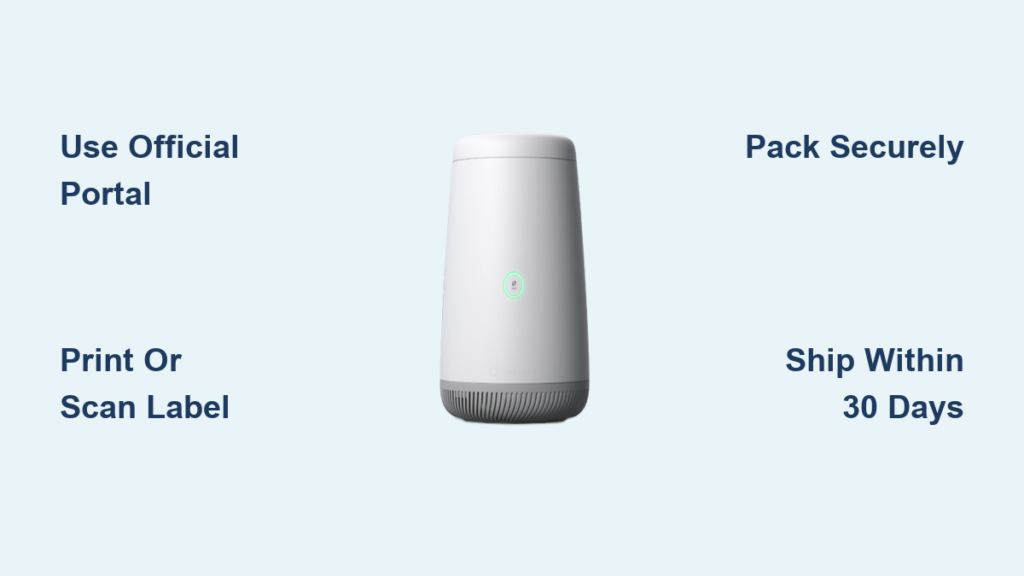
Returning your CenturyLink modem can feel confusing, but skipping the right steps often leads to surprise charges on your final bill. Equipment fees can climb as high as $200 when returns are missed, late, or sent to the wrong place. The good news is that CenturyLink’s official UPS return system handles everything from leased modems to Wi-Fi pods at no cost to you. This guide breaks down the entire process into clear, actionable steps. You’ll learn how to generate your label, pack your gear correctly, hit the 30-day deadline, and handle special cases like switching modems or recycling outdated equipment.
Start Your Return Online
Visit CenturyLink’s Official Return Portal
Head to CenturyLink.com/returnmodem to begin. This is the only authorized method for returning leased or purchased equipment. Click “Start your return” and you’ll be redirected to a secure UPS site where you can proceed as a guest without logging into your CenturyLink account.
Enter Account Information Correctly
Provide these details:
– Full name matching your CenturyLink account
– Mailing address currently listed in CenturyLink’s system
– Valid email address for label delivery
Accuracy here matters. Mismatched details can prevent credit from being applied or delay processing. Double-check spelling and formatting before submitting.
Handle UPS Page Errors
If the UPS site fails to load, a temporary outage may be the cause. Wait 15–30 minutes and try again. Always use the official CenturyLink return URL to avoid scams or incorrect label generation.
Get Your Return Label
Choose Email Delivery for PDF Label
After submitting your info, select “Have a return label emailed”. You’ll receive a PDF from UPS Return Labels within minutes. Save it to your device as a backup.
Print the Label Properly
Use these tips for clean printing:
– Standard 8.5″ x 11″ paper works best
– Color printing improves barcode clarity
– No printer at home? Visit a local library, FedEx Office, or UPS Store for low-cost printing
Apply the Label Correctly
Follow these steps:
– Place the printed label on one side of the box
– Use a clear shipping pouch or cover entirely with clear tape
– Ensure no wrinkles or smudges block the barcode
– Remove or cover any old labels to avoid scanning errors
Use the QR Code Option (No Printer Needed)
Select “Request a QR code” if printing isn’t an option. You’ll get a digital code via email. Bring your sealed modem box and the QR code (on phone or printed) to any UPS Store. A clerk will scan it, print the label, and ship your package at no extra charge.
Pack Your Modem Securely

Gather All CenturyLink Equipment
Return everything provided by CenturyLink:
– Modem or gateway
– Power adapter and cord
– Ethernet cables
– Wi-Fi pods (if applicable)
– Connected Voice devices (if used)
Leaving out even one cable may result in unreturned equipment fees.
Use a Rigid Box With Flaps
Choose a sturdy cardboard box with intact flaps. Avoid envelopes, padded mailers, or damaged boxes. The box must protect the modem during transit.
Cushion the Device Properly
Use one or more of these materials:
– Bubble wrap
– Packing peanuts
– Crumpled paper
– Foam padding
Wrap the modem and accessories to prevent movement. The device must not shift inside the box. Loose items increase damage risk and may delay processing.
Seal and Prepare for Shipping
- Close the box flaps
- Tape all seams with strong shipping tape like packing tape
- Cover or remove previous labels
- Attach the return label or prepare QR code
Double-check that the label is secure and scannable before drop-off.
Drop Off at UPS Location
Find an Authorized UPS Drop-Off
Visit UPS.com/dropoff and enter your ZIP code to locate nearby options:
– UPS Stores
– UPS Access Points
– Retail partners like Office Depot
Not all locations accept packages, so filter for “Package Drop Off” availability.
Drop Off Your Box
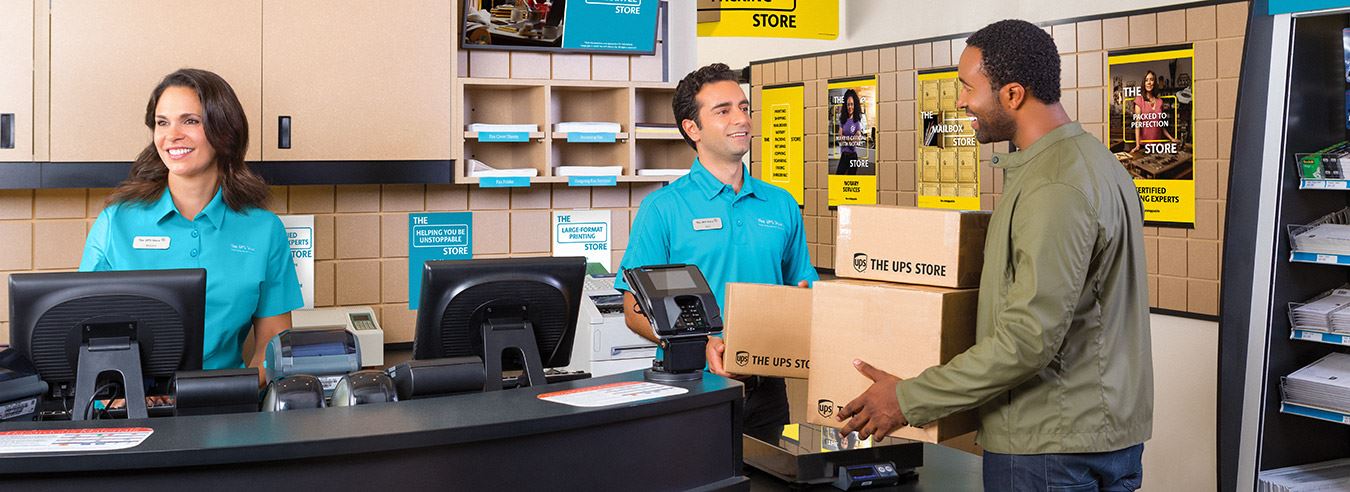
Bring your sealed, labeled box to the chosen location. Staff will scan and process it. You’ll receive a receipt, so save it for your records.
Alternative Drop-Off Methods
Schedule a UPS Pickup
Go to UPS.com/pickup and request a home or office pickup. A driver will collect your package, though a pickup fee may apply. Drop-off is recommended unless inconvenient.
Hand to a UPS Driver
If you see a UPS driver in your neighborhood, you can hand them the package. You must have the printed label attached. Confirm they accept unscheduled returns before handing it over.
Avoid Unreturned Equipment Fees
Return Within 30 Days
CenturyLink enforces strict deadlines:
– Canceling service? Return within 30 days of cancellation
– Getting a replacement modem? Return old one within 30 days of receiving the new one
Missing the deadline triggers charges of up to $200 for the full retail cost of the equipment.
Understand the Consequences
If you don’t return the modem:
– You’ll be billed the full replacement cost
– The charge appears on your final bill or next statement
– Disputing the fee is difficult without proof of return
Always use the official process to ensure credit.
Special Return Scenarios
Canceling CenturyLink Service
Leased Modem
You must return the modem within 30 days. Failure results in a charge for the full retail price with no exceptions.
Purchased Modem
- Within 30 days of service start: Return for a full refund, modem must be in new, working condition
- After 30 days: Return for free recycling with no credit but also no fee
Switching to Your Own Modem
You must return the CenturyLink modem even if using your own. But do not return it until your new modem is fully set up and working. Confirm internet connectivity before shipping.
Ensure the CenturyLink modem is:
– Powered off
– Clean and undamaged
– Packed with all original cords
Returning a Faulty or Outdated Modem
Do not return without approval. First, contact CenturyLink technical support to:
– Confirm the modem is faulty
– Determine if repair or replacement is needed
If replacement is approved, a new modem may be shipped before returning the old one.
Return Wi-Fi Pods and Other Equipment

Standard Wi-Fi Pod Returns
Follow the same process as modem returns. Include all pods, power adapters, and cables.
Returning More Than Four Pods
Ship in two separate boxes:
1. Pack up to four pods in one box
2. Request a second return label by repeating the UPS form
3. Ship the second box separately
This prevents delays due to oversized or overweight packages.
Recycling Old CenturyLink Equipment
Free Modem Recycling Program
CenturyLink offers free recycling for old modems, even if not under warranty or lease. This supports e-waste reduction, since only 22% of electronics were recycled globally in 2022.
How to Recycle
- Use the standard return process
- Select the recycling option if prompted
- Ship via UPS at no cost
No credit is issued, but you help reduce environmental impact.
Verify It’s a CenturyLink Modem
Before returning, check for:
– CenturyLink logo
– Sticker with model number
– Equipment tag
Returning non-CenturyLink devices may result in loss or no processing.
Upgrade or Replace Your Modem
Covered Replacement Scenarios
You qualify for free replacement if:
– You lease your modem
– You purchased it and are within the 12-month warranty
– You have @Ease protection
Contact customer service to initiate the replacement.
Replacement Shipping Options
CenturyLink may:
– Ship the new modem first, then you return the old one within 30 days
– Require return of the old modem before sending a new one
A customer service agent will guide you based on your account.
Out-of-Warranty Modem Issues
Even without warranty:
– Technicians can troubleshoot
– Agents offer best pricing on new modems
– Lease or purchase options are available
Old modems can still be returned for free recycling.
Final Bill and Credit Timeline
Expect Credit After Return
Once CenturyLink receives your modem:
– Lease cancellation: Credit applied to final bill
– Purchased modem refund: Credit issued within 30 days
Check for Delays
If credit doesn’t appear after 30 days:
– Confirm tracking shows delivery
– Contact CenturyLink via online chat
– Provide tracking number and return date
Delays are rare but resolvable with proof of shipment.
Avoid Common Return Mistakes
Don’t Skip the UPS Process
- No in-person returns at CenturyLink stores
- No mailing to CenturyLink directly
Only UPS returns are tracked and credited. Other methods risk lost equipment and fees.
Don’t Forget Accessories
Returning the modem without:
– Power adapter
– Ethernet cables
– Wi-Fi pods
can result in partial unreturned equipment charges.
Don’t Miss the Deadline
Set a reminder for 30 days from:
– Cancellation date
– Replacement modem delivery date
Late returns trigger automatic charges.
Contact Support When Needed
Chat With Customer Service
Use CenturyLink’s online chat for:
– Lease cancellation not reflected after 30 days
– Missing credit on bill
– Replacement guidance for out-of-warranty modems
– Upgrade or return questions
Available 24/7 on the CenturyLink website.
Call Technical Support for Faulty Equipment
If your modem isn’t working:
– Call or chat with technical support
– Confirm if repair or replacement is needed
– Get approval before returning
Never return a modem without confirmation if it’s under warranty.
Frequently Asked Questions About Returning a CenturyLink Modem
Why Can’t I Get a Direct Shipping Address From CenturyLink?
Following the UPS process is required for the returned equipment to be credited correctly to your account. It may seem like an extra step, but it’s the only way to ensure your return is tracked and your fees are waived.
Can I Bring Equipment to a CenturyLink Location?
No. Equipment returns are not accepted at any physical CenturyLink location. You must follow the UPS shipping process to complete your return.
What If There Isn’t a UPS Store Near Me?
You have several alternatives. Use the UPS site to find retail drop-off points, flag down a UPS driver with your pre-printed label, or schedule a pickup through UPS.com. Note that scheduled pickups may carry a small fee.
How Long Does It Take to Receive Credit After Returning?
Credit timing depends on your situation. For lease cancellation, credit appears on your final bill once CenturyLink receives the modem. For purchased modem refunds, allow up to 30 days for the credit to process.
What Happens If I Return My Modem Late?
You’ll be charged the full retail cost of the equipment, which can reach up to $200. This charge appears on your final bill or next statement, and disputing it without proof of return is difficult.
Can I Return a Modem I Purchased More Than 30 Days Ago?
Yes, you can return it for free recycling. However, you won’t receive a credit or refund since the 30-day purchase window has passed.
Key Takeaways for Returning Your CenturyLink Modem Without Fees
Returning your CenturyLink modem is straightforward when you stick to the official UPS process. Always initiate your return at CenturyLink.com/returnmodem, choose between a printed label or QR code, and pack all equipment securely in a rigid box. Meet the 30-day deadline whether you’re canceling service or replacing equipment, and keep your drop-off receipt as proof. For special situations like switching to your own modem or recycling outdated gear, the same UPS process applies at no cost. When in doubt, contact CenturyLink support before shipping to avoid the $200 unreturned equipment fee.
Your next step: Visit CenturyLink.com/returnmodem today to generate your label and schedule your drop-off.



