
Is your Xfinity router’s Wi-Fi causing interference with your new mesh system? You likely need to turn off Wi-Fi on your Xfinity router, but there is no simple button for this task. The only solution involves enabling Bridge Mode to disable internal wireless radios completely.
This guide explains exactly how to turn off Wi-Fi on Xfinity router units using the admin panel. You will learn to access hidden settings, activate Bridge Mode, and verify that your third-party system has full control.
Access the Xfinity Gateway Admin Interface
You must log in to the gateway settings before you can disable any wireless functions. This process requires a direct connection to the device and specific browser settings.
Connect Your Device to the Network
Ensure your computer or phone connects to the Xfinity network before proceeding.
* Wired Connection: Plug an Ethernet cable from your computer into a LAN port on the gateway.
* Wireless Connection: Connect your device to the existing Xfinity Wi-Fi network.
A wired connection is highly recommended for stability during configuration.
Enable Admin Tool Online Access
Xfinity blocks external access to advanced settings by default. You must enable this feature via the mobile app first.
- Open the Xfinity app on your smartphone.
- Tap View Wi-Fi Equipment on the home screen.
- Select Advanced Settings.
- Toggle Admin Tool Online Access to ON.
Critical Note: Without this step, the admin page at 10.0.0.1 may fail to load or restrict changes.
Log Into the Admin Panel
Open a web browser like Chrome or Firefox to access the interface.
1. Type http://10.0.0.1 into the address bar.
2. Enter admin as the username.
3. Enter the password found on the gateway label or try password if unchanged.
Pro Tip: Ensure JavaScript is enabled in your browser settings or the tool will not function.
Enable Bridge Mode to Disable Wi-Fi

There is no standalone switch to turn off Wi-Fi on Xfinity router devices. You must enable Bridge Mode, which shuts down routing and wireless radios simultaneously.
Navigate to Bridge Mode Settings
Once logged into the admin tool, locate the internet configuration menu.
1. Click Settings in the main menu.
2. Select Internet from the dropdown options.
3. Choose Bridge Mode.
On some gateway models, the Bridge Mode toggle appears directly on the homepage dashboard.
Activate Bridge Mode and Reboot
Toggle the setting to disable the internal Wi-Fi and routing functions.
1. Switch Enable Bridge Mode to ON.
2. Click Save Changes to apply the configuration.
3. Wait 2 to 5 minutes for the gateway to reboot completely.
Warning: Your internet connection will drop during this reboot. All devices connected to the Xfinity gateway will disconnect immediately.
Verify Wi-Fi Is Completely Off
Confirm that the configuration succeeded by checking physical lights and scanning for networks.
Check LED Indicator Lights
Inspect the front panel of your Xfinity gateway for status updates.
* Wi-Fi Off: A circle with an X indicates the wireless radio is disabled.
* Wi-Fi On: A solid signal icon with radiating arcs means Wi-Fi is still active.
The signal icon should vanish or change to the “X” symbol after Bridge Mode activates.
Scan for Available Networks
Use a smartphone or laptop to perform a functional check.
* Open your Wi-Fi settings menu.
* Scan for available networks in your area.
* Confirm the default Xfinity SSID no longer appears in the list.
If the network name still shows up, Bridge Mode may not have saved correctly.
Why Disable Xfinity Wi-Fi for Mesh Systems
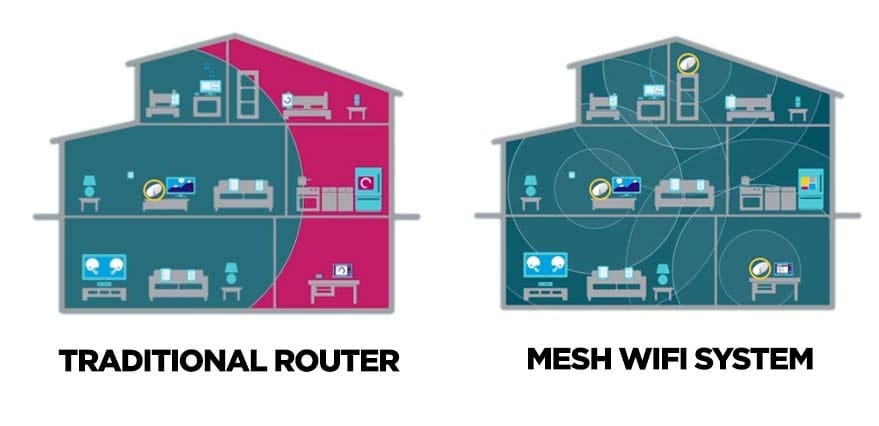
Turning off the built-in Wi-Fi is essential when installing third-party mesh systems like eero or Google Nest.
Stop Wireless Interference
Running two active networks in one home causes signal overlap and channel congestion.
* Channels compete and slow down overall speeds.
* Devices bounce between networks unpredictably.
* Performance suffers due to radio frequency noise.
Disabling the Xfinity Wi-Fi ensures only your high-performance mesh system broadcasts signals.
Prevent Double NAT Issues
Double NAT occurs when both the gateway and your new router try to manage network traffic.
* Online gaming experiences lag and connection errors.
* Port forwarding rules fail to apply.
* Smart home devices disconnect frequently.
Bridge Mode lets your mesh system handle all NAT functions and hold the public IP address.
Simplify Network Management
Managing a single network is far easier than juggling two systems.
* Use one dashboard for parental controls and security.
* Eliminate confusion about which network is active.
* Troubleshoot connectivity issues faster with one interface.
Troubleshoot Admin Access Problems
If you cannot reach the settings page, check these common configuration errors.
Fix Page Loading Errors
The admin tool may fail to load if browser settings are incorrect.
* No Admin Access: Ensure Admin Tool Online Access is ON in the app.
* Wrong Network: Verify your device is connected to the gateway.
* JavaScript Disabled: Enable JavaScript in your browser privacy settings.
Restart the gateway and try accessing 10.0.0.1 again if issues persist.
Recover Forgotten Login Credentials
You cannot proceed without the correct password for the admin panel.
* Check the sticker on the back or bottom of the gateway.
* Try the default password password if the label is missing.
* Reset the gateway using the pinhole button only as a last resort.
Re-enable Xfinity Wi-Fi If Needed
You can restore the original Wi-Fi and routing functions if you change your mind.
Turn Off Bridge Mode
Reverse the process to bring the Wi-Fi back online.
1. Connect your computer via Ethernet since Wi-Fi is off.
2. Go to http://10.0.0.1 and log in with your credentials.
3. Navigate to Settings > Internet > Bridge Mode.
4. Toggle Enable Bridge Mode to OFF.
5. Click Save Changes and wait for the reboot.
Your Xfinity SSID will reappear within minutes after the system restarts.
Configure Your Mesh System Properly
Your third-party router must take over all routing duties once the gateway Wi-Fi is off.
Connect the Mesh Router
Establish a physical link between the modem and your new router.
* Plug an Ethernet cable into a LAN port on the Xfinity gateway.
* Connect the other end to the WAN port on your mesh router.
* Power on the mesh system and follow the setup app instructions.
Ensure Correct Mesh Settings
Your mesh system must not be in Bridge Mode.
* Set the mesh router to assign IP addresses via DHCP.
* Allow the mesh system to handle NAT and firewall duties.
* Create a strong Wi-Fi password using WPA2 or WPA3 security.
Mistake to Avoid: Do not put both devices in Bridge Mode or your network will have no router.
Frequently Asked Questions About Turning Off Wi-Fi on Xfinity Router
Is there a button to turn off Wi-Fi on Xfinity router without Bridge Mode?
No, Xfinity gateways do not have a standalone Wi-Fi off switch. You must enable Bridge Mode to disable the wireless radios and routing functions simultaneously.
What happens to my internet when I enable Bridge Mode?
The internet connection will temporarily drop while the gateway reboots. Afterward, the device acts only as a modem, and your third-party router must manage the connection.
How do I know if Bridge Mode is active on my Xfinity gateway?
Check the LED lights on the front panel. A circle with an X indicates Wi-Fi is off. You can also scan for networks and confirm the Xfinity SSID is gone.
Can I use the Xfinity app to manage my network after enabling Bridge Mode?
No, enabling Bridge Mode disables the gateway’s routing features. You must use your third-party router’s app to manage Wi-Fi settings and connected devices.
Will enabling Bridge Mode improve my gaming performance?
Yes, it prevents Double NAT issues that cause lag and connection errors. Your gaming console connects directly to your mesh system without double translation.
Key Takeaways for Turning Off Wi-Fi on Xfinity Router

Disabling the built-in Wi-Fi requires enabling Bridge Mode through the admin panel at 10.0.0.1. This process stops interference and prevents Double NAT issues when using third-party mesh systems. Always verify the change by checking for the “X” icon on the gateway lights.
Connect your new router via Ethernet and ensure it handles DHCP and routing duties. Do not leave both devices in Bridge Mode. Follow these steps to enjoy a faster and more stable home network.



