
You left home and suddenly remember your Wi-Fi router is still broadcasting all night. You need to cut access immediately to save energy or stop potential hackers, but you are miles away from the device. The good news is that you can disable the wireless signal remotely using built-in cloud tools or mobile apps designed for this exact purpose.
This guide explains how to turn off your Wi-Fi router remotely by distinguishing between disabling the signal and cutting total power. You will learn specific steps for major brands, how to use smart plugs for full power cycles, and why turning a router back on from a dead state requires special hardware setup.
Disable Wi-Fi Signals Remotely Using Router Apps
Disabling the wireless radio is the most reliable method for remote management. This process stops the 2.4 GHz and 5 GHz broadcasts while keeping the router connected to your Internet Service Provider. It allows you to pause internet access for devices without rebooting the hardware or losing your configuration settings.
Access the Admin Interface From Anywhere
You must establish a secure link to your router before you can change any settings. Most modern routers require you to enable remote features while you are still on the local network.
- Log into your router web interface using
192.168.1.1or192.168.0.1. - Navigate to Advanced Settings and enable Remote Management or Cloud Management.
- Download the official app for your brand, such as Netgear Nighthawk, TP-Link Tether, or ASUS Router.
- Create a cloud account and link your device to ensure off-network access.
Security Note: Change default login credentials like
admin/adminimmediately. Store your new complex password in a secure password manager to prevent unauthorized access.
Toggle Off 2.4 GHz and 5 GHz Bands
Once connected via the app or cloud portal, you can shut down the wireless transmission. Many users forget that dual-band routers often require switching off both frequencies separately.
- Open your manufacturer’s mobile app or web dashboard.
- Find the section labeled Wi-Fi Settings, Wireless, or Network.
- Locate the toggle switches for 2.4 GHz and 5 GHz networks.
- Switch both bands to the Off position.
- Tap Save or Apply to commit the changes.
Some firmware versions offer a master Wi-Fi On/Off button that disables both bands simultaneously. Use this feature if available for a faster shutdown process.
Confirm the Wi-Fi Signal Is Disabled
Changes to wireless settings usually take effect within seconds. You should verify the shutdown to ensure no devices remain connected.
- Attempt to connect a smartphone or tablet to your network name.
- Check the status indicator in your router app for a “Wi-Fi Off” message.
- Observe the physical LED lights on the router if you have a camera feed; the Wi-Fi icon should be dark.
Critical Warning: If you disable Wi-Fi without ensuring remote management stays active, you may lock yourself out. You will need to return to the physical location or use a wired connection to re-enable the signal.
Power Off Router Remotely Using Smart Plugs

Cutting total power to the router is significantly harder than just disabling the signal. A completely powered-off router cannot listen for network commands, which creates a paradox for remote reactivation.
Understand the Power-Off Limitation
You can easily cut power remotely, but you generally cannot turn the router back on without help. Wake-on-LAN technology typically requires the device to remain in a low-power standby state to listen for signals. Consumer routers usually do not support waking from a fully unpowered state via software alone.
This means a standard remote power-off often requires a physical visit to plug the device back in unless you use external hardware automation.
Install a Wi-Fi Smart Plug for Full Control
A smart plug acts as a remote-controlled switch for your electrical outlet. This hardware allows you to cut power and restore it from anywhere in the world.
- Plug your router power adapter into a compatible Wi-Fi smart plug.
- Connect the smart plug to your home network and pair it with its control app.
- Use the smart plug app to toggle the power supply to the router off or on.
Reboot Time: Expect a delay of 30 seconds to 2 minutes after restoring power. The router needs time to boot up and renegotiate the connection with your ISP.
Schedule Automatic Power Cycles
Smart plug apps allow you to create static schedules for routine power management. This is useful for enforcing digital curfews or reducing electricity usage overnight.
- Set the plug to turn off at 11:00 PM daily.
- Set the plug to turn on at 7:00 AM daily.
- Manually override the schedule via the app if you need internet during off-hours.
Be aware that these schedules are fixed. They will not react dynamically to your specific usage patterns or device status without advanced automation scripting.
Automate Router Shutdowns Based on Device Activity
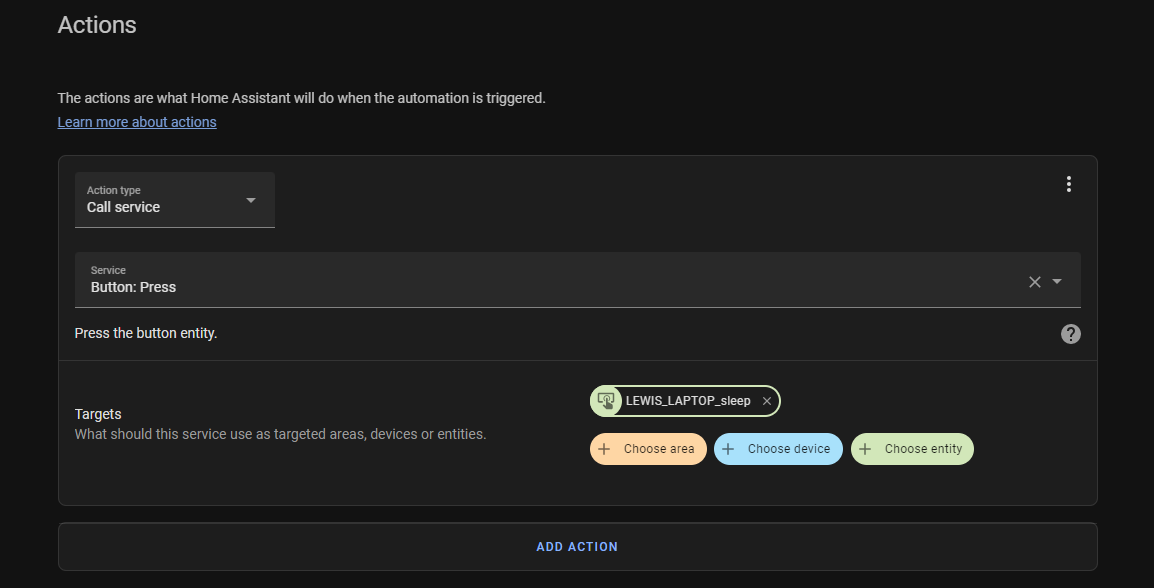
Advanced users often want the router to turn off when their laptop goes to sleep. Achieving this requires home automation platforms that can bridge the gap between device states and power control.
Configure Home Assistant or IFTTT Logic
Platforms like Home Assistant, IFTTT, or Node-RED can monitor device presence and trigger smart plug actions. You can create a rule where the system detects your laptop entering sleep mode and sends a command to cut router power.
However, a timing conflict exists. When your laptop wakes up, it needs the internet to receive the “power on” command, but the router is off. This creates a loop where the device cannot signal the router to start.
Deploy a Secondary Access Point
To solve the wake-up loop, consider a dual-router setup. This architecture keeps a small communication channel open even when the main router is off.
- Keep a low-power secondary router or access point running near your workspace.
- Connect your laptop to this secondary network for local control commands.
- Use the secondary network to send the “power on” signal to the smart plug controlling the main router.
Once the main router boots and stabilizes, your devices can switch back to the primary high-speed network. This setup ensures you never lose the ability to restart your main internet connection.
Evaluate Energy Savings and Security Benefits

Understanding the impact of turning off your router helps you decide if the effort is worth it. While financial savings are modest, the security and privacy advantages can be substantial for certain users.
Analyze Power Consumption Data
Most consumer routers draw less than 20 watts of power. Running a router 24/7 typically costs between $15 and $25 per year depending on local electricity rates. Turning it off for eight hours nightly might save you only $5 to $8 annually.
The primary motivation for most users is not financial but rather related to security posture and electromagnetic field reduction.
Reduce Your Digital Attack Surface
Disabling Wi-Fi or powering down the device eliminates the wireless attack vector entirely. This prevents brute-force login attempts and blocks unauthorized devices from connecting to your network while you are asleep or away.
- Stops remote hacking attempts targeting open ports.
- Prevents data leaks from IoT devices during idle hours.
- Enforces a strict digital detox by making internet access impossible.
This approach is highly effective if you travel frequently or want to ensure zero network activity during specific windows.
Troubleshoot Common Remote Access Issues
Even with proper setup, connectivity issues can occur. Knowing how to diagnose these problems ensures you do not get locked out of your own network.
Resolve Web Interface Connection Errors
If you cannot reach the router dashboard, check your remote access settings. Ensure your ISP is not blocking external access to standard ports like 80 or 443. Try switching your phone to cellular data to rule out local network conflicts.
Fix App Connectivity Failures
If the manufacturer app fails to connect, try reinstalling it or logging out and back into your cloud account. Sometimes the cloud sync service experiences temporary outages. Restarting the router via a smart plug can also refresh the connection.
Recover Lost Admin Credentials
If you forget your password and cannot log in, you may need to perform a factory reset. Press the physical reset button on the router for 10 to 30 seconds. Be aware this erases all custom settings, so you must reconfigure your network from scratch.
Key Takeaways for Turning Off Your Wi-Fi Router Remotely
Turning off your Wi-Fi router remotely is a two-step consideration involving signal management and power control. Disabling the wireless signal is simple and fully supported by most modern router apps. Cutting total power requires a smart plug and careful planning to ensure you can turn the device back on.
- Use manufacturer apps to toggle Wi-Fi bands off for instant access control.
- Install a smart plug if you need to cut total power or reboot the hardware.
- Consider a secondary access point if you need to automate power cycles based on device usage.
Start by testing the signal disable feature in your current router app today. If you need full power control, purchase a compatible smart plug and set up a test schedule to ensure you can restore connectivity reliably.
Frequently Asked Questions About Remote Router Control
Can I turn my router back on if it is completely powered off?
No, not without external hardware. A powered-off router cannot receive network signals. You must use a Wi-Fi smart plug to restore electricity before the router can boot up and reconnect.
Does turning off Wi-Fi save a significant amount of money?
The financial savings are minimal, typically around $5 to $8 per year. Most routers consume under 20 watts. The primary benefits are improved security and reduced exposure to wireless signals rather than cost reduction.
Will disabling Wi-Fi stop my wired devices from working?
No. Turning off the Wi-Fi radio only stops wireless transmission. Devices connected via Ethernet cables will still have internet access, and the router maintains its connection to the ISP.
How long does it take for a router to reconnect after a power cut?
Most routers take between 30 seconds and 2 minutes to fully boot up. They must initialize hardware, load firmware, and renegotiate the connection with your Internet Service Provider.
What happens if I lose my password after enabling remote management?
If you lose your admin password, you cannot log in to re-enable Wi-Fi. You will need to physically access the router and press the factory reset button, which erases all custom settings and passwords.
Is it safe to enable remote management on my router?
It is safe if you use strong, unique passwords and keep your router firmware updated. Always change default credentials like admin/admin before enabling any cloud or remote access features.



