
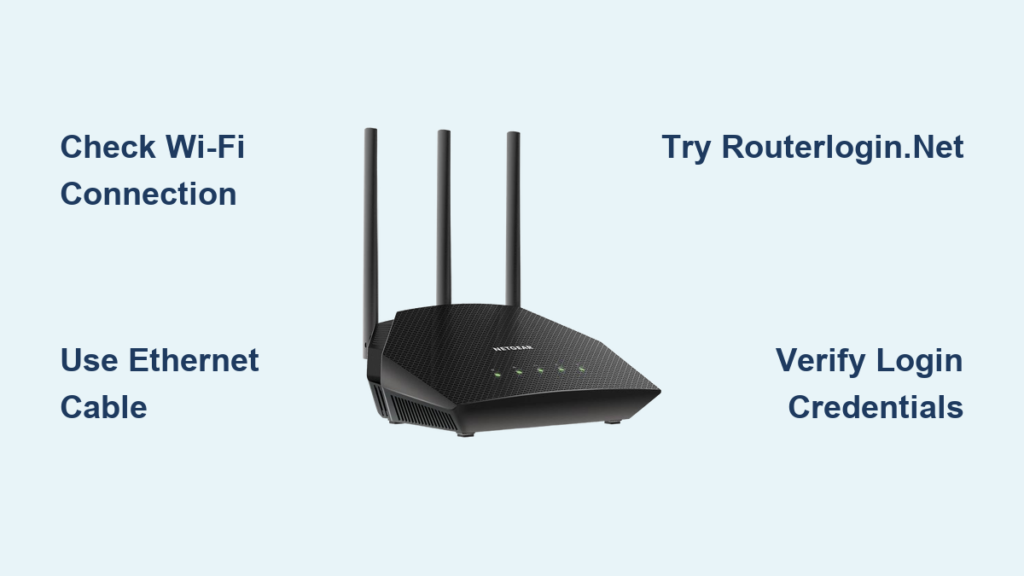
You’re not alone if your NETGEAR router won’t let you connect. Typing www.routerlogin.net or 192.168.1.1 into your browser and getting an error like “page not found” or “connection timed out” is a common frustration. The good news is most NETGEAR can’t connect to router issues can be solved without buying new hardware.
This guide walks you through every proven fix, from simple browser tweaks to a full factory reset. Whether you own a Wi-Fi 6 RAX45, a classic R7000, or a gaming XR500, these solutions work across all NETGEAR home routers. By the end, you’ll know exactly how to regain access and prevent future login failures.
Confirm Your Device Is Connected to the NETGEAR Network
Before diving into router settings, verify your device is actually linked to your own network.
Check Your Wi-Fi Network Association
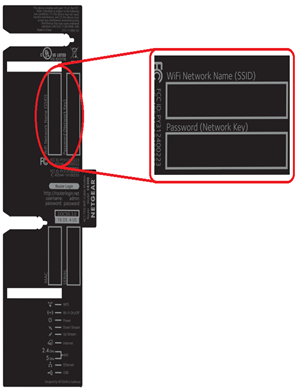
Make sure your phone, laptop, or tablet is connected to your NETGEAR router’s Wi-Fi. Not a neighbor’s network, a hotspot, or cellular data. Open your device’s Wi-Fi settings and confirm the network name (SSID) matches the label on your router.
If you’re on the wrong network, switch to the correct one. The default SSID and password are printed on the bottom or back of your router, usually highlighted in yellow.
Try a Wired Ethernet Connection
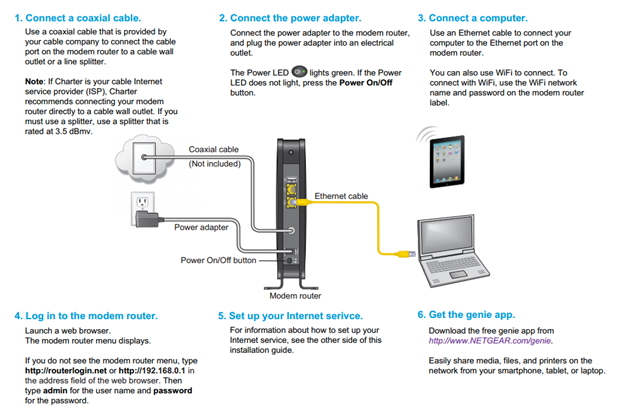
Wi-Fi interference or weak signal strength can block access to the admin page. Plug your computer directly into the router using an Ethernet cable for a stable, reliable connection.
Once connected:
– Open any browser
– Type www.routerlogin.net in the address bar
– If that fails, try 192.168.1.1
A wired link often resolves NETGEAR can’t connect to router errors instantly.
Use the Correct Login Address and Credentials
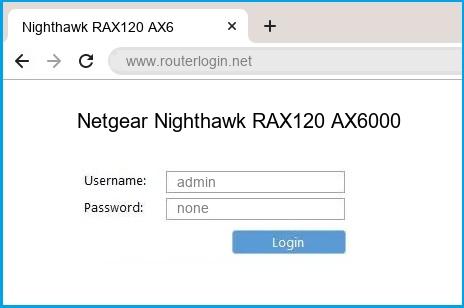
Wrong web addresses and login details are the top reason users can’t access their NETGEAR router.
Access via routerlogin.net or IP Address
Always type one of these URLs directly into your browser’s address bar:
– http://www.routerlogin.net
– http://www.routerlogin.com
If those don’t load, enter the default IP directly:
– 192.168.1.1
– 192.168.0.1
Avoid searching “NETGEAR login” on Google, since this can lead to phishing sites. Always type the address manually.
Enter the Right Username and Password
The default login details are:
– Username: admin
– Password: the one you set during setup (case-sensitive)
If you never changed it, check the password on your router’s label.
Forgot your password? Use NETGEAR’s Password Recovery feature:
1. Go to routerlogin.net
2. Click “Forgot Password?”



