
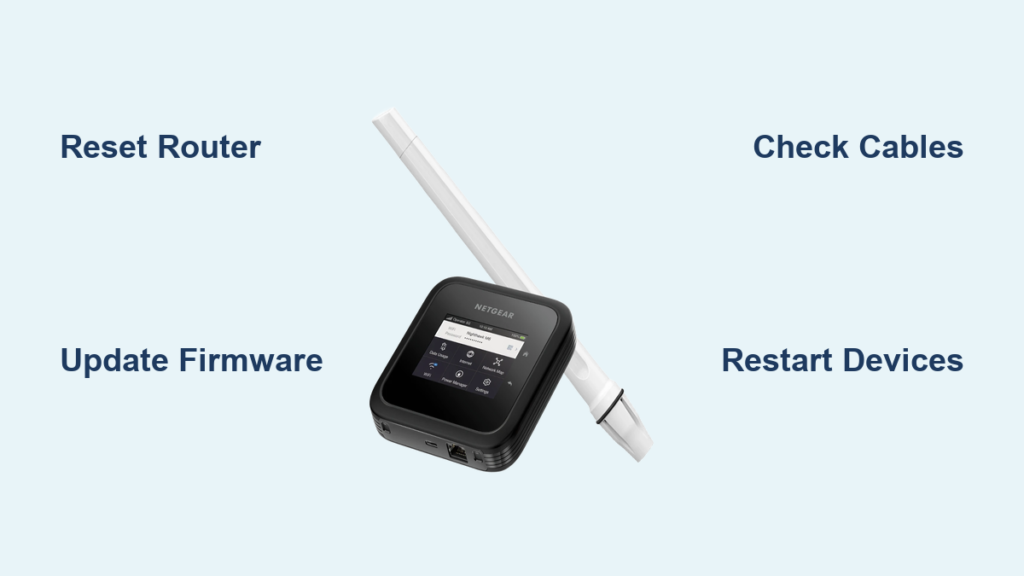
Is your Netgear Nighthawk router dropping connections or refusing to load the admin page? You are not alone in facing these frustrating Netgear Nighthawk router troubleshooting scenarios daily. Most connectivity glitches stem from simple oversights like outdated firmware or loose cables that you can fix quickly.
This guide delivers proven steps to restore your Wi-Fi signal and admin access immediately. You will learn how to reset passwords safely, update firmware without errors, and optimize wireless performance for every Nighthawk model.
Regain Access When Router Login Fails
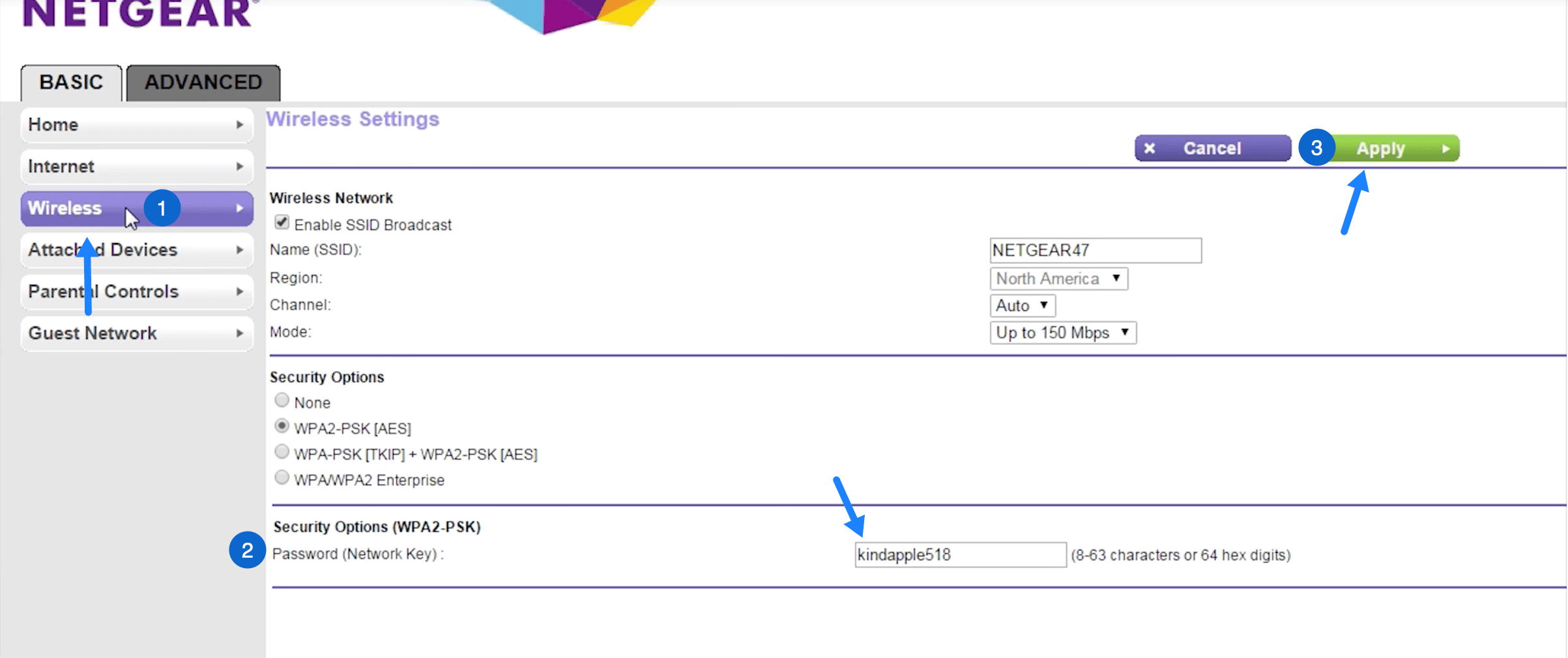
Cannot reach the settings page? Start here to bypass common login barriers and regain full control of your network. Many users mistake search bars for address bars or connect to the wrong network segment.
Enter the Correct Web Address
Type http://www.routerlogin.net or http://192.168.1.1 directly into your browser address bar. Do not type these terms into a search engine like Google or Bing as this leads to error pages. Ensure your device connects to the main Nighthawk network rather than a guest network.
Restore Forgotten Admin Credentials
Try the default username admin and the default password password if you have not changed them. Look at the bottom label of your router to verify if you customized these credentials previously. You must perform a hard reset if you cannot recall your custom login details.
- Locate the recessed reset button on the back of the router.
- Press and hold the button with a paperclip for 10 seconds.
- Release the button and wait 2 to 3 minutes for the system to reboot.
Log in with default credentials after the power light stabilizes. Reconfigure your internet settings and wireless name immediately.
Update Router Firmware to Prevent Glitches
Outdated software causes slow speeds and security vulnerabilities in your network. Keeping your Netgear Nighthawk router firmware current ensures peak performance and protects against threats.
Check for Official Updates
Log in to the admin interface and navigate to Advanced > Administration > Firmware Update. Click Check for Updates to see if a newer version exists for your specific model. Click Upload or Download if an update is available and wait for the process to finish.
Do not power off the router during the update as this can corrupt the system. The device will restart automatically once the installation completes successfully.
Avoid Unofficial Firmware Sources
Download firmware files only from the official NETGEAR support website to avoid malware. Third-party sites often host incompatible or modified files that damage router functionality. Verify your model number matches the file exactly before starting the upload process.
Use the Nighthawk app on iOS or Android to automate this entire update process. The app alerts you when new versions are ready and guides you through installation safely.
Resolve Wireless Connectivity Problems
Devices failing to connect often indicate signal interference or configuration errors. Apply these targeted fixes to restore stable Wi-Fi for your phones and laptops.
Restart Modem and Router Properly
Power cycling clears temporary memory errors and resets the internet handshake between devices. Follow this specific order to ensure a clean restart of your entire network infrastructure.
- Unplug the power cords from both your modem and your Nighthawk router.
- Wait at least 30 seconds to allow capacitors to discharge fully.
- Plug in the modem first and wait for all status lights to stabilize.
- Plug in the router and wait for the Wi-Fi lights to turn solid.
Verify Wi-Fi Broadcasting Settings
Log into routerlogin.net and select Wireless Settings to check your broadcast status. Ensure the Wireless Network (SSID) option is enabled so devices can detect your network. Verify that your SSID is not hidden since hidden networks require manual entry on every device.
Make sure both 2.4 GHz and 5 GHz bands are active if your devices require them. Try connecting a different device to determine if the issue is isolated to one specific gadget.
Reduce Signal Interference
Slow or spotty connections often result from neighboring networks or household appliances blocking signals. Change the Wi-Fi channel in the admin panel under Wireless > Advanced Settings to avoid congestion.
- Select channels 1, 6, or 11 for the 2.4 GHz band.
- Choose channels 36–48 or 149–161 for the 5 GHz band.
- Move the router away from microwaves, cordless phones, and thick walls.
Use the Nighthawk app Wi-Fi Analyzer tool to find the clearest channel automatically. Switch heavy streaming devices to the 5 GHz band for better speed and less interference.
Perform Deep Diagnostic Checks
Basic reboots sometimes fail to resolve underlying hardware or configuration faults. Use these diagnostic steps to isolate the root cause of persistent network failures.
Inspect Physical Cable Connections
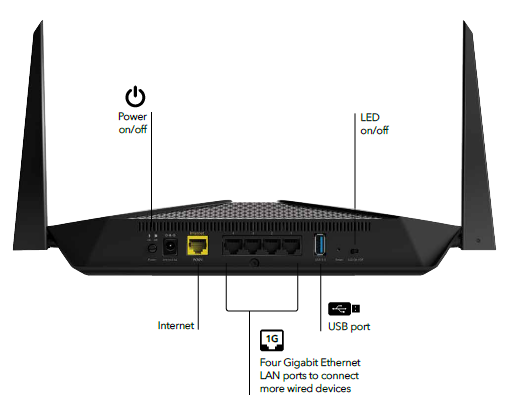
Loose or damaged cables mimic major system failures and cause intermittent outages. Ensure the power adapter is seated firmly in the wall outlet and router port. Check the Ethernet cable connecting the modem to the router port labeled “Internet” or “WAN”.
Look for bent connectors or frayed wires that might disrupt data transmission. Replace any suspect cables with new Cat5e or Cat6 Ethernet cables for best results.
Test With a Wired Connection
Connect a computer directly to the router using an Ethernet cable to test stability. Open a web browser and try loading a few different websites to verify internet access.
If the wired connection works but Wi-Fi fails, the issue lies within your wireless settings. If neither works, the problem likely involves the modem, the ISP, or the router hardware itself.
Reset Network Settings on Devices
Your router might be fine while your phone or laptop holds onto bad configuration data. Run the Network Adapter troubleshooter on Windows or renew the DHCP lease on Mac.
- Select “Forget Network” on smartphones and reconnect by entering the password.
- Update network drivers and operating system software on all devices.
- Disable and re-enable the Wi-Fi adapter on your computer.
Execute Factory Reset as Last Resort
Restore your Netgear Nighthawk router troubleshooting efforts to square one when all else fails. This step erases all custom settings and returns the device to its original state.
Perform Hard Reset Procedure
A factory reset removes port forwards, parental controls, and custom DNS settings permanently. Press and hold the reset button while the router is powered on for 10 full seconds.
Wait for the lights to flash and then release the button to begin the reboot cycle. Allow 2 to 3 minutes for the router to fully restart before attempting to log in again. Reconnect to the default Wi-Fi name printed on the label and reconfigure your network.
Prevent Future Configuration Loss
Set a strong admin password immediately after resetting to secure your network against intruders. Enable automatic updates in the Nighthawk app to keep your system current without manual checks.
Create a backup of your configuration file in the admin panel under Advanced > Administration > Backup Settings. This file allows you to restore your setup quickly if you need to reset the router again later.
Optimize Network Performance Long Term
Keep your Nighthawk running smoothly with regular maintenance and smart management habits. These practices prevent common issues from recurring and extend the life of your hardware.
Schedule Monthly Reboots
Routers benefit from periodic restarts to clear memory leaks and refresh connections. Set a monthly reminder to unplug your router for 30 seconds and plug it back in.
Some Nighthawk models support scheduled reboots within the admin panel under Advanced > System Settings. Automating this task ensures your network stays fresh without requiring your attention.
Monitor Connected Devices
Too many active devices can slow down your entire network significantly. Use the Nighthawk app to view all connected devices and disconnect any unknown users.
Apply Bandwidth Control settings to limit heavy users like gaming consoles or 4K streamers. This ensures critical devices maintain speed during peak usage times.
Upgrade Aging Hardware
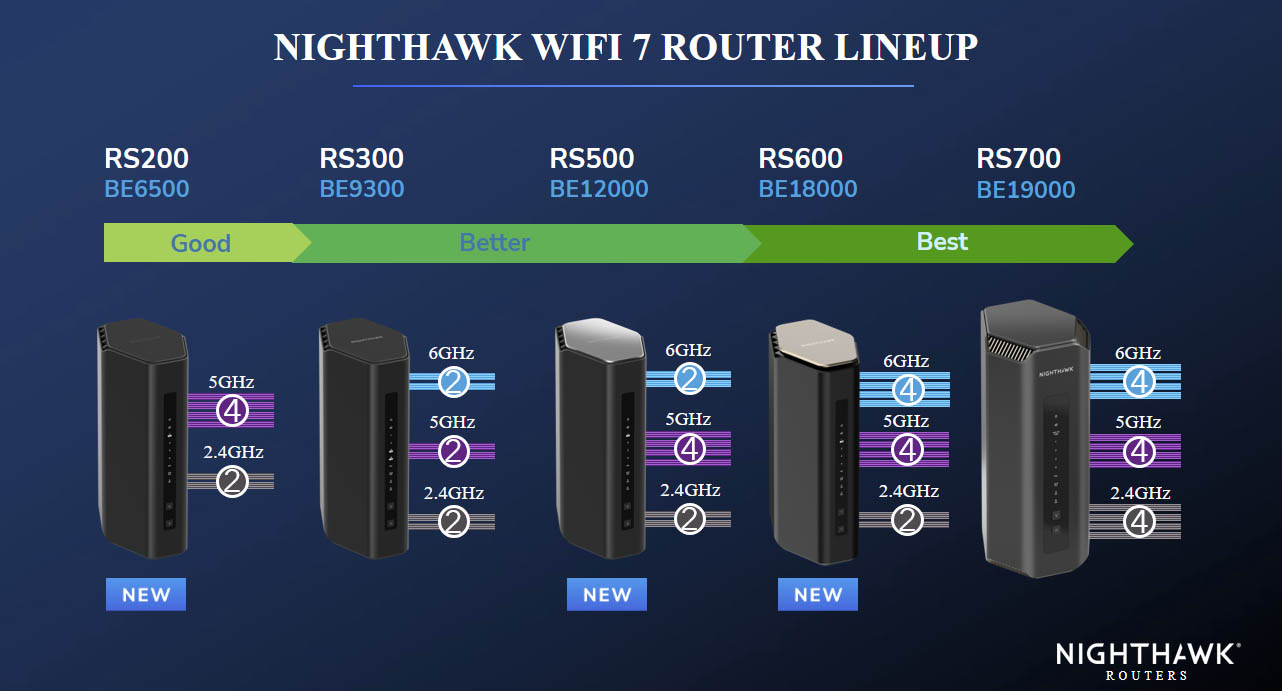
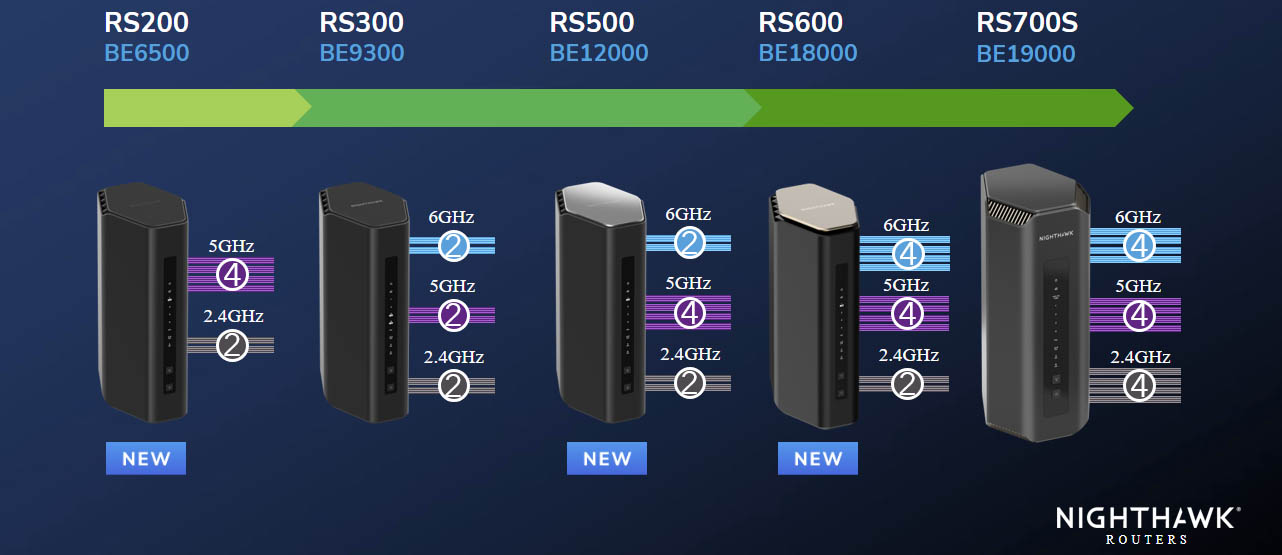
Consider upgrading if your router is more than 3 to 5 years old and struggling with demand. Newer Wi-Fi 6 or Wi-Fi 7 models handle multiple devices much better than older Wi-Fi 5 units.
Look for models like RAX40, RAX80, or BE17000 for future-proof performance. Older models may lack the processing power needed for modern high-bandwidth applications.
Frequently Asked Questions About Netgear Nighthawk Router Troubleshooting
What is the default login for Netgear Nighthawk routers?
The default username is admin and the default password is password. You can find these credentials printed on the label attached to the bottom or back of your specific router model.
How do I update my Nighthawk router firmware?
Log in to routerlogin.net, go to Advanced > Administration > Firmware Update, and click Check for Updates. Follow the on-screen prompts to download and install the latest version without powering off the device.
Why is my Netgear router not connecting to Wi-Fi?
Restart both your modem and router, ensure Wi-Fi broadcasting is enabled, and check for signal interference. Verify that your device is within range and try connecting via Ethernet to isolate the issue.
How do I factory reset my Netgear Nighthawk router?
Press and hold the recessed reset button on the back of the router for 10 seconds while it is powered on. Wait for the lights to flash and the system to reboot completely before logging in with default credentials.
Where can I find official Netgear firmware files?
Download firmware exclusively from the official NETGEAR support website to ensure safety and compatibility. Never use third-party sites as they may host corrupted or malicious files.
Key Takeaways for Netgear Nighthawk Router Troubleshooting
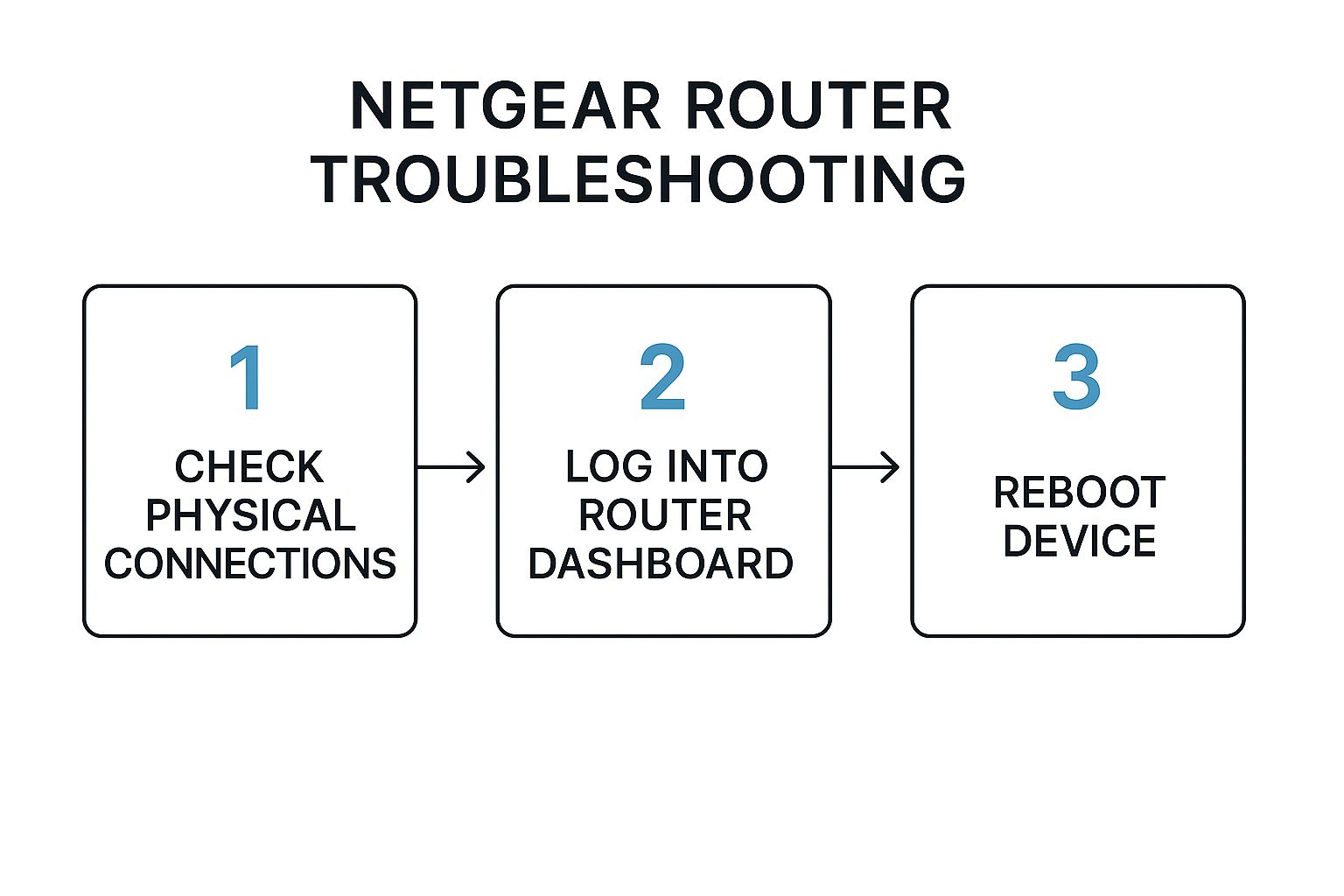
Most network issues resolve quickly by restarting your equipment, checking cable connections, or updating firmware. Regular maintenance like monthly reboots and monitoring connected devices prevents many common problems from occurring.
Take action now by logging into your admin page to check for pending firmware updates. Bookmark this guide so you can quickly reference these Netgear Nighthawk router troubleshooting steps whenever connectivity issues arise.



