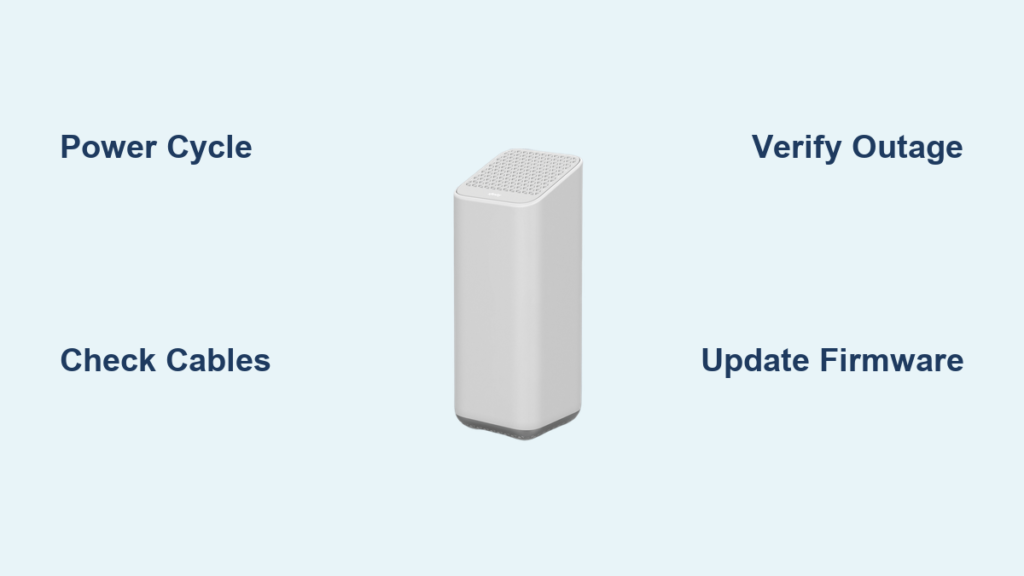
Seeing your router flashing orange usually means a lost connection or failed update, but you can often fix it yourself quickly. This common issue affects many Xfinity customers and typically resolves with a simple restart or cable check.
This guide explains exactly why the light blinks and how to restore your internet in under ten minutes. You will learn to diagnose signal problems, update firmware, and reset your device without needing technical expertise.
Identify What Your Flashing Orange Light Means

Not all blinking lights indicate the same problem, so observing the pattern helps you choose the right fix. A slow blink often means the device is booting up, while a rapid flash suggests a sync failure with your provider. Intermittent flashing usually points to signal loss from the coaxial line or an internal software error.
Observe Flash Patterns and Speeds
Different blink rates tell you specific things about the status of your hardware.
- Slow blink: Normal during startup or firmware installation.
- Rapid blink: Indicates a connection failure or sync issue.
- Intermittent flash: Suggests signal loss or internal errors.
Wait five to ten minutes after powering on your device before panicking. Some routers flash orange briefly during normal startup sequences.
Match Symptoms to Your Router Model
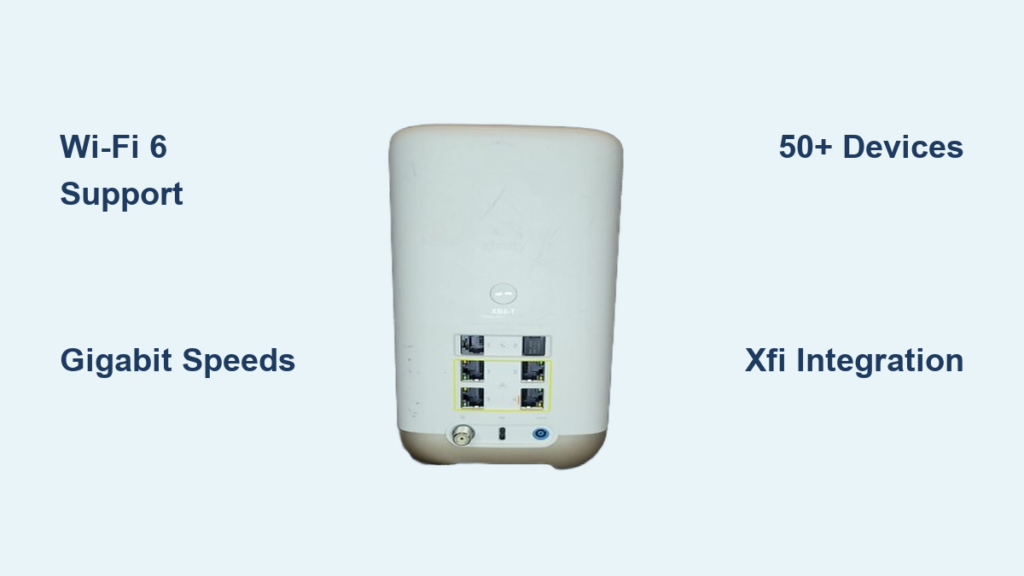
Xfinity Gateways like the XB6 or XB7 use light codes slightly differently than standalone modems from Arris or Netgear. On Xfinity xFi Gateways, orange usually means no internet sync, whereas Arris devices often use amber to signal downstream signal issues. Check the label on the back of your unit to confirm your model before searching for specific solutions.
Power Cycle Your Router to Clear Glitches
Restarting your router resolves roughly 60 percent of connectivity issues by clearing temporary memory errors. This simple step forces the device to attempt a fresh connection with the network infrastructure.
Perform a Full Power Cycle
Follow these steps to ensure a complete reset of your hardware.
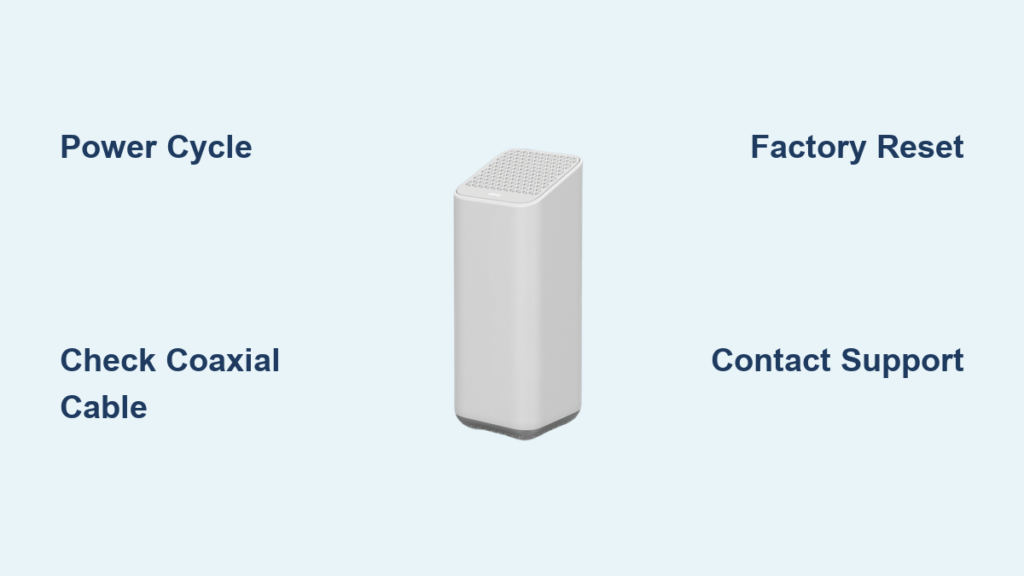
- Unplug the power cable directly from the router or modem.
- Wait at least 30 seconds, though 60 seconds is better for a full discharge.
- Plug the power cable back in and wait up to five minutes for a full reboot.
Watch the lights closely as the device restarts. The power light should turn solid, followed by the downstream light flashing before becoming solid white, blue, or green. If the orange light continues flashing after five minutes, proceed to the next troubleshooting step.
Verify Local Service Outages Before Troubleshooting
Your equipment might be working perfectly while your internet service provider experiences a regional outage. Checking for service interruptions saves you time spent on unnecessary fixes.
Use Xfinity Status Tools
Visit the Xfinity Service Status page and enter your ZIP code to see current alerts. Look for notifications regarding network outages or service interruptions in your specific area. If an outage is reported, you simply need to wait as most are resolved within one to four hours.
Check Connection Status via App
Open the Xfinity app on your phone and tap Services to view your real-time connection status. A green checkmark means the network is okay, while a red exclamation point indicates a local or regional issue. The app also provides updates on signal strength and device connectivity.
Inspect Physical Connections for Damage

Loose, damaged, or corroded cables are among the most frequent causes of a router flashing orange. Ensuring every physical link is secure can instantly restore your signal.
Secure Coaxial Cable Connections
Check where the coaxial cable enters your home and twist it firmly clockwise until it feels tight. Examine the entire length of the cable for kinks, sharp bends, or signs of corrosion on the metal connectors. Connect the other end securely to the port labeled Cable In on your modem.
Try using a different coaxial cable if you have a spare available. A faulty cable often blocks signal synchronization completely.
Confirm Power and Ethernet Links
Ensure your power adapter is plugged directly into a working wall outlet rather than a surge protector with a tripped fuse. If you use separate modem and router units, verify the Ethernet cable between them is seated fully in both ports. Look inside the ports for bent pins or accumulated dust that could block connectivity.
Test Signal Strength and Registration Status

A flashing orange light often means your modem cannot register with the Xfinity network due to poor signal levels. You can check these metrics directly through your router’s admin panel.
Access Router Admin Panel
Connect a laptop to your modem using an Ethernet cable for the most stable connection. Open a web browser and type http://10.0.0.1 in the address bar. Log in with your admin credentials, which are usually username admin and password password unless you changed them.
Check Downstream and Upstream Power
Navigate to the Signal Levels section under Network or Connectivity settings. Normal downstream power should range between -7 dBmV and +7 dBmV, while upstream power should sit between 35 and 50 dBmV. If your downstream levels are outside this range or show no lock, you likely have a line issue requiring provider assistance.
Update Router Firmware to Latest Version
Outdated firmware can cause instability, security vulnerabilities, and failed connections that result in an orange light. Keeping your system current ensures compatibility with network updates.
Find and Install Firmware Updates
Log into 10.0.0.1 and navigate to Settings, then System, and finally Firmware Update. Click Check for Updates and install any available version immediately. Do not unplug the device during this process, as it takes three to seven minutes and interrupts could corrupt the software.
Some models update automatically, but manually checking every three months prevents many connectivity issues. Wait for the device to fully reboot before checking if the light has stabilized.
Reset Router to Factory Default Settings
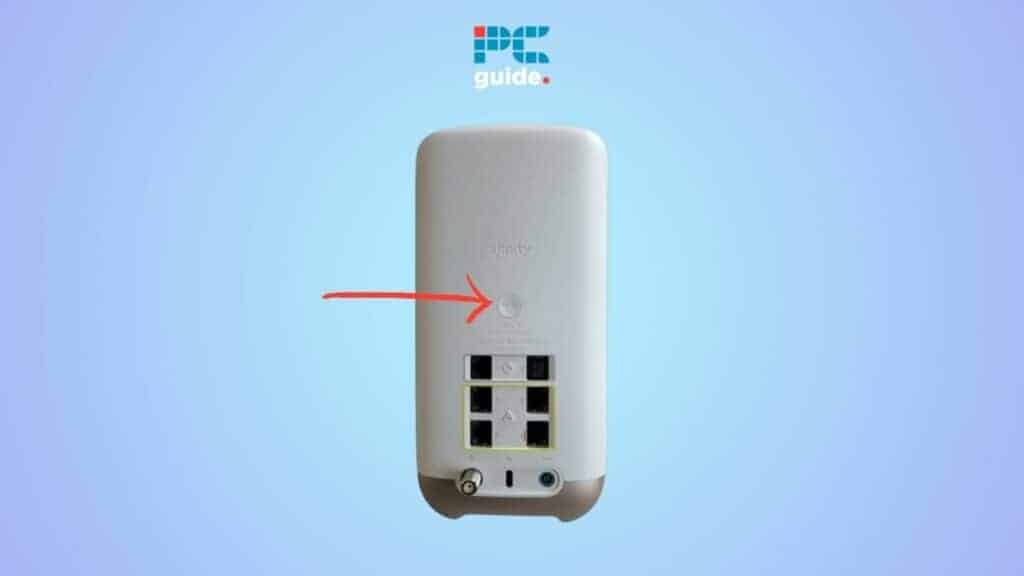
Perform a factory reset only if all other methods fail, as this erases all your custom configurations. This step returns the device to its original state and often clears persistent configuration errors.
How to Hard Reset Your Device
Locate the small reset button, often found inside a pinhole on the back or side of the unit. Use a paperclip to press and hold the button for ten full seconds until the lights flash. Release the button and wait five to eight minutes for the device to reboot completely.
You will need to reconfigure your Wi-Fi name, password, and any port forwarding rules after this step. Avoid frequent resets, as they can potentially corrupt memory over time.
Replace Faulty Hardware If Issues Persist
If the router flashing orange continues after every troubleshooting step, your hardware may be failing physically. Signs of hardware failure include overheating, frequent disconnections, or an age exceeding three years.
Signs You Need New Equipment
Contact Xfinity support immediately if you rented your equipment, as they often provide free replacements for faulty units. If you own your modem, consider replacing it with an Xfinity-approved model like the Motorola MB8600 or Netgear CM2000. Always verify compatibility on the official approved modem list before purchasing new hardware.
Prevent Future Orange Light Recurrence
Preventing future issues involves regular maintenance and proper power management for your networking equipment. Simple habits can extend the life of your router and maintain stable connections.
Schedule Monthly Maintenance Tasks
Reboot your router once a month by unplugging it for 30 seconds to clear memory cache. Check for firmware updates every 90 days and dust the ventilation holes to prevent overheating. These small actions keep the internal software running smoothly.
Use Surge Protection and Upgrade Old Gear
Plug your router into a quality surge protector to shield internal circuits from power spikes. Routers older than three years often struggle with modern speeds and updates, so consider upgrading to a newer gateway for better performance.
When to Call Xfinity Support for Help
Do not waste hours guessing if you have completed all steps and the light still flashes orange. Contact support if signal levels show no downstream lock or if you suspect line damage from storms.
Contact Options and What to Request
Call 1-800-XFINITY or use the chat feature on the support website to speak with an agent. Ask them to run a remote diagnostic, confirm your modem registration, and dispatch a technician if needed. Technician visits are free if the issue relates to service or equipment failure.
Frequently Asked Questions About Router Flashing Orange
How long should I wait for the orange light to stop?
Wait at least five to ten minutes after a power cycle. If the light continues flashing orange after this time, the issue likely requires further troubleshooting or support.
Does a flashing orange light mean my router is broken?
Not necessarily. It usually indicates a connection issue, firmware update, or signal problem rather than permanent hardware failure.
Can bad weather cause the orange light to flash?
Yes, storms and heavy rain can damage lines or cause signal interference that triggers the orange light indicator on your modem.
Will resetting my router delete my internet password?
Yes, a factory reset erases all custom settings including your Wi-Fi name and password, so you must reconfigure them afterward.
Why is my router flashing orange after a power outage?
Power outages can corrupt temporary files or prevent proper registration. A full power cycle usually resolves this specific scenario.
Key Takeaways for Fixing Router Flashing Orange
A router flashing orange is rarely a permanent failure and often resolves with a simple power cycle or cable check. Most users restore their internet connection within twenty minutes by following the systematic steps outlined in this guide.
Start by restarting your device and checking for local outages before moving to complex fixes like firmware updates. If these steps do not work, contact Xfinity support for remote diagnostics or a potential hardware replacement.