
If your TP-Link router keeps disconnecting only on Wi-Fi while wired devices stay online, you are facing a wireless-specific issue. This is not a total internet outage since your modem and Ethernet connections likely work fine. Interference, signal congestion, or specific router settings often break the wireless link.
This guide helps you diagnose and fix the root causes of an unstable TP-Link Wi-Fi network step by step. You will tackle signal interference, outdated firmware, Smart Connect glitches, and placement errors to restore reliable connectivity.
Confirm Your TP-Link Router Keeps Disconnecting Only on Wi-Fi
You must rule out modem or ISP failures before adjusting router settings. Many users waste time tweaking Wi-Fi configurations when the real fault lies upstream with the service provider.
Test Direct Modem Connection
Unplug your TP-Link router from the modem entirely. Connect your computer directly to the modem using an Ethernet cable and load several websites. Stream a short video to test for stability over a few minutes.
- Stable connection: The modem and ISP are working correctly. Reconnect your router and proceed to the next test.
- Unstable connection: The issue lies with your modem or ISP. Contact your provider immediately for support.
Verify Wired Router Performance
Reconnect the TP-Link router to the modem. Plug your computer into the router LAN port using an Ethernet cable and repeat your internet tests.
- Wired stable: The problem is wireless-specific. Proceed to optimize your Wi-Fi settings.
- Wired unstable: This is not a Wi-Fi issue. Check your power supply or perform a factory reset.
Only continue with this guide if your wired connection remains stable while Wi-Fi drops.
Optimize Router Placement to Stop Drops
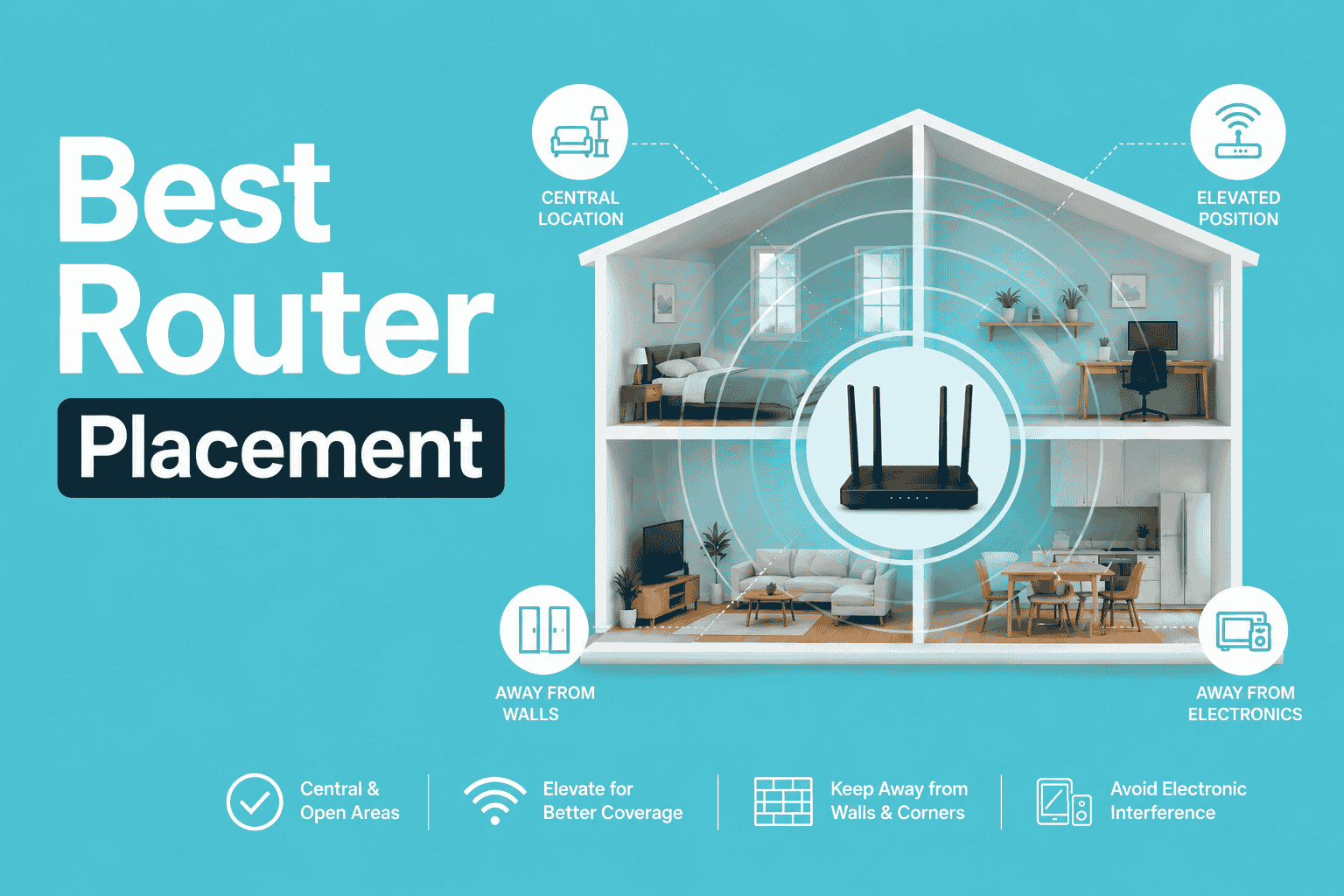
Poor physical placement is a leading cause of intermittent disconnections. Even small changes in location can dramatically improve signal stability and reduce dropouts.
Avoid Physical Obstacles
Thick walls, metal furniture, mirrors, and large appliances weaken Wi-Fi signals significantly. Place your router in a central location that is ideally elevated on a shelf rather than the floor. Keep it away from concrete or brick walls and ensure it sits at least 3 to 6 feet from large metal objects.
Distance From Interfering Devices
Common household electronics emit signals that interfere with Wi-Fi frequencies. Microwave ovens emit strong 2.4GHz noise when running, while cordless phones and baby monitors operate on overlapping frequencies.
- Bluetooth devices like headsets and speakers add congestion
- Refrigerators and washing machines cause electromagnetic interference
- Move your router at least 5 to 6 feet away from these appliances
Reduce Wi-Fi Interference Causing Disconnects

Even with good placement, signal interference from nearby networks can make your TP-Link router keep disconnecting frequently. You must analyze and adjust your channel settings to find clear airwaves.
Scan for Channel Congestion
Use a Wi-Fi analyzer app like Wi-Fi Analyzer for Android or NetSpot for Windows. These tools show which 2.4GHz and 5GHz channels nearby networks occupy so you can avoid traffic jams.
- On 2.4GHz, only channels 1, 6, and 11 are non-overlapping
- Avoid channels with heavy traffic from neighbors
- Choose the least crowded channel for your specific network
Switch to Less Crowded Channels
Log in to your TP-Link router by opening a browser and going to tplinklogin.net. Enter your admin credentials and navigate to Advanced > Wireless > Wireless Settings.
- Under the 2.4GHz band, change Channel to 1, 6, or 11 based on your scan
- For 5GHz, pick a higher channel like 36–48 or 149–161
- Avoid DFS channels if stability is your primary concern
- Click Save to apply changes
The router will reboot automatically. Reconnect your devices to the new channel settings.
Adjust Channel Width Settings for Stability
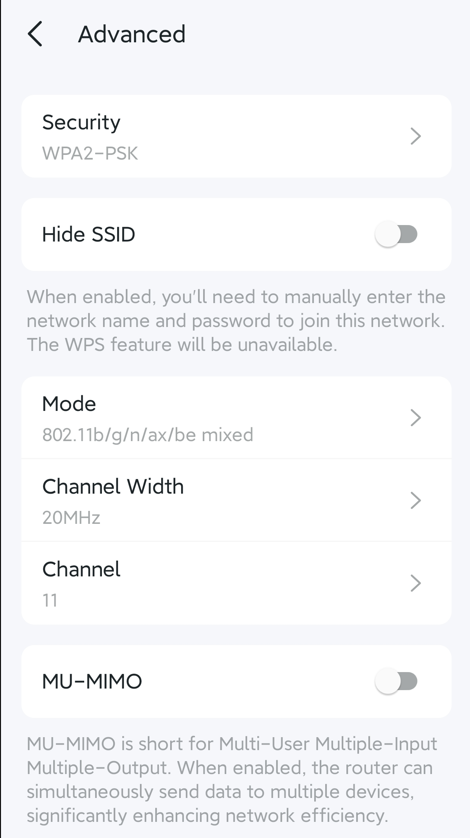
Wider channels offer faster speeds but are much more prone to interference and disconnections in busy environments. Narrowing your channel width often solves persistent dropout issues.
Set 2.4GHz to 20MHz Width
Wider 40MHz channels on 2.4GHz increase interference risk due to limited spectrum availability. Most home environments benefit from restricting this band to narrower widths.
- In the router admin panel, go to Advanced > Wireless > Wireless Settings
- Find Channel Width under the 2.4GHz section
- Change the setting from 20/40MHz to 20MHz only
- Save settings and reboot the router
This reduces maximum speed slightly but greatly improves connection stability.
Use 20MHz on 5GHz If Needed
While 80MHz is standard on 5GHz, dense apartment complexes may require narrower bands. Try 40MHz first for a balance of speed and reliability. Switch to 20MHz only if disconnections persist despite other fixes. Avoid auto-width settings if instability continues.
Disable Smart Connect to Prevent Band Steering Issues
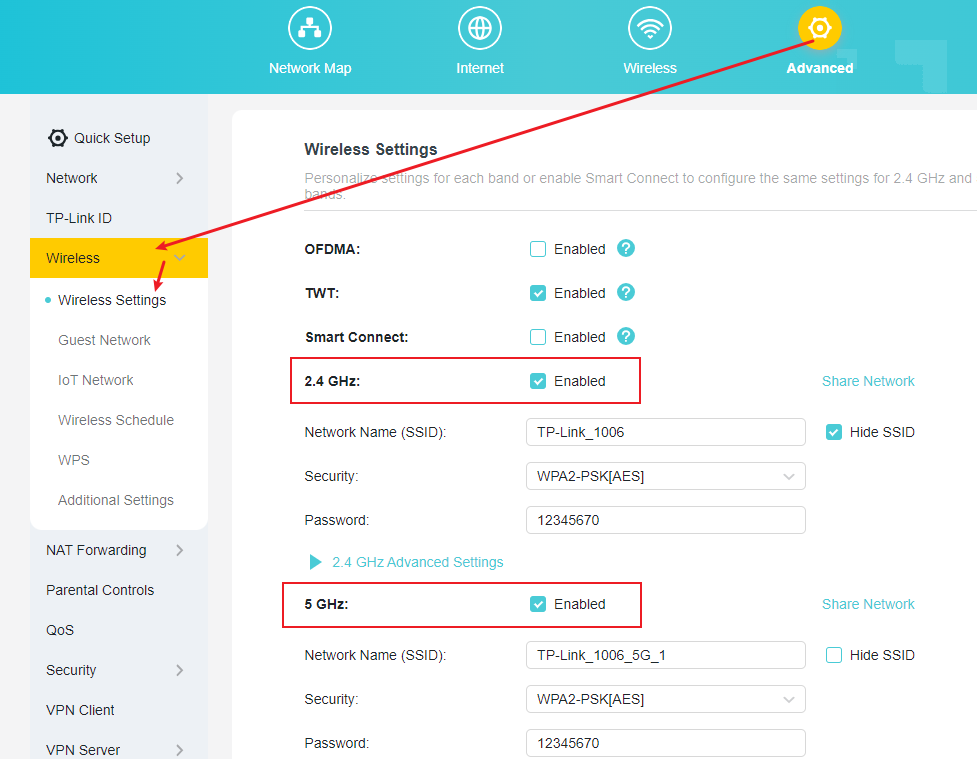
Smart Connect automatically moves devices between 2.4GHz and 5GHz bands. While convenient, this feature causes disconnections on older or incompatible client devices.
Why Smart Connect Causes Drops
Some devices struggle with seamless band switching during operation. The router may disconnect them during the handoff process, especially if signal strength fluctuates slightly.
- Intermittent drops occur every few minutes
- Devices reconnect repeatedly without user action
- Connection remains stable when using one band only
Turn Off Smart Connect
Log in to tplinklogin.net and go to Advanced > Wireless > Wireless Settings. Locate the Smart Connect option usually found at the top of the page.
- Toggle Smart Connect to Off
- Save your settings
- Manually connect devices to either 2.4GHz or 5GHz networks
Use 2.4GHz for range and penetration through walls. Use 5GHz for speed and low latency gaming. This manual control often stops random disconnections immediately.
Update Router Firmware to Fix Bugs

Outdated firmware can cause bugs in wireless performance that lead to drops and unexpected reboots. Manufacturers release updates to fix known stability issues.
Check Current Firmware Version
Log in to tplinklogin.net and navigate to Advanced > System Tools > Firmware Upgrade. Note the current version number and release date displayed on the screen. Compare this against the latest version available online.
Download and Install Latest Firmware
Visit the official TP-Link support site and search for your exact router model. Download the latest firmware file ensuring it matches your hardware version exactly.
- In the router admin, go to Firmware Upgrade
- Click Choose File and select the downloaded .bin file
- Click Upgrade and wait 3 to 5 minutes
- Do not power off the router during this process
Warning: Never interrupt a firmware update. A failed flash can permanently damage your router.
Perform a Factory Reset to Clear Corrupted Settings
If all else fails, reset the router to clear any corrupted configuration data causing the drops. This returns the device to its original state.
When to Reset
Consider a factory reset if multiple devices drop frequently despite setting changes. Use this step if the router behaves unpredictably or settings changes have no effect.
How to Reset and Reconfigure
Locate the Reset button, which is a small hole on the back or bottom of the unit. With the router powered on, press and hold with a paperclip for 10 seconds until lights blink.
- Wait 2 to 3 minutes for a full reboot
- Reconnect to the default Wi-Fi name on the label
- Run the setup wizard at
tplinklogin.net - Apply stable settings like fixed channels and disabled Smart Connect
Test Wi-Fi with mobile devices over 15 to 30 minutes to confirm stability.
Prevent Future Disconnections With Maintenance
Once your network is stable, take steps to maintain performance and avoid recurrence of the problem. Regular maintenance prevents minor issues from becoming major outages.
Schedule Reboots and Monitor Devices
Routers benefit from regular restarts to clear memory and refresh connections. Use System Tools > Reboot Schedule to set a weekly reboot time like 2:00 AM on Sunday.
Check the Connected Devices list under Advanced > Network > Device List regularly. Remove unknown or inactive devices to prevent overload. If your router consistently supports over 20 devices, consider upgrading your hardware to a modern dual-band or tri-band model with MU-MIMO capabilities.
Frequently Asked Questions About TP-Link Router Disconnecting
Why does my TP-Link router disconnect only on Wi-Fi?
Your router likely faces wireless interference or channel congestion while the wired connection remains unaffected. Common causes include microwave interference, thick walls, or outdated firmware affecting the wireless radio specifically.
How do I stop my TP-Link router from dropping the 2.4GHz signal?
Change your 2.4GHz channel width to 20MHz and select channel 1, 6, or 11 manually. Disabling Smart Connect and moving the router away from appliances also stabilizes the 2.4GHz band significantly.
Is Smart Connect bad for older devices?
Yes, Smart Connect can cause compatibility issues with older devices that cannot handle band switching smoothly. Turning this feature off and assigning bands manually often resolves persistent dropping issues.
How often should I update my TP-Link router firmware?
Check for firmware updates every few months or whenever you experience stability issues. Manufacturers release updates to fix bugs and improve wireless performance periodically.
What if my router still disconnects after a factory reset?
If problems persist after a reset and optimal settings, the hardware may be failing or overheating. Consider replacing the router if it is over four years old or frequently feels hot to the touch.
Key Takeaways for Fixing Your TP-Link Router
Fixing a TP-Link router that keeps disconnecting requires isolating the wireless variable first. Confirm your wired connection is stable, then focus on reducing interference by changing channels and narrowing channel width to 20MHz. Disabling Smart Connect and updating firmware are critical steps that resolve most intermittent dropout issues.
Take action today by logging into your router admin panel and applying these settings. A few minutes of configuration can restore reliable Wi-Fi performance to your entire home network without buying new equipment.



