

Confused by blinking lights on your router? Knowing router symbols meaning helps you spot internet outages or hardware faults instantly. Instead of guessing, you can read the status LEDs to see if your connection is active or failing.
This guide explains every common symbol, color code, and blink pattern on modems and gateways. You will learn how to distinguish normal activity from critical errors. Follow these steps to restart devices or replace cables for a quick fix.
Power Light Status Indicators

The power LED confirms your device receives electricity and boots correctly. It is usually the first light to check when troubleshooting total failure.
Solid Green or White Means Normal Operation
A steady green or white power light indicates the unit is on and functioning. This is the baseline for all other operations. If this light is missing, the device has no power source.
Blinking During System Boot
Slow blinking occurs while the router loads its internal software. This process typically takes one to two minutes. Wait for the light to become solid before checking other indicators.
No Light Indicates Power Failure
If the power LED remains dark, check your electrical connections immediately.
* Ensure the power cord is fully seated in the wall outlet.
* Try a different power socket to rule out circuit issues.
* Test with a compatible power adapter if available.
A dead light often points to a broken adapter or internal component failure.
Internet WAN and PON Connection Lights

The Internet, WAN, or PON light shows your link to the wider web. This is the most critical indicator for connectivity issues.
Solid Green Confirms Active Connection
A steady green or white light means your router successfully connects to your ISP. Your internet is ready for use. All other lights depend on this primary link being active.
Slow Blinking Signals Connection Attempts
Slow, rhythmic blinking means the device is negotiating a connection with your provider. Allow up to 20 minutes for this process to complete. If it continues blinking after this time, a configuration error exists.
Red or Off Means No Signal
A red light or complete darkness indicates a total loss of internet service. Common causes include:
* Service outages in your area.
* Damaged coaxial or fiber optic cables.
* Faulty modem or gateway hardware.
Restart your equipment first. If the light stays red, contact your internet service provider.
PON Light Specifics for Fiber Users
Fiber users will see a PON light instead of a standard WAN indicator.
* Solid green: Fiber signal is locked and active.
* Blinking: The unit is searching for a fiber signal.
* Red: The optical network terminal receives no signal.
A red PON light often triggers a secondary alarm light on fiber units.
Downstream and Upstream Data Flow
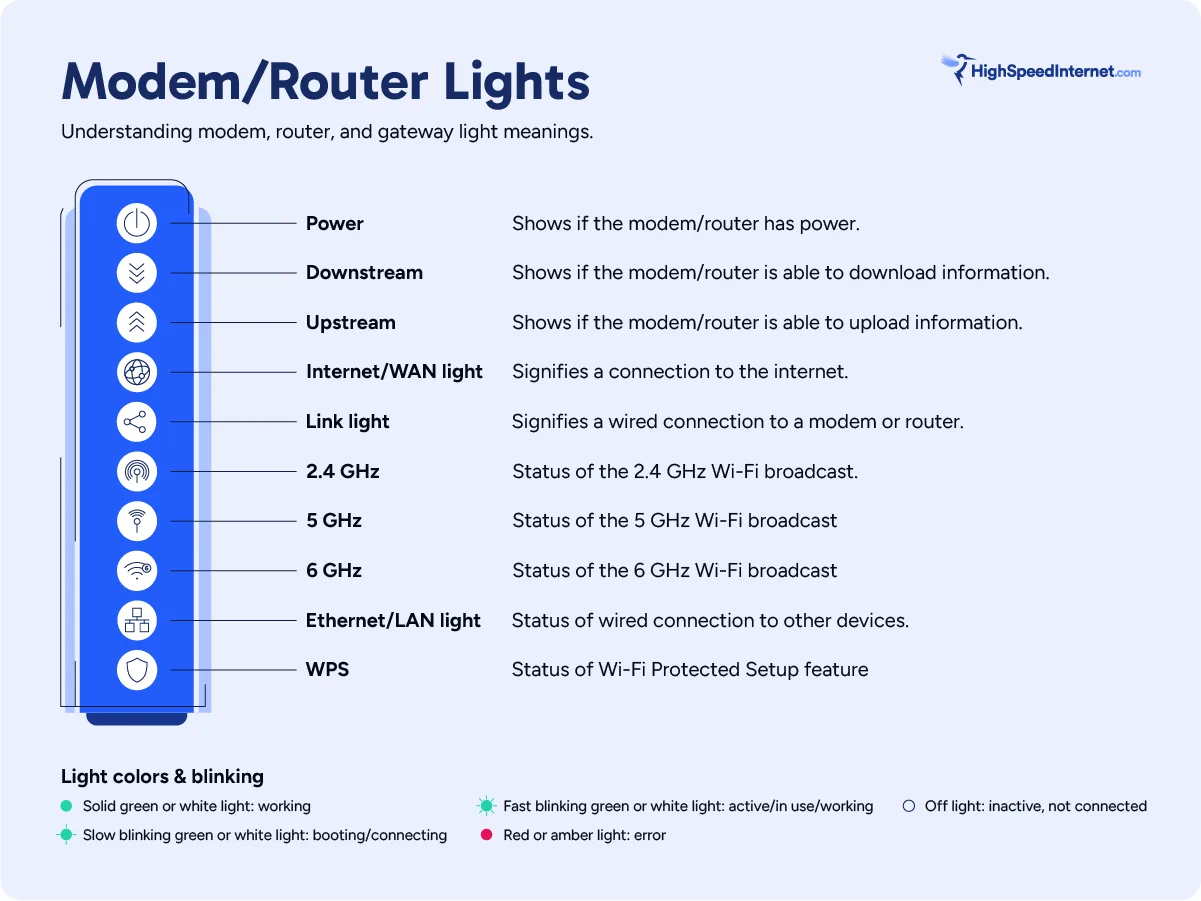
These lights track the two-way street of your internet data. They show if you can receive and send information effectively.
Downstream Light Shows Incoming Data
The downstream (DS) light tracks data flowing from the internet to your home.
* Solid or rapid blink: Normal download activity.
* Slow blink: The modem is syncing with the provider.
* Red or off: No incoming signal detected.
Tighten coaxial cables at both the wall and modem if this light fails.
Upstream Light Tracks Outgoing Data
The upstream (US) light confirms your ability to send requests and uploads.
* Solid or fast blink: Uploads are working normally.
* Slow blink over 20 minutes: The modem cannot sync upload channels.
Persistent slow blinking means the device cannot communicate with the ISP network.
Combined US/DS Indicators
Some modern units use a single light for both functions.
* Solid green: Full duplex connection established.
* Slow blink: Syncing process underway.
* Red or off: Connection failure.
If this combined light never stabilizes, perform a full power cycle.
Wi-Fi Symbol and Wireless Status
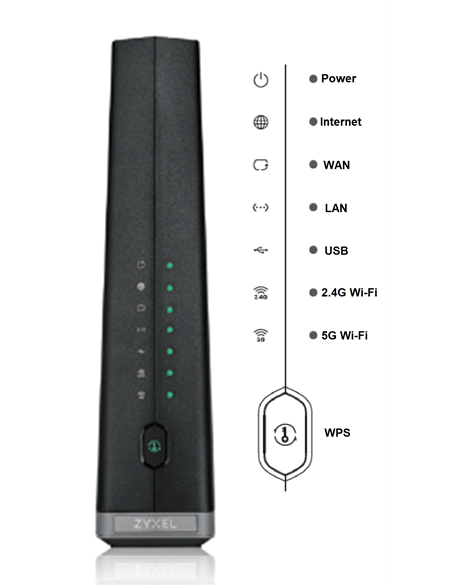
The Wi-Fi LED tells you if your wireless network is broadcasting. This helps you know if devices can connect without cables.
Solid Light Means Wireless Is On
A steady green or blue light confirms the Wi-Fi radio is active. Your phones and laptops can detect and join the network. This is the desired state for wireless usage.
Rapid Blinking Shows Data Transfer
Fast, random flashes indicate active wireless traffic. Someone is likely streaming video or browsing the web. This rapid movement is a sign of a healthy network.
No Light Means Wireless Is Disabled
If the Wi-Fi light is off, the wireless feature is turned off.
* You may have accidentally pressed the Wi-Fi toggle button.
* The router could be in a restricted mode.
* A firmware glitch might have disabled the radio.
Press the Wi-Fi or WPS button on the device to re-enable broadcasting.
Ethernet LAN Port Lights Explained

Ethernet ports use lights to show wired connections. Each port has its own indicator for connected devices.
Green or Yellow Light Confirms Link
A lit port means a device like a PC or console is connected.
* Solid: Device is connected but idle.
* Blinking: Data is moving between devices.
Check these lights to verify physical connections are working.
Yellow Light Indicates Speed Differences
Color often denotes connection speed on advanced routers.
* Green: Gigabit (1 Gbps) connection.
* Yellow: Fast Ethernet (100 Mbps) connection.
If you expect high speeds but see yellow, check your cable quality. Use Cat 6 cables for best performance.
No Light on Port Means Disconnected
An unlit port suggests no device is detected.
* Push the cable firmly until it clicks.
* Swap the Ethernet cable for a known working one.
* Try a different port on the router.
A port that never lights up may be physically damaged.
Link DSL and Data Light Functions
Separate modems and routers use specific lights to show their inter-connection. DSL users also have unique sync indicators.
Link Light on Modem Router Setup
The Link or Data light bridges your modem and router.
* Solid green: Ethernet link is good.
* Blinking: Data transfer is active.
* Red or off: The cable between modem and router is bad.
Replace the Ethernet cable connecting these two devices if the light is red.
DSL Light for Phone Line Users
DSL modems display a specific DSL light for phone line sync.
* Solid green: Synced with the telephone exchange.
* Blinking: Attempting to find a signal.
* Red: Line noise or hardware fault.
Ensure all phone filters are installed correctly on your jacks.
WPS Light and Button Functions
WPS stands for Wi-Fi Protected Setup. It simplifies connecting devices without typing passwords.
Blinking WPS Means Pairing Mode
A flashing WPS light means the router is discoverable.
* Press the WPS button on your router.
* Select WPS on your device within two minutes.
* The connection completes automatically.
This is useful for printers and smart home gadgets.
WPS Security Risks to Consider
Leaving WPS enabled can expose your network to attacks. Hackers can exploit this feature to bypass passwords.
* Disable WPS in your settings after use.
* Only enable it when adding new devices.
Turning it off enhances your overall network security.
Alarm Light on Fiber ONT Units
Fiber users may see a dedicated Alarm light. This is specific to Optical Network Terminals (ONT).
Red Alarm Means Signal Lost
A red Alarm light on an ONT indicates a critical fiber issue.
* The ISP fiber network signal is missing.
* The fiber cable inside your home may be broken.
* The ONT hardware has failed.
Restart the ONT. If the red light persists, your provider must fix the external line.
Light Colors and Their Meaning
Colors provide a universal language for device status. While brands vary, general rules apply to most equipment.
Green or White Means Normal
Green and white indicate healthy operation. You want these colors on your power, internet, and Wi-Fi lights. They confirm the system is running as designed.
Yellow Warns of Processes or Limits
Yellow often signals a transitional state.
* The device is booting or updating.
* The Ethernet speed is limited to 100 Mbps.
* A minor connection issue exists.
Consult your manual if yellow persists on main status lights.
Red or Orange Signals Error
Red and orange demand attention.
* Internet connection is lost.
* Hardware failure detected.
* Service outage confirmed.
Take immediate action by restarting or checking cables.
Blue Light Variations
Blue lights function differently across brands.
* Solid blue: Internet is connected.
* Blinking blue: Connecting to the network.
* Always on: Bluetooth pairing mode.
Check your specific model guide for blue light definitions.
Blinking Lights Good or Bad
Not all blinking is the same. The speed and pattern tell the real story.
Rapid Blinking Is Normal Activity
Fast, irregular flashes mean data is flowing. This is good news for Wi-Fi, Ethernet, and data lights. It proves your network is busy and working.
Slow Steady Blinking Is a Warning
Slow, rhythmic blinking usually means “trying to connect.”
* Internet light: Cannot reach ISP.
* Upstream light: Failed to sync upload.
* PON light: No fiber signal found.
If this continues past 20 minutes, the connection has failed.
Quick Fixes for Light Issues
You can solve most light-related problems with simple steps. These methods fix the majority of home network errors.
Restart Your Router and Modem
Power cycling clears temporary glitches.
1. Unplug the power cord from the device.
2. Wait at least 60 seconds.
3. Plug the power cord back in.
4. Wait 2 to 5 minutes for a full reboot.
This forces the device to renegotiate a fresh connection.
Check Cable Connections
Loose or damaged cables cause many false errors.
* Tighten coax cables by hand at both ends.
* Ensure Ethernet clips click into place.
* Inspect fiber cables for bends or breaks.
* Verify power cords are secure.
Replace any cable that looks worn or damaged.
Single Light Router Decoding
Compact routers often use one multi-function LED. This requires decoding color and pattern combinations.
Multi-Function Indicator Patterns
One light must show power, internet, and errors.
* Solid green: Everything is normal.
* Slow blink: Booting or connecting.
* Red: Critical error or no internet.
Refer to your specific model documentation for exact codes.
How to Decode Single Lights
Search online using your model number and “LED meaning.” Manufacturers provide specific charts for blink sequences. This helps you interpret the single light accurately.
When to Replace Your Router
Sometimes lights indicate the end of the road for your hardware. Old devices struggle with modern demands.
Signs You Need New Hardware
Replace your router if you see these signs:
* The device is over five years old.
* Lights stay red despite troubleshooting.
* Wi-Fi drops frequently without reason.
* Speeds do not match your internet plan.
Aging hardware cannot support new security standards.
Match Your Internet Plan Speed
Your router must support your purchased speed tier.
* Ensure support for Wi-Fi 5 or Wi-Fi 6.
* Verify Gigabit Ethernet ports are present.
* Check for DOCSIS 3.1 on cable modems.
Upgrading ensures you get the speeds you pay for.
Frequently Asked Questions About Router Symbols
What does a slow blinking internet light mean?
A slow blinking internet light means your router is trying to connect to your ISP. If it continues for more than 20 minutes, the connection has failed. You should restart your equipment or check for outages.
Is rapid blinking on the Wi-Fi light bad?
No, rapid blinking on the Wi-Fi light is normal. It indicates active data transfer between your router and connected devices. This shows your wireless network is functioning correctly.
Why is my router light red or orange?
Red or orange lights indicate a problem such as no internet connection or hardware failure. You should restart your router and check all cable connections. If the light remains red, contact your service provider.
What does the PON light on a fiber router mean?
The PON light shows the status of your fiber optic connection. A solid green light means you are connected, while blinking means it is searching. A red light indicates no signal from the provider.
How do I know if my Ethernet cable is working?
Look at the LAN port light where the cable connects. A solid or blinking green or yellow light means the cable is working. If the light is off, the cable may be damaged or unplugged.
Key Takeaways for Router Symbols Meaning
Understanding router symbols meaning empowers you to solve internet issues quickly. You now know that solid green lights mean success, while red or slow-blinking lights signal trouble. Always restart your device and check cables before calling for support.
Use this knowledge to maintain a stable home network. Check your specific model guide for unique light patterns. With these insights, you can keep your connection running smoothly.



