
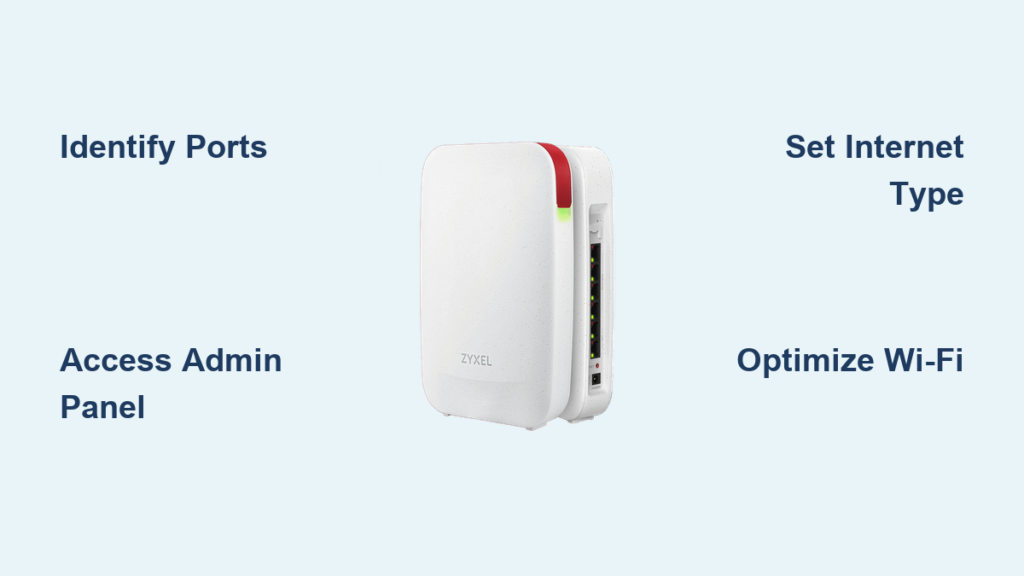
Getting your internet working often feels like a guessing game with blinking lights and confusing cables. A proper zyxel router setup solves these connection headaches by guiding you through physical links, admin access, and security settings in minutes.
This guide walks you through every step to configure your Zyxel device correctly from the very first plug-in. You will learn to identify ports, access the web interface, optimize Wi-Fi channels, and troubleshoot common DSL or fiber issues without needing an expert.
Identify Ports and Connect Hardware Correctly
Physical connections form the foundation of a stable network before you ever touch a software setting. Identifying the correct ports prevents signal loss and ensures your router communicates with the ISP properly.
Match Cables to Specific Port Colors
Different Zyxel models use distinct color codes to help you plug cables into the right spots.
- Zyxel VMG3625-T50B: Insert the DSL line into the gray port. Use the blue port for WAN connections if you have external broadband. Connect computers to any yellow LAN port.
- NR5103E AX1800: Plug your modem cable into the distinct yellow or orange WAN port. Use standard LAN ports for wired devices like gaming consoles.
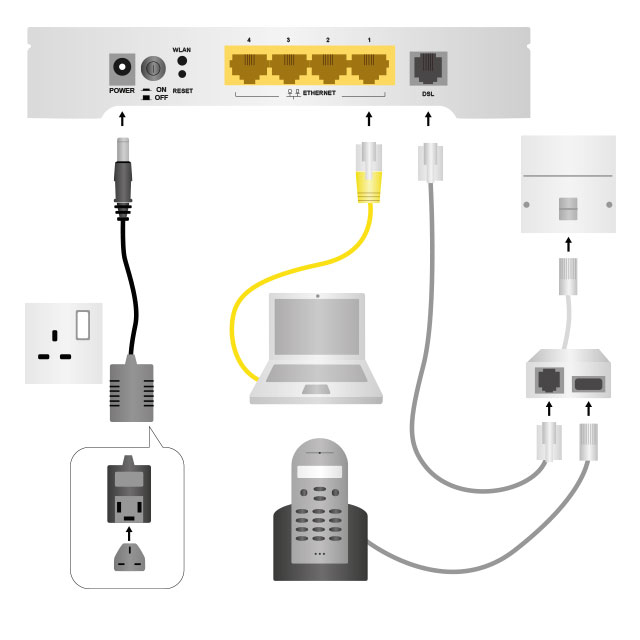
- ZyXEL 660 Gateway: Connect the phone line to the DSL port. Link local devices to one of the four Ethernet ports on the back panel.
Ensure every cable clicks firmly into place to avoid loose connection errors. Always use the provided power adapter to prevent voltage damage.
Monitor LED Indicator Sequences
The lights on your router tell you exactly what is happening during the boot process.
- VMG3625-T50B: The Power LED lights first. The Wireless LED activates next. The Internet LED flashes red initially and turns solid green upon success.
- NR5103E: Press the power button and wait 2–3 minutes. The status LED remains on when the system is ready.
- 660 Gateway: The Power light turns solid. The DSL light flashes then solidifies. The Internet light appears with stable connectivity.
If the LEDs do not follow this pattern, check your cable seating and filter installation immediately.
Install DSL Filters on Voice Lines
DSL models require filters to separate voice and data signals effectively.
- Unplug all phones and fax machines from wall jacks.
- Insert a two-port filter into each active wall jack.
- Plug the phone into the port labeled “Phone”.
- Connect the router DSL port to the “Internet” port on the filter.
Skipping this step causes interference that leads to dropped calls or slow internet speeds.
Access the Admin Panel Securely
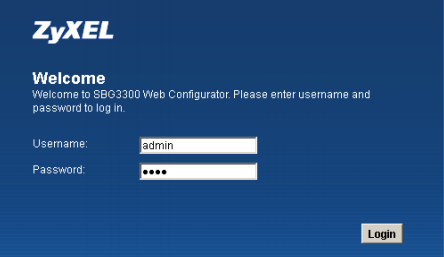
You must reach the web interface to configure your network settings and security protocols.
Choose Wired or Wireless Connection
A wired connection offers the most stable path for initial configuration.
- Wired (Recommended): Connect an Ethernet cable from your PC to a LAN port. Wait 1–2 minutes for the link light to stabilize.
- Wireless (Fallback): Find the default SSID and password on the white label on the bottom. Connect your device to this network.
Open the Correct Setup URL
Launch a browser like Chrome or Firefox and type the IP address directly into the address bar.
- VMG3625-T50B: Enter
http://192.168.1.2 - NR5103E / Most Models: Enter
http://192.168.1.1orhttp://zyxel.local
Do not use a search engine bar for this step. If the page fails to load, verify your device is connected to the router.
Log In and Change Default Password
Security starts with changing the factory credentials immediately after your first login.
- VMG3625-T50B: Use the unique username and password printed on the unit label.
- NR5103E: Try
adminwith1234oradmin. Check the label if these fail.
Steps to secure your admin account:
1. Navigate to System > Administrator.
2. Enter a strong new password twice.
3. Click Apply to save changes.
You will be logged out and must re-enter the new password. Store this credential safely to prevent unauthorized access.
Reset Device If Locked Out
Use the reset function only if you cannot log in with known credentials.
- Locate the small pinhole reset button on the back.
- Press and hold with a paperclip for 10 seconds.
- Wait for the lights to flash and the device to reboot.
This action erases all custom settings and restores factory defaults.
Configure Internet Connection Settings

The Setup Wizard helps you define how your router connects to your Internet Service Provider.
Launch the Setup Wizard
The Setup Wizard usually starts automatically after login. If it does not, go to Setup > Wizard and select your language.
Select Your WAN Connection Type
Your ISP determines which connection type you must choose for internet access.
- DHCP (Dynamic): Most common setting where the router gets an IP automatically. Select this if unsure.
- PPPoE: Required if your ISP gave you a username and password. Enter them exactly in the Broadband Access section.
- Static IP: Used for business lines requiring fixed IP addresses.
- PPTP/L2TP: Rare configurations used only if specified by your provider.
For DSL models like the VMG3625-T50B, PPPoE is typical. A successful setup turns the DSL indicator solid green.
Resolve Connection Issues Quickly
Specific settings can fix common connectivity problems during zyxel router setup.
Clone MAC Address
Some ISPs bind service to a specific device address.
1. Go to Expert Mode > WAN Settings.
2. Select “Clone Computer’s MAC Address”.
3. Click Apply and wait 30 seconds.
Adjust MTU Values
If video buffers or calls drop, the MTU size may be incorrect.
1. Navigate to Advanced > Internet > MTU.
2. Set the value to 1492 for PPPoE or as recommended by your ISP.
3. Save and restart the router.
Enable Cellular Backup Options
The VMG3625-T50B supports USB LTE dongles for backup internet.
- Insert a compatible USB LTE dongle into the rear port.
- Configure APN settings under Mobile Network.
- Set the mode to Auto-Failover.
This feature keeps you online automatically if the primary DSL line fails.
Set Up and Optimize Wi-Fi Performance
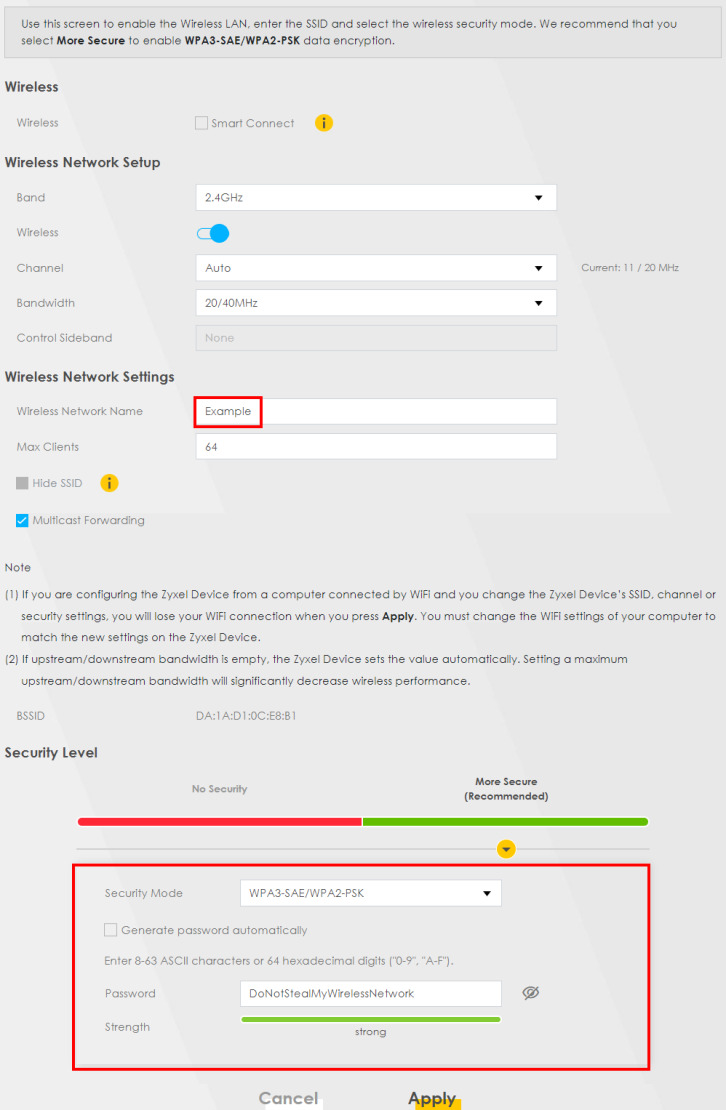
Secure your wireless network to protect data and ensure fast speeds for all devices.
Customize SSID and Security Protocols
Change the default network name to something unique and unrecognizable.
- Go to Wireless > General.
- Set a unique 2.4 GHz SSID like “HomeWiFi”.
- Enable “Edit 5 GHz wireless network” on dual-band models to name it separately.
Set strong security:
* Select WPA2-PSK or WPA3-Personal under Security Mode.
* Create a 12+ character password with mixed characters.
* Avoid WPS pairing as it is vulnerable to attacks.
Enable Guest Network for Visitors
Keep your main network safe by isolating guest traffic.
- Go to Wireless > Guest Network.
- Enable the feature and set a separate SSID and password.
- Optionally limit bandwidth or schedule access times.
Guest devices cannot access local resources like printers or shared folders.
Control Access with MAC Filtering
Restrict network access to only approved devices for maximum security.
- Navigate to Security > MAC Address Authentication.
- Choose Allow or Deny list mode.
- Add specific device MAC addresses manually.
This method is excellent for parental controls or small office environments.
Limit Connected Devices
Prevent bandwidth overload by capping the number of clients.
- Go to Wireless > Device Limits.
- Set a maximum number of clients such as 10.
- Save your settings.
This helps maintain performance during heavy usage periods.
Optimize Signal Strength and Placement
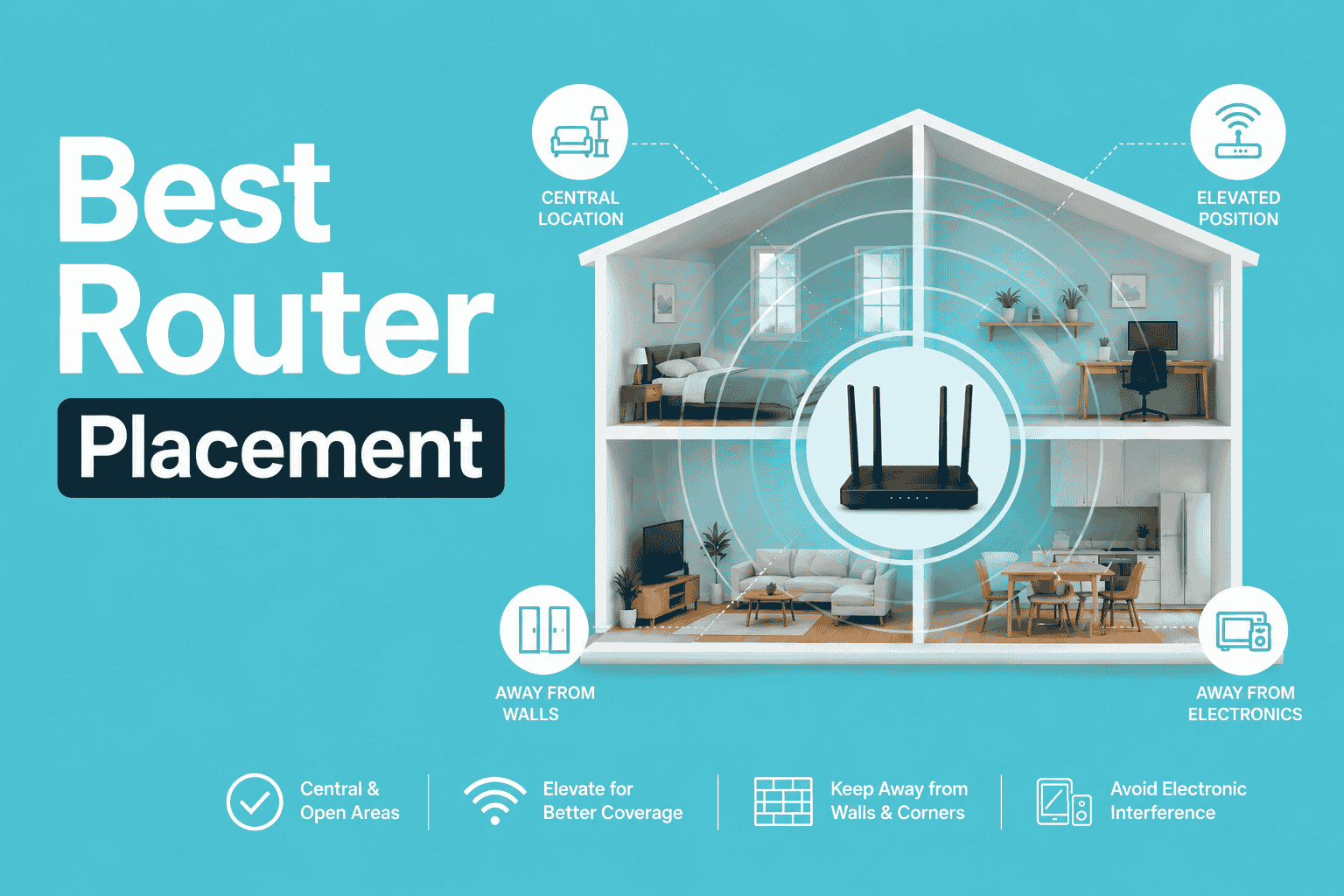
Physical placement and channel selection drastically impact your wireless coverage area.
Scan for Wi-Fi Interference
Use the built-in tools to see which channels are crowded.
- Go to Wireless > Channel Status > 2.4 GHz Band.
- View the graph showing nearby networks.
Congested channels cause slow speeds and laggy performance.
Manually Select Best Wi-Fi Channel
Switch from “Auto” to a specific channel with less traffic.
- 2.4 GHz: Use Channel 1, 6, or 11 as they do not overlap.
- 5 GHz: Pick higher channels like 36–48 or 149–161 with fewer neighbors.
Apply changes and reboot if the connection does not improve immediately.
Position Router for Maximum Coverage
Place your router strategically to avoid signal blockage.
- Place near the center of your home.
- Elevate to eye level or higher on a shelf.
- Keep away from metal, glass, microwaves, and cordless phones.
For DSL models, extend the cable if needed to move the router from an external wall to a central location.
Update Firmware and Maintain System
Regular maintenance keeps your zyxel router setup secure and running efficiently.
Check for Firmware Updates
Outdated firmware creates security risks and performance issues.
- Go to System > Firmware Update.
- Click Check for Updates.
- Download and install if a newer version is available.
Critical: Only install firmware matching your exact model and version. Wrong firmware can permanently damage the device.
Reboot After Configuration
Restarting ensures all new settings take effect properly.
- Go to Expert Mode > Restart.
- Click Restart.
- Wait 1–2 minutes for LEDs to stabilize.
Alternatively, unplug power for 30 seconds then reconnect to power cycle.
Test Final Setup
Verify your configuration works before finishing.
- Reconnect devices to the new Wi-Fi name.
- Open a browser and visit google.com.
- Confirm the page loads quickly.
Refer to the troubleshooting section if pages fail to load.
Troubleshoot Common Issues
Use this quick guide to fix problems that may arise during or after setup.
No Internet Access
Possible Cause: ISP binds service to an old MAC address.
Fix: Clone your computer’s MAC address in WAN Settings.
Cannot Log In to Admin Panel
Possible Cause: Incorrect password or previous configuration.
Fix: Check the label for defaults. If that fails, hold reset for 10 seconds.
Unstable Wi-Fi Connection
Possible Cause: Channel interference from neighbors.
Fix: Manually set 2.4 GHz to Channel 1, 6, or 11 using the status tool.
VoIP or Streaming Fails
Possible Cause: MTU value is too large for your connection.
Fix: Go to Advanced > Internet > MTU and set to 1492.
DSL Light Flashing Continuously
Possible Cause: Sync issue due to missing filters on phones.
Fix: Ensure all phones and fax machines use DSL filters.
General Slowness or Drops
Possible Cause: Temporary software glitch.
Fix: Power cycle the router by unplugging for 30 seconds.
Frequently Asked Questions About Zyxel Router Setup
What is the default IP address for Zyxel routers?
Most Zyxel models use 192.168.1.1 or http://zyxel.local. The VMG3625-T50B specifically uses 192.168.1.2. Check the white label on your device for the exact address.
How do I reset my Zyxel router to factory settings?
Locate the reset pinhole on the back. Use a paperclip to press and hold the button for 10 seconds until lights flash. This erases all custom settings.
Why is my DSL light flashing red or orange?
A flashing DSL light indicates a sync issue. Ensure you have installed DSL filters on all phone jacks and that cables are seated firmly in the gray or DSL port.
Can I use a 5G dongle with my Zyxel router?
Only specific models like the VMG3625-T50B support USB LTE dongles for cellular backup. Check your model specifications before purchasing a dongle.
How often should I update my router firmware?
Check for firmware updates every 3 to 6 months. Regular updates patch security vulnerabilities and improve network stability.
What Wi-Fi channel is best for 2.4 GHz networks?
Channels 1, 6, and 11 are the best choices because they do not overlap. Use the Channel Status tool in your router to pick the least congested one.
Key Takeaways for Successful Zyxel Router Setup
A successful zyxel router setup relies on correct physical connections, secure admin credentials, and optimized wireless settings. Always install DSL filters on voice lines, change default passwords immediately, and select non-overlapping Wi-Fi channels for best performance.
Regular firmware updates and strategic router placement ensure long-term reliability and speed. Follow these steps to build a secure network that handles all your home or office needs efficiently.



