
Is your internet lagging during video calls or buffering constantly? You might blame your provider, but the real culprit is often your local network hardware. Learning how to check router performance accurately helps you isolate whether the issue is your ISP or your equipment.
This guide walks you through professional testing methods using free tools like Speedtest and iPerf3. You will discover how to interpret signal metrics, identify hardware bottlenecks, and optimize your network for maximum speed.
Establish a Baseline Internet Speed
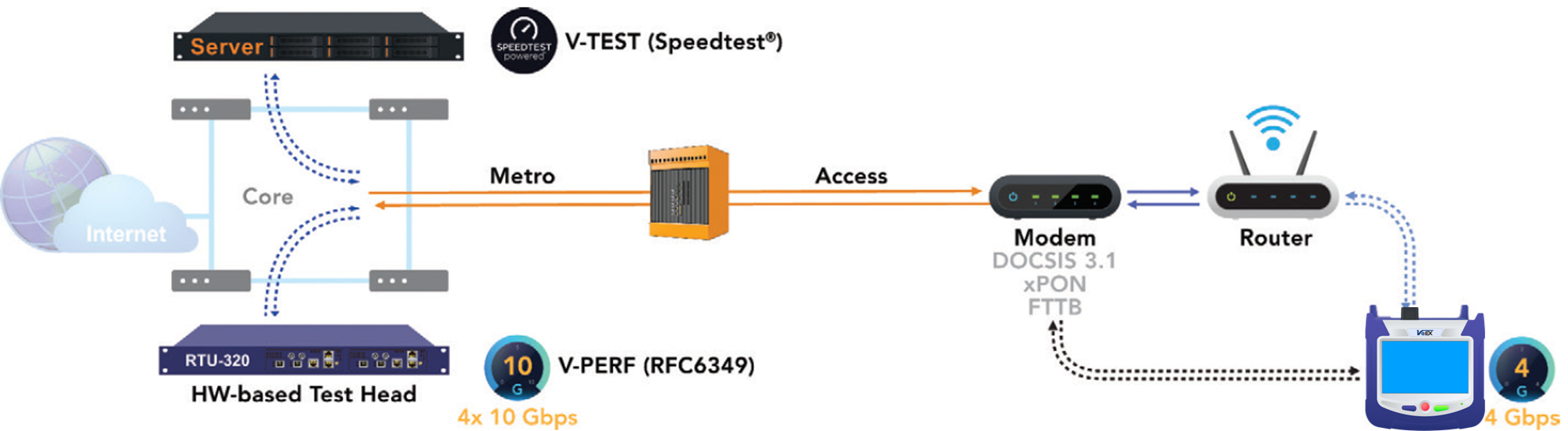
You must determine if your internet service is delivering promised speeds before blaming the router. This step isolates your ISP connection from your local network variables.
Test Directly from the Modem
Disconnect your router completely to test the raw connection from your provider. This eliminates the router as a variable in your initial speed test.
- Unplug the router from your modem.
- Connect your computer directly to the modem using an Ethernet cable.
- Run a speed test on Speedtest.net or Fast.com.
- Record your download speed, upload speed, and ping results.
If these numbers match your ISP plan, your internet connection is healthy. Any speed loss occurring after reconnecting the router indicates a local hardware issue.
Compare Results With Router Active
Reconnect your router and run the exact same test on the same device. Ensure you use the same testing server for accurate comparison.
- No significant drop: Your router handles traffic well.
- Speed cut in half: Your router is likely the bottleneck.
Common causes for drops include outdated WAN ports or CPU overload within the router. This comparison tells you exactly where to focus your troubleshooting efforts.
Measure Wi-Fi Signal Quality and Strength
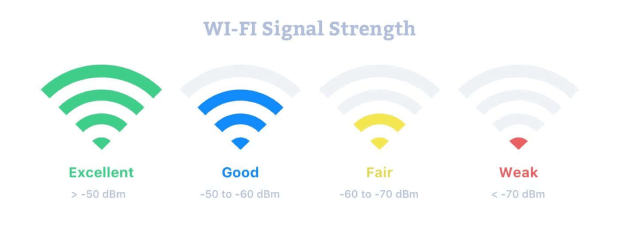
Weak signals destroy network performance even if your internet plan is fast. You need to check specific metrics like dBm to understand your wireless environment.
Check Signal Strength in dBm
Signal strength is measured in decibel-milliwatts (dBm). Negative numbers closer to zero indicate a stronger signal.
On Windows:
* Open Command Prompt.
* Type netsh wlan show interfaces.
* Locate the “Signal” percentage.
On macOS:
* Hold the Option key and click the Wi-Fi icon.
* View the RSSI value.
On Linux:
* Run iwconfig in your terminal.
Signal Level Guide:
* -30 to -50 dBm: Excellent
* -50 to -60 dBm: Good
* -60 to -70 dBm: Fair
* Below -70 dBm: Poor connection likely to drop
Analyze Link Quality and Retries
The iwconfig tool provides deeper insight into connection stability beyond simple signal strength. Look for specific error counters in the output.
- Link Quality: A ratio like 43/70 suggests marginal signal health.
- Tx excessive retries: High numbers mean data is being resent due to interference.
- Invalid misc: High counts indicate heavy environmental noise.
High retry counts mean your Wi-Fi environment is noisy. This causes slowdowns even if your signal bars look full.
Use a Wi-Fi Analyzer App
Applications like NetSpot or WiFi Analyzer visualize your wireless landscape. They show nearby networks and channel overlap that causes interference.
Switch your router to a less crowded channel to improve performance. Common non-overlapping channels for 2.4 GHz are 1, 6, and 11.
Test Local Network Throughput
Internet speed tests do not measure how well your router handles internal traffic. Use iPerf3 to measure raw local network performance between devices.
Set Up iPerf3 Server
Install iPerf3 on two computers connected to your network. One device will act as the server to receive data.
- Open the terminal or command prompt on the first PC.
- Type
iperf3 -sand press Enter. - Note the IP address of this computer.
This command starts the server listening for incoming test data.
Run iPerf3 Client Test
Use the second device to send data to the server. This measures the actual throughput of your Wi-Fi or Ethernet connection.
- Open the terminal on the second device.
- Type
iperf3 -c [server-IP]. - Replace
[server-IP]with the actual IP of the first computer.
The output shows your TCP bandwidth in Mbps. Compare this number against your Wi-Fi standard limits.
Interpret Throughput Results
Your results should align with your hardware capabilities. Significant deviations indicate configuration or hardware issues.
- Wi-Fi 4 (802.11n): Expect up to 150–300 Mbps.
- Wi-Fi 5 (802.11ac): Expect 400+ Mbps on 5 GHz.
- Wi-Fi 6 (802.11ax): Expect 800+ Mbps.
If you see only 30 Mbps on a Wi-Fi 5 network, you have a problem. Likely causes include interference, distance, or faulty hardware components.
Diagnose Router Hardware Limits
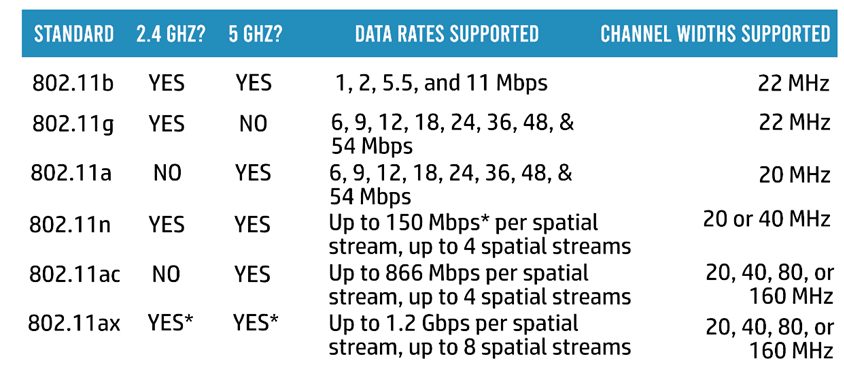
Software tests can only do so much. You must verify that your physical hardware supports your internet plan speeds.
Check Supported Wi-Fi Standards
Log into your router admin panel at 192.168.1.1 or 192.168.0.1. Verify the wireless standards supported by your device.
- Ensure it supports 802.11ac (Wi-Fi 5) or newer.
- Confirm dual-band or tri-band capability.
- Check the max speed rating like AC1750.
If your plan is 500 Mbps but your router caps at 100 Mbps, you need an upgrade.
Verify Port Speeds
Physical ports on older routers often limit speed. Check if your device has Gigabit Ethernet ports.
- Gigabit ports: Support up to 1000 Mbps.
- Fast Ethernet ports: Cap at 100 Mbps.
A router with 100 Mbps ports cannot deliver speeds higher than 95 Mbps regardless of your internet plan.
Assess Device Load
Routers have limited processing power for managing multiple connections. Too many active devices can cause system-wide slowdowns.
- Count the number of connected devices.
- Identify high-bandwidth activities like 4K streaming.
- Watch for frequent disconnections or overheating.
Entry-level routers often fail under heavy loads. Consider a mesh system for larger households with many devices.
Run a Full Diagnostic Workflow
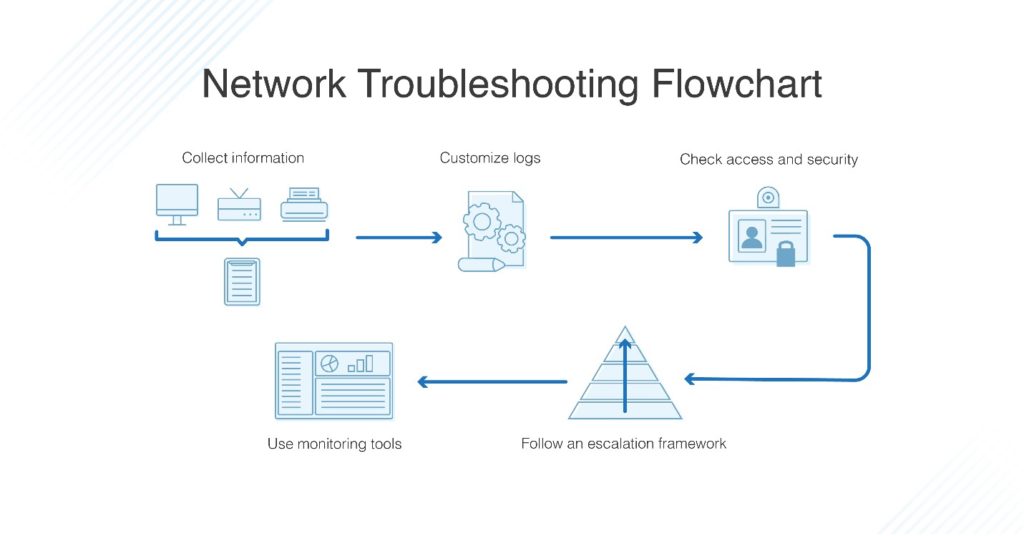
Follow this decision matrix to pinpoint the exact cause of your network issues systematically.
Isolate the Problem Source
Use this table to interpret your test results and identify the root cause.
| Test | Result | Likely Issue |
|---|---|---|
| Direct modem test | Slow | ISP or modem problem |
| Router Ethernet test | Slow vs modem | Router bottleneck |
| Router Wi-Fi test | Slow vs Ethernet | Wi-Fi interference |
| Single device slow | Others fine | Device-specific issue |
| All devices slow | Consistent | Router or ISP |
This logic helps you avoid unnecessary upgrades by targeting the actual failure point.
Power Cycle the Router
Rebooting clears temporary memory glitches and resets connections. This simple step fixes many common performance issues.
- Turn off your router and modem.
- Wait at least 30 seconds.
- Power on the modem and wait for sync.
- Power on the router and wait two minutes.
Perform this maintenance monthly to prevent memory leaks and maintain stability.
Update Firmware and Drivers
Outdated software causes bugs and security vulnerabilities that impact speed. Always ensure your system is current.
- Access your router admin page.
- Navigate to Administration or Firmware Update.
- Install any available updates.
- Update Wi-Fi drivers on your computer as well.
Replace Hardware If Needed
Replace your router if testing confirms it is the bottleneck. Old hardware cannot support modern internet speeds.
Upgrade triggers:
* Router is older than 3–4 years.
* No support for Wi-Fi 5 or Wi-Fi 6.
* Frequent gateway timeouts.
* Inability to sustain speeds above 100 Mbps.
Prevent Future Performance Drops

Proactive maintenance keeps your network running smoothly over time. Small adjustments prevent major slowdowns later.
Optimize Router Placement
Physical location dramatically impacts signal quality. Move your router to a central, elevated spot in your home.
Avoid placing the device near:
* Microwaves
* Cordless phones
* Metal objects
* Thick walls
Keep the router out of cabinets to ensure proper airflow and signal propagation.
Schedule Regular Maintenance
Consistent upkeep prevents performance degradation. Set a calendar reminder for these simple tasks.
- Reboot the router monthly.
- Check for firmware updates quarterly.
- Clean dust from ventilation holes.
- Audit connected devices for unknowns.
Monitor for Interference
New devices and neighbor networks can change your wireless environment. Use analyzer apps monthly to check for congestion.
Switch to the 5 GHz band when possible for cleaner bandwidth. This reduces interference from common household appliances.
Frequently Asked Questions About Router Performance
Why is my Wi-Fi slow even with fast internet?
Your router may have a slow CPU or outdated ports that cannot handle your ISP speed. Interference from other devices can also reduce effective throughput significantly.
How often should I test my router performance?
Test your network whenever you notice lag or buffering issues. Routine checks every few months help you track performance trends over time.
What is a good Wi-Fi signal strength in dBm?
A signal between -30 and -50 dBm is excellent. Anything below -70 dBm is considered poor and will likely result in slow speeds or dropped connections.
Does iPerf3 test internet speed?
No, iPerf3 tests local network throughput between two devices. It does not measure your internet connection speed from your ISP.
Can too many devices slow down my router?
Yes, routers have limited processing power. Too many simultaneous connections can overwhelm the CPU and cause network-wide slowdowns.
Key Takeaways for Checking Router Performance
Knowing how to check router performance saves you from unnecessary ISP calls and expensive upgrades. Start by testing your modem directly to establish a baseline, then use iPerf3 to measure local throughput. Compare your results against your hardware specifications to identify bottlenecks.
Most performance issues stem from outdated hardware, poor placement, or signal interference. Use the diagnostic steps above to isolate the problem and apply the correct fix today.



