
You want every device in your home, from smart TVs to gaming consoles, protected by a single secure tunnel without installing apps on each gadget. Connecting a VPN router solves this by encrypting all network traffic at the source for total peace of mind.
This guide explains exactly how to connect a VPN router using your existing hardware or custom firmware. You will learn to verify compatibility, configure OpenVPN or WireGuard protocols, and troubleshoot common connection errors effectively.
Verify Your Router Supports VPN Client Mode
Many standard ISP routers lack the processing power or firmware features required for VPN connections. You must confirm your specific model supports “VPN Client” mode before attempting any configuration changes.
Check for Native Protocol Support
Look for built-in support for OpenVPN or WireGuard in your router specifications. Manufacturers like ASUS, TP-Link, and Synology often include these features in their mid-to-high-range models.
* Search your model number online plus “VPN client support.”
* Log in to your admin panel to find a dedicated VPN tab.
* Verify the processor speed is at least 1 GHz for decent performance.
Identify Custom Firmware Candidates
If your current router lacks native support, it may still work with third-party firmware. DD-WRT, Tomato, and OpenWRT can unlock VPN capabilities on many older or budget devices.
* Visit the DD-WRT database to check model compatibility.
* Understand that flashing firmware carries a risk of permanently damaging the device.
* Consider buying a pre-flashed router if you are uncomfortable with technical risks.
Gather Essential Configuration Data From Provider
Your VPN service provider supplies specific credentials and files required for the router handshake process. Do not use your standard account login details unless explicitly instructed.
Collect Required Credentials
Navigate to your VPN provider’s dashboard and locate the section for router or manual setup. You typically need a dedicated service username and password distinct from your main account login.
* Download the .ovpn configuration file for your desired server location.
* Note the specific server address URL (e.g., us-newyork.vpnprovider.com).
* Record any IPSec Pre-Shared Keys if you plan to use L2TP protocols.
Prepare Configuration Files
Ensure your configuration files meet the size limitations of your specific router model. TP-Link routers, for instance, often reject .ovpn files larger than 20 KB.
* Open the config file in a text editor to remove unnecessary comments.
* Save a clean version specifically for your router upload.
* Keep your service credentials handy in a secure note for quick entry.
Access Router Admin Panel and Update Firmware
You need full administrative access to modify network settings and install the VPN profile. Outdated firmware can cause compatibility issues with modern encryption standards.
Log In to the Interface
Connect your computer to the router via Ethernet or Wi-Fi and open a web browser. Enter the default gateway IP address found on the router sticker or in the manual.
* Common addresses include 192.168.1.1 or 192.168.0.1.
* Use default credentials like admin/admin unless you changed them previously.
* Navigate to the Administration or System Tools section immediately.
Perform Firmware Updates
Check for available updates before configuring the VPN to ensure stability and security. Modern protocols like WireGuard require recent firmware versions to function correctly.
* Click “Check for Updates” within the admin panel.
* Download the latest file from the manufacturer website if automatic updates fail.
* Allow the router to reboot completely before proceeding to VPN settings.
Configure OpenVPN Profile on Compatible Routers
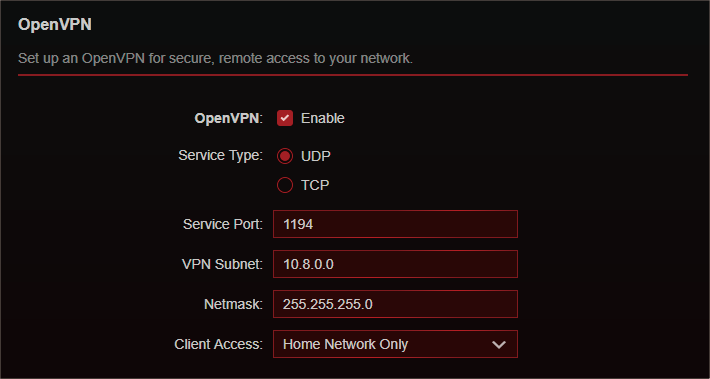
OpenVPN remains the most universal method for connecting a VPN router across various brands like ASUS, Netgear, and Linksys. This process involves uploading your configuration file and entering credentials.
Create New VPN Connection
Navigate to the VPN Client section in your router settings and select the option to add a new profile. Fill in the required fields with the data you gathered earlier from your provider.
* Select OpenVPN as the protocol type.
* Upload your trimmed .ovpn configuration file.
* Enter your service username and password in the designated fields.
Activate and Verify Connection
Save the profile and click the activate or connect button to initiate the tunnel. A successful connection usually displays a green checkmark or a “Connected” status indicator.
* Wait 30 to 60 seconds for the handshake to complete.
* Visit an IP lookup website to confirm your public IP has changed.
* Ensure the displayed location matches your selected VPN server.
Set Up Selective Routing on TP-Link Devices
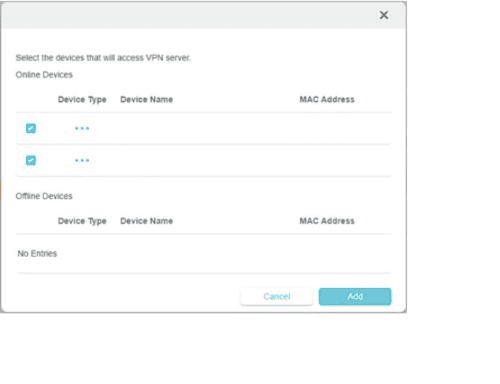
TP-Link routers offer a unique feature allowing you to choose which specific devices use the VPN tunnel. This acts as a form of split tunneling at the network level.
Enable VPN Client Mode
Access the VPN Client menu under Advanced settings and toggle the feature to enable. You can store multiple profiles but only activate one at a time for the selected devices.
* Choose your protocol (OpenVPN, L2TP, or PPTP).
* Input server details and credentials as prompted.
* Save the profile to make it available for device assignment.
Assign Devices to Tunnel
Go to the Device List section within the VPN menu to specify which gadgets route through the encrypted tunnel. Only the devices you select will have their traffic encrypted.
* Click “Add” to create a new rule for specific devices.
* Select your smart TV or laptop from the list of connected clients.
* Leave other devices like printers on the standard non-VPN connection.
Install WireGuard for High-Speed Performance
WireGuard and its variants like NordLynx offer significantly faster speeds than OpenVPN due to modern code efficiency. This protocol is ideal for 4K streaming and online gaming.
Check Hardware Compatibility
Not all routers support WireGuard natively, so verify your model specifications first. Newer ASUS, TP-Link, and specialized routers like FlashRouters often include this option.
* Look for WireGuard or NordLynx in the protocol dropdown menu.
* Obtain the public and private keys from your VPN provider.
* Ensure your router CPU is powerful enough to handle high-speed encryption.
Input Keys and Activate
Enter the provided keys and endpoint address into the WireGuard configuration section. The connection setup is generally faster and more stable than traditional OpenVPN configurations.
* Paste the public and private keys exactly as provided.
* Enter the server endpoint address and port number.
* Activate the profile and test your internet speed for improvements.
Flash Custom Firmware for Unsupported Models
If your router lacks native support, flashing custom firmware like DD-WRT can unlock full VPN client capabilities. This advanced method gives you complete control over your network security.
Download Correct Firmware File
Visit the official DD-WRT database and find the exact file for your router model and hardware version. Using the wrong file can permanently brick your device.
* Double-check the hardware version number on the router label.
* Download the specific .bin file for your model.
* Read the installation instructions thoroughly before starting.
Execute Firmware Upgrade
Log in to your router admin panel and navigate to the firmware upgrade section. Upload the downloaded file and wait patiently for the process to complete without interruption.
* Do not power off the router during the upgrade process.
* Wait at least five minutes for the system to reboot fully.
* Access the new interface using the default DD-WRT IP address.
Troubleshoot Common Connection Failures
Even with correct settings, you might encounter connection issues due to file sizes, credentials, or system time errors. Identifying the specific failure point helps resolve problems quickly.
Resolve Authentication Errors
Ensure you are using service-specific credentials rather than your main account login. Incorrect usernames or passwords are the most common cause of connection failures.
* Regenerate service credentials in your VPN provider dashboard.
* Re-enter the username and password carefully in the router settings.
* Check that the configuration file matches the server address.
Fix Time Synchronization Issues
Incorrect system time on the router can break SSL handshakes required for secure connections. Synchronize your router clock with an NTP server to fix this.
* Go to System Tools or Administration to find Time Settings.
* Enable automatic synchronization with an NTP server.
* Save settings and retry the VPN connection immediately.
Maintain Secure and Fast VPN Router Performance
Regular maintenance ensures your VPN router continues to provide optimal speed and security over time. Neglecting updates can lead to vulnerabilities or performance degradation.
Perform Routine Updates
Check for firmware updates monthly to patch security vulnerabilities and improve protocol compatibility. Keeping your router software current is essential for long-term stability.
* Set a calendar reminder to check for updates once a month.
* Review connected devices weekly for any unauthorized access.
* Change your admin password annually to prevent unauthorized changes.
Manage Server Locations
Switching servers on a router takes longer than on a desktop app because you must manually change profiles. Plan your server changes based on your content needs.
* Deactivate the current profile before activating a new one.
* Wait for the connection to fully establish before testing.
* Keep multiple profiles saved for quick switching between regions.
Frequently Asked Questions About VPN Routers
Can I use any router to connect to a VPN?
No, only routers with specific firmware support or processing power can run VPN clients. You must verify your model supports OpenVPN, WireGuard, or custom firmware like DD-WRT before attempting setup.
Does connecting a VPN to my router slow down internet speed?
Yes, encryption processes use CPU resources which can reduce overall bandwidth. Using a router with a powerful processor and modern protocols like WireGuard helps minimize this speed loss.
Will a VPN router protect my smart home devices?
Yes, installing a VPN on your router encrypts traffic for all connected devices including smart TVs and IoT gadgets. This protects devices that cannot run VPN apps themselves.
How do I change my VPN location on a router?
You must log in to the router admin panel and manually switch the active VPN profile. Unlike mobile apps, routers do not typically offer one-click server switching without custom interfaces.
Is it safe to flash my router with custom firmware?
Flashing firmware carries a risk of bricking your router if the process is interrupted or the wrong file is used. Only proceed if you are confident and have verified exact model compatibility.
Key Takeaways for Connecting Your VPN Router
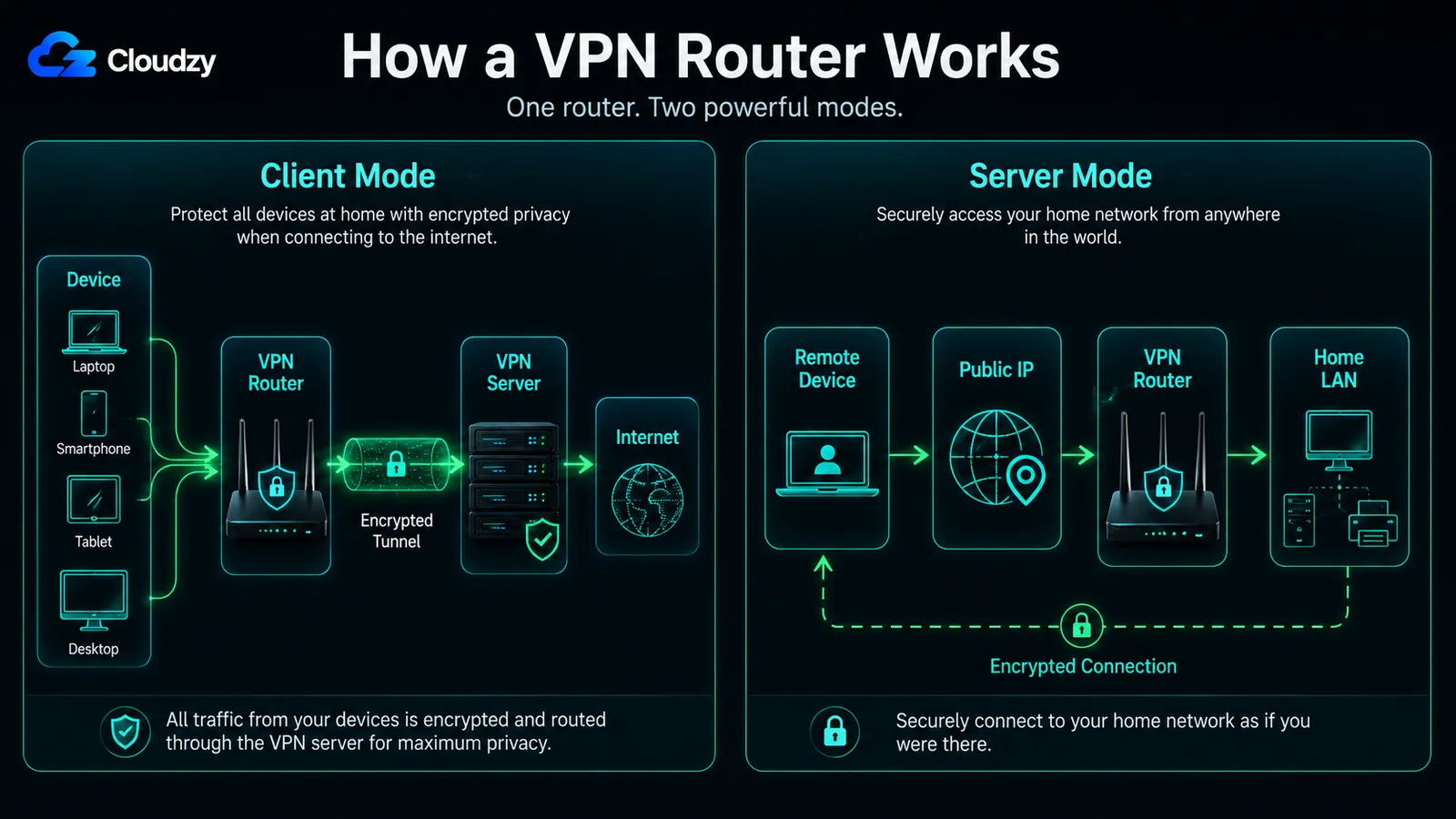
Connecting a VPN router provides comprehensive security for every device on your network without individual app installations. Success depends on verifying hardware compatibility, gathering correct service credentials, and choosing the right protocol like OpenVPN or WireGuard for your needs.
Regular firmware updates and proper maintenance ensure your network remains secure and fast over time. Start by checking your current router specs and gathering your VPN configuration files to begin your secure setup today.



