
Losing access to your router admin panel or Wi-Fi network feels like being locked out of your own home. The good news is that you can often find your router username and password without resetting the device to factory settings.
This guide explains exactly how to retrieve lost credentials using connected phones, physical labels, and specific recovery tools. You will learn non-destructive methods that preserve your custom network settings while restoring full access.
Retrieve Wi-Fi Password from Connected Android Devices
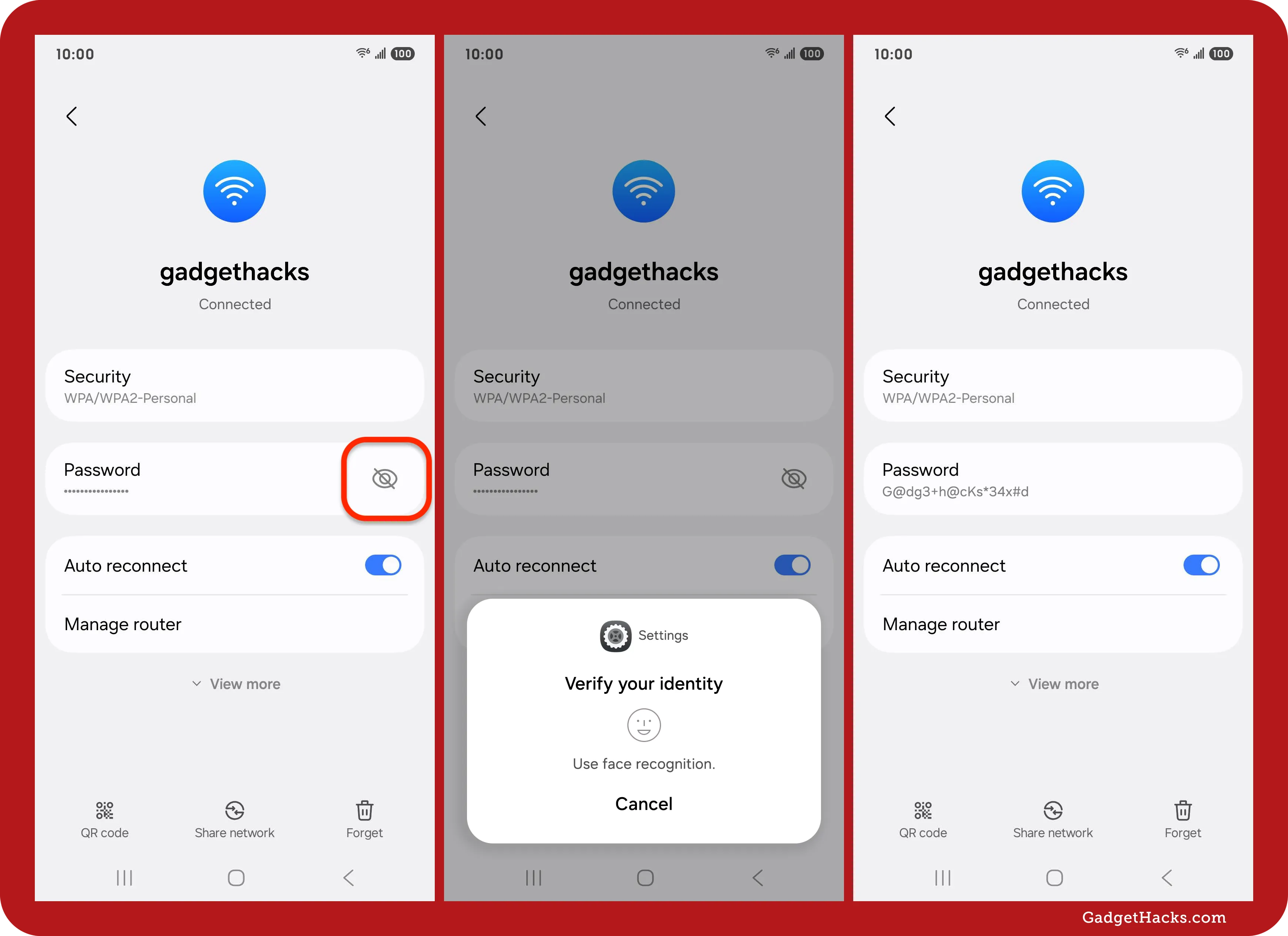
Your Android phone stores the Wi-Fi network key securely even if you cannot remember it. You can reveal this password directly through the system settings without needing the router admin login.
Steps to Reveal Password on Android
- Open the Settings app on your device.
- Navigate to Network & Internet or Wi-Fi.
- Tap the gear icon next to your connected network.
- Select Share or Show Password.
- Verify your identity with your fingerprint or screen lock PIN.
The screen will display the plain-text password along with a QR code. You can copy this text or scan the code with another device to connect instantly. This feature works on most devices running Android 10 or later.
View Saved Wi-Fi Credentials on iPhone and iPad
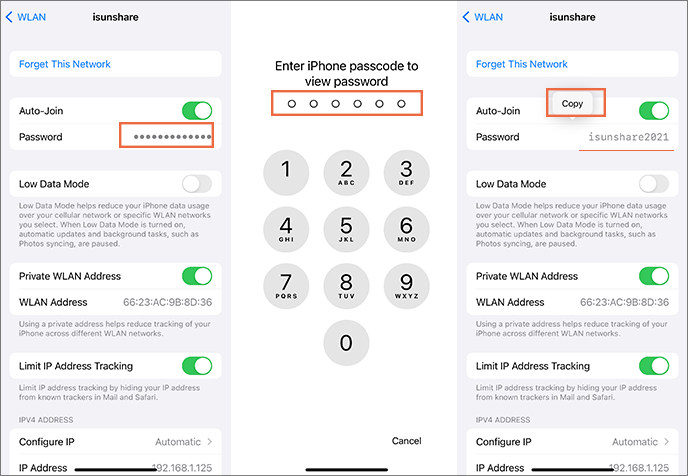
Apple devices protect network credentials within a secure enclave but allow you to view them with biometric authentication. This method lets you see the Wi-Fi password without touching the router hardware.
How to Show Password on iOS
- Launch the Settings app.
- Tap Wi-Fi to see your network list.
- Tap the blue “i” icon next to your active network.
- Tap the hidden Password field represented by dots.
- Authenticate using Face ID, Touch ID, or your device passcode.
The dots will convert to readable text immediately. You can then copy the password to your clipboard or write it down for future use. This process requires no internet connection to the admin panel.
Locate Your Router IP Address to Access Admin Panel
Accessing the administrative interface requires the specific IP address of your router gateway. You can find this number on any device currently connected to the network.
Finding Gateway IP on Mobile and Desktop
- iPhone/iPad: Go to Settings > Wi-Fi > tap “i” > look for Router.
- Android: Go to Settings > Network > Wi-Fi > tap network > look for Gateway.
- Windows: Open Command Prompt and type
ipconfigto find Default Gateway. - Mac: Open System Settings > Network > Details > TCP/IP > look for Router.
Write down this number exactly as it appears. It usually looks like 192.168.1.1 or 192.168.0.1. You will need this address to open the login page in your web browser.
Log Into Router Admin Page Using Default Credentials

Many users never change the factory-set login information printed on the device. If you have not customized these settings previously, the original credentials will still work.
Check Physical Labels for Default Login
Flip your router over and inspect the sticker on the bottom or back panel. Look for fields labeled Username, Password, or Admin Login. Common default combinations include:
* Username: admin / Password: admin
* Username: admin / Password: password
* Username: admin / Password: (blank)
Enter these details into the browser login page after typing your IP address. If the login succeeds, you can view or change your administrative password immediately without losing any data.
Bypass Browser Security Warnings to Reach Login Screen
You might see a red warning screen stating “Your connection is not private” when trying to access the router IP. This is normal behavior for local network devices and does not indicate a virus or hack.
Why Security Warnings Appear
Routers use self-signed security certificates that browsers cannot verify against public authorities. Your computer flags this as unsafe even though the connection is local and secure.
How to Proceed Safely
- Click the Advanced button on the warning page.
- Select the link that says Proceed to [IP Address] (unsafe).
- Wait for the actual router login screen to load.
Ignoring this warning is necessary to reach the authentication page. Once you click proceed, you can enter your username and password normally.
Reset Admin Password Using Lynxys Recovery Key
Certain routers like Lynxys mesh systems include a unique Recovery Key on their physical label. This feature allows you to reset the admin password without erasing your network configuration.
Verify Recovery Key Eligibility
Check your router label for a specific code named Recovery Key. This method only works if your specific model supports this feature and you have physical access to the unit.
Execute Password Recovery Steps
- Open your browser and enter the router IP address.
- Click the mobile phone icon on the login screen.
- Select Reset Password below the password field.
- Type the Recovery Key from the label exactly as printed.
- Create a new strong password and click Reset.
Your new password takes effect immediately while keeping all Wi-Fi names and port rules intact. This is the most effective non-destructive method for supported devices.
Understand When Factory Reset Becomes Necessary
Sometimes recovery is impossible if the admin password was changed and no recovery key exists. You must recognize when a full reset is the only remaining option.
Scenarios Requiring a Hard Reset
- The admin password was customized and forgotten.
- The router label has no recovery key.
- No connected device has the password stored.
- Default credentials fail and no backup exists.
A factory reset involves pressing a small pinhole button on the back for 10 to 15 seconds. This action wipes all custom settings and restores the device to its original state. Use this only as a last resort.
Prevent Future Lockouts with Secure Credential Management
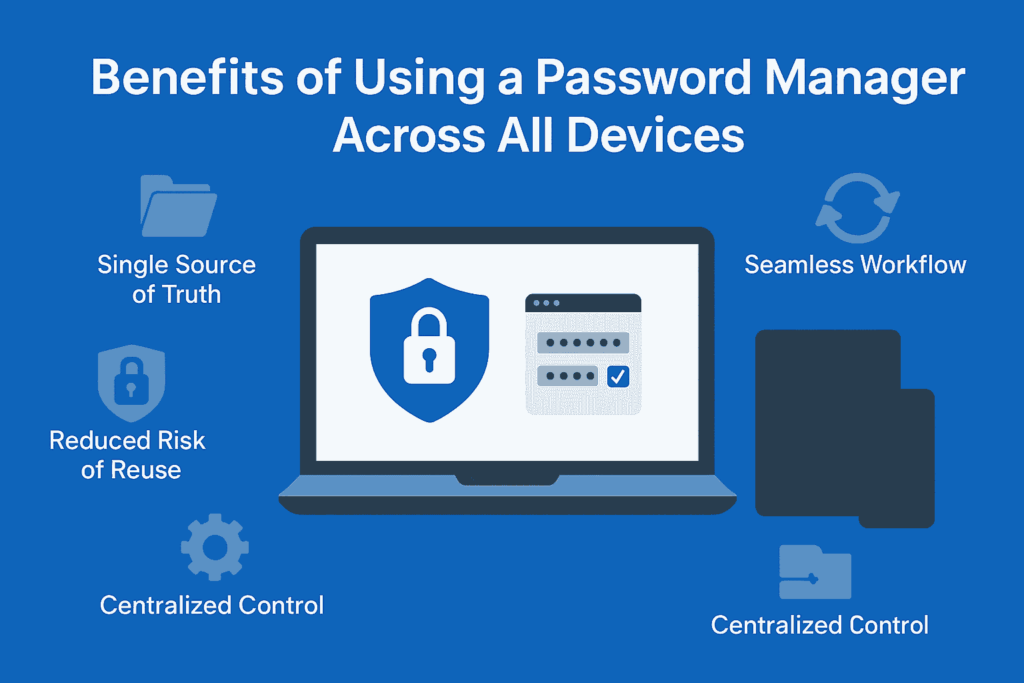
Avoid losing access again by storing your credentials properly immediately after recovery. Good habits ensure you never face this frustration twice.
Best Practices for Network Security
- Save your admin username and password in a reputable password manager.
- Write down your recovery key on paper and store it in a safe place.
- Enable the password hint feature if your router interface offers it.
- Take a clear photo of the router label before mounting the device.
Strong unique passwords protect your network from intruders while proper storage protects you from lockouts. Taking these steps now saves significant time later.
Frequently Asked Questions About Router Credentials
Can I find my router admin password without resetting if I changed it?
You can only do this if your router has a specific recovery key feature like Lynxys systems. If you changed the password and lack a recovery key, you generally cannot retrieve the old one without resetting.
Is the Wi-Fi password the same as the router admin password?
No, these are two different credentials. The Wi-Fi password connects devices to the internet, while the admin password logs you into the router settings. Retrieving one does not automatically reveal the other.
What should I do if the browser says the connection is not private?
This is a standard warning for local router pages using self-signed certificates. Click Advanced and select Proceed to continue to the login screen safely.
Where can I find the default username and password for my router?
Check the sticker on the bottom or back of your router unit. It lists the factory-default SSID, username, and password. Common defaults include admin/admin or admin/password.
Does using the recovery key delete my internet settings?
No, using a recovery key to reset the admin password preserves all your custom settings. Your Wi-Fi name, port forwarding rules, and connected device lists remain unchanged.
Key Takeaways for Finding Router Credentials Safely
You can successfully find your router username and password without resetting by checking connected mobile devices first. Android and iOS both allow you to view saved Wi-Fi passwords through their settings menus with simple authentication.
If you need admin access, try default credentials from the physical label or use a specialized recovery key if your Lynxys router supports it. Always bypass browser security warnings cautiously and store your new credentials in a secure password manager to prevent future lockouts.



