
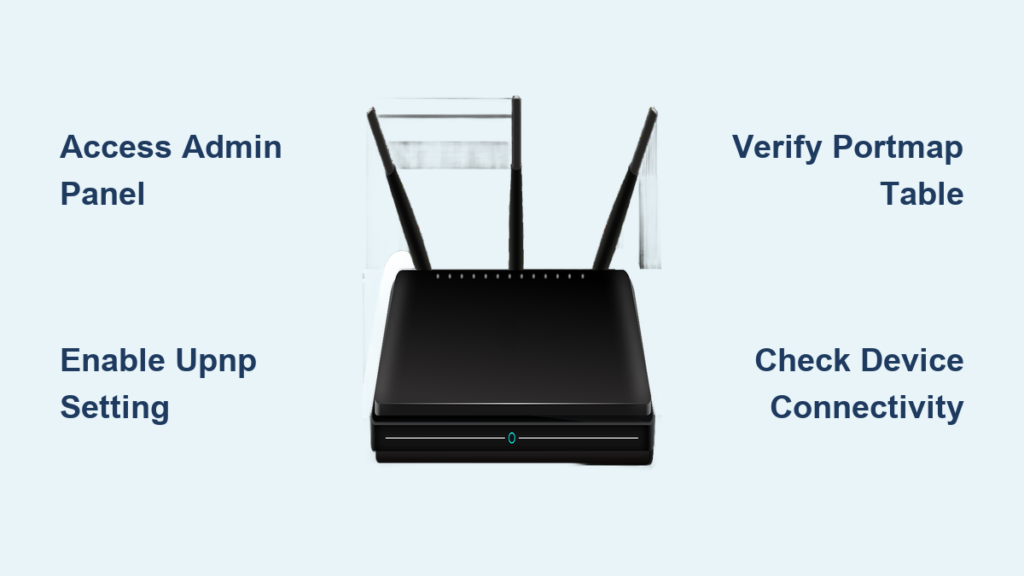
You try to host a multiplayer game or stream media only to face connection errors because universal plug and play is disabled on your router. This setting allows your devices to automatically open necessary ports so apps communicate smoothly with the internet.
This guide shows you exactly how to enable universal plug and play on Netgear, D-Link, and other common routers without technical confusion. You will learn secure setup steps, verification methods, and how to fix common issues quickly.
Access Your Router Admin Panel for UPnP Setup
You must log in to your router’s web interface before changing any settings related to universal plug and play. This admin panel is the control center where all network configurations happen.
Find Your Router IP Address
Enter your router’s local IP address into any web browser to reach the login screen. Most home networks use one of these standard addresses:
- 192.168.1.1
- 192.168.0.1
- 192.168.2.1
Check the label on your router if these addresses fail to load the page. Windows users can type ipconfig in Command Prompt to find the Default Gateway address.
Log In With Correct Credentials
Enter your username and password when the login page appears to access the settings. Common default combinations include admin for both fields or admin with a blank password.
- Username: admin | Password: admin
- Username: admin | Password: password
- Username: admin | Password: (leave blank)
Note: Reset the router using the physical button if you do not know the current credentials. This action wipes all custom settings back to factory defaults.
Enable Universal Plug and Play on Netgear Routers
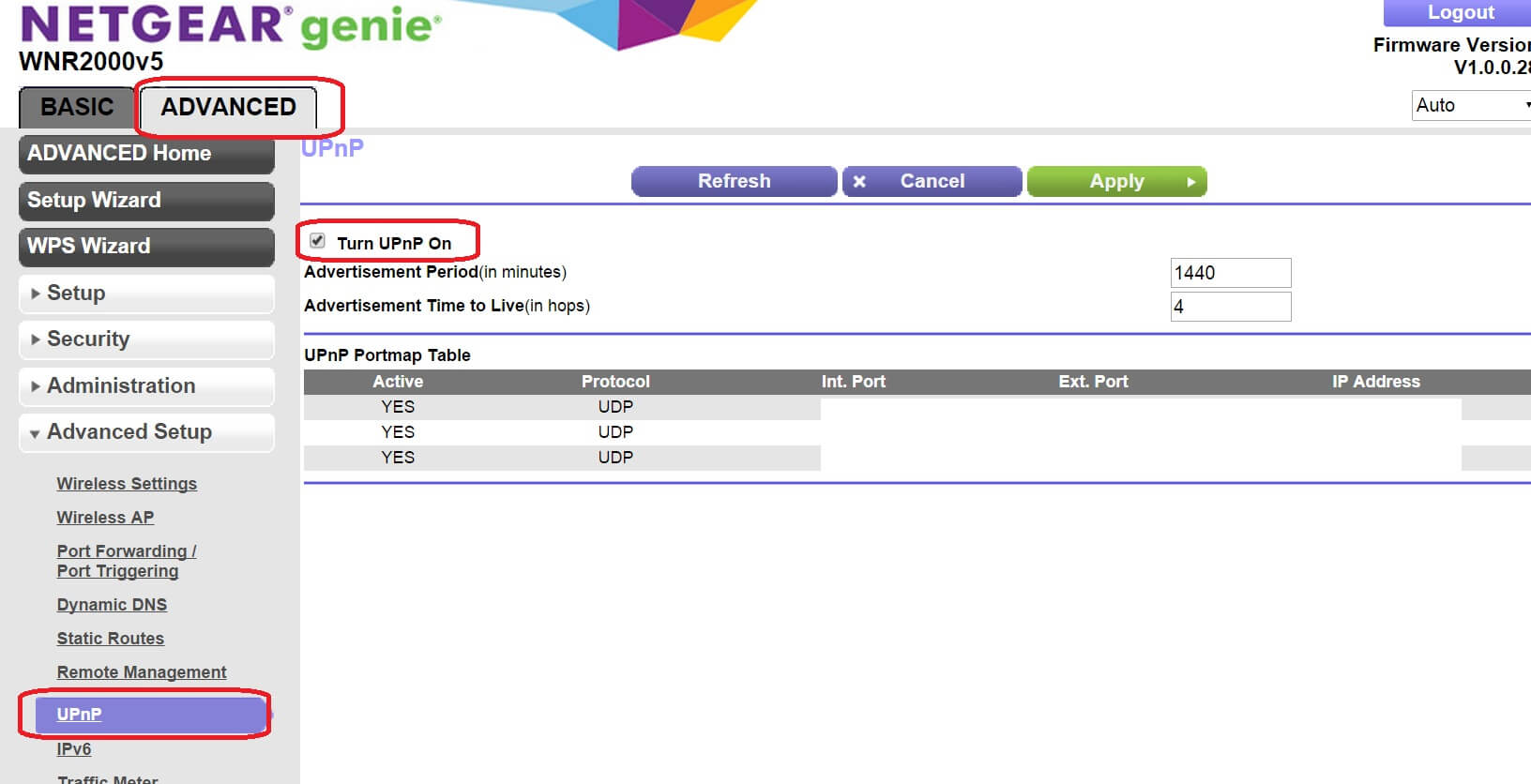
Netgear devices offer detailed controls for universal plug and play including timing and hop count settings. Follow these steps to activate the feature on WiFi 5 models and newer.
Navigate to Advanced Setup
Log in to your router and select ADVANCED from the main menu. Click Advanced Setup and then choose UPnP from the list of options.
Check the box labeled Turn UPnP On to activate the protocol immediately. Click Apply to save your changes before moving to optional configurations.
Configure Advertisement and TTL Settings
Adjust the advertisement period to control how often the router broadcasts its status to the network. The default is 30 minutes but you can set it between 1 and 1440 minutes.
Set the Time to Live (TTL) value to determine how many network hops a packet can take. The default is 4 hops which works for most homes but you can increase it up to 255 for complex networks.
View the UPnP Portmap Table to see real-time data on active devices and open ports. Click Refresh to update the list and verify which applications are using the connection.
Activate UPnP on D-Link and Legacy Models
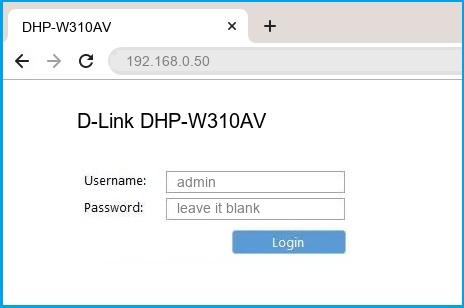
Older D-Link routers and compatible devices use a specific menu structure found under the Tools tab. This process requires leaving the password field blank during login.
Access the Misc Menu
Open your browser and go to 192.168.0.1 to reach the login screen for these models. Enter admin as the username and leave the password field completely empty.
Click the Tools tab at the top of the screen once logged in. Select Misc from the sidebar menu on the left to find the universal plug and play options.
Save and Confirm Changes
Locate the UPnP Settings section and select the radio button for Enabled. Click Apply to initiate the save process for your new configuration.
A confirmation screen will appear asking you to finalize the action. Click Continue to commit the settings to the router memory and wait 30 seconds for the change to take effect.
Configure Universal Plug and Play on Other Brands
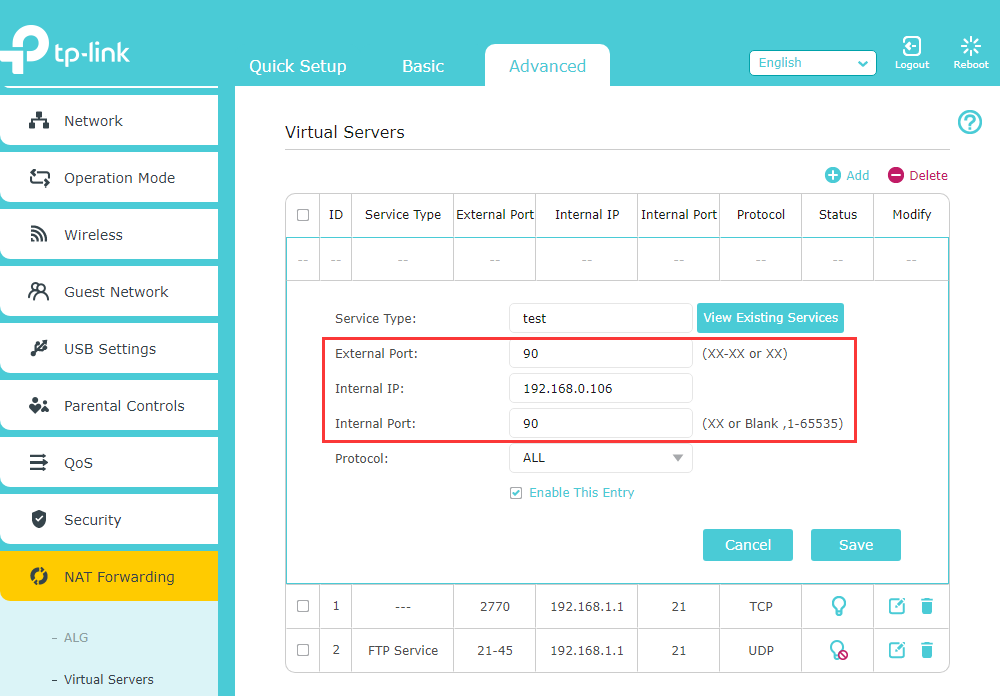
TP-Link, Asus, Linksys, and generic routers typically hide these settings within the Advanced tab. The exact path varies but the goal remains enabling automatic port management.
Locate Port Forwarding Sections
Log in to your router and look for an Advanced tab in the main navigation menu. Navigate to subsections labeled NAT Forwarding, Port Forwarding, or Applications & Gaming.
Find the specific option for universal plug and play within these menus. Toggle the setting to Enabled or check the appropriate box to activate the service.
Apply Settings and Reboot
Click Save or OK to commit your changes to the router configuration. Some models require a manual reboot to fully activate the universal plug and play service.
Restart your router if devices fail to detect the change immediately after saving. This clears the cache and ensures the new rules load correctly.
Verify Universal Plug and Play Is Working
Turning on the setting is only the first step since you must confirm it functions for your specific apps. Verification ensures your gaming console or streaming device can communicate freely.
Check Portmap Tables
Netgear users can view the UPnP Portmap Table directly in the admin panel. This table lists every device IP address that has successfully opened a port.
Look for your device IP and the specific protocol type like TCP or UDP. Click Refresh after launching your game or app to see if a new entry appears.
Test Application Connectivity
Launch a multiplayer game or P2P application that previously showed NAT errors. Check the network status screen within the app for an “Open NAT” message.
- Open your BitTorrent client and check the connection status.
- Look for a message stating the port is forwarded via UPnP.
- Try casting video to a smart TV to test device discovery.
Success means your router is correctly managing ports for universal plug and play applications. Failure indicates you may need to troubleshoot further or check firewall settings.
Understand Security Risks of UPnP

Enabling universal plug and play introduces convenience but also creates potential security vulnerabilities you must understand. Malware on any device can exploit this feature to open ports without your knowledge.
Why UPnP Can Be Dangerous
The protocol allows internal devices to modify firewall rules automatically without user approval. A compromised smart camera or infected laptop could open a backdoor for external attackers.
- Malware can use UPnP to expose your network to the internet.
- Ports open automatically without explicit user consent for each action.
- Historical exploits have used UPnP to spread worms across networks.
When to Disable the Feature
Disable universal plug and play if you do not use online gaming or P2P file sharing regularly. It is also wise to turn it off on guest networks or if you have untrusted IoT devices.
Use manual port forwarding instead if you need specific apps to work while maintaining tight security control. This method requires more effort but eliminates the risk of unauthorized port opening.
Secure Your Network While Using UPnP
You can reduce risks associated with universal plug and play by following specific best practices. These steps help maintain a balance between functionality and network safety.
Update Firmware Regularly
Manufacturers release updates to patch security flaws in the UPnP protocol implementation. Log in to your router every few months to check for and install the latest firmware.
Go to the Administration or Maintenance section to find the update tool. Keeping software current protects against known vulnerabilities that hackers might exploit.
Monitor Open Ports
Use online tools like port testers to see which ports are currently open on your network. Only expected services should have active ports visible to the outside world.
- Run a port scan after enabling universal plug and play.
- Verify that only necessary applications have open connections.
- Disable the feature immediately if you see unknown services exposing ports.
Combine these checks with strong antivirus software on all connected devices for layered defense.
Troubleshoot Universal Plug and Play Issues
Devices may still fail to connect even after you enable universal plug and play on your router. Several common configuration errors can prevent the protocol from working correctly.
Restart Router and Devices
Power cycle your router to clear any cached errors preventing UPnP from functioning. Unplug the device, wait 30 seconds, and plug it back in to reboot the system.
Restart your gaming console or computer after the router finishes booting. This ensures both ends of the connection attempt to negotiate ports fresh.
Adjust Timing and Hop Settings
Decrease the advertisement period to 5 or 10 minutes if devices lose connection status frequently. This forces the router to update device status more often.
Increase the TTL value if your network uses mesh extenders or multiple routers. A higher hop count ensures UPnP packets reach devices far from the main gateway.
Avoid Rule Conflicts
Do not use manual port forwarding and universal plug and play for the same application simultaneously. Conflicting rules can cause the router to block connections unexpectedly.
Choose one method for each service to ensure stable and predictable network behavior. Disable manual rules if you want UPnP to handle all port management automatically.
Decide If You Should Use Universal Plug and Play
Your decision to enable universal plug and play depends on your specific usage habits and security needs. Evaluate your daily activities to determine if the convenience outweighs the risks.
Enable UPnP For These Scenarios
- You play online multiplayer games on Xbox, PlayStation, or PC.
- You use peer-to-peer file sharing applications like BitTorrent.
- You stream media between devices using DLNA or Chromecast.
- All devices on your network are trusted and regularly updated.
Disable UPnP For Maximum Security
- You do not use applications requiring open inbound ports.
- You prefer manual control over every network connection.
- Your network includes guest users or unverified IoT devices.
- You are comfortable setting up static port forwarding rules.
Frequently Asked Questions About Universal Plug and Play
Does enabling UPnP slow down my internet speed?
No, enabling universal plug and play does not reduce your internet bandwidth or speed. It simply allows devices to open ports automatically without affecting data transfer rates.
Is UPnP safe to use for online gaming?
It is generally safe for gaming if all devices on your network are secure and trusted. However, you should disable it if you connect unknown devices or use public Wi-Fi.
How do I know if my router supports UPnP?
Most modern routers support universal plug and play by default. Check the Advanced or Port Forwarding section of your admin panel to confirm availability.
What happens if I disable UPnP on my router?
Disabling the feature stops devices from opening ports automatically which may break online gaming or P2P apps. You will need to set up manual port forwarding for those applications to work.
Can malware use UPnP to hack my network?
Yes, malware on an infected device can use universal plug and play to open ports and expose your network. This is why keeping device software updated is critical when using this feature.
Key Takeaways for Enabling Universal Plug and Play
Enabling universal plug and play simplifies networking by letting devices open ports automatically for gaming and streaming. You can activate this feature in your router admin panel under Advanced Settings or Port Forwarding menus.
Remember that convenience comes with security trade-offs so only use it on trusted networks. Keep your firmware updated and monitor open ports regularly to maintain a safe environment.
Check your specific brand instructions above to configure the setting correctly today. Test your applications after saving changes to ensure everything works as expected.



