Have you noticed strange network behavior like slow speeds or devices you do not recognize? One of the most powerful tools to investigate these issues is your router logs. These hidden records reveal who connects to your network and what data transfers occur.
This guide explains exactly how to check router logs to detect threats and manage bandwidth. You will learn to access your admin panel and interpret the data without needing advanced technical skills.
Find Your Router IP Address to Access Logs
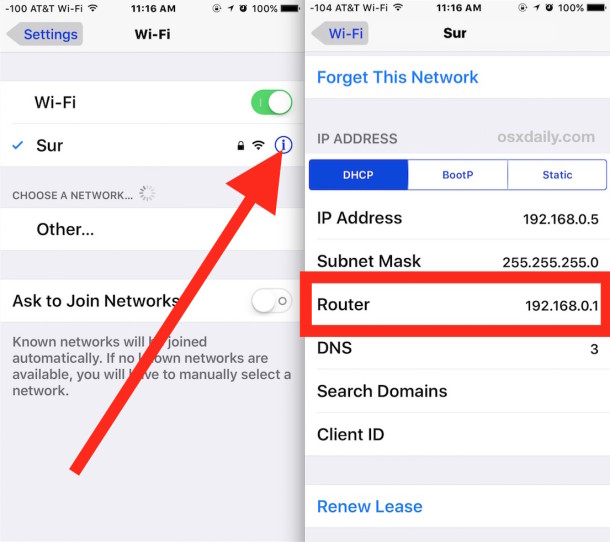
You must locate your router IP address before you can check router logs. This number acts as the default gateway to your network settings on any device.
Locate IP on iPhone or iPad
- Open Settings and tap Wi-Fi.
- Tap the “i” icon next to your connected network.
- Scroll down to find the Router field.
- The listed number like
192.168.1.1is your address. - Tap and hold the number to Copy it for later use.
View IP on Android Devices
- Go to your Wi-Fi settings menu.
- Tap the network you are currently using.
- Look for Gateway or Manage Network options.
- The displayed IP address is your router location.
Identify IP on Windows or Mac
Windows:
1. Press Win + R, type cmd, and press Enter.
2. Type ipconfig in the window and hit Enter.
3. Find Default Gateway under your active connection.
Mac:
1. Click the Apple menu and select System Settings.
2. Choose Network and select your connection.
3. Click Details then TCP/IP to see the Router field.
Pro Tip: Common router addresses include
192.168.1.1for Netgear and10.0.0.1for Xfinity gateways.
Access the Router Admin Panel Securely

Enter your router IP address into a web browser to open the login screen. This step grants you entry to the system where you can check router logs.
Open the Login Page
- Launch any browser like Chrome or Safari.
- Paste your copied IP address into the address bar.
- Press Enter to load the interface directly.
Note: Do not add “http://” or “https://” before the IP address numbers.
Enter Your Credentials
You need a username and password to proceed. Try these common default combinations if you never changed them:
- Username:
admin/ Password:admin - Username:
admin/ Password:password - Username:
admin/ Password: (leave blank)
Check your router label for specific defaults if these fail. You may need to factory reset the device if you forgot a custom password.
Navigate ISP Specific Interfaces
Some providers use unique dashboard layouts for their users.
* AT&T: Look for a Diagnostics tab at the top.
* Xfinity: May redirect to a branded portal page.
* ASUS: Usually features Advanced Settings in the sidebar.
Navigate to System Log Settings
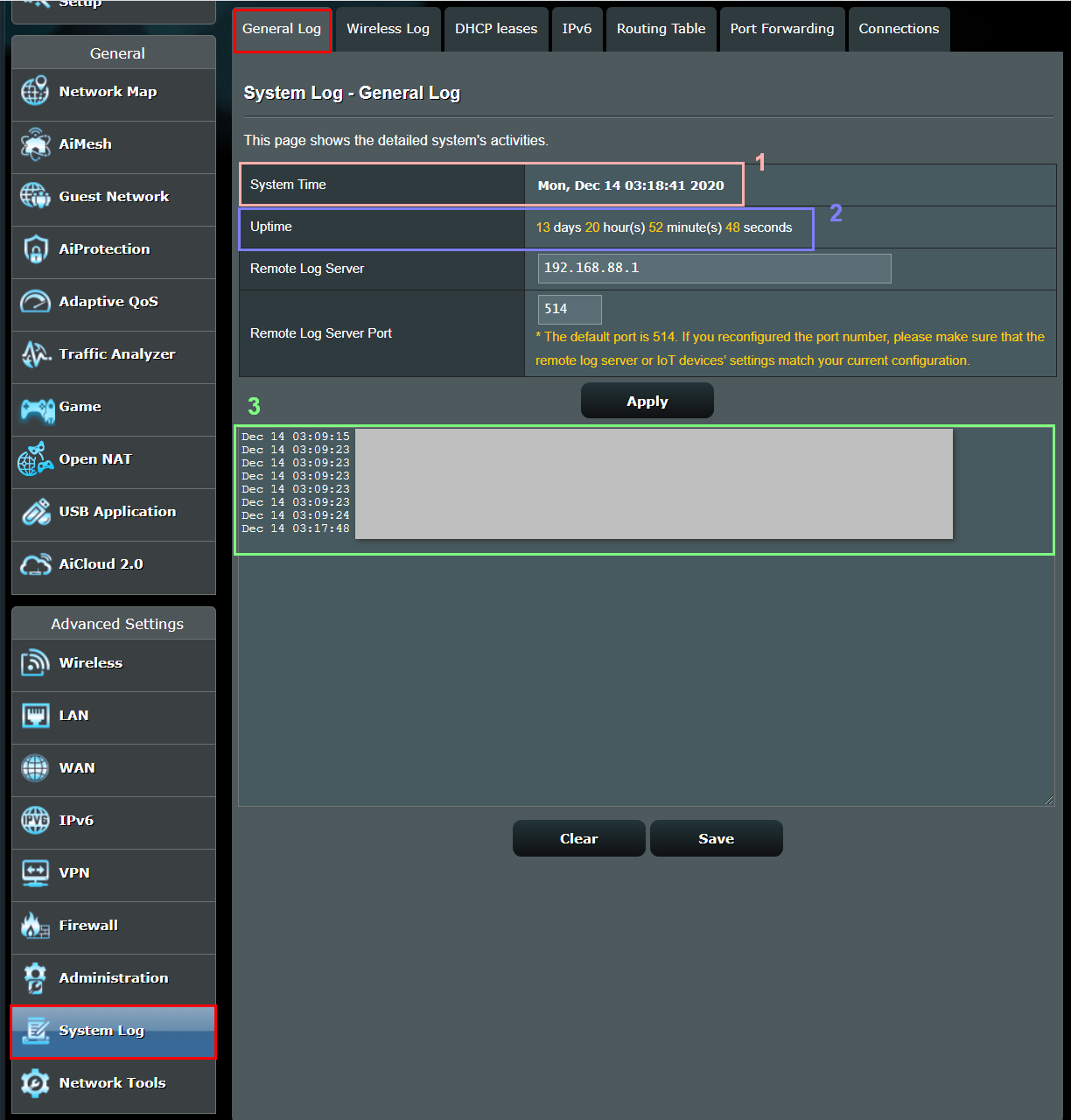
Locate the specific menu section that stores your network records. The path varies by brand but often hides under advanced menus.
Search Common Menu Labels
Look for sections named:
* Logs or System Logs
* Diagnostics
* Status or Tools
* Activity Logs
Follow Typical Navigation Paths
- Netgear/ASUS: Go to Advanced > System Tools > System Log.
- TP-Link: Select System Tools then Log.
- Xfinity: Click Gateway then Connection Logs.
- AT&T: Tap Diagnostics from the main dashboard.
Visual Clue: You have found the right spot if you see a list of events with timestamps and IP addresses.
Read and Interpret Log Entries Correctly

Router logs look like technical code but tell a clear story about your network traffic. Understanding the fields helps you check router logs effectively.
Understand Key Data Fields
Every entry typically includes these four elements:
- Date/Time: Shows exactly when the event happened.
- Source IP: Identifies the internal device on your network.
- Destination IP: Shows the external server being contacted.
- Activity Type: Describes uploads, downloads, or blocked requests.
Decode Common Log Messages
- “Connection established”: A device reached an external server successfully.
- “Dropped packet”: Your firewall blocked a request.
- “DHCP lease assigned”: A new device just joined your network.
- “Login failed”: Someone tried to access the admin page incorrectly.
Example: A line showing
192.168.1.105 > 142.250.180.110means your device connected to a Google server.
Identify Websites from IP Addresses
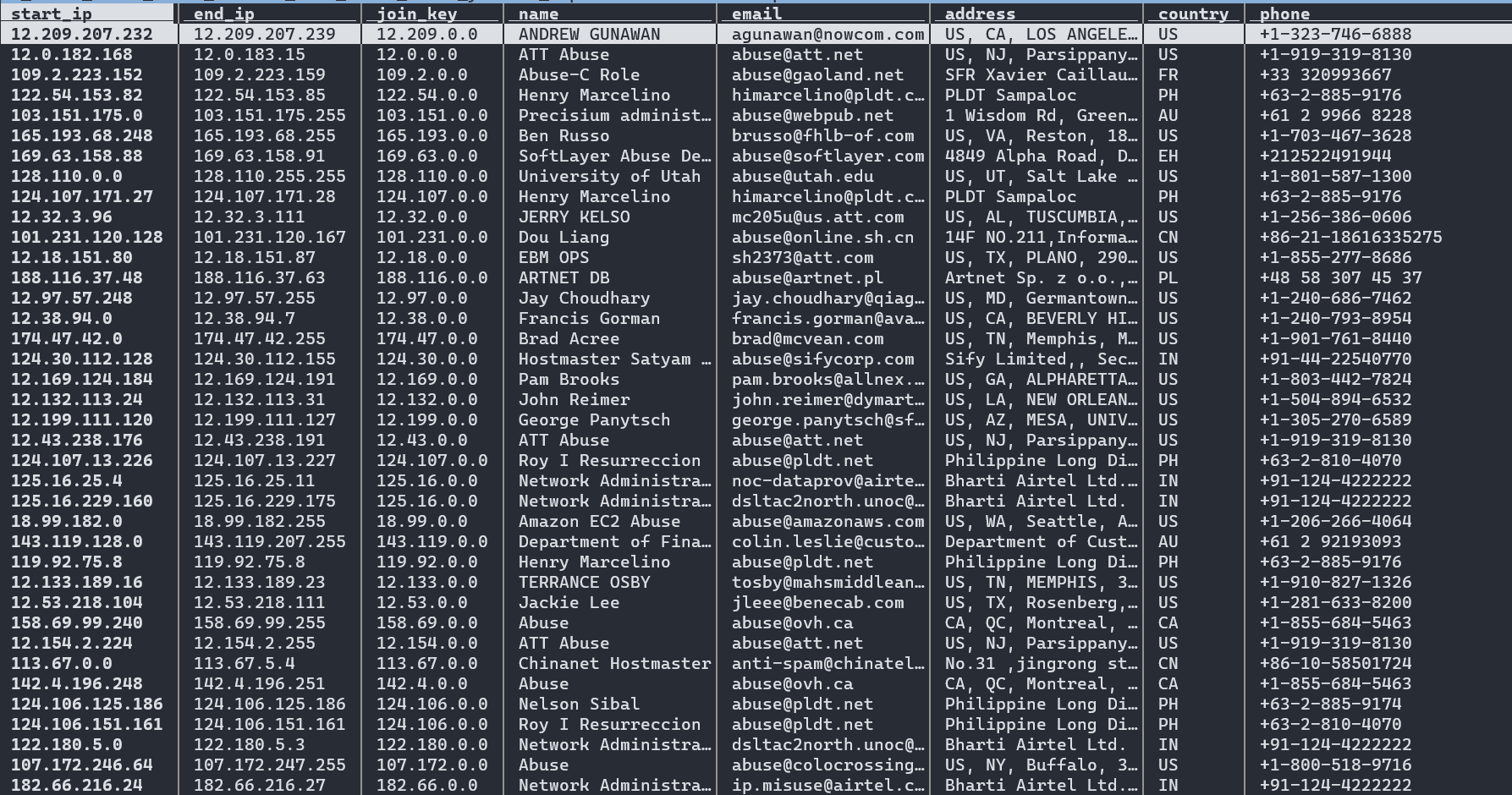
Your logs show numeric IP addresses instead of website names. You must convert these numbers to understand which sites were visited.
Convert IP to Domain Name
- Copy the Destination IP from your log entry.
- Search “IP lookup” followed by the number in a browser.
- Use tools like IPinfo.io or AbuseIPDB.
- Review the organization name returned by the tool.
Recognize Identification Limits
- Shared IPs: Many sites share one IP address like AWS hosting.
- Dynamic Changes: Services like Netflix change IPs frequently.
- Encryption: You see the main domain but not specific pages.
Reality Check: You cannot see specific URLs, search terms, or message content due to encryption.
Use Logs for Network Security

Checking router logs regularly helps you spot unauthorized access and potential attacks. This proactive step protects your personal data.
Spot Unauthorized Devices
Look for Source IPs you do not recognize. If you have five devices but see six active connections, investigate immediately. Assign static IPs to known devices to make this easier.
Detect Brute Force Attacks
Watch for repeated “Login failed” messages from the same source. This pattern suggests someone is trying to guess your password. Change your admin credentials if you see this activity.
Find Malware Activity
Monitor for strange outbound traffic from smart home devices. A security camera sending data to a foreign country IP might be compromised. Use tools like AbuseIPDB to verify suspicious destination addresses.
Troubleshoot Connectivity Issues
Logs help you pinpoint why your internet drops or slows down unexpectedly. Correlate timestamps with your connectivity problems.
Diagnose Connection Failures
Search for entries like “Connection timeout” or “Handshake failed”. Match these times with when your internet stopped working. This helps identify if a firmware update or power outage caused the issue.
Verify Configuration Changes
Check logs after updating DNS or port forwarding settings. Ensure your new rules are applying correctly and devices are connecting as expected without unexpected blocks.
Monitor Bandwidth and Device Usage
Identify which devices consume the most data by analyzing log frequency. This helps you manage slow speeds during peak hours.
Find Heavy Data Users
Sort entries by Source IP to find frequent connections. Look for long-duration sessions or repeated access to streaming servers. This identifies who is hogging your bandwidth.
Identify Background Traffic
Logs reveal silent data hogs like cloud backups. Your phone might sync photos or your TV might download updates without you knowing. Use QoS settings to limit non-critical device bandwidth.
Parental and Usage Monitoring
While you cannot see exact browsing history, logs show usage patterns. This helps parents monitor when devices are active.
Track Usage Patterns
Check timestamps to see when devices connect. If a child’s device connects at 2 AM, the logs will show this activity. Combine this data with your household schedule to spot anomalies.
Confirm Service Access
You can verify if specific services are in use. The logs show if a console connected to gaming servers or a laptop accessed a work VPN. You will not see the content, just the connection.
Know the Limitations of Router Logs
Router logs provide valuable data but have strict boundaries. Understanding these limits prevents frustration when checking router logs.
What Logs Cannot Show
- Encrypted Content: HTTPS hides URLs and search queries.
- Full History: You see connections, not every single click.
- Short Retention: Most routers keep logs for only 7 to 30 days.
- Power Loss: Logs often clear when the router reboots.
Hardware Constraints
Budget routers may lack detailed logging features entirely. Old firmware might not record traffic data. Always check if your model supports activity logging before relying on it.
Best Practices for Log Management
Maximize the value of your logs with proper maintenance habits. These steps ensure you have data when you need it.
Enable Log Export
Save your logs regularly if your router allows it. Download them as a text file to keep a permanent record before they overwrite. This helps with long-term analysis.
Set Accurate Time
Enable NTP in your system settings. Accurate timestamps let you correlate events across different devices reliably. Without this, your log times may be wrong.
Review Logs Regularly
Scan your logs weekly for unknown devices or failed logins. Export and archive them monthly for your records. Regular reviews help you spot anomalies faster.
Harden Router Security
Change your default password immediately to protect log access. Disable remote admin access unless absolutely necessary. Update your firmware to patch security holes.
Frequently Asked Questions About Router Logs
Can I see specific websites visited in router logs?
No, router logs show IP addresses instead of domain names due to encryption. You must use an external IP lookup tool to guess the website owner.
Do router logs show search history and passwords?
No, HTTPS encryption hides search terms, passwords, and specific page URLs. The router only sees the connection to the main server IP address.
How long do router logs keep history?
Most consumer routers store logs for 7 to 30 days or until the memory fills up. Many models clear all logs immediately upon rebooting.
Can I check router logs on my phone?
Yes, you can access the admin panel via a mobile browser. Find your router IP in Wi-Fi settings and paste it into Chrome or Safari to log in.
What does a dropped packet mean in logs?
A dropped packet means your firewall blocked a connection attempt. This is often a good sign that your security settings are working correctly.
Key Takeaways for Checking Router Logs
Checking router logs gives you vital control over your network security and performance. You now know how to find your IP, access the admin panel, and interpret the data to spot threats. Remember that logs show IP addresses rather than specific URLs due to encryption limits.
Start by logging into your router today to establish a baseline of normal activity. Regular reviews help you detect unauthorized users and troubleshoot connection issues quickly. Keep your firmware updated and your passwords strong to maintain a secure network environment.