
Wondering how to check router history to see which websites devices on your Wi-Fi have visited? While routers do not store full browsing histories like a computer browser, they maintain activity logs that reveal connected devices and the domains they access.
This guide shows you exactly how to access your router admin panel, locate system logs, and translate IP addresses into readable website names. You will also learn critical limitations regarding encrypted traffic and how to use advanced tools for better visibility.
Access Your Router Admin Panel via IP Address
You must log in to your router’s web-based interface before viewing any network data. This control center manages your settings and houses the activity logs if your specific model supports them.
Find Your Gateway IP on Mobile Devices
Mobile users can locate the router address directly through Wi-Fi settings.
- Open Wi-Fi settings on your iPhone or Android device.
- Tap the “i” icon next to your connected network name.
- Scroll down to find the field labeled Router or Gateway.
- Copy the displayed IP address, such as
192.168.1.1. - Paste this number into your mobile browser address bar.
Locate Default Gateway on Windows and Mac
Computer users can find the address through system network properties.
- Windows: Go to Start > Settings > Network & Internet > Advanced network settings. Select View hardware and connection properties and copy the Default gateway IP.
- Mac: Click Apple menu > System Settings > Network > Wi-Fi. Click Details, select TCP/IP, and copy the Router IP.
Pro Tip: Common default addresses include
192.168.0.1and10.0.0.1. Try these if your specific gateway IP does not load.
Enter Valid Login Credentials
Your browser will display a login prompt requiring a username and password.
- Check the physical label on your router for default credentials.
- Try common combinations like
admin/adminoradmin/password. - Contact your network administrator if default codes fail.
⚠️ Warning: Only access routers you own or have explicit permission to manage. Unauthorized access violates privacy laws.
Locate System Logs by Router Brand
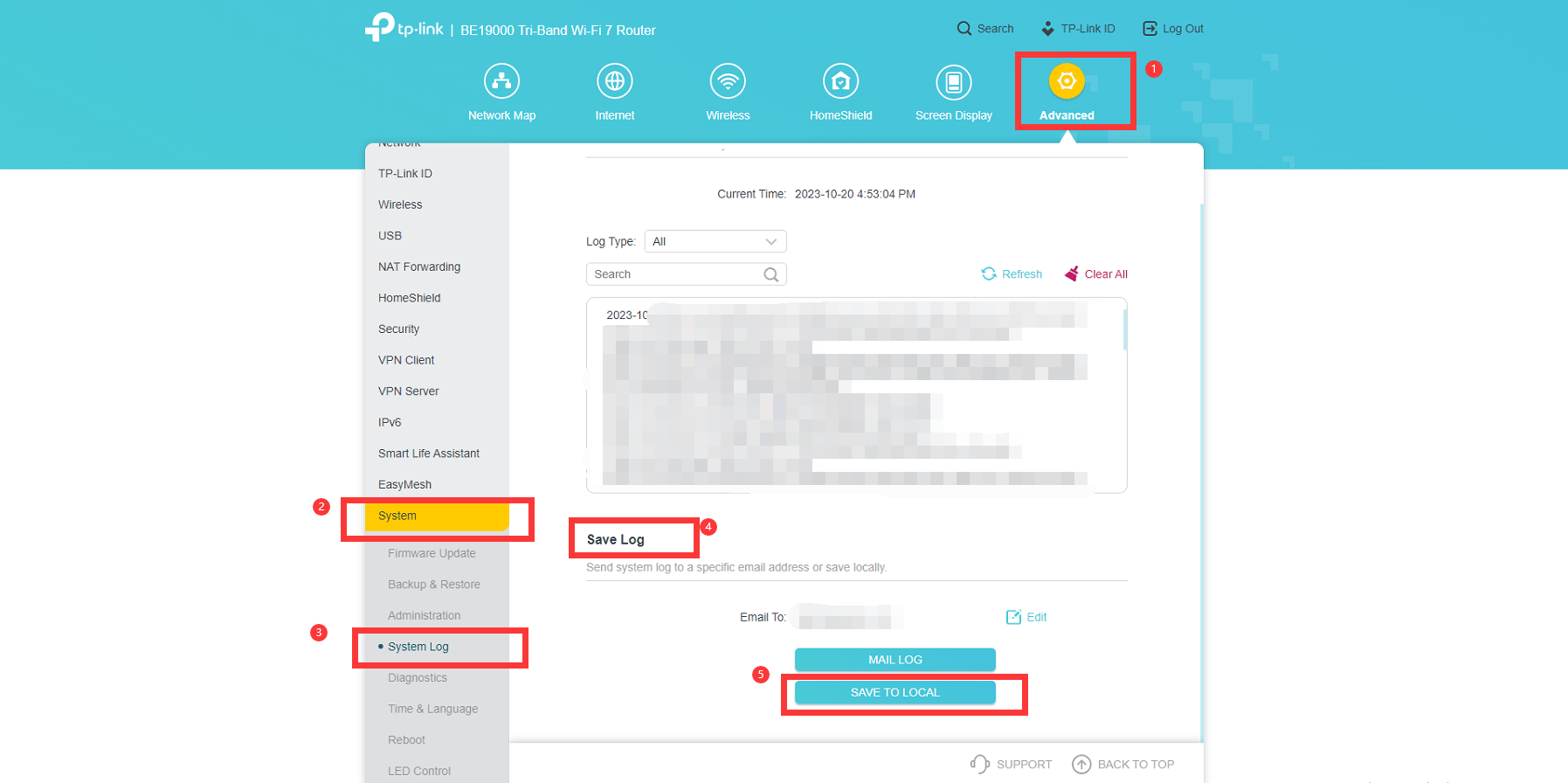
Once logged in, navigate to the specific section storing network activity. Menu names vary significantly between manufacturers like ASUS, TP-Link, and Netgear.
Navigate Brand-Specific Menus
Use this table to find logs on popular router models.
| Router Brand | Menu Path to Logs |
|---|---|
| ASUS | Advanced Settings > System Log |
| TP-Link | System Tools > Log |
| Netgear | Advanced > Administration > System Log |
| Linksys | Connectivity > Router Logs |
| AT&T | Diagnostics > Logs |
| Xfinity | Gateway > Router > Event Log |
Look for tabs labeled Logs, System Logs, Activity Reports, or Diagnostics. These are often hidden under Administration or Security sub-menus.
🕒 Time Estimate: It typically takes 2 to 5 minutes to locate these menus depending on your firmware version.
Interpret Raw Log Entries
Your logs will display lines of code resembling the example below.
[Jan 15 14:23:01] LAN: 192.168.1.5 -> 142.250.190.46 [Allowed]

[Jan 15 14:25:12] LAN: 192.168.1.8 -> 104.16.88.32 [Blocked]
Each entry contains four critical data points.
- Timestamp: The exact date and time of the connection.
- Source IP: The internal address of the device on your network.
- Destination IP: The external server or website accessed.
- Action: Whether the router allowed or blocked the request.
🔍 Note: Some routers only log system events like reboots rather than browsing activity. Check your specific manual for capabilities.
Translate IP Addresses to Website Domains
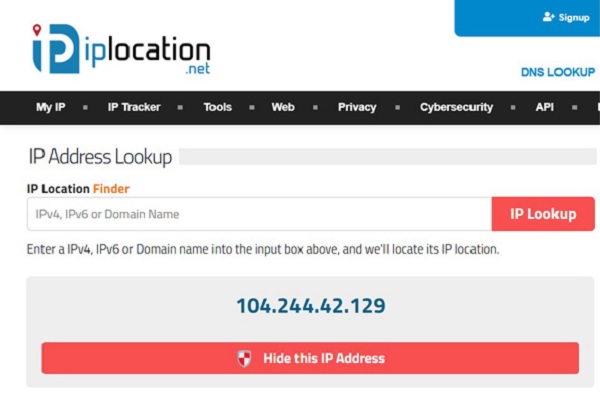
Router logs display destination IP addresses rather than readable website names. You must convert these numbers to understand which sites were visited.
Use IP Lookup Tools
Follow these steps to identify the domain associated with an IP.
- Copy a Destination IP from your router log file.
- Open a new browser tab and visit
iplocation.netorwhatismyipaddress.com. - Paste the IP address into the search bar.
- Review the result to see the associated domain name.
✅ Example: An IP of
142.250.190.46typically resolves togoogle.com.
Recognize Translation Limitations
IP lookups provide domain names but lack granular detail.
- You will see
facebook.combut not specific pages like/messages. - Shared hosting means one IP might serve hundreds of different websites.
- Dynamic IPs change over time, potentially causing misidentification of older logs.
- HTTPS encryption hides page content, search queries, and login details.
Understand Router History Limitations
Checking router history provides domain-level insights but misses significant portions of user activity.
Missing Page-Level Details
Routers log connections to servers, not specific actions within them.
- You cannot see specific video titles watched on YouTube.
- Search queries entered into Google remain invisible.
- Form inputs, passwords, and messages are never recorded in standard logs.
Even if a user visits a specific video URL, the log only shows a connection to the main YouTube IP address.
Incognito Mode and Cellular Data
Private browsing modes do not hide traffic from the router.
- Incognito Mode: The router still sees all DNS requests and domain connections.
- Cellular Data: If a device switches to 4G or 5G, that activity disappears from your Wi-Fi logs entirely.
📱 Critical Gap: A user switching to mobile data bypasses your router monitoring completely.
Review Data Retention and Storage Limits
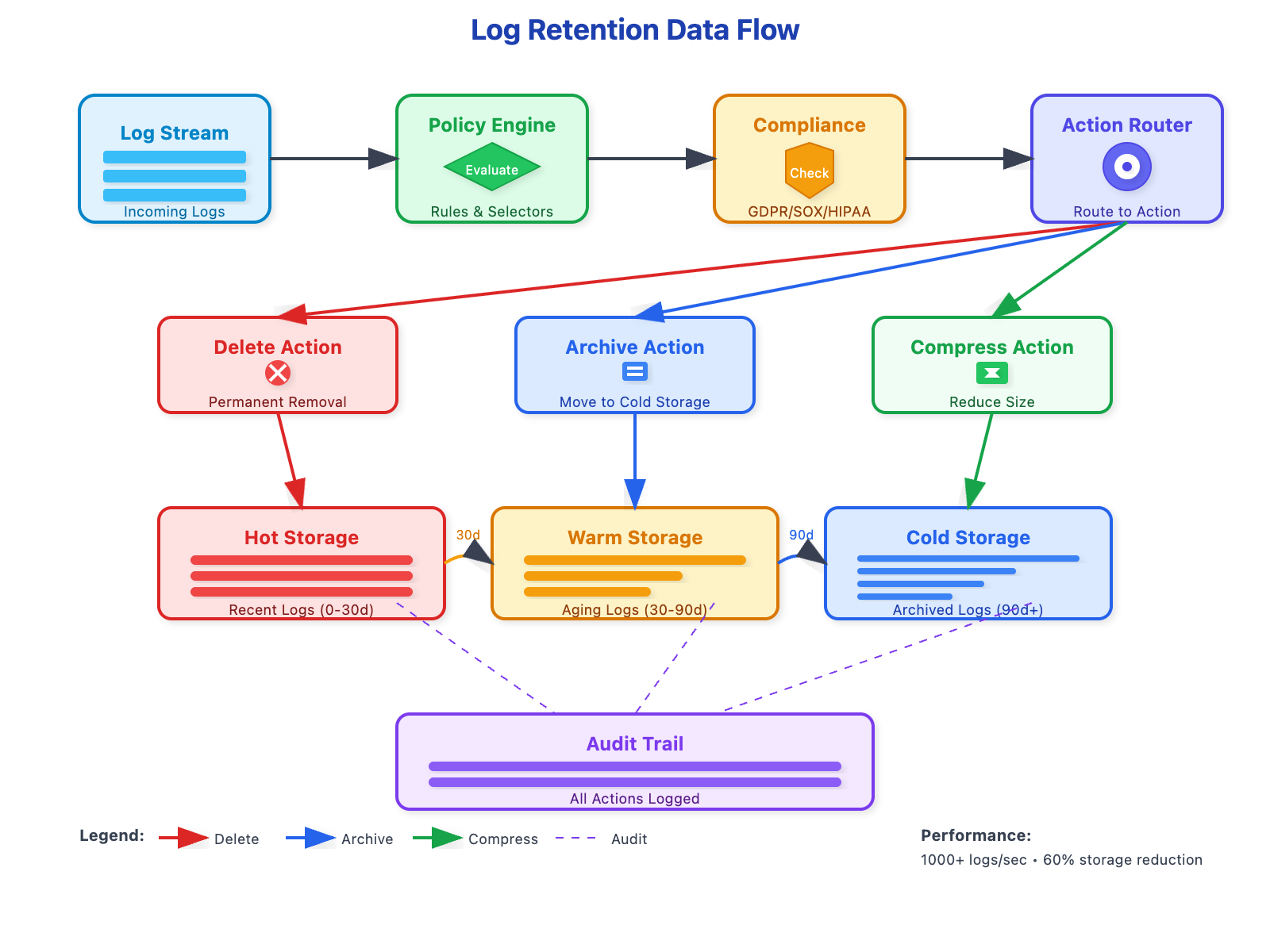
Router logs are temporary and often overwrite old data quickly.
Log Duration and Overwriting
Most consumer routers have strict storage limits for activity logs.
- Standard Retention: Logs often last only 24 hours to 7 days.
- High-End Models: Some enterprise or prosumer gear keeps up to 30 days.
- Overwrite Policy: Once the log fills up, the router deletes the oldest entries automatically.
Many routers disable logging by default to save processing power, meaning no history exists until you enable it.
Extend Retention with External Logging
You can preserve logs longer if your router supports advanced features.
- Syslog: Configure your router to send logs to a local server or PC.
- Custom Firmware: Install DD-WRT or OpenWRT to add robust logging features.
- Cloud Services: Brands like ASUS offer cloud logging via apps like AiCloud.
⚙️ Check Settings: Look for “Log Settings” or “Remote Log Server” in your admin panel to enable these features.
Deploy Advanced Monitoring Tools
Built-in router logs often lack clarity. Use dedicated tools for better long-term monitoring.
Configure DNS-Based Filtering
Replace your default DNS to gain detailed reporting and filtering capabilities.
- OpenDNS: Offers a free tier that tracks all domain requests and provides device-specific reports.
- Cloudflare Gateway: Use
1.1.1.3and1.1.1.4to block malware and adult content without logging.
Navigate to WAN > DNS in your router settings to apply these changes.
Install Network Monitoring Software
Dedicated software provides real-time visualization and alerts.
- Fing: A mobile app showing all connected devices and recent activity.
- Pi-hole: A network-wide ad blocker that logs every single domain request.
- GlassWire: Desktop software that visualizes network traffic and detects anomalies.
🛡️ Best For: Parents needing detailed reports and IT admins requiring security alerts.
Troubleshoot Missing Log Data
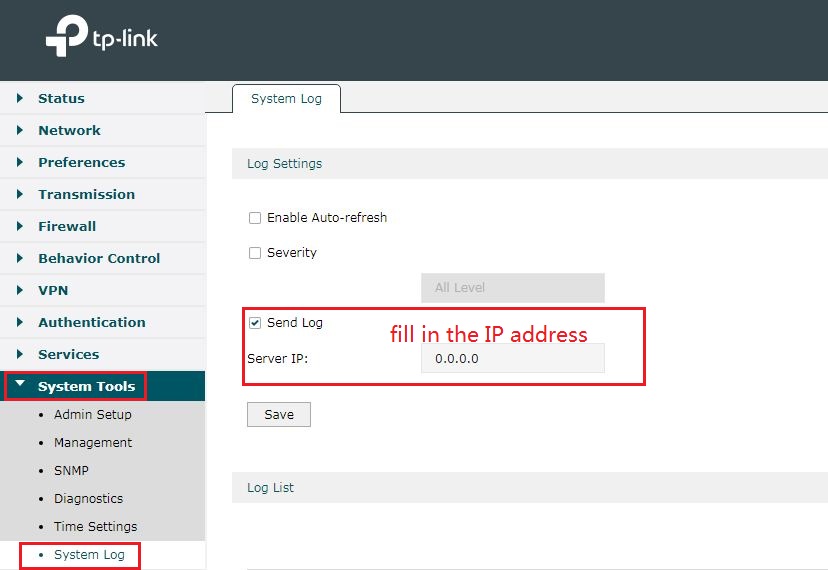
If your logs appear empty, the feature might be disabled or the firmware outdated.
Enable Logging Manually
Many routers require you to turn on logging features explicitly.
- Navigate to System > Log Settings in your admin panel.
- Check boxes for System Log, Security Log, or Remote Log.
- Save changes and reboot the router.
🔁 Note: Logs usually start fresh from the moment you enable this setting.
Update Firmware or Reset Device
Outdated software may lack logging capabilities or contain bugs.
- Go to Administration > Firmware Update and install the latest version.
- Perform a factory reset if you cannot log in, then reconfigure with default credentials.
- Hold the physical reset button for 10–15 seconds to reset.
⚠️ Warning: Resetting erases all custom Wi-Fi names and passwords.
Adhere to Ethical and Legal Standards
Monitoring network activity carries significant legal and ethical responsibilities.
Appropriate Use Cases
- Parents monitoring minor children for safety.
- Employers tracking activity on company-owned devices.
- Homeowners checking for unauthorized intruders.
Prohibited Actions
- Spying on guests, roommates, or partners without consent.
- Attempting to capture passwords or sensitive personal data.
- Using logs for harassment, blackmail, or illegal surveillance.
📜 Legal Note: Unauthorized monitoring violates wiretap and privacy laws in many jurisdictions including the U.S. and EU.
Secure Your Router After Inspection
After checking your history, ensure your router remains secure from external threats.
Change Default Credentials
- Go to Administration > Management.
- Create a strong password with 12+ characters.
- Include a mix of letters, numbers, and symbols.
Disable Remote Management
- Find the Remote Access or Remote Management setting.
- Turn this feature off to prevent external login attempts.
- Regularly update firmware to patch security vulnerabilities.
Frequently Asked Questions About Router History
Can I see deleted browser history on my router?
Yes, routers log network traffic independently of the device’s browser history. Even if a user deletes their local history, the router log may still show the domain connection if logging was active at the time.
Does Incognito mode hide activity from the router?
No. Incognito or Private mode only stops the device from saving history locally. The router still sees every domain request and IP address connection made through the Wi-Fi network.
How long does router history stay saved?
Most consumer routers store logs for 24 hours to 7 days before overwriting them. High-end models may keep up to 30 days, while some disable logging entirely by default.
Can I see specific search queries or passwords?
No. Routers generally only show the domain name (e.g., google.com). HTTPS encryption hides specific search terms, page paths, and any passwords entered on the site.
What if my router does not show website history?
Many basic routers only log system events like reboots. You may need to enable logging in the settings, update firmware, or use a third-party service like OpenDNS for detailed domain tracking.
Key Takeaways for Checking Router History
Checking router history reveals domain-level activity but not full browsing details like specific pages or search terms. You can access these logs via the admin panel using your router’s IP address and converting destination IPs to readable domains.
Remember that logs are temporary and often overwrite themselves within days. For comprehensive monitoring, consider using DNS-based tools like OpenDNS or dedicated network software. Always ensure you have legal permission before monitoring any network traffic.



