
Your new printer or smart TV needs a WPS PIN to connect, but you cannot find the code anywhere. You check the router sticker and see only the Wi-Fi password, leaving you stuck. This is a common issue because the WPS PIN is often hidden inside the software settings rather than printed on the device.
This guide shows you exactly how to find the WPS PIN on any router model. You will learn to locate the code on physical labels, access your router admin panel, and generate a new PIN if necessary. We also cover brand-specific steps and safety tips to keep your network secure during the process.
Inspect Your Router for a Physical WPS PIN Label
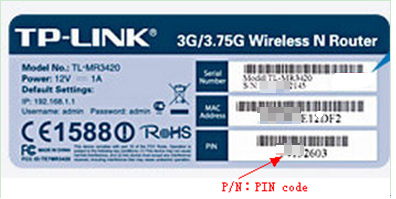
Start by checking the physical hardware before opening any software menus. Many manufacturers print the default WPS PIN directly on the device to make initial setup easier for users.
Check the Bottom or Back Sticker
Flip your router over or look at the back panel for a manufacturer sticker. This label usually contains the default SSID, Wi-Fi password, and admin login credentials. Look specifically for an 8-digit number labeled “WPS PIN,” “PIN Code,” or “Device PIN.” If your router has a removable antenna cover, check under there as well.
Verify the PIN Format and Legibility
The WPS PIN is always an 8-digit number distinct from your standard Wi-Fi password. Ensure the sticker is not faded, scratched, or peeling, which can make reading the digits difficult. Do not guess at smudged numbers because entering the wrong code three times may temporarily lock the WPS function.
Access Router Admin Panel to Locate WPS PIN
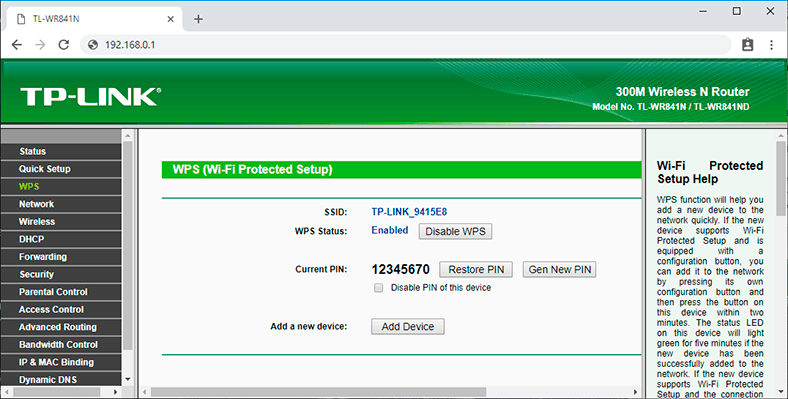
If the sticker lacks the code, you must log into the router’s web interface to find it. This method works for almost every modern router regardless of the brand or age.
Find Your Default Gateway IP Address
You need the router’s IP address to access its settings page from your computer.
* Windows: Press Win + R, type cmd, and hit Enter. Type ipconfig and look for the “Default Gateway” number.
* Mac: Go to System Settings, select Network, click Details on your active connection, and find the “Router” IP address.
* Mobile: Check Wi-Fi settings details for the “Gateway” or “Router” IP.
Log Into the Web Interface
Open a web browser like Chrome or Firefox and type the IP address into the address bar. Enter your admin username and password when prompted. These credentials are often “admin/admin” or printed on the router sticker if you never changed them.
Navigate to Wireless Security Settings
Once logged in, look for menu tabs labeled “Wireless,” “Wi-Fi Settings,” or “Advanced.” Find the sub-menu specifically named “WPS” or “Wi-Fi Protected Setup.” This section controls all connection protocols related to WPS functionality.
Identify the WPS PIN Field
Inside the WPS menu, locate the field displaying the current 8-digit code. It may be labeled “Local Device PIN,” “Router PIN,” or simply “WPS PIN.” Some interfaces require you to click a “Show PIN” button or toggle a checkbox to reveal the hidden numbers.
Generate a New WPS PIN in Router Settings
Some routers do not display a static PIN immediately or may require you to create one manually. This process is simple and ensures you have a valid code for pairing.
Enable WPS Functionality First
The WPS feature might be disabled by default for security reasons. Go to the WPS settings page and switch the status to “Enabled.” Save the changes to allow the router to activate the WPS module and prepare a PIN.
Click Regenerate or Display Options
Look for a button labeled “Generate New PIN,” “Regenerate,” or “Refresh.” Clicking this forces the router firmware to create a fresh 8-digit code instantly. This is useful if the previous PIN was compromised or if the field was previously blank.
Copy the Code Before Pairing
Write down the new PIN or take a photo of the screen immediately. You typically have a two-minute window to enter this code on your connecting device before it expires. Enter the digits carefully to avoid locking the connection attempt.
Retrieve WPS PIN on Popular Router Brands

Menu layouts vary significantly between manufacturers, so knowing where to look saves time. Here are the specific paths for major router brands.
TP-Link Router Instructions
Log in to tplinklogin.net or the default IP address. Navigate to the “Wireless” menu on the left sidebar and select “WPS.” The “Local Device PIN” will be visible in the center of the screen once WPS is enabled.
Netgear Router Instructions
Visit routerlogin.net and log in with your credentials. Go to “Advanced” at the top, then select “Advanced Setup” and “WPS.” The “Device PIN” appears in this section, often with a button to regenerate it.
ASUS Router Instructions
Type router.asus.com into your browser. Click “Wireless” in the main menu and select the “WPS” tab. Click the “Display PIN Code” button to reveal the current 8-digit number required for connection.
Linksys Router Instructions
Access 192.168.1.1 and log in. Go to “Connectivity” and find the “Wi-Fi Protected Setup” section. Select the “PIN” tab to view or regenerate the Router PIN needed for device pairing.
Troubleshoot Common WPS PIN Issues
Users often encounter errors when the PIN does not work or appears missing. Understanding these roadblocks helps you resolve connection failures quickly.
PIN Not Displaying in Menu
If the WPS menu exists but shows no PIN, the firmware might hide it until activation. Try enabling WPS and clicking “Save” or “Apply.” If it still does not appear, your router model might only support the Push Button method rather than PIN entry.
Connection Fails After Entering PIN
Double-check that you entered all 8 digits correctly without spaces. Ensure your device is within close range of the router during the attempt. If the router says “Error” or “Failed,” wait two minutes before trying again to bypass the security lockout timer.
Reset Router as Last Resort
If the WPS function is corrupted, perform a factory reset. Hold the small reset button on the back for 10 to 15 seconds until lights flash. Note that this erases all custom Wi-Fi names and passwords, so you will need to set up your network again.
Secure Your Network When Using WPS
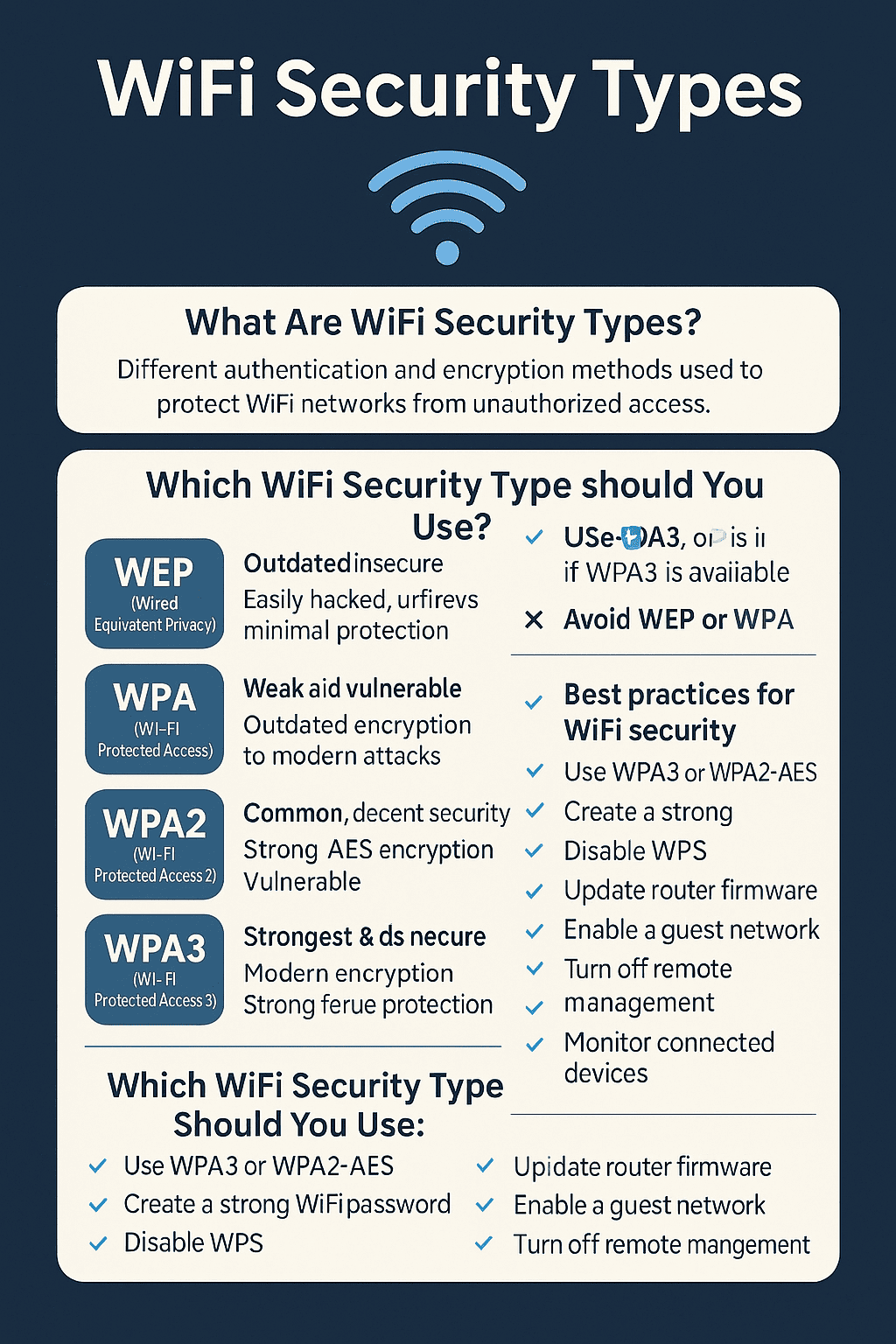
While convenient, the WPS feature has known security vulnerabilities that users should understand. Taking precautions protects your data from unauthorized access attempts.
Disable WPS After Use
Leave WPS turned off when you are not actively adding new devices. Hackers can use brute-force tools to guess WPS PINs relatively easily compared to cracking WPA2 passwords. Enable it only for the few minutes needed to connect a device.
Prefer WPA2 or WPA3 Encryption
Rely on strong, complex Wi-Fi passwords instead of WPS for daily security. Ensure your network encryption is set to WPA2-AES or WPA3, which are far more secure than the legacy WPS protocol. Avoid using WPS on guest networks entirely.
Avoid Default PIN Predictability
Older routers sometimes used predictable PINs based on MAC addresses. If your router allows you to customize the WPS PIN, choose a random sequence rather than keeping the default. Regularly updating your router firmware also patches known WPS exploits.
Frequently Asked Questions About WPS PIN
Is the WPS PIN the same as the Wi-Fi password?
No, the WPS PIN is a unique 8-digit code different from your network password. The Wi-Fi password is used for standard connections, while the WPS PIN is specifically for the Wi-Fi Protected Setup protocol.
What happens if I enter the wrong WPS PIN?
Most routers allow three incorrect attempts before locking the WPS function for a few minutes. This security measure prevents brute-force attacks. You must wait for the lockout period to expire before trying again.
Can I find the WPS PIN using my phone?
You usually cannot see the router’s WPS PIN on a phone unless you access the admin web interface via a browser. The Wi-Fi settings menu on Android or iOS does not display the router’s internal PIN code.
Do all routers have a WPS PIN?
No, some modern routers omit the PIN method entirely due to security concerns. These models may only support the WPS Push Button method, requiring you to physically press a button on the device to connect.
How long is the WPS PIN valid?
The PIN itself does not expire, but the connection window is short. Once you initiate the connection process on your device, you typically have two minutes to complete the pairing before the request times out.
Key Takeaways for Finding Your WPS PIN
Finding your WPS PIN usually requires logging into your router’s admin panel since the code is rarely printed on the device. You can locate it under the Wireless or WPS settings menu, where you can also generate a new code if needed. Always remember to disable WPS after connecting your devices to maintain strong network security.
Start by checking your router sticker, then proceed to the web interface using your default gateway IP. If you cannot find the option, consult your specific brand instructions or consider using the safer Push Button method instead. Keeping your firmware updated ensures these features work correctly and securely.



