
Is your Netgear router dropping connections or failing to load pages? You are not alone as thousands of users face sudden Wi-Fi outages or sluggish speeds daily. The good news is that most Netgear router problems can be resolved quickly with the right troubleshooting steps.
This guide shows you exactly how to fix Netgear router issues by diagnosing the root cause and applying verified solutions. You will learn to perform soft resets, execute factory resets, update firmware, and optimize signal strength without technical frustration.
Power Cycle Your Router and Modem to Clear Glitches
A power cycle acts as a soft reset that clears temporary firmware hangs and forces a clean reconnection with your Internet Service Provider. This is the most effective first step for resolving sudden connectivity loss or intermittent drops.
Why This Step Resolves Most Issues
Temporary data caches or DNS timeouts often cause the router to freeze internally while lights remain on. A full power cycle discharges capacitors and resets the handshake protocol between your modem and the ISP.
Step-by-Step Restart Process
- Unplug all devices: Disconnect power from your Netgear router, your modem, and all connected clients like laptops or phones.
- Wait 10 minutes: Allow the system to sit completely off to ensure full discharge and session release.
- Reconnect in order: Plug in the modem first and wait for stable lights, then plug in the router and wait two to three minutes.
- Test connection: Reconnect a device to verify if the internet access has been restored.
Pro Tip: Skipping the 10-minute wait significantly reduces effectiveness because residual power may keep the error state active.
Isolate Whether the Problem Is the Router or Modem
Not every network failure originates from the router itself, so you must determine if the modem or a specific device is at fault. Isolating the source prevents unnecessary resets or configuration changes.
Test Multiple Devices on the Network
- Try connecting a different device like a tablet or smartphone to the same Wi-Fi network.
- If the second device connects successfully, the issue lies with the original client device settings.
- If no devices can connect, the problem likely exists within the router or the modem unit.
Use a Wired Ethernet Connection
- Connect a laptop directly to the router using an Ethernet cable to bypass wireless variables.
- If the wired connection works but Wi-Fi fails, the issue is isolated to wireless radio settings or interference.
- If the wired connection also fails, the WAN link to the modem or the router core is broken.
Visual Clue: Check the WAN or Internet LED on your router because an unlit status means no signal is arriving from the modem.
Perform a Hard Reset to Restore Factory Defaults
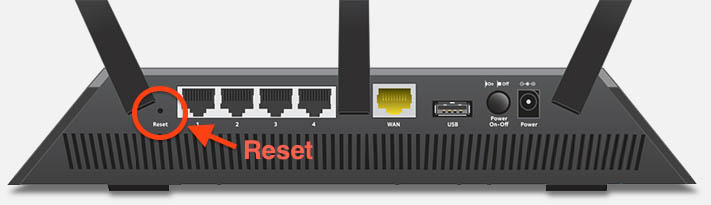
When soft resets fail to resolve the issue, a hard reset restores the device to its original factory settings and clears deep-seated configuration errors. This process erases all custom passwords and port forwarding rules.
When to Execute a Factory Reset
- You cannot access the admin interface even with correct credentials.
- The Wi-Fi network fails to broadcast after multiple restarts.
- The router refuses to connect to the internet despite a working modem.
How to Reset Your Netgear Router
- Ensure the router is powered on and lights are visible.
- Locate the recessed Reset button on the back or bottom panel of the device.
- Insert a paperclip or pin into the hole and press the internal button firmly.
- Hold for 10 to 15 seconds until all LEDs flash simultaneously to indicate success.
- Release the button and wait several minutes for the system to reboot completely.
Warning: A hard reset erases your Wi-Fi name, password, and any custom security settings you previously configured.
Regain Access After Resetting
- Connect to the default Wi-Fi network listed on the physical label of your router.
- Open a browser and navigate to 192.168.1.1 or 192.168.0.1.
- Log in using the default username “admin” and password “password”.
- Reconfigure your network name and security settings immediately.
Access the Router Admin Panel for Advanced Settings
You need direct access to the administrative interface to update firmware, change channels, or adjust security protocols. Without this access, you cannot apply critical fixes to your network configuration.
Default Login Credentials
- IP Address: 192.168.1.1 or 192.168.0.1
- Username: admin
- Password: password
Note: If these defaults fail, the credentials were changed previously, requiring a hard reset to restore access.
Troubleshoot Login Failures
- Clear your browser cache or attempt login using a different browser like Firefox or Edge.
- Ensure your device is connected specifically to the Netgear router network and not a neighbor’s.
- Disable any active VPNs or proxy settings that might block local address access.
Alternative Method: Use the Nighthawk app on iOS or Android for easier login and setup on supported models.
Update Your Router Firmware to Fix Bugs
Outdated firmware often causes instability, security vulnerabilities, and slow performance that mimic hardware failures. Updating ensures your device has the latest patches and performance improvements.
Why Firmware Updates Matter
- Fixes known bugs that cause crashes or drops.
- Improves Wi-Fi range and data throughput speeds.
- Patches security holes that could expose your network.
How to Update Firmware Manually
- Log in to the admin interface at 192.168.1.1.
- Navigate to Advanced followed by Administration and then Firmware Update.
- Click Check for Updates to see if a newer version exists.
- Download the file from the official Netgear website if prompted and upload it.
- Wait for the process to complete without powering off the device.
Critical: Never interrupt a firmware update as doing so can permanently damage the router software.
Use the Nighthawk App for Automation
- Open the Nighthawk app and select your router from the list.
- Go to Settings and tap Firmware Update.
- Follow the on-screen prompts to install updates automatically.
Optimize Wi-Fi Signal and Reduce Interference
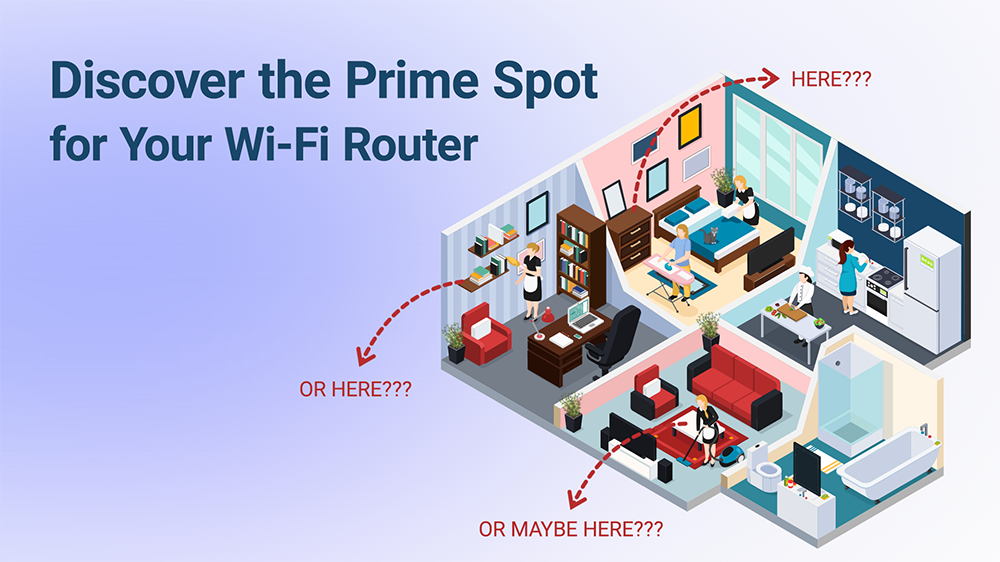
Slow speeds and dead zones often result from physical interference or crowded wireless channels rather than hardware failure. Optimizing placement and settings can drastically improve performance.
Fix Wi-Fi Interference Sources
- Move the router away from microwaves, cordless phones, and Bluetooth speakers.
- Avoid placing the device near metal furniture or inside thick-walled cabinets.
- Position the router centrally and elevate it on a shelf for better coverage.
Change Wi-Fi Channels to Avoid Crowding
- 2.4 GHz Band: Use channels 1, 6, or 11 exclusively as they do not overlap.
- 5 GHz Band: Utilize this band for streaming and gaming due to less interference.
- Enable Auto Channel Selection in your router settings for automatic optimization.
Enable Quality of Service (QoS)
- Log in to the admin panel and locate QoS Settings under Advanced.
- Enable the feature to prioritize traffic for video calls and online gaming.
- This ensures critical applications get bandwidth before background downloads.
Diagnose Specific Netgear Router Symptoms
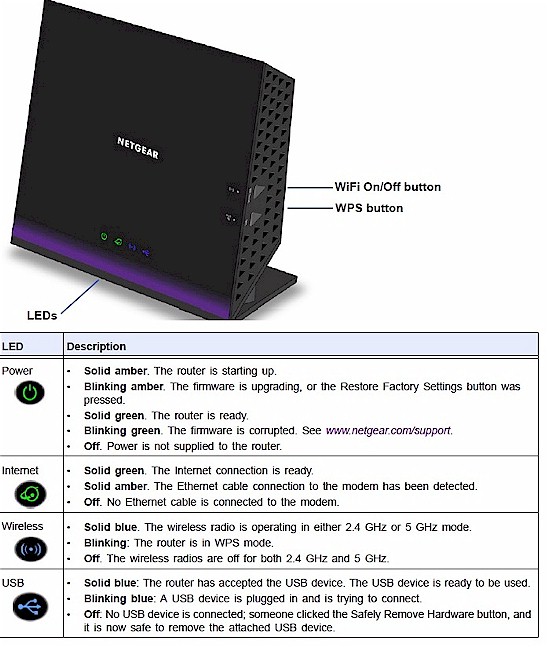
Different symptoms require targeted diagnostic steps to identify the underlying cause accurately. Use this matrix to match your specific problem with the correct solution.
No Internet Connection
- Verify the modem is powered on and connected to the ISP infrastructure.
- Check that the WAN or Internet LED is lit on the router unit.
- Ensure the Ethernet cable between the modem and router is secure.
- Contact your ISP if the WAN light remains off after a restart.
Slow Internet Speeds
- Run a speed test via Ethernet to rule out wireless interference.
- Limit the number of connected devices to free up bandwidth.
- Switch compatible devices to the 5 GHz band for faster throughput.
- Update Wi-Fi drivers on your laptop or desktop computer.
Frequent Disconnections
- Ensure the router has good ventilation to prevent overheating shutoffs.
- Disable power-saving settings on your device Wi-Fi adapters.
- Update the router firmware to fix known stability bugs.
Router Not Responding
- Try accessing the admin page from a different browser or device.
- Clear the browser cache and disable any active extensions.
- Perform a hard reset if the interface remains unresponsive.
Know When to Replace Your Outdated Router
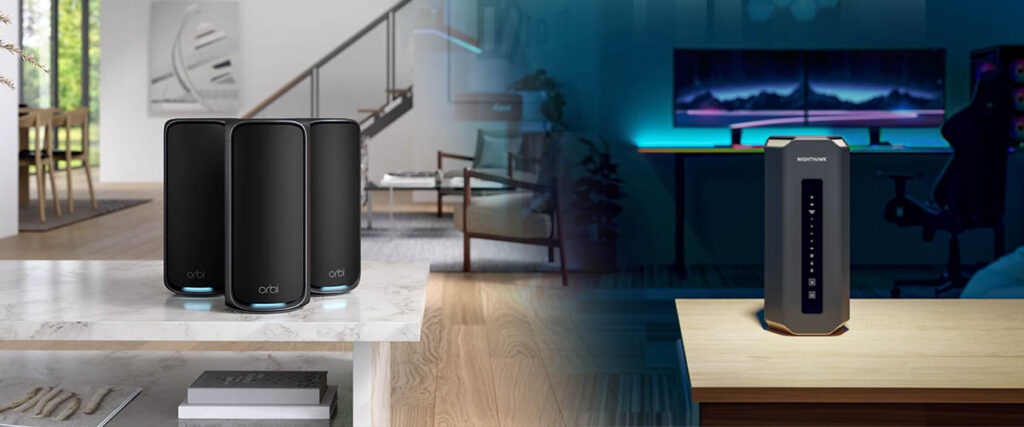
Even the best troubleshooting cannot fix hardware that is physically degraded or technologically obsolete. Recognizing when to upgrade saves time and improves network security.
Signs It Is Time to Replace
- The router is over five years old and lacks modern Wi-Fi standards.
- The device supports only Wi-Fi 4 or older protocols.
- It cannot handle your current internet plan speed.
- You experience frequent crashes despite optimal placement and updates.
Recommended Upgrade Paths
- For Speed: Consider Nighthawk RAX50 or RAX70 for Wi-Fi 6 performance.
- For Large Homes: Look into Orbi mesh systems for whole-home coverage.
- For Gaming: Choose XR500 or XR700 models for low latency.
- Latest Tech: Select BE17000 or RS700S for Wi-Fi 7 capabilities.
Rule of Thumb: Replace consumer routers every three to five years to maintain optimal security and speed.
Frequently Asked Questions About Fixing Netgear Routers
How do I reset my Netgear router if I forgot the password?
You must perform a hard reset using a paperclip on the recessed button for 10 to 15 seconds. This restores the default username “admin” and password “password” found on the device label.
Why is my Netgear router blinking orange or amber?
An orange or amber light usually indicates a firmware update in progress or a connection issue with the modem. Wait for the update to finish or check your Ethernet cable connections.
What is the default IP address for Netgear routers?
Most Netgear routers use 192.168.1.1 or 192.168.0.1 as the default gateway address. You can find the specific address for your model on the bottom label of the device.
How often should I update my Netgear router firmware?
You should check for firmware updates quarterly or whenever you experience connectivity issues. Enabling automatic updates via the Nighthawk app ensures you never miss critical security patches.
Can a bad Ethernet cable cause my Netgear router to fail?
Yes, a damaged or low-quality Ethernet cable can cause slow speeds or total connection loss. Always try swapping the cable between the modem and router to rule this out.
Key Takeaways for Fixing Your Netgear Router
Most Netgear router issues stem from temporary glitches that a simple power cycle can resolve. If restarting does not work, isolating the problem source and performing a hard reset will restore functionality in most cases.
Regular firmware updates and proper placement away from interference ensure long-term stability. If your device is over five years old, upgrading to a modern model may be the most effective solution for persistent problems. Start with a power cycle today to see if your network speed improves immediately.



