You’re in the middle of a video call, streaming your favorite show, or downloading an important file, and suddenly, the internet cuts out. You check your Wi-Fi, and sure enough, your Netgear router has disconnected again. You’re not alone. Thousands of users report the same issue: the Netgear router keeps disconnecting, often without warning. Whether it’s intermittent dropouts, random reboots, or weak signal strength, these disruptions can be frustrating and disruptive.
The good news is that most disconnection issues are fixable without replacing your router. Common causes include outdated firmware, wireless interference, overheating, ISP issues, or incorrect settings. In this guide, you’ll learn how to diagnose why your Netgear router keeps disconnecting, apply proven fixes, and prevent future outages. No technical degree required, just clear, step-by-step solutions that actually work.
Restart and Reconnect the Router
:max_bytes(150000):strip_icc()/how-to-properly-restart-a-router-modem-2624570-8ef8d3ea41a14c928947e58c32fa3646.png)
Before diving into complex troubleshooting, start with the simplest and most effective step: rebooting your router. A restart clears temporary glitches, resets network connections, and often resolves brief outages.
Power Cycle Your Netgear Router
- Unplug the power cable from the back of the router.
- Wait 30 seconds to ensure all residual power drains.
- Plug the router back in and wait 1 to 2 minutes for it to fully boot.
- Check the LED lights. Solid white or green usually means normal operation.
- Test your internet connection on multiple devices.
Pro Tip: If the disconnection returns within hours, the root cause is likely deeper than a temporary glitch.
Force Reconnect Wireless Devices
Sometimes, the issue isn’t the router, it’s the device. To rule this out:
- On your phone, laptop, or tablet, turn Wi-Fi off and on.
- Forget the network and reconnect by entering the password again.
- Check if only one device disconnects or if all devices are affected.
If only one device has issues, focus troubleshooting there. If all devices drop at once, the problem is with the router or internet service.
Check for Overheating and Placement
Overheating is a common but overlooked reason why a Netgear router keeps disconnecting. When internal components get too hot, the router may shut down or reboot to protect itself.
Ensure Proper Ventilation
- Place the router in an open, elevated area, not inside a cabinet or behind a TV.
- Keep at least 6 inches of space around all sides for airflow.
- Avoid placing it near heaters, radiators, or direct sunlight.
Monitor Router Temperature
- Touch the router. If it’s too hot to touch, it’s overheating.
- Use a cooling pad or small fan if ventilation can’t be improved.
- Consider replacing old routers that consistently overheat.
Warning: Chronic overheating shortens router lifespan and increases failure risk.
Update Router Firmware
Outdated firmware can cause instability, security flaws, and disconnections. Netgear regularly releases updates to fix bugs and improve performance.
Access the Router Dashboard
- Connect to your router via Wi-Fi or Ethernet.
- Open a browser and go to
routerlogin.netor192.168.1.1. - Log in with your admin username and password (default is often admin/password).
Check and Install Firmware Updates
- Navigate to Advanced > Administration > Firmware Update.
- Click Check to see if a new version is available.
- If an update appears, click Download and Install.
- Wait 5 to 10 minutes. Do not unplug during this process.
Note: Some newer Netgear models support automatic updates via the Nighthawk app.
Optimize Wireless Settings
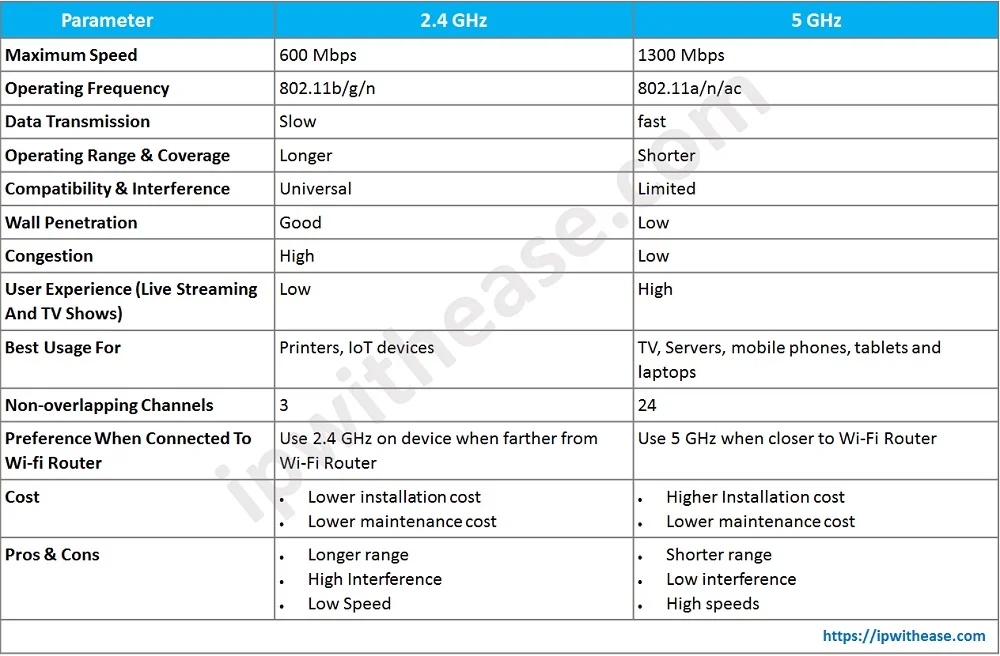
Incorrect Wi-Fi settings can lead to frequent dropouts, especially in crowded networks or large homes.
Switch to 5 GHz Band for Stability
- The 2.4 GHz band travels farther but is slower and more prone to interference.
- The 5 GHz band is faster and less congested but has shorter range