Your Netgear router was working fine, then suddenly the WiFi dropped. No warning, no error message, just a spinning wheel on your phone, laptop, or tablet. You are not alone. Thousands of users face Netgear router WiFi stopped working issues daily due to firmware glitches, signal interference, misconfigurations, or hardware faults. The good news is that most problems can be resolved in under 30 minutes with the right steps.
In this guide, you will learn how to diagnose and fix common causes behind your Netgear WiFi failure. Whether it is a total signal blackout, weak connectivity, or password rejection, we will walk you through actionable troubleshooting steps with no tech degree required. You will also discover how to tell if the issue is with your router, ISP, or device, and when to escalate for professional help.
Confirm Internet Signal Is Active
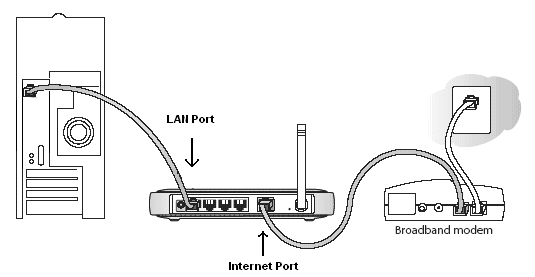
Before blaming your router, verify your internet service is live.
Test With a Wired Connection
- Connect your computer directly to the Netgear router using an Ethernet cable.
- Restart your computer and check for internet access.
- If there is no connection:
– Reboot your router and modem by unplugging power for 30 seconds, then plugging back in.
– Wait 2 minutes for full restart.
– Retest the wired connection.
Pro Tip: Bypass the router. Plug your computer directly into the modem. If there is still no internet, the issue is with your ISP, not your Netgear device.
Contact Your ISP If Needed
If wired tests fail at both router and modem levels:
– Call your internet service provider.
– Report the outage or signal loss.
– Request line diagnostics.
Once internet is confirmed on a wired connection, proceed to wireless troubleshooting.
Check If the WiFi Radio Is Turned Off

A surprisingly common cause is that the WiFi function is manually or accidentally disabled.
Use the Physical WiFi On/Off Button
Some Netgear models have a WiFi On/Off button on the rear or side.
- Press the button once and wait 10 seconds.
- Look for the wireless indicator light. It should turn solid or blink.
- If it stays off, press again to re-enable.
Enable WiFi via the Router Admin Page
If there is no physical button, log in to your router’s web interface:
- Open a browser and go to
http://routerlogin.netorhttp://192.168.1.1. - Enter your username and password (default:
admin/passwordunless changed). - Navigate to Wireless Settings.
- Ensure Wireless Radio is set to On for both 2.4 GHz and 5 GHz bands.
- Click Apply.
If you cannot access the admin page, reset the router using the steps in a later section.
Restart and Reboot Your Network
Power cycling clears temporary glitches and resets network states.
Power Cycle Steps
- Turn off your computer and all connected devices.
- Unplug the power cables from your Netgear router and modem.
- Wait 30 to 60 seconds.
- Plug in the modem first and wait until all lights stabilize (1 to 2 minutes).
- Plug in the router and wait until all system lights are solid.
- Turn devices back on and test WiFi.
Time required: 3 to 5 minutes.
Fixes: Frozen firmware, IP conflicts, overheating.
Verify WiFi Password and SSID
If devices cannot connect, the issue may be authentication related.
Check for Correct Network Name (SSID)
- Open WiFi settings on your device.
- Look for your router’s SSID (for example, “NETGEAR67”).
- If missing:
- Log into the router admin page.
- Go to Wireless > Basic Settings.
- Confirm the SSID is visible and not hidden.
Reset or Change the WiFi Password
- Log in to
routerlogin.net. - Go to Wireless > Security Settings.
- Re-enter your WiFi password (WPA2 or WPA3 recommended).
- Click Apply.
- Reconnect all devices using the new password.
Common mistake: Changing the password but not updating it on phones, tablets, or smart TVs.
Optimize Router Placement and Signal Strength
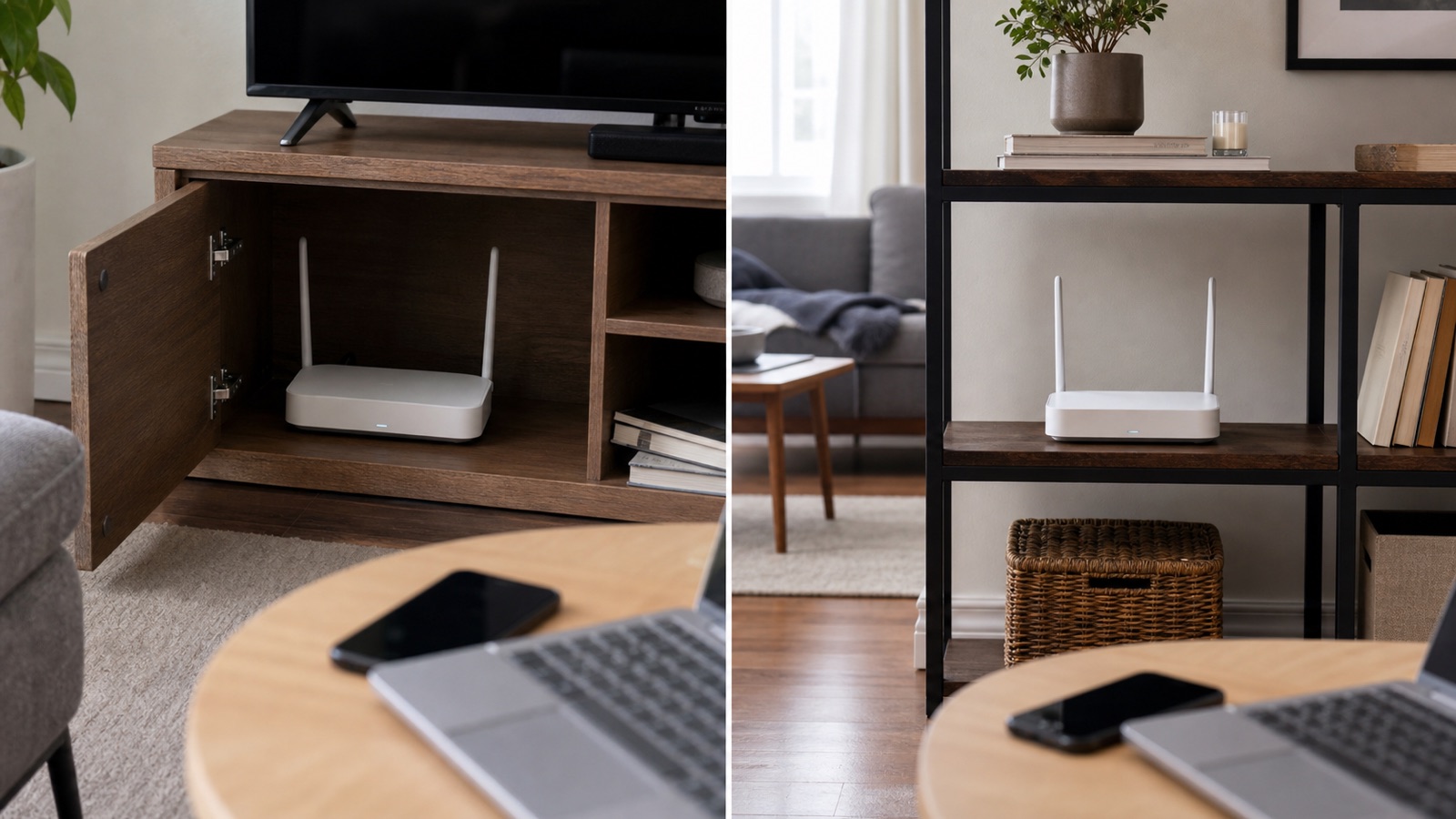
Weak or spotty WiFi often stems from poor positioning.
Ideal Placement Tips
- Place the router centered in your home, away from corners.
- Elevate the router on a shelf, not on the floor.
- Keep at least 3 feet away from:
- Microwaves
- Cordless phones
- Metal objects
- Concrete walls
- Avoid enclosing the router in cabinets.
Check Signal on Devices
- Use a WiFi analyzer app to measure signal strength.
- Look for these readings:
- -30 dBm = Excellent
- -60 dBm = Good
- -70 dBm or lower = Weak (may drop connection)
Fix: Add a Netgear WiFi extender to cover dead zones.
Update Router Firmware
Outdated firmware can cause instability, security flaws, and WiFi dropouts.
Check Firmware Version
- Log in to
routerlogin.net. - Go to Advanced > Administration > Firmware Update.
- Click Check for updates.
Install the Latest Firmware
- If an update is available:
1. Click Download and Install.
2. Do not power off during the update (5 to 10 minute process).
3. The router will reboot automatically.
Warning: Interrupting a firmware update may brick the router.
Manual Update (If Auto-Fail)
- Visit the Netgear Support website.
- Search your model.
- Download the latest firmware file.
- Upload via Firmware Update > Manual Upload.
Reset Router to Factory Settings
Use this when all else fails.
When to Factory Reset
- Cannot access the admin page
- WiFi settings corrupted
- Forgotten password
- Persistent disconnections
How to Reset
- Locate the Reset button (small hole on back).
- With the router powered on, press and hold with a paperclip for 7 to 10 seconds.
- Release when lights blink.
- Wait 2 to 3 minutes for full reboot.
Warning: This erases all settings, including WiFi name, password, and port forwards.
Reconfigure After Reset
- Connect via Ethernet or default WiFi (check the label on the router).
- Open
routerlogin.net. - Run the setup wizard:
– Set a new admin password
– Reconnect to your ISP
– Set WiFi SSID and password
Troubleshoot Specific Devices
Sometimes the issue is not the router. It is the device.
Test Multiple Devices
- Try connecting:
- A phone
- A laptop
- A tablet
- If only one device fails:
- Forget the network and reconnect.
- Restart the device.
- Check WiFi adapter settings (on PC: Network Reset in Settings).
USB Adapter Issues
For Netgear USB WiFi adapters:
- Not detected?
- Try a different USB port.
- Reinstall the driver from Netgear Support.
- Slow speeds?
- Ensure the adapter is within 10 feet of the router.
- Avoid USB hubs.
Fix Orbi and Extender Issues
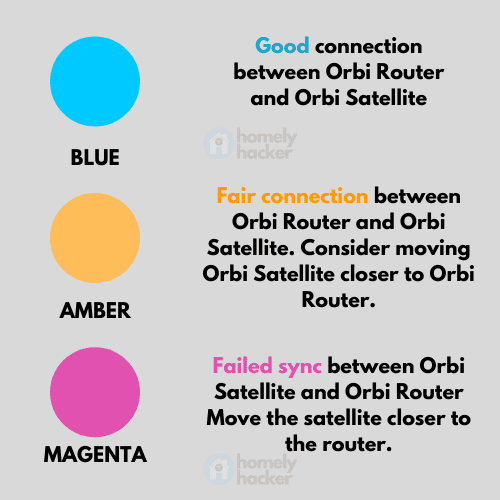
If using a Netgear Orbi system or WiFi extender, ensure proper sync.
Orbi Mesh Systems
- Check the satellite and router sync light:
- Solid white or blue = Connected
- Amber or flashing = Sync issue
- Move the satellite closer to the router.
- Press the Sync button on both units for 2 seconds.
Range Extenders
- Ensure the extender is within range of the router.
- Press the WPS button on both router and extender.
- Wait for a solid signal light.
- If failing, reset the extender and reconfigure.
Tip: Rename the extended network to match the main SSID for seamless roaming.
Prevent Future WiFi Outages
Avoid repeat issues with proactive maintenance.
Schedule Reboots
- Use the router scheduler to reboot weekly.
- Go to Advanced > System Settings > Reboot Schedule.
- Set for a low-usage time (for example, 2:00 AM Sunday).
Enable Auto-Firmware Updates
- In Advanced > Administration > Firmware Update:
- Check Enable Auto Update.
- This ensures the router stays secure and stable.
Monitor Connected Devices
- Log in to
routerlogin.net. - Go to Attached Devices.
- Look for unknown devices that could indicate unauthorized access.
- Use Access Control to block suspicious users.
When to Replace Your Router
Even well-maintained routers wear out.
Signs It Is Time to Upgrade
- Frequent disconnections despite fixes
- Slow speeds below your ISP plan
- Overheating (hot to touch)
- Model is 5 or more years old
- No WiFi 5 (AC) or WiFi 6 (AX) support
Recommended Upgrades
| Issue | Recommended Model |
|---|---|
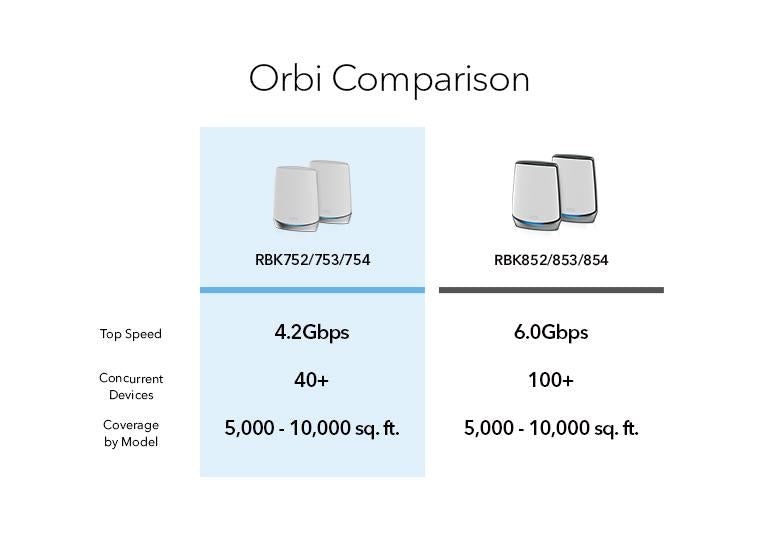
| Dead zones | Orbi RBK752 (WiFi 6 Mesh) |
| Gaming lag | Netgear XR500 (Gaming Router) |
| Old hardware | RAX40, RAX70 (WiFi 6) |
| USB adapter slow | A8000 (WiFi 6E) |
Visit Netgear Support to find compatible models for your home.
Frequently Asked Questions About Netgear Router WiFi Stopped Working
Why did my Netgear router WiFi suddenly stop working?
Sudden WiFi failures often come from ISP outages, firmware glitches, or accidental changes to wireless settings. A quick power cycle of the router and modem fixes most temporary issues.
How do I reset my Netgear router when WiFi is not working?
Press and hold the Reset button on the back of the router for 7 to 10 seconds using a paperclip. Release when the lights blink, then wait 2 to 3 minutes for the router to fully reboot.
What is the default login for a Netgear router?
The default admin login is admin for the username and password for the password. You can access the settings at http://routerlogin.net or http://192.168.1.1.
How can I tell if the problem is my router or my ISP?
Connect a computer directly to the modem using an Ethernet cable. If the internet works, the issue is with your router. If it does not work, contact your ISP to report an outage.
Why is my Netgear WiFi signal weak in some rooms?
Weak signals usually come from poor router placement, thick walls, or interference from other electronics. Moving the router to a central, elevated location or adding a Netgear extender improves coverage.
How often should I update my Netgear router firmware?
Check for firmware updates every few months, or enable auto-update in the admin panel. Keeping firmware current prevents security flaws and improves WiFi stability.
Key Takeaways for Fixing Your Netgear Router WiFi
Most Netgear router WiFi stopped working problems are fixable with simple resets, placement adjustments, or firmware updates. Start with a wired test to isolate whether the issue is the router or the ISP. Then work through wireless settings, password verification, and signal optimization. Keep your router updated, centrally located, and free from interference to enjoy stable WiFi for years. If problems persist after all troubleshooting, consider professional support or a hardware upgrade.