
You’ve just unboxed your new NETGEAR router or need to update your home network settings, but you have no idea how to reach the admin panel. This is one of the most common frustrations for home users. Learning how login to NETGEAR router works is the gateway to changing your WiFi name, updating your password, installing firmware, and fixing connection issues. The process is faster than most people expect.
In this guide, you’ll discover every reliable method to access your router, from browser-based login to the Nighthawk mobile app. You’ll also learn how to troubleshoot common problems and secure your network after signing in. Whether you use Windows, Mac, iOS, or Android, these steps work across all NETGEAR models. Let’s get you connected to your router’s control center in just a few minutes.
Access Your NETGEAR Router Through a Web Browser
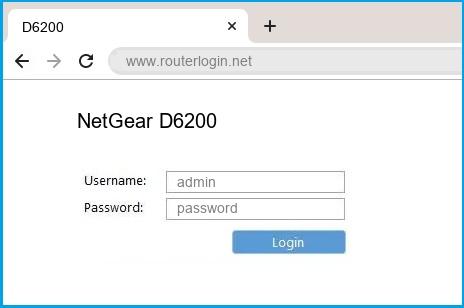
The web browser method is the most universal way to log in to a NETGEAR router. It works on any operating system and any modern browser. Your device must be connected to the router’s network before you begin.
Connect to the Router’s Network First
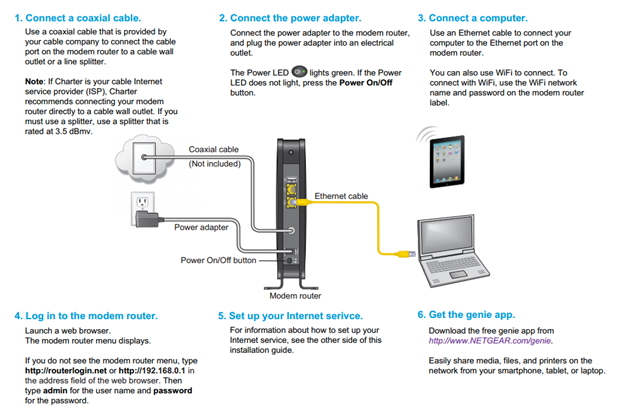
Your computer or phone must be on the same network as your NETGEAR router. Without this connection, the login page will never load.
• Wireless: Open your device’s WiFi settings and select your NETGEAR network
• Wired: Plug an Ethernet cable from your computer into one of the router’s LAN ports
Once connected, you’re ready to open the login page.
Enter the Default Web Address
Open Chrome, Safari, Firefox, or Edge and type one of these addresses into the address bar:
• routerlogin.net
• routerlogin.com
Press Enter and the login page should appear within seconds.
Pro Tip:
routerlogin.netis the easiest starting point and works for the majority of NETGEAR users.
If the page doesn’t load, move on to the manual IP method below.
Type the IP Address Directly
When the domain aliases fail, enter your router’s IP address directly into the browser. Common NETGEAR defaults include:
• 192.168.1.1
• 192.168.0.1
• 10.0.0.1
Press Enter after typing the address. The login screen should now appear.
Quick Check: The correct IP is often printed on a sticker on the back or bottom of your router.
Find the Gateway IP on Windows
If none of the common addresses work, locate your actual gateway through Command Prompt:
- Press Windows + R, type
cmd, then press Enter - Type
ipconfigand press Enter - Look for Default Gateway under your active connection
- Copy the IP address shown (such as
192.168.1.1)
Paste this IP into your browser to reach the login page.
Find the Gateway IP on Mac
Mac users can find the router’s gateway through System Settings:
- Click the Apple menu and select System Settings
- Open the Network section
- Select your active connection (WiFi or Ethernet)
- Find the Router field to view the gateway IP
Enter this address in your browser to continue.
Enter Your Admin Credentials
When the login page loads, type your username and password. Most NETGEAR routers use:
• Username: admin
• Password: password
Important: Defaults may vary by model. Always check the label on your router for accurate credentials.
Click Sign In to enter the admin panel.
Log In Using the Nighthawk App
The Nighthawk app offers a streamlined mobile experience for managing your router from anywhere in your home. It works with most modern Nighthawk routers.
Download and Install the App
- Open the App Store on iOS or Google Play on Android
- Search for Nighthawk
- Download and install the official NETGEAR Nighthawk app
The app is also available directly at nighthawk-app.com.
Sign In Through the App
- Make sure your phone is connected to your NETGEAR WiFi
- Launch the Nighthawk app
- Sign in with your NETGEAR account credentials
- The app will automatically detect your router
You can now adjust WiFi settings, run speed tests, and update firmware directly from your phone.
Heads Up: The older NETGEAR Genie app has been discontinued. Use the Nighthawk app for all compatible routers.
Log In to Your Orbi Mesh System
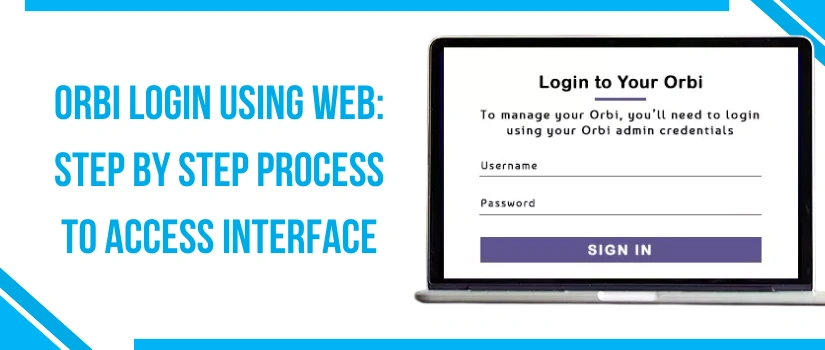
Orbi mesh routers use a dedicated login process designed for whole-home WiFi coverage. You can access Orbi through either a mobile app or a web browser.
Use the Orbi App for Mobile Access
- Download the Orbi app from the App Store or Google Play
- Connect your phone to the Orbi WiFi network
- Open the app and follow the login prompts
- Manage your main router and all satellites from one screen
The Orbi app lets you add new satellites, run diagnostics, and monitor network performance.
Access Orbi Through a Browser
- Open any browser and visit
orbilogin.com - Enter your admin credentials (typically
admin/password) - Click Sign In to open the Orbi dashboard
Note:
orbilogin.comonly works for Orbi systems. Userouterlogin.netfor standard NETGEAR routers.
Change Your WiFi Name and Password
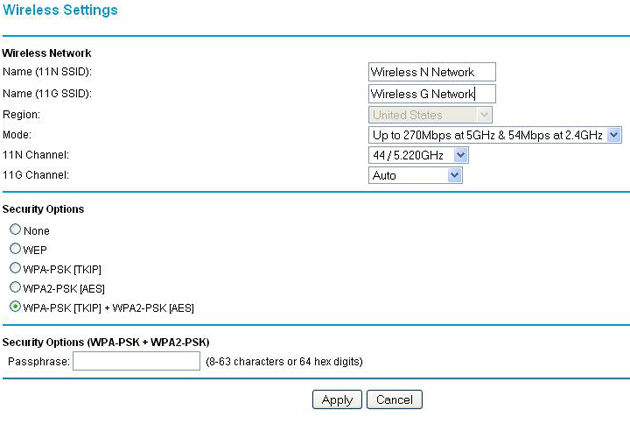
Once you’ve logged in, customizing your network takes just a few clicks.
Update the Network Name (SSID)
- Navigate to Wireless Settings in the admin panel
- Locate the Network Name (SSID) field
- Type your new WiFi name
- Click Apply to save your changes
Your devices will need to reconnect using the new name.
Set a New WiFi Password
- Stay in Wireless Settings and find the Password field
- Enter a strong password with at least 8 characters
- Click Apply
All connected devices will be disconnected and must reconnect with the new password.
Security Tip: Always use WPA2 or WPA3 encryption. Avoid WEP, which is outdated and insecure.
Fix Common Login Problems
Even with the right steps, login issues can occur. Here’s how to resolve the most frequent ones.
Login Page Won’t Load
When routerlogin.net or the IP address fails to open:
• Clear your browser’s cache and cookies
• Confirm you’re connected to the correct WiFi network
• Try a different browser, such as switching from Chrome to Firefox
• Use a wired Ethernet connection for more stability
If the page still won’t load, find your gateway IP using the Windows or Mac steps above.
Forgotten Admin Password
If you customized your credentials and can’t remember them, perform a factory reset:
- Find the Reset button on the back of the router
- Press and hold it for 7 to 10 seconds using a paperclip
- Wait for the router to reboot fully
- Log in using the default credentials (
admin/password)
Warning: A factory reset erases all custom settings, including your WiFi name, password, and port forwarding rules.
Firmware Issues Blocking Login
Outdated firmware can prevent successful login or slow down the admin panel.
Update your firmware through one of these methods:
• Nighthawk App: Go to Settings then Firmware Update
• NETGEAR Website: Visit support.netgear.com, enter your model number, and download the latest firmware
Keeping firmware current improves both security and performance.
Domain Alias Not Working
If routerlogin.net fails to respond:
• Enter the IP address manually (192.168.1.1 or 192.168.0.1)
• Find your gateway IP through Command Prompt or Mac Network settings
Some internet service providers block or redirect these domain addresses.
Secure Your Router After Logging In

Once you’re inside the admin panel, take a few minutes to protect your network from threats.
Change the Default Admin Password
Leaving the default admin / password combo makes your router vulnerable to attack.
- Open Administration or System Settings
- Select Set Password
- Enter a strong, unique password
- Save your changes
Now only you can access the admin panel.
Enable Automatic Firmware Updates
Keep your router protected by turning on auto-updates:
- Go to Advanced then Administration
- Find Firmware Update Settings
- Enable Automatic Updates
Your router will install updates in the background without any action needed.
Create a Guest Network
Let visitors access the internet without sharing your main password.
- Navigate to Guest Network in the admin panel
- Enable Guest Access
- Set a network name and password
- Click Apply
Guest devices stay isolated from your primary network for added security.
Monitor Devices Connected to Your Network
Knowing which devices are on your WiFi helps you spot unauthorized users.
View Your Device List
- Go to Attached Devices or Network Map in the admin panel
- Review all currently connected devices
- Each entry displays:
• Device name
• IP address
• MAC address
• Connection type (2.4GHz or 5GHz)
Pause or Block Specific Devices
If a device is using too much bandwidth or shouldn’t be online:
- Select the device from the list
- Click Pause or Block
- Confirm your action
The device loses internet access immediately.
Parental Control Use: This feature works well for managing children’s screen time.
Explore Key Admin Panel Features
After learning how login to NETGEAR router works, take advantage of these powerful tools.
Run a Speed Test
Check your internet performance directly from the router:
- Go to Advanced then Speed Test
- Click Start Test
- Review upload, download, and ping results
Compare the results with your internet plan’s advertised speeds.
Configure Port Forwarding
Useful for gaming, remote access, or hosting servers:
- Navigate to Advanced then Port Forwarding
- Click Add Service
- Enter the application name, internal IP, and port range
- Save your settings
External traffic can now reach the specified device.
Set Up Parental Controls
Manage online access for specific users:
- Open Parental Controls in the admin panel
- Create a profile for a device or user
- Configure time schedules, content filters, and pause options
- Apply your rules
This feature is ideal for managing children’s internet habits.
Quick Reference for NETGEAR Router Login
| Access Method | URL or Location | Best For |
|---|---|---|
| Web Browser (Domain) | routerlogin.net |
Most users, no IP needed |
| Web Browser (Manual) | 192.168.1.1 |
When domain aliases fail |
| Nighthawk App | App Store or Google Play | Mobile Nighthawk users |
| Orbi Web Login | orbilogin.com |
Orbi mesh systems |
| Orbi App | App Store or Google Play | Orbi satellite management |
| Default Credentials | Value |
|---|---|
| Username | admin |
| Password | password |
| Common IP Addresses | Usage |
|---|---|
192.168.1.1 |
Most NETGEAR models |
192.168.0.1 |
Alternate default |
10.0.0.1 |
Some older models |
Frequently Asked Questions About Logging In to a NETGEAR Router
What is the easiest way to log in to a NETGEAR router?
Connect your device to the router’s network, open any browser, and visit routerlogin.net. Enter the default username admin and password password to access the admin panel.
What are the default NETGEAR router login credentials?
The default username is admin and the default password is password. However, these may vary by model, so always check the label on the back or bottom of your router.
Can I log in to my NETGEAR router without a computer?
Yes. Download the Nighthawk app from the App Store or Google Play. Connect your phone to the router’s WiFi, sign in with your NETGEAR account, and manage your settings from anywhere.
What should I do if the NETGEAR login page won’t load?
Clear your browser’s cache and cookies, confirm you’re on the correct WiFi network, and try entering the IP address directly (such as 192.168.1.1). Switching browsers or using an Ethernet cable can also help.
How do I access my Orbi mesh system instead of a standard NETGEAR router?
Orbi users should visit orbilogin.com in a browser or download the Orbi app. Standard NETGEAR routers use routerlogin.net instead.
What happens if I forget my custom admin password?
Perform a factory reset by holding the Reset button on the back of the router for 7 to 10 seconds. After the router reboots, log in using the default credentials printed on the router’s label.
Final Takeaways for Logging In to Your NETGEAR Router
Mastering how login to NETGEAR router works opens the door to full control over your home network. The most reliable method is connecting your device to the router’s network and visiting routerlogin.net in any browser. From there, the default credentials admin and password will get you into the admin panel on most models.
If the login page fails to load, finding your gateway IP through Command Prompt or Mac Network settings gives you a reliable backup. The Nighthawk app provides an excellent mobile alternative for supported routers, while Orbi users should use orbilogin.com or the Orbi app for mesh management.
Once you’re logged in, change the default password, enable automatic firmware updates, and set up a guest network to keep your system secure. Bookmark this guide so you can return whenever you need to troubleshoot, customize, or monitor your NETGEAR network.



