
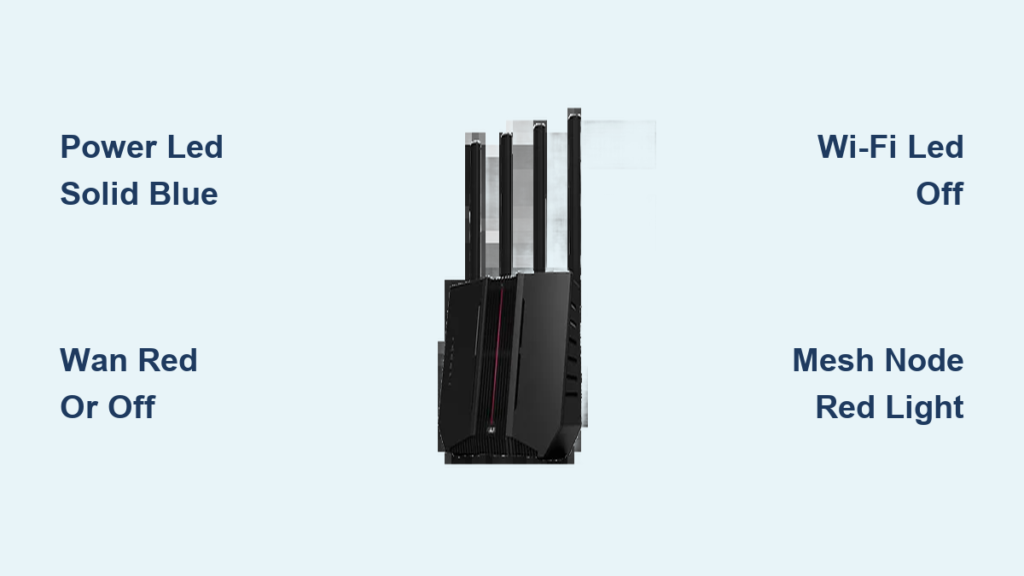
Is your ASUS router flashing red or pulsing green instead of showing a steady blue light? Understanding ASUS router lights meaning is the fastest way to diagnose internet outages, firmware errors, or weak mesh connections without calling technical support. These small LEDs act as a real-time dashboard for your entire home network status.
This guide explains every light color and pattern for standard routers and Go Series mesh systems. You will learn how to distinguish between a simple reboot, a critical firmware update, and a total internet disconnection so you can restore connectivity quickly.
Diagnose Power LED Status and System Health
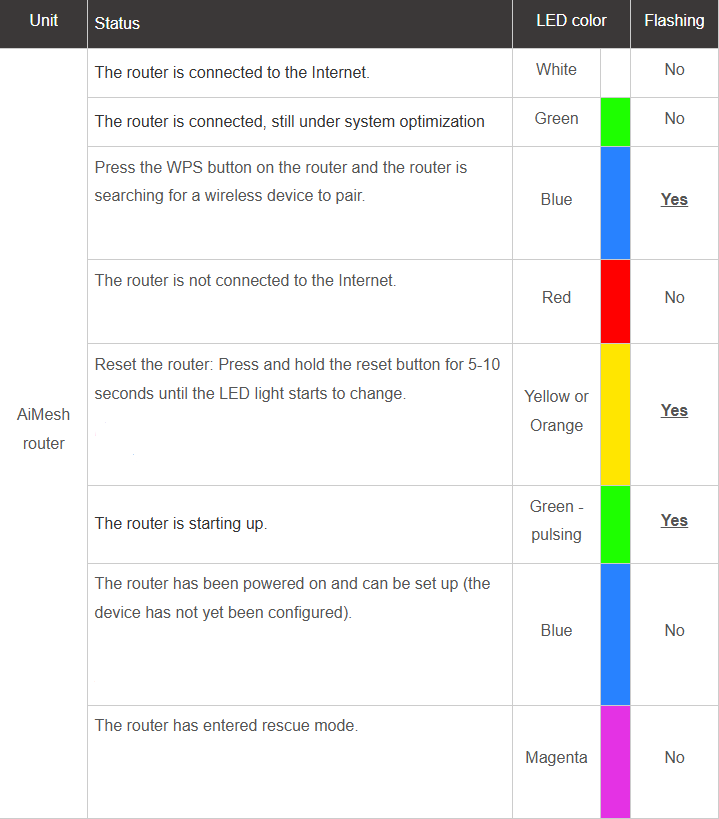
The Power LED provides the first critical clue about whether your router is alive, booting, or stuck in a recovery loop. Interpreting this light correctly prevents you from unplugging the device during sensitive operations.
Solid Blue or White Indicates Normal Operation
A solid blue or white light confirms the router has power and is running normally. During initial setup, a solid blue light specifically means the device is ready for configuration via the app or web interface. This is the ideal state for all other network functions to work correctly.
Green Pulsing Means Startup Is In Progress
When you see a pulsing green light, the system is initializing its firmware and loading settings. This phase typically lasts 30 to 60 seconds after a power cycle. Do not unplug the router during this time as interrupting the boot sequence can corrupt the system files.
Flashing Light Signals Update or Recovery Mode
A flashing Power LED indicates the router is either updating firmware or sitting in rescue mode. The flash pattern may vary by model but usually appears rhythmic. Never cut power to the device while this light is flashing to avoid permanently damaging the hardware.
Solid Magenta Confirms Rescue Mode Entry
If the Power LED turns solid magenta, the router has entered Rescue mode due to a failed update or software corruption. You must manually upload the correct firmware via a wired connection to restore functionality. Using the wrong firmware file here can brick the device permanently.
Yellow or Orange Blinking Shows Reset Activation
A blinking yellow or orange light means someone has pressed the physical reset button. A short press triggers a reboot while holding it for five to ten seconds initiates a factory reset. After release, the router will return to the green pulsing startup phase before stabilizing.
Verify WAN LED for Internet Connection Issues
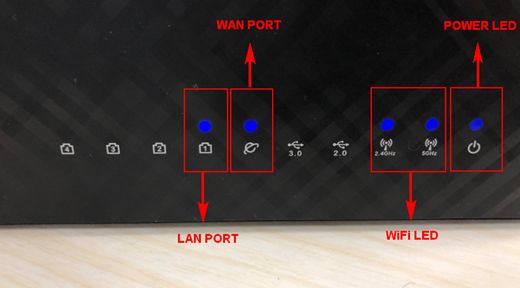
The WAN (Wide Area Network) LED tells you if your router successfully communicates with your modem and Internet Service Provider. This is the primary indicator for determining if an outage is local or external.
Solid White or Blue Confirms Active Internet
A solid white or blue WAN light means your router has authenticated with your ISP and established a stable link. If this light is solid and your devices still cannot browse, the issue likely lies with DNS settings or the specific device rather than the router itself.
Flashing Light Represents Data Transmission
When the WAN LED flashes, data is actively moving between your network and the internet. Heavy downloading or streaming causes rapid flashing. If the light flashes constantly but your internet feels slow, check for background updates or unauthorized devices using your bandwidth.
Red or Off Means No Internet Detected
A solid red light or a completely off WAN LED indicates no internet connection. This often results from a powered-off modem, a loose Ethernet cable, or an ISP outage. Restarting both your modem and router usually resolves temporary handshake errors.
Troubleshoot WAN Disconnection Steps
- Power off both the modem and router completely.
- Wait 30 seconds then power on the modem first.
- Turn on the router after the modem lights stabilize.
- Replace the Ethernet cable between modem and router if the light stays red.
Interpret Wi-Fi Band Lights for 2.4 GHz and 5 GHz
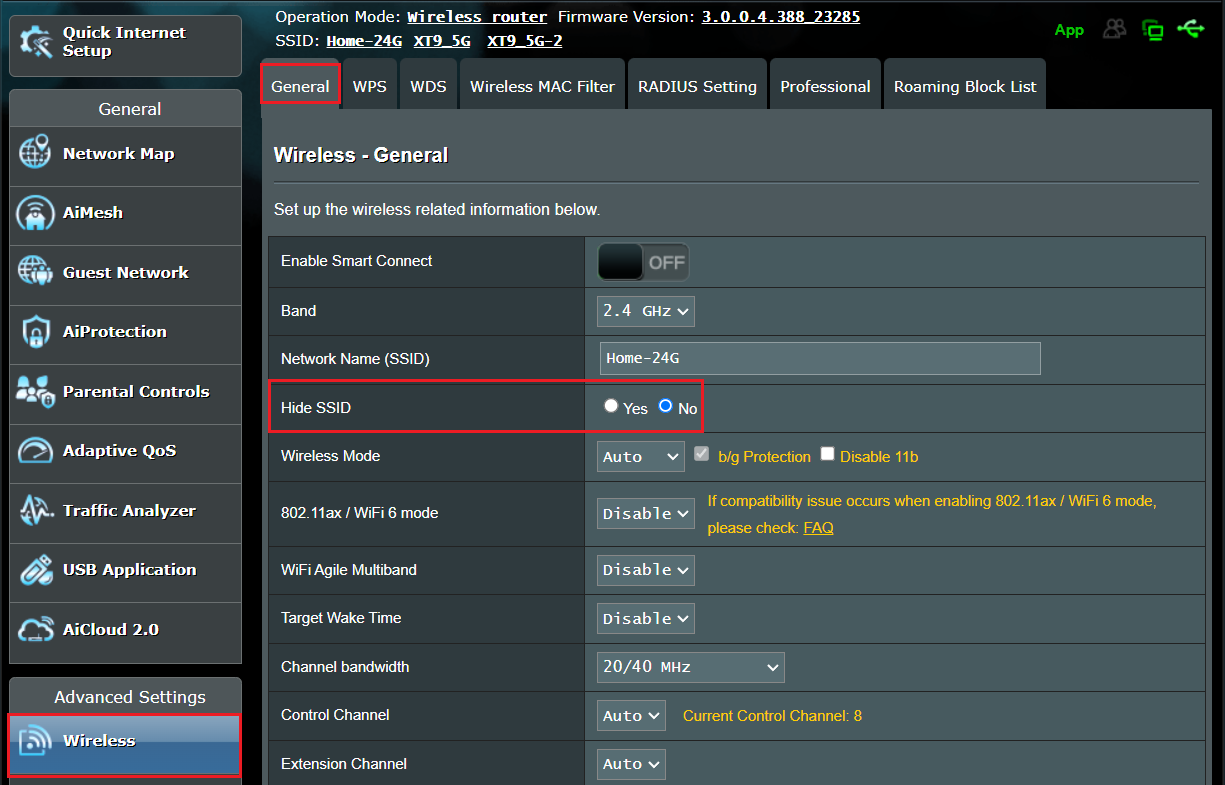
Many ASUS models feature separate LEDs for each wireless frequency band. Monitoring these helps you optimize device placement and ensure both networks are active.
2.4 GHz LED Shows Range Network Status
The 2.4 GHz LED glows solid blue or white when this band is enabled and active. This frequency offers better wall penetration for smart home devices. If the light is off, log into your router settings to enable the 2.4 GHz wireless mode.
5 GHz LED Indicates High-Speed Activity
A solid blue or white light on the 5 GHz indicator means the high-speed network is operational. This band is best for gaming and streaming near the router. Flashing indicates active data transfer like video calls or large file downloads occurring on this frequency.
Disabled Bands Appear as Off Lights
If either band LED is off, that specific wireless network is disabled in the configuration. You can re-enable them by accessing the wireless settings page in your browser. Ensure both bands are active if you have a mix of old and new devices.
Check LAN Port Lights for Wired Devices
The LAN LEDs correspond to the numbered Ethernet ports on the back of your router. These lights help verify physical connections for computers, consoles, and smart TVs.
Solid Light Confirms Physical Link
A solid blue or white light next to a numbered port means a device is connected and the link is active. This confirms the cable is good and the device network adapter is powered on. It does not guarantee internet access but confirms the physical layer is working.
Flashing Light Shows Data Activity
When a LAN LED flashes, data is currently being sent or received through that port. You should see this when streaming video or loading web pages on the connected device. Lack of flashing during heavy use might indicate a driver issue on the connected computer.
Off Light Means No Connection Detected
An off LAN LED indicates no device is connected or the device is asleep. If you plugged in a cable but the light remains off, try a different Ethernet cable or port. A faulty cable is the most common cause for a missing LAN light.
Analyze Mesh Node and Go Series Indicators

ASUS Go Series routers and AiMesh nodes use specific colors to show the quality of the connection between nodes. Understanding these helps you place satellites for maximum coverage.
Solid White Means Strong Backhaul Link
A solid white light on a mesh node indicates an excellent connection to the main router. This can be via a strong wireless signal or a wired Ethernet backhaul. Devices connected to this node will experience full network speeds.
Solid Yellow or Orange Warns of Weak Signal
If the node glows solid yellow or orange, the wireless backhaul is weak. This usually happens when the node is too far from the main router or blocked by thick walls. Move the node closer to improve performance or consider using an Ethernet cable.
Solid Red Indicates Node Disconnection
A solid red light on a node means it is completely disconnected from the main router. The node might broadcast Wi-Fi but cannot reach the internet. Power cycle the node and ensure it is within range of the primary unit to fix this.
Identify Node Setup and Configuration States
During initial mesh setup, nodes display unique patterns to guide you through the pairing process. Recognizing these states prevents confusion during installation.
Blue Solid Means Ready for Pairing
A solid blue light on a new node indicates it is powered and waiting to be added to your network. Open the ASUS Router app to begin the pairing process immediately. The node will not function until this setup completes.
Blue Breathing Shows Connection Attempt
A slow breathing blue light means the node is actively trying to connect to the parent router. This process can take up to two minutes. If it does not turn solid white, move the node closer to the main unit.
Magenta Solid on Node Requires Rescue
Just like the main router, a solid magenta light on a node signals Rescue mode. This requires a manual firmware upload to recover the device. Follow the same rescue procedures used for the primary router unit.
Execute Professional LED Diagnostic Workflow
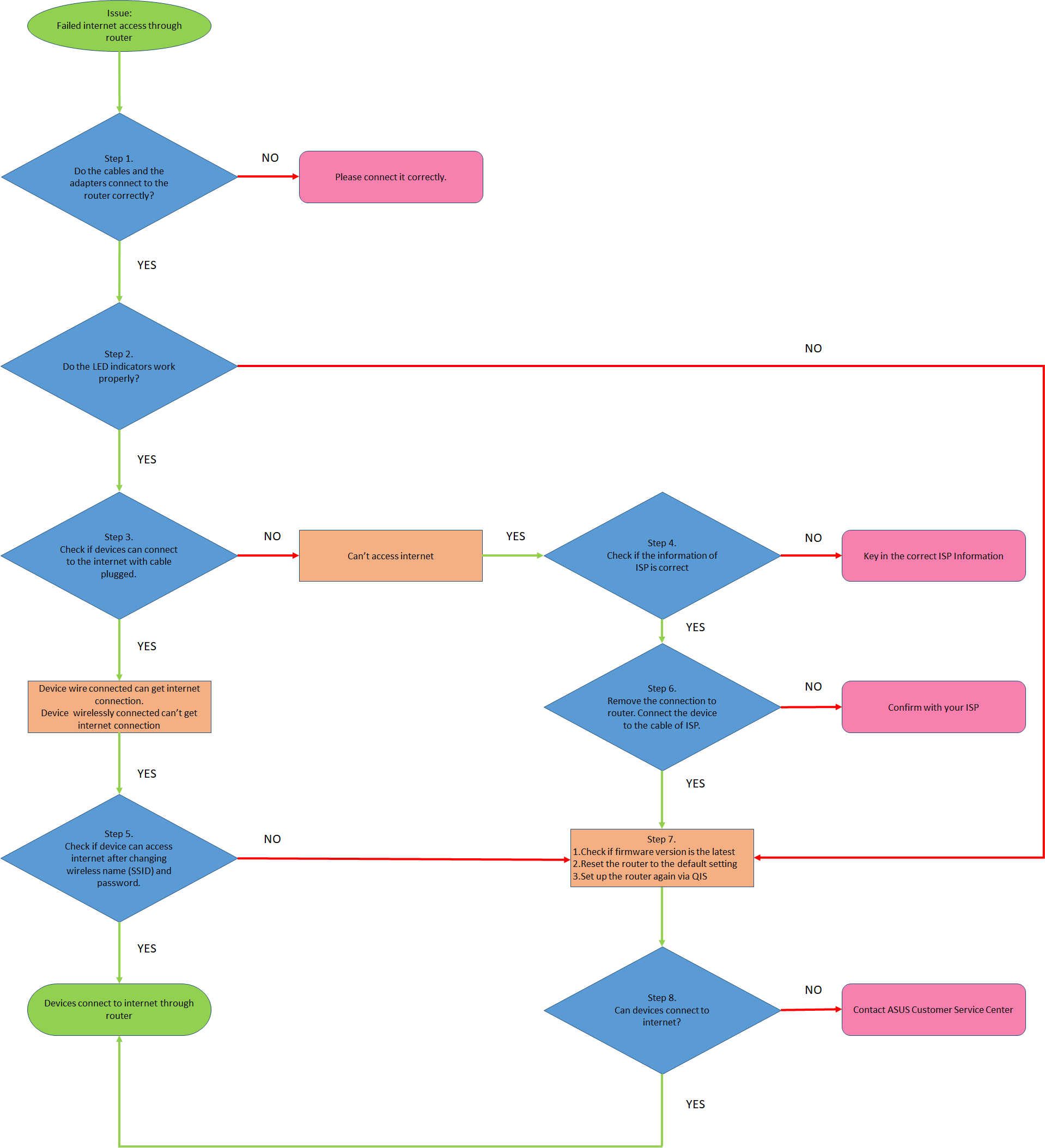
Use this logical flow to troubleshoot network issues efficiently using only the LED indicators.
Step One Check Power Status First
Always start by looking at the Power LED. If it is off check your power outlet. If it is magenta prepare for a firmware recovery. If it is solid blue or white proceed to the next step.
Step Two Verify WAN Connection
Look at the WAN LED next. If it is red or off restart your modem. If it is solid white or blue your internet connection to the ISP is healthy.
Step Three Inspect Local Network Lights
Check the Wi-Fi and LAN LEDs to ensure your devices can connect locally. If Wi-Fi lights are off check your wireless settings. If LAN lights are off check your cables.
Step Four Evaluate Mesh Node Health
If using a mesh system check the node lights last. Ensure they show solid white for best performance. Reposition any nodes showing yellow or red lights.
Prevent LED Errors with Firmware Maintenance
Erratic LED behavior often stems from outdated software or environmental factors. Regular maintenance keeps your diagnostic tools accurate.
Update Firmware to Fix Glitches
Outdated firmware can cause lights to display incorrect colors or flash randomly. Visit the ASUS Download Center to get the latest version for your specific model. Enable automatic updates in your router settings to prevent future bugs.
Account for Environmental Lighting
Ambient light in your room can change how LED colors appear to your eyes. A red light might look orange in bright sunlight. Check the lights in a darker room if you are unsure about the color status.
Final Thoughts on ASUS Router Lights Meaning
Mastering ASUS router lights meaning empowers you to solve most network problems in seconds. Remember that a solid blue or white light generally means everything is working while red or magenta signals a need for action. By following the power first then WAN diagnostic flow you can quickly isolate internet outages or hardware failures.
Keep your firmware updated and position mesh nodes where they show solid white lights for the best performance. Next time your router flashes an unusual pattern you will know exactly what it means and how to fix it.
Frequently Asked Questions About ASUS Router Lights
What does a solid magenta light mean on my ASUS router?
A solid magenta light indicates the router is in Rescue mode due to a failed update or corruption. You must manually upload firmware via a wired connection to restore the device.
Why is my WAN LED flashing red or staying off?
A red or off WAN LED means there is no internet connection. Check that your modem is on and the Ethernet cable between the modem and router is secure.
How do I know if my 5 GHz Wi-Fi is active?
Look for a solid blue or white light labeled 5 GHz. If the light is off the band is disabled in your settings and needs to be enabled via the web interface.
What does a breathing blue light on a mesh node indicate?
A breathing blue light means the node is actively trying to connect to the main router. Wait two minutes or move the node closer if it does not turn solid white.
Can ambient light change the color of router LEDs?
Yes strong room lighting can alter how you perceive LED colors. Verify the status in a darker room if you are unsure whether a light is orange or red.
Is it safe to unplug the router when the light is flashing?
No never unplug the router when the Power LED is flashing. This indicates a firmware update or recovery process and cutting power can permanently damage the device.



