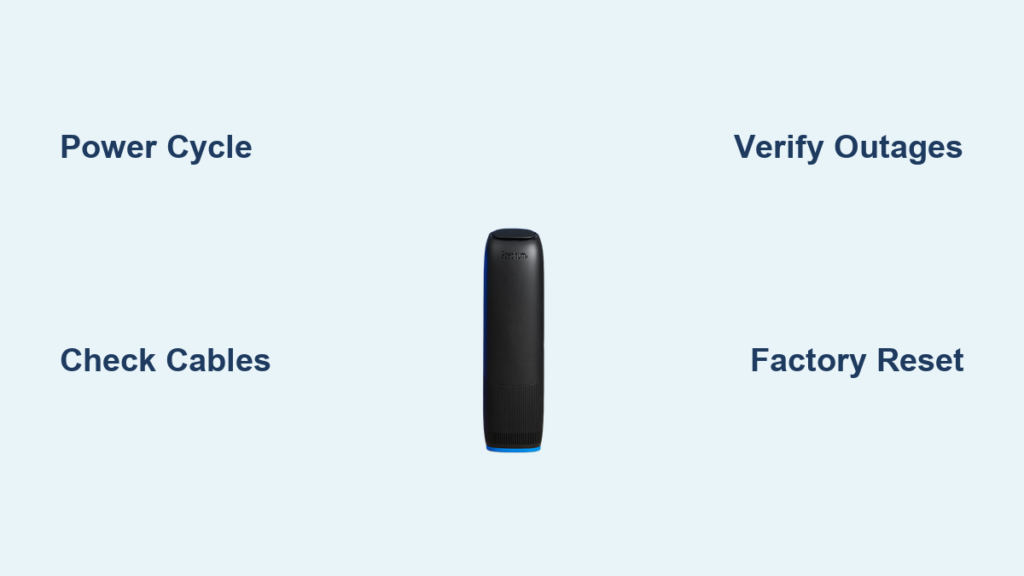
You plug in your device only to see a Spectrum router red light blinking instead of the usual solid white or blue glow. Your internet cuts out immediately, devices disconnect, and frustration builds as you lose access to work or entertainment. This specific light pattern is a common alert signaling connectivity loss or hardware trouble that you can often fix yourself.
This guide explains exactly what the blinking red light means and how to restore your connection quickly. You will learn to interpret light patterns, perform a correct power cycle, check for service outages, and determine if your equipment needs replacement.
Decode the Blinking Red Light Pattern

The blinking red light is a symptom with specific variations rather than a single diagnosis. Different blink frequencies indicate distinct problems ranging from signal loss to internal errors. Your first step must be careful observation of the light behavior before attempting any fixes.
Identify Blink Frequency and Meaning
- One slow blink per second: This usually means the router cannot establish a connection to the Spectrum network.
- Rapid blinking three or more times per second: This often indicates a firmware error or a failed boot process within the device.
- Alternating red and other colors: This could point to a hardware malfunction or a failed self-test during startup.
Write down the specific pattern you see. This detail helps you narrow down whether the issue lies with your equipment, your wiring, or the broader Spectrum service.
Distinguish Between Internet and Power Errors
Do not assume all red lights indicate the same problem. A blinking red light on the Internet or Downstream indicator means there is no connection to the network. If the Power light itself is blinking red, it suggests an internal hardware failure or power supply issue.
Pro Tip: Locate your router model number on the back label. Models like the Arris SBG7600, Motorola MT7711, or Netgear CAX80 have slightly different light codes. Refer to your specific model manual online for exact interpretations.
Execute a Proper Power Cycle
A correct reboot fixes many temporary glitches causing the Spectrum router red light blinking. Most people restart their devices incorrectly, which fails to clear the error memory. Follow this precise sequence to ensure a full reset.
Follow the Correct Power Cycle Order
- Unplug the router power cable from the wall outlet or power strip.
- Wait at least 30 seconds to clear residual power and reset internal memory.
- Plug the router back in and wait up to five minutes for a full reboot.
- Watch the lights as they cycle through white or blue before stabilizing.
If the red light returns after the full boot sequence, the problem is likely not resolved by a simple restart.
Common Mistake: Plugging the router back in too quickly. Waiting less than 10 seconds often skips the reset process, leaving the error intact.
Include Modem in the Restart Sequence
If your setup uses a separate modem and router, you must restart both in a specific order.
1. Power off both devices completely.
2. Unplug the modem first, then unplug the router.
3. Wait 60 seconds for all capacitors to discharge.
4. Plug in the modem and wait until all lights stabilize.
5. Power on the router only after the modem is fully online.
This sequence ensures the modem locks onto the Spectrum signal before the router attempts to connect.
Verify Service Outages Before Troubleshooting
Before diving into complex hardware fixes, confirm the problem is not on the Spectrum end. A Spectrum router red light blinking often results from area-wide maintenance or node failures.
Use the Spectrum Outage Tool
Visit the Spectrum support website and log in to your account. The system will automatically detect your service address and display any known outages.
Alternatively, you can call Spectrum Support directly. Ask specifically if there is an outage at your location and provide your account details for verification.
Note: Even if national outage maps show “all clear,” localized issues like node failures or construction damage may affect only your specific street.
Test Connection with Mobile Hotspot
To verify the issue is not with your personal devices, turn on a mobile hotspot on your phone. Connect a laptop or tablet to this hotspot. If the internet works perfectly on the hotspot, the issue is definitely your router or the Spectrum connection.
Inspect Cables and Physical Connections
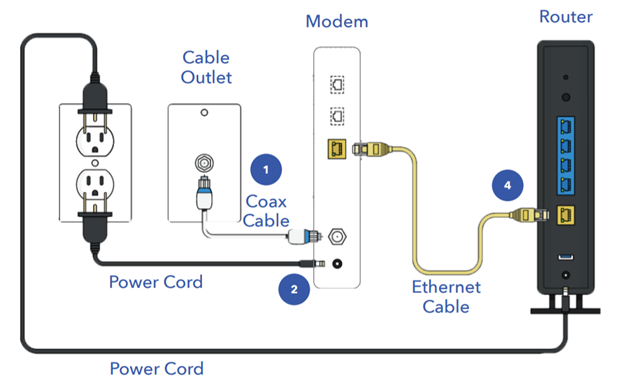
Loose or damaged cables are a top cause of connection loss and blinking red lights. Physical inspection often reveals issues that software fixes cannot address.
Check Coaxial Cable Integrity
The coax cable runs from the wall outlet to your router or modem. Ensure it is screwed in tightly by hand without over-torquing. Look for bends, kinks, or crushed sections along the cable length. Check for corrosion on the connector, especially in humid areas.
Visual Cue: A loose coax cable often causes the downstream light to flash red or fail to light up at all.
Examine Ethernet and Power Cables
- Make sure the power adapter is firmly seated in the port.
- Try a different power outlet and avoid using surge protectors during testing.
- Inspect Ethernet cables for frays and swap them if needed.
Remove Problematic Signal Splitters
If your coax line passes through a splitter, it may be degrading your signal. Remove all unnecessary splitters from the line. Bypass the splitter temporarily by connecting the main line directly to the router. Old or low-quality splitters often degrade signal strength below usable levels.
Expert Note: Signal levels below -7 dBmV or above +8 dBmV can cause connectivity loss. Only technicians can measure this accurately, but persistent issues after basic fixes may require a signal check.
Perform a Factory Reset on the Router
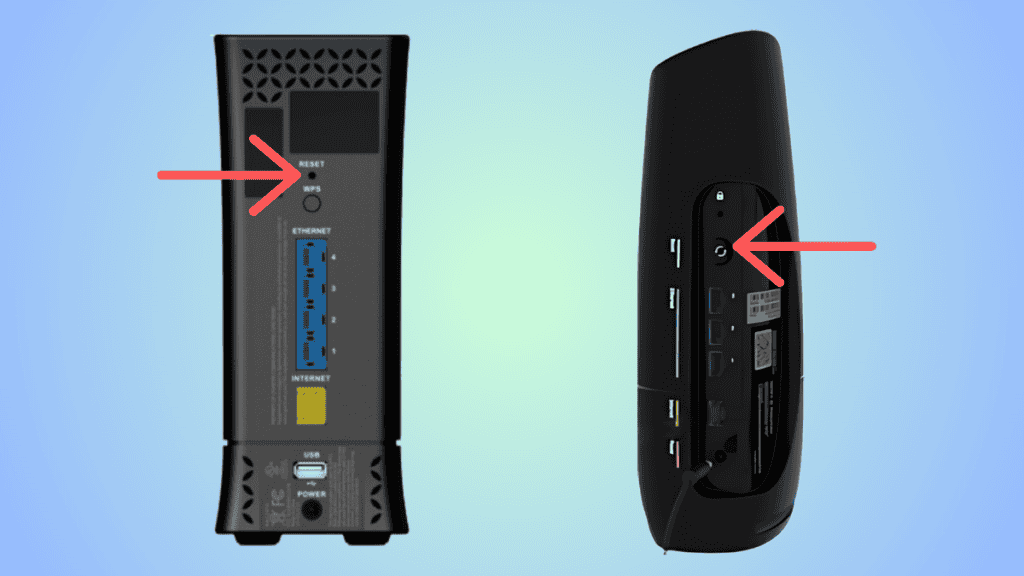
When all else fails, a factory reset clears configuration errors, corrupted settings, or failed updates. This step should be a last resort before contacting support.
Determine When to Reset
Only perform a reset if the red light persists after a reboot. Ensure no outages are reported and all cables are secure. Resetting erases custom settings like your Wi-Fi name and password.
Execute the Factory Reset Steps
- Locate the reset button, usually a small hole on the back or bottom.
- With the router powered on, press and hold the button for 10 to 15 seconds using a paperclip.
- Release the button when the lights flash or change pattern.
- Wait 5 to 7 minutes for the router to reconfigure itself.
After the reset, you may need to re-register the device via the Spectrum setup website.
Warning: Do not interrupt the reboot process. Doing so may permanently damage the router software.
Update or Reinstall Router Firmware
A blinking red light can result from a failed firmware update or corrupted software files. Spectrum routers usually auto-update, but power loss can interrupt this process.
Force Firmware Reinstallation
To force a reinstall, unplug the router and wait one minute. Plug it back in and do not touch it for 10 minutes. The router may retry the update during the boot sequence. If the red light blinks during this time, wait it out as some models take longer to recover.
Consider Manual Update Options
Most Spectrum routers do not allow manual firmware uploads. Visit the manufacturer’s site only if advised by Spectrum support. Using the wrong firmware file can permanently disable the device.
Determine If Hardware Failure Is the Cause

If every fix fails and the Spectrum router red light blinking continues, the router hardware may be defective.
Recognize Signs of Hardware Failure
- Red light blinks even after factory reset and reconnection.
- Router gets unusually hot to the touch.
- Frequent disconnections occur over time, not just in one incident.
- No lights turn on except the red indicator.
Pro Tip: If you are renting the router from Spectrum, replacement is usually free of charge.
Replace or Upgrade Your Equipment
If you rent from Spectrum, call support or go online to request a replacement unit. They will ship a new router or schedule a technician visit. If you use your own router, ensure it is on the Spectrum approved list. Popular replacements include the Motorola MB8600 and Arris SURFboard models. Upgrading can improve speed and reliability, especially if your current router is over three years old.
Prevent Future Red Light Issues
Once your internet is back, take steps to avoid recurrence of the Spectrum router red light blinking.
Schedule Regular Maintenance Reboots
Set a monthly reminder to power off the router, wait 30 seconds, and power it back on. This clears memory and refreshes connections to prevent software glitches.
Use Quality Surge Protection
Power surges can damage internal components. Use a quality surge protector rather than a basic power strip to safeguard your equipment.
Monitor Signal Levels Regularly
Log into your router admin page to view downstream and upstream power levels. Ideal downstream levels are between -7 and +7 dBmV. High error counts or out-of-range signals suggest a line issue needing technician attention.
Frequently Asked Questions About Spectrum Router Red Light
Why is my Spectrum router light blinking red?
A blinking red light typically means the router cannot connect to the internet. This could be due to a service outage, loose coaxial cables, or a firmware error preventing proper booting.
How long should I wait to reset my Spectrum router?
You should wait at least 30 seconds after unplugging the router before plugging it back in. This ensures residual power drains and the internal memory resets completely.
Does a red light always mean my router is broken?
No, a red light often indicates a temporary connection issue or outage rather than broken hardware. Try rebooting and checking cables before assuming the device is defective.
Can I fix the red light without calling Spectrum support?
Yes, you can often fix it by power cycling the modem and router, checking cable connections, and verifying there are no local outages via the Spectrum app.
What does a solid red light mean versus blinking?
A solid red light often indicates a specific hardware failure or authentication error, while blinking usually suggests an active attempt to connect or a firmware issue.
Will resetting my router erase my Wi-Fi password?
Yes, a factory reset erases all custom settings including your Wi-Fi name and password. You will need to reconfigure these settings after the reset completes.
Key Takeaways for Fixing Spectrum Router Red Light Blinking

A Spectrum router red light blinking is a clear warning sign, but it is rarely a permanent failure. Most issues resolve with a proper power cycle, careful cable inspection, or a factory reset. Start with simple steps like checking for outages before moving to complex troubleshooting.
If the light persists after all troubleshooting, your hardware may be defective or your signal levels may require professional adjustment. Contact Spectrum support to request a replacement unit or schedule a technician visit if DIY methods fail.