
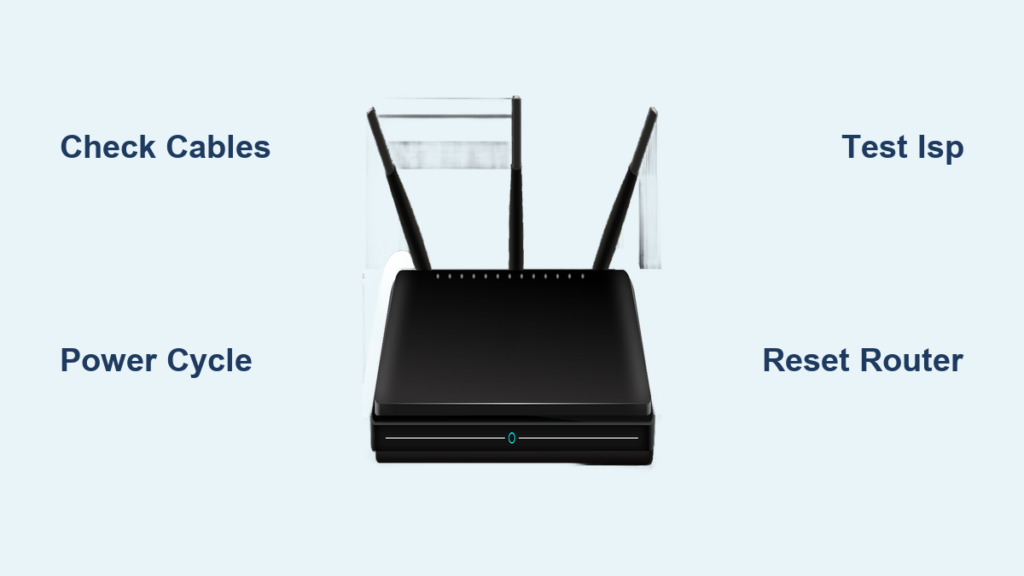
Your internet cuts out right when you need it most, and a glaring red light on your router confirms your fears. This common issue usually signals a lost connection or hardware glitch that stops your entire network.
You can often solve this problem quickly by checking cables, restarting devices, or updating settings without calling a technician. This guide shows you exactly how to fix red light on router issues using proven troubleshooting steps.
Decode Router Light Patterns to Identify the Problem

Not every red light indicates the same failure, so observing the specific behavior helps you target the right solution. The difference between a steady glow and a rapid blink tells you whether the device is completely offline or struggling to sync.
What Does a Solid Red Light Mean?
A solid red light typically means your router has power but cannot establish an internet connection with your provider. This state often occurs when the WAN port cable is loose or the ISP service is completely down. You might also see this if a firmware update failed halfway through the process.
Why Is My Router Blinking Red?
A blinking red light suggests the router is actively trying but failing to authenticate with the network. This pattern often appears after a service outage or when the provider blocks the device MAC address. Wait a few minutes to see if the connection stabilizes before moving to complex fixes.
What Do Multiple Red Lights Indicate?
If the power LED turns red alongside the internet light, the router may be overheating or suffering internal damage. Check if the device feels hot to the touch or if you smell burning plastic near the vents. Unplug the unit immediately if you suspect physical damage to prevent safety hazards.
Power Cycle Your Router and Modem Correctly
Restarting your equipment clears temporary memory errors and forces a fresh handshake with the internet service provider. This simple step resolves more than half of all connection failures caused by software glitches.
How to Perform a Full Power Cycle
Unplug both your router and modem from the electrical outlet to begin the reset process. Wait at least 30 seconds to allow all internal capacitors to discharge fully before plugging them back in. Connect the modem first and wait for its lights to stabilize, then turn on the router.
How Long Should You Wait for Reboot?
Give your devices three to five minutes to complete their full startup sequence after reconnecting power. The lights will often flash amber or white as they initialize before attempting to grab an internet signal. If the red light returns after this window, a simple reboot did not solve the issue.
Common Restart Mistakes to Avoid
Do not plug the devices back in too quickly, as this prevents the memory from clearing effectively. Avoid using power strips with aggressive surge protection that might interfere with the reset signal during startup. Try the power cycle two or three times if the first attempt does not restore your connection.
Inspect Cables and Physical Connections
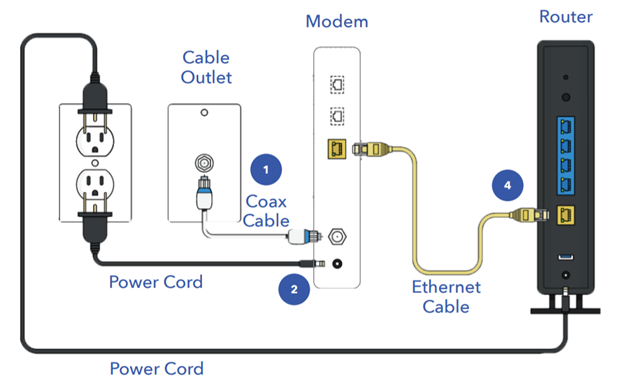
Loose or damaged wiring is a leading cause of connection loss, making physical inspection a critical troubleshooting step. A quick check of your cables can save you from unnecessary technical support calls or equipment replacements.
Check Ethernet and Coax Cable Seating
Ensure the coax cable connecting to the wall is tight at both the outlet and the modem input. Verify that the Ethernet cable from your modem is plugged firmly into the WAN or Internet port on your router. Reseat these connections by unplugging and reconnecting them to ensure a solid contact.
Identify Signs of Cable Damage
Look for frayed wires, bent connectors, or chew marks that pets might have left on exposed cables. Replace any damaged Ethernet cables with Cat 6 or higher quality versions to ensure stable data transmission. Remove any splitters temporarily to test if a direct connection restores the signal.
Test Alternate Ports and Outlets
Try plugging your router into a different wall outlet to rule out electrical issues with the original socket. If your provider offers a test socket, connect directly to it to bypass internal home wiring problems. This helps isolate whether the fault lies within your home infrastructure or the external line.
Test Your Internet Service Status
The red light might not indicate a router failure but rather an issue with your internet service provider. Verifying the status of your account and local network can save you time spent troubleshooting working hardware.
How to Check for ISP Outages
Visit your internet provider’s official website or mobile app to view reported outages in your specific area. Search social media platforms for hashtags like #ComcastDown or #SpectrumOutage to see real-time user reports. These sources often confirm if a widespread issue is causing your red light problem.
Bypass Router to Test Modem Directly
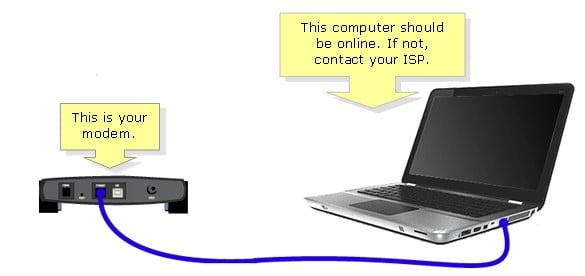
Connect your computer directly to the modem using an Ethernet cable to see if you get internet access. If the direct connection works, the issue lies with your router configuration rather than the service itself. If you still have no internet, the problem is likely with the modem or the provider.
Verify Account and Billing Standing
Log into your customer portal to ensure your service has not been suspended due to unpaid bills or expired trials. Some providers cut access automatically when payment deadlines pass, resulting in a red light on your device. Confirm your account is active and that you have not exceeded any data caps.
Reset Router to Factory Default Settings
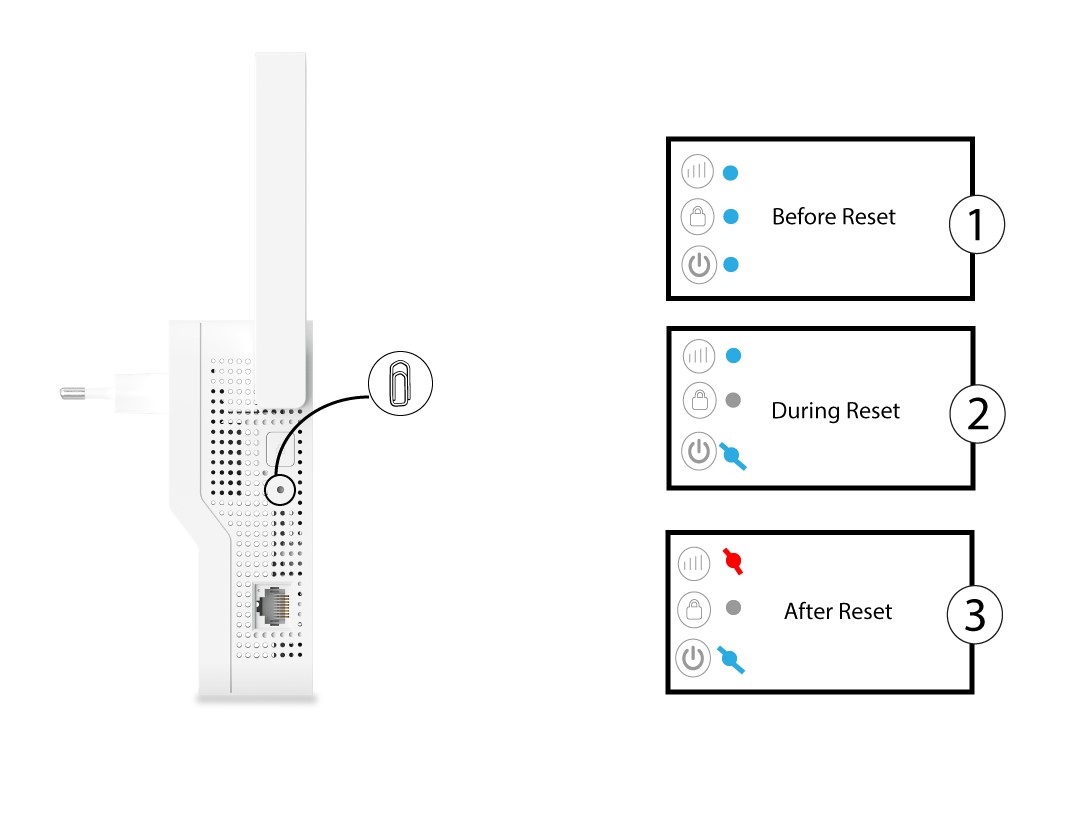
When configuration errors block your connection, restoring factory settings can clear the corruption causing the red light. Use this method only after other steps fail, as it erases all your custom Wi-Fi names and passwords.
Steps to Hard Reset Your Device
Locate the small reset button, usually found in a pinhole on the back or bottom of the router. Press and hold this button for 10 to 15 seconds while the device is powered on until the lights flash. Release the button and wait for the router to reboot with its original factory settings.
Reconfigure Network After Reset
Connect to the default Wi-Fi network listed on the router label to access the administration panel. Open a web browser and enter the default IP address to run the setup wizard again. You may need to re-enter your ISP username and password if your connection type requires authentication.
When Should You Avoid Resetting?
Do not reset your router if your ISP locks devices to your account via MAC address filtering. Some providers require you to call and register the device again after a factory reset, adding unnecessary steps. If the red light persists after a reset, the issue is likely hardware-related or external.
Update or Reinstall Router Firmware
Outdated or corrupted software inside your router can prevent it from connecting to the internet properly. Updating the firmware ensures your device has the latest security patches and connection protocols.
Access the Router Administration Panel
Connect to your router via Wi-Fi or Ethernet and open a browser to enter the gateway IP address. Log in using your admin credentials, which are often found on the device label if you never changed them. Navigate to the administration or advanced settings section to find firmware options.
Check Current Firmware Version
Compare your installed version number with the latest release listed on the manufacturer’s support website. If your version is older, download the correct file specifically designed for your router model. Using the wrong file can damage the device, so double-check the model number.
Flash New Firmware Safely
Upload the firmware file through the admin interface and do not interrupt the power during this process. The update can take five to ten minutes, and turning off the router mid-update can brick the device permanently. Once the router reboots, check if the red light has disappeared.
Contact Your Internet Provider for Support
If all troubleshooting steps fail, the issue likely requires professional intervention from your internet service provider. Their technicians can run remote diagnostics and identify line problems you cannot see from home.
What to Tell Support Technicians
Explain that your router shows a red light and list the steps you have already taken to fix it. Mention that you have restarted devices, checked cables, and tested direct connections to rule out simple errors. This information helps them skip basic troubleshooting and focus on line signals or account issues.
Request Remote Signal Diagnostics
Ask the representative to check your signal levels, noise ratio, and connection logs remotely. They can often detect if the line to your home is degraded or if there is a node issue in your neighborhood. If levels are out of range, they may need to dispatch a technician to your location.
Evaluate Equipment Replacement Options
Inquire if your current router or modem is eligible for a free replacement due to age or failure. Many providers lease equipment and will ship a new unit if your current device is defective. Replacing old hardware often resolves persistent red light issues caused by failing components.
Prevent Future Red Light Issues
Adopting simple maintenance habits can reduce the frequency of connection drops and red light errors. Regular care ensures your network remains stable and responsive for work and entertainment.
Schedule Monthly Device Reboots
Set a reminder to restart your router once a month to clear memory leaks and refresh connections. You can use a smart plug to automate this process during off-peak hours like early morning. This practice keeps the device running smoothly and prevents minor glitches from becoming major outages.
Use Quality Surge Protectors
Protect your networking gear from electrical spikes by plugging them into a high-quality surge protector. Basic power strips do not offer the same level of protection against voltage fluctuations that damage electronics. This small investment can extend the lifespan of your router and modem significantly.
Keep Firmware Updated Regularly
Check for firmware updates every few months or enable automatic updates if your router supports them. Manufacturers release updates to fix bugs and improve compatibility with ISP networks. Staying current ensures your device operates with the latest stability improvements.
Frequently Asked Questions About Router Red Lights
Will resetting my router delete my internet password?
Yes, a factory reset erases all custom settings, including your Wi-Fi name and password. You will need to reconfigure your network using the default credentials found on the router label.
How long does it take for a red light to turn green?
After a successful restart, the light usually turns green within three to five minutes. If it remains red after ten minutes, the connection issue is likely still present.
Can bad weather cause a red light on my router?
Yes, heavy rain, storms, or high winds can damage external lines or cause local outages. These environmental factors often result in a red light until the provider repairs the infrastructure.
Does a red light always mean my router is broken?
No, a red light often indicates a temporary service outage or a loose cable rather than broken hardware. Most red light issues are resolved by restarting the device or checking connections.
What if the red light stays on after I reset everything?
If the light persists after resetting and checking cables, the problem is likely with your ISP or the modem itself. Contact your provider to run line tests or request a replacement unit.
Key Takeaways for Fixing Your Router Red Light
A red light on your router is usually a temporary glitch caused by loose cables, service outages, or minor software errors. By systematically checking connections, power cycling your equipment, and verifying your account status, you can often restore internet access within minutes.
Start with the simplest solutions like restarting your modem and router before attempting complex resets or firmware updates. If these steps do not resolve the issue, your internet provider can run remote diagnostics to identify line problems or equipment failures. Taking these proactive steps ensures you spend less time disconnected and more time enjoying reliable internet.



