
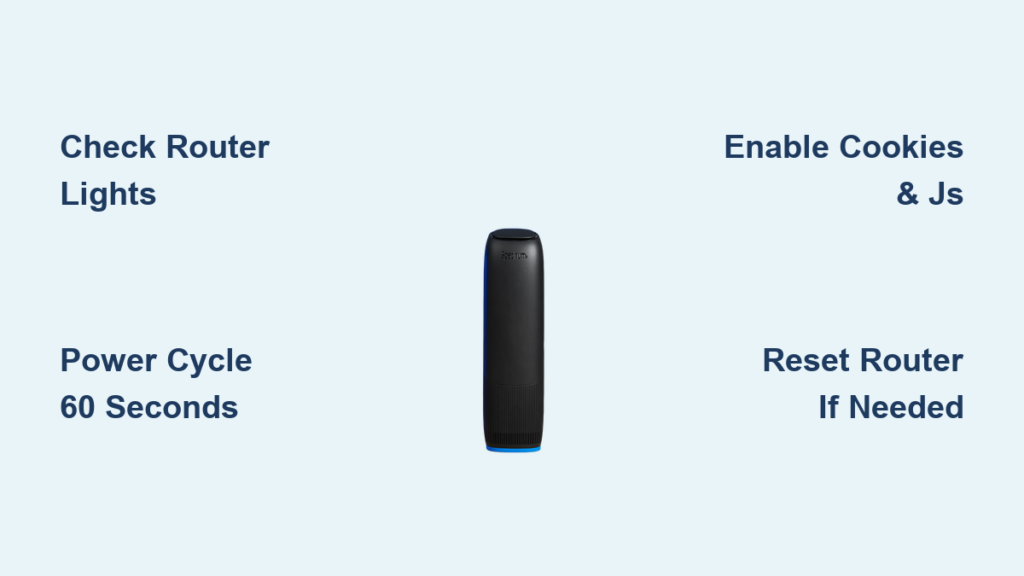
Is your internet suddenly down or your Wi-Fi acting up? You are not alone in facing these frustrating Spectrum router troubleshooting moments. From red lights to login errors, most connection hiccups have simple solutions you can apply right now.
This guide walks you through every step to restore your service quickly. You will learn how to interpret status lights, fix browser blocks at Spectrum.net, and reboot your gear correctly to get back online.
Decode Spectrum Router Light Status Indicators
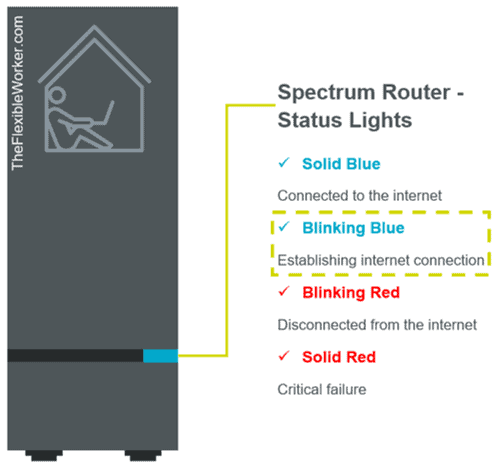
Your router uses colored lights to tell you exactly what is wrong with your connection. Ignoring these visual cues often leads to wasted time on unnecessary fixes. Understanding them is the first step in effective Spectrum router troubleshooting.
Identify Critical Color and Blink Patterns
Router lights change color or blink speed to signal specific states. Here is what you need to look for:
- Power light: Solid white or blue means normal operation. If it is off or blinking, you have a power supply issue.
- Internet light: Solid blue indicates a good connection. A red light or no light means the router cannot reach the Spectrum network.
- Wi-Fi light: Solid blue shows Wi-Fi is active. Blinking means data is transferring. No light means the wireless radio is disabled.
- Send/Receive lights: These should blink during use. Constant red suggests a signal failure from the street.
If your internet light is red, the problem lies between your home and the local network node. If every light is dark, check your power source immediately.
Resolve Complete Power Failure Scenarios
When all lights are off, your router is not receiving electricity. Follow these steps to restore power:
- Check that the power cord is firmly seated in both the router and the wall outlet.
- Test the wall outlet with another device like a lamp to ensure it works.
- Press the physical power button on the back if your model includes one.
- Unplug the unit for 30 seconds and plug it back in to force a hardware reset.
Pro Tip: Avoid plugging your router into old power strips. Direct wall outlets often provide more stable voltage for networking gear.
Execute a Proper Power Cycle Sequence
Many users restart their routers too quickly, which fails to clear deep memory errors. A proper power cycle is the most effective fix in any Spectrum router troubleshooting toolkit.
Perform the 60-Second Reboot Method
Even if you have a single modem-router combo, you must follow this timing strictly:
- Unplug the power cable from the back of your device.
- Wait a full 60 seconds while the device is unplugged.
- Plug the power cable back into the outlet.
- Wait 2 to 3 minutes for the lights to stop flashing and stabilize.
Waiting the full minute allows capacitors to discharge and clears cached error logs. Skipping this wait time often results in the same error returning immediately.
Distinguish Between Restart and Reset Buttons
Do not press the tiny reset button unless absolutely necessary. It is vital to know the difference:
- Restart: Unplugging the power. This is safe and keeps your settings.
- Reset: Holding the reset button for 10+ seconds. This erases all custom names and passwords.
Only use the reset button if you cannot access the admin page or have forgotten your login credentials. After a reset, you must reconfigure your entire network from scratch.
Resolve Spectrum.net Browser Access Errors
If you cannot reach the login page at Spectrum.net, your browser settings are likely blocking the site. This is a common hurdle in Spectrum router troubleshooting that has nothing to do with your hardware.
Enable Required Cookies and JavaScript
The Spectrum portal requires specific settings to function. If these are disabled, the site will show error messages or fail to load entirely.
How to enable cookies:
* Chrome: Go to Settings > Privacy and Security > Site Settings > Cookies > Allow.
* Firefox: Select Options > Privacy & Security > Cookies and Site Data > Enable.
* Safari: Choose Preferences > Privacy > Uncheck “Block all cookies.”
How to enable JavaScript:
* Chrome: Navigate to Settings > Privacy and Security > Site Settings > JavaScript > Allow.
* Firefox: Click Options > Privacy & Security > Permissions > Enable JavaScript.
* Safari: Go to Preferences > Security > Enable JavaScript.
Once enabled, close your browser completely and reopen it before visiting the site again.
Clear Cache and Switch Browser Versions
Old data stored in your browser can conflict with current login scripts. Try these steps if enabling settings does not work:
- Clear your browsing history, cache, and cookies from the browser settings menu.
- Attempt to log in using a different browser entirely, such as switching from Chrome to Edge.
- Temporarily disable ad blockers or privacy extensions that might block scripts.
Note: Outdated browsers may lack the security features Spectrum requires. Ensure your browser is updated to the latest version.
Access the Router Admin Interface Directly

To change network names or update firmware, you must bypass the web portal and access the local admin page. This step is crucial for advanced Spectrum router troubleshooting.
Dial the Correct Local IP Address
Most Spectrum routers respond to specific local addresses. You must be connected to the Wi-Fi or via Ethernet to proceed.
- Open your web browser address bar.
- Type
192.168.0.1or10.0.0.1and press Enter. - If the page does not load, try adding
http://before the numbers.
Ensure you type the numbers exactly. A common mistake is using the letter “o” instead of the number zero.
Input Default Login Credentials
You will need a username and password to enter the system. Spectrum devices often use standard defaults unless changed.
- Username: admin
- Password: admin or password
Check the sticker on the bottom or back of your router for model-specific credentials. If you previously changed these and forgot them, you must perform a factory reset to regain access.
Diagnose Wi-Fi Connectivity Failures
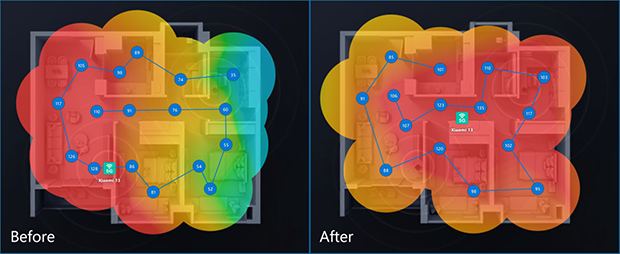
Sometimes the internet works, but your devices cannot connect to the wireless signal. This requires a different approach to Spectrum router troubleshooting focused on local transmission.
Fix Devices That Won’t Connect
If a specific phone or laptop refuses to join the network, try these actions:
- Verify the Wi-Fi light on the router is solid blue.
- Restart the problematic device completely.
- Forget the network in your device settings and re-enter the password.
- Log into the admin page to ensure “Hide SSID” is turned off.
Forgetting the network removes old configuration files that might be corrupted. This forces the device to create a fresh connection handshake.
Improve Slow Speeds on Connected Devices
If you are connected but speeds are sluggish, environmental factors are likely the cause.
- Distance: Move closer to the router. Walls and metal objects block signals.
- Interference: Microwaves and baby monitors can disrupt Wi-Fi frequencies.
- Congestion: Too many devices streaming at once can saturate the bandwidth.
Test Tip: Connect a computer directly via Ethernet cable. If speeds are fast on cable but slow on Wi-Fi, your wireless signal is the bottleneck.
Update Router Firmware for Stability
Manufacturers release firmware updates to fix bugs and security holes. Running old software is a frequent cause of recurring connection drops.
Check for Automatic or Manual Updates
Most modern Spectrum routers update themselves, but you should verify this status.
- Log into the router admin page using the IP address.
- Find the section labeled Administration, Firmware, or Router Update.
- Click Check for Updates to see if a newer version exists.
If an update is available, click install and do not touch the router until it finishes. Powering off during an update can permanently damage the device.
Perform Manual Firmware Installation
If your router supports manual updates, you can download the file yourself:
- Visit the manufacturer’s support site (e.g., Arris, Technicolor).
- Enter your model number found on the router label.
- Download the latest firmware file for your specific hardware version.
- Upload this file via the admin page firmware section.
Always double-check that the file matches your exact model number to avoid system corruption.
Secure Your Home Network Configuration
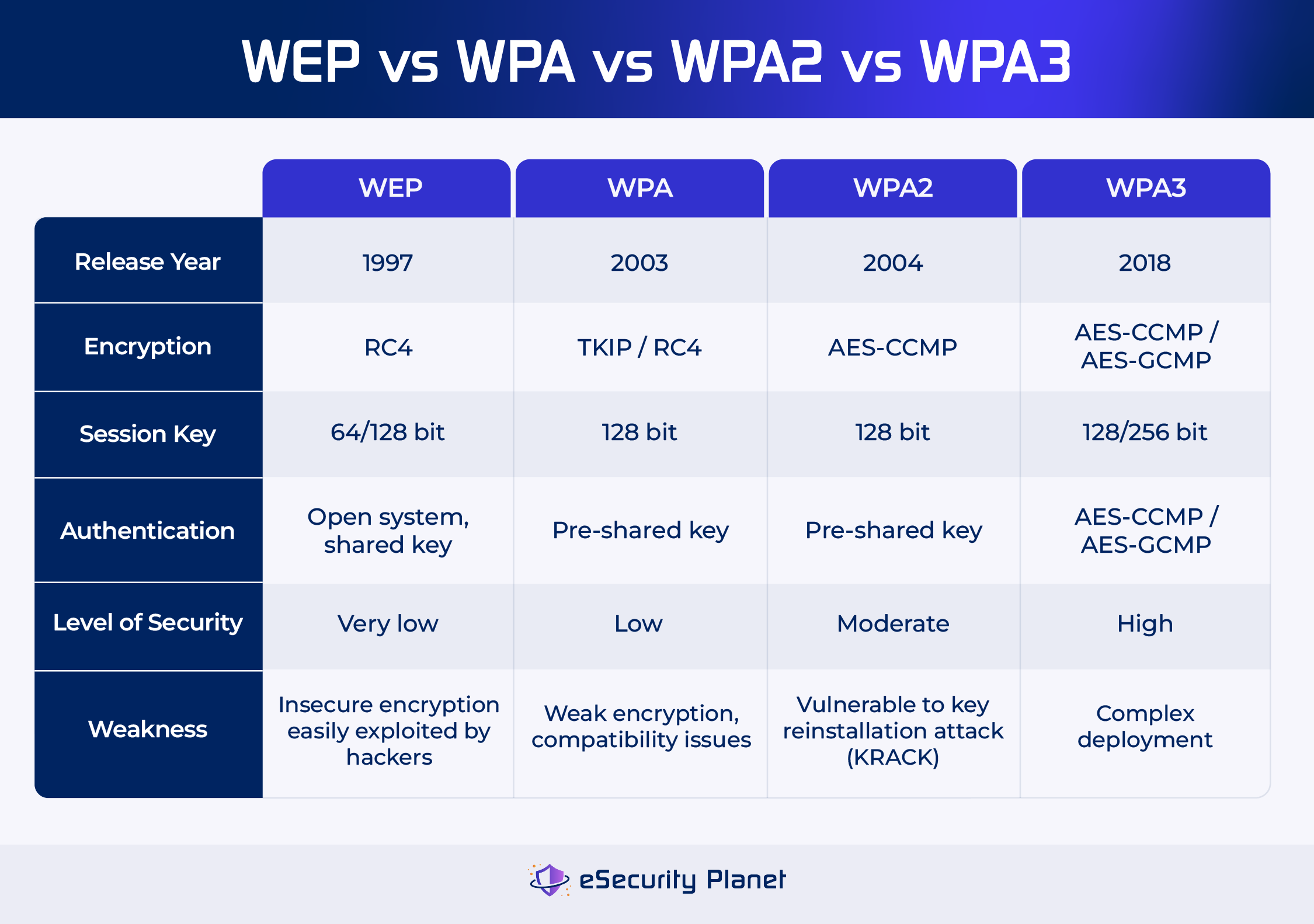
An open or poorly configured network invites neighbors to steal bandwidth, slowing down your connection. Security is a key part of long-term Spectrum router troubleshooting.
Change Default Wi-Fi Passwords
Default passwords are public knowledge and offer no real protection. Change yours immediately:
- Navigate to Wireless > Security Settings in the admin page.
- Select WPA2-PSK or WPA3 as the security mode.
- Create a new password with at least 12 characters including symbols.
- Save changes and reconnect your devices with the new code.
A strong password prevents unauthorized users from leeching your data allowance.
Rename Your Network SSID
Default network names like “NETGEAR123” reveal your router model to hackers.
- Choose a unique name that does not identify your address or name.
- Avoid offensive terms that might confuse guests.
- Reconnect all devices after renaming the network.
Changing the SSID helps you distinguish your network from neighbors in crowded apartment complexes.
Contact Spectrum Support Channels
When all self-help steps fail, professional assistance becomes necessary. Knowing when to call saves you hours of frustration.
When to Call Technical Support
Dial (833) 267-6094 if you experience the following:
- The internet light remains red after multiple reboots.
- You cannot access the admin page despite correct browser settings.
- You suspect a widespread outage in your neighborhood.
- Firmware updates fail repeatedly.
Have your account number and service address ready before calling to speed up the process.
Use the Spectrum App for Outage Detection
Before calling, check for known outages using digital tools.
- Download the Spectrum Mobile App on your phone.
- Log in with your account credentials.
- Tap Services then Internet and select Check for Outages.
The app provides real-time status updates and estimated repair times if a node is down in your area.
Frequently Asked Questions About Spectrum Router Troubleshooting
Why is my Spectrum internet light red?
A red internet light means the router cannot communicate with the Spectrum network. This usually indicates a signal loss from the street, a billing issue, or a required firmware update. Try rebooting the device first.
How do I fix the “cookies disabled” error on Spectrum.net?
This error means your browser settings are blocking the site. Go to your browser settings, find Privacy or Site Settings, and ensure both Cookies and JavaScript are set to “Allow” for Spectrum.net.
What is the difference between restarting and resetting my router?
Restarting means unplugging the power and plugging it back in, which keeps your settings. Resetting involves holding a small button for 10 seconds, which erases all custom passwords and network names.
Why won’t my router admin page load at 192.168.0.1?
Ensure you are connected to your Wi-Fi network and not using mobile data. Also, check that you are typing the IP address correctly with numbers, not letters, and include “http://” if needed.
How often should I update my router firmware?
You should check for firmware updates monthly or whenever you experience connection instability. Many Spectrum routers update automatically, but manual checks ensure you have the latest security patches.
Key Takeaways for Effective Spectrum Router Troubleshooting
Most internet issues resolve with a simple power cycle or a browser setting adjustment. By understanding your router lights and knowing how to access the admin page, you can fix nearly any common connection problem yourself.
Start with the 60-second reboot method, then verify your browser allows cookies and JavaScript. If problems persist, check for firmware updates or contact support with your specific light status details. Keep this guide handy to restore your internet quickly whenever issues arise.



