
Setting up a new router often feels like a complex technical challenge, especially if you lack IT experience. A proper ASUS router setup solves this by providing a fast, intuitive path to strong Wi-Fi coverage and secure connections for all your devices.
This guide walks you through every essential step, from unboxing your hardware to customizing advanced security settings. You will learn how to connect cables, access the web interface, run the setup wizard, and optimize your network for maximum speed without any guesswork.
Connect Hardware for ASUS Router Setup
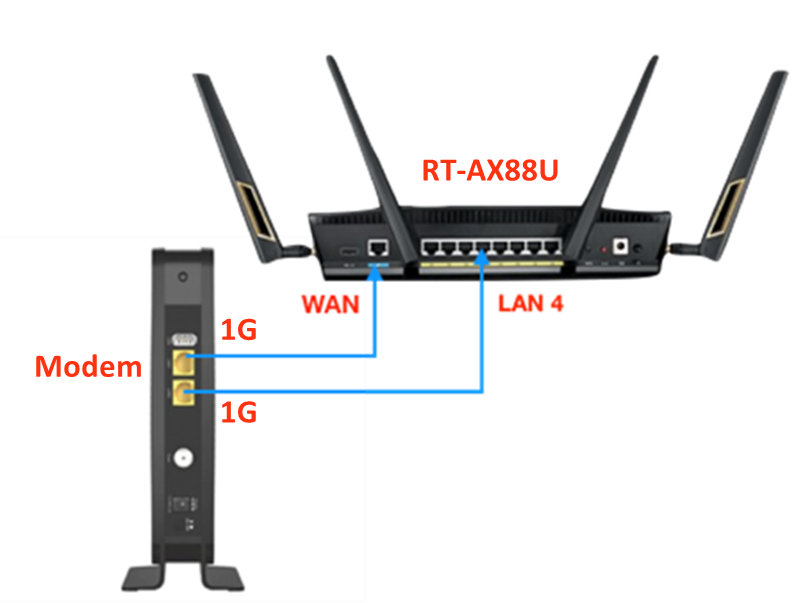
Physical connections form the foundation of a stable network before any software configuration begins. Ensuring these links are secure prevents most connectivity issues that users face during initial installation.
Power and Internet Cable Connections
Plug the power adapter into your ASUS router and connect it to a standard wall outlet. Use the included Ethernet cable to link your modem directly to the router’s WAN/Internet port, which is typically colored yellow. Power on both the modem and router, then wait one to two minutes for the indicator lights to stabilize.
Pro Tip: Restart your modem completely before connecting the router to clear any cached data that might interfere with the new connection.
Connect Devices via Wi-Fi or Cable
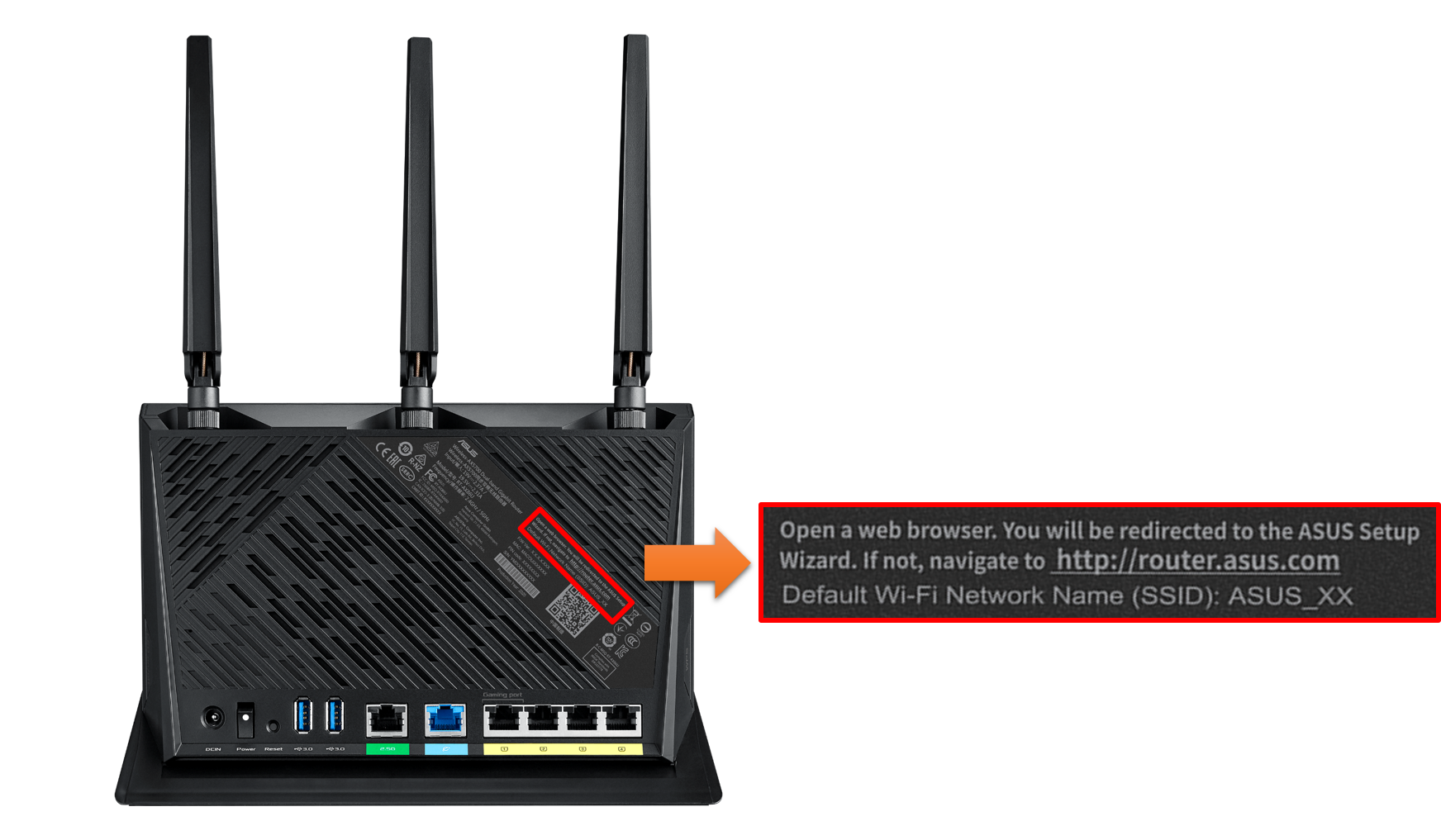
You do not need a physical cable to begin configuring your network settings. Most ASUS routers broadcast a default Wi-Fi network immediately upon powering up. Look for a network name starting with “ASUS_” followed by specific characters printed on the router label. Connect your smartphone or laptop to this network without entering a password if default settings remain unchanged.
Access the Web-Based Admin Panel
Once your device connects to the router, you must access the configuration interface to begin the ASUS router setup process. This web-based panel allows you to control every aspect of your network behavior.
Open Browser and Enter Address
Launch your preferred web browser such as Chrome, Edge, or Safari. Type http://router.asus.com into the address bar and press Enter to redirect to the login page. If the domain name does not load, type the IP address 192.168.1.1 as an alternative method to reach the interface.
Note: If the page fails to open, verify your device is connected to the ASUS Wi-Fi network or attempt opening the page in a different browser.
Log In with Default Credentials
Enter admin for both the username and password fields when prompted by the login screen. These are the standard default credentials for most models. The system will likely ask if you want to run the Setup Wizard immediately, and you should always select Yes for a streamlined first-time configuration experience.
Run the Setup Wizard Steps
The built-in wizard guides you through essential configuration steps to ensure your internet functions correctly. Following these prompts accurately sets the stage for a reliable home network.
Select Your Internet Connection Type
ASUS routers usually detect your Internet Service Provider type automatically, such as DHCP, PPPoE, or Static IP. Select Automatic (DHCP) in most cases unless your provider gave you specific login details. Only enter manual PPPoE credentials if your ISP explicitly instructed you to do so.
Common Mistake: Manually entering incorrect PPPoE details can prevent internet access entirely, so only input these if your provider requires them.
Configure Wi-Fi Network Names and Passwords
Create a unique name for your 2.4GHz and 5GHz bands along with a strong password. Avoid using default names like “ASUS_XXXX” and choose something recognizable yet secure, such as “Home_WiFi.” Select WPA2-Personal (AES) encryption to ensure the highest level of security for your home data.
Pro Tip: Use the same SSID for both frequency bands so your devices can switch seamlessly between long-range 2.4GHz and fast 5GHz speeds.
Customize Advanced Router Settings
Basic connectivity is just the start, and customizing advanced settings enhances performance and protection significantly. These adjustments help your network run smoother and safer over time.
Enable Automatic Firmware Updates
ASUS regularly releases firmware updates to improve speed, fix bugs, and patch security vulnerabilities. Navigate to Administration > Firmware Upgrade and enable the Automatic Update feature. This ensures your router stays protected against new threats without requiring manual intervention.
Warning: Never interrupt a firmware update once it starts, as doing so can permanently damage the router hardware.
Activate AiProtection Security Suite
Enable AiProtection powered by Trend Micro to block malicious websites and protect connected devices from intrusions. Go to AiProtection > General and turn on Real-time Protection plus Malicious Site Blocking for comprehensive defense. This feature safeguards IoT devices like smart cameras that often lack built-in security measures.
Set Up Parental Controls
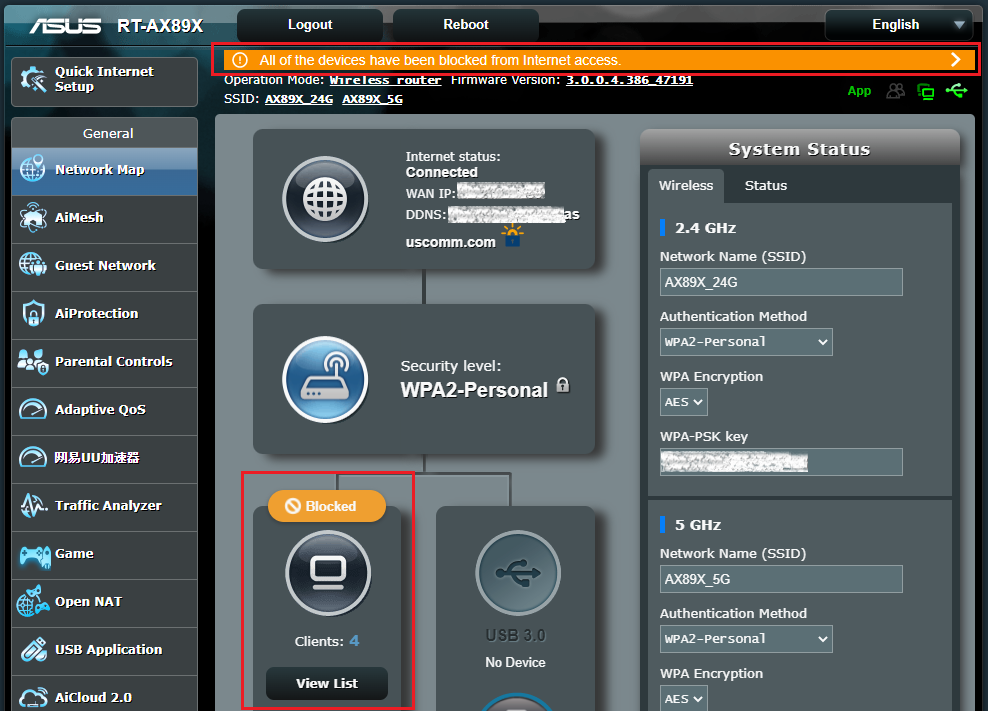
Use the Parental Controls section to create specific profiles for children in your household. You can block specific websites, schedule internet access times, and pause connectivity remotely from your phone. Assign devices by name, such as “Emma’s iPad,” to make managing restrictions easy and effective.
Troubleshoot Common Setup Issues
Even with careful planning, you might encounter hurdles during your ASUS router setup. These solutions address the most frequent problems users face.
Cannot Access router.asus.com Page
If the setup page will not load, confirm your device is connected to the ASUS Wi-Fi network first. Clear your browser cache, try incognito mode, or use the IP address 192.168.1.1 instead of the domain name. Restart the router if these steps fail, and hold the Reset button for 10 seconds as a last resort.
No Internet Connection After Setup
Check that your modem is online and functioning properly before checking the router. Verify the Ethernet cable is securely plugged into the WAN port and re-run the Setup Wizard to confirm your connection type. Contact your ISP if these steps do not resolve the issue, as there may be a service outage.
Slow Wi-Fi Speeds Detected
Optimize your setup by placing the router centrally away from walls and metal objects. Avoid interference from microwaves or cordless phones by switching to a less crowded Wi-Fi channel under Wireless > Professional. Consider enabling MU-MIMO and Airtime Fairness in advanced settings to improve performance when multiple devices connect.
Secure Your Network Effectively
A well-configured router keeps hackers out and keeps your personal data safe from external threats. Implementing these security measures is a critical part of any ASUS router setup.
Change Default Admin Password
Leaving the username and password as admin/admin creates a major security risk for your entire network. Go to Administration > System and set a strong, unique password immediately. Store this password securely because losing it may require a full factory reset to regain access.
Disable Remote Management Features
Remote access allows management from outside your home but also opens a door for potential attackers. Unless you specifically need this feature, go to Administration > System and set Remote Access to Disabled. This simple step significantly reduces your attack surface.
Enable Guest Network Access
Allow visitors to use Wi-Fi without giving them access to your main private network. Under Wireless > Guest Network, enable the guest SSID and set a separate password for visitors. You can even limit bandwidth or schedule access times to ensure your primary devices remain fast.
Best Practice: Name the guest network differently, such as “Guest_WiFi,” and disable file sharing to prevent unauthorized access to your files.
Optimize for Long-Term Use
Keep your ASUS router running smoothly over time with regular maintenance and smart settings. These habits ensure your network remains fast and reliable for years.
Schedule Automatic Reboots
Routers benefit from regular restarts to clear memory and maintain optimal speed performance. Use Administration > System to schedule automatic reboots, such as 2:00 AM every Sunday. This prevents slowdowns caused by memory leaks or temporary glitches.
Monitor Connected Devices Regularly
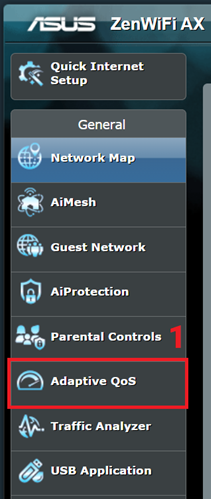
View all devices currently using your Wi-Fi in the Network Map section of the interface. Identify unknown devices and block them immediately if they look suspicious. You can also assign static IPs or prioritize certain devices like gaming consoles using QoS (Quality of Service) settings.
Use the ASUS Router App
Download the ASUS Router app for iOS or Android to manage your network from anywhere. The app lets you monitor network status, control parental settings, and activate Game Boost features easily. It syncs with your router to simplify ongoing management tasks without needing a computer.
Frequently Asked Questions About ASUS Router Setup
What is the default login password for ASUS routers?
The default username and password are both admin for most models. You should change this immediately after your first login to secure your network against unauthorized access attempts.
How do I reset my ASUS router to factory settings?
Press and hold the Reset button on the back of the router for about 10 seconds while it is powered on. This restores all settings to default, allowing you to start the ASUS router setup process over again.
Can I set up my ASUS router without an Ethernet cable?
Yes, you can connect to the default Wi-Fi network broadcast by the router to begin configuration. Look for the SSID starting with “ASUS_” on the router label and connect your device wirelessly.
Why can’t I access router.asus.com in my browser?
Ensure your device is connected to the router and try using the IP address 192.168.1.1 instead. Clearing your browser cache or trying a different browser often resolves loading issues.
How often should I update my ASUS router firmware?
You should enable automatic updates to ensure your router receives security patches as soon as they are available. Regular updates protect against vulnerabilities and often improve overall network performance.
Key Takeaways for Successful ASUS Router Setup
A successful ASUS router setup requires connecting hardware correctly, running the setup wizard, and customizing security settings like passwords and firmware updates. By following these steps, you ensure a fast, stable, and secure network for all your devices.
Start by checking your physical connections and running the automatic wizard to get online quickly. Remember to change default passwords and enable automatic firmware updates to keep your network safe from future threats.



