
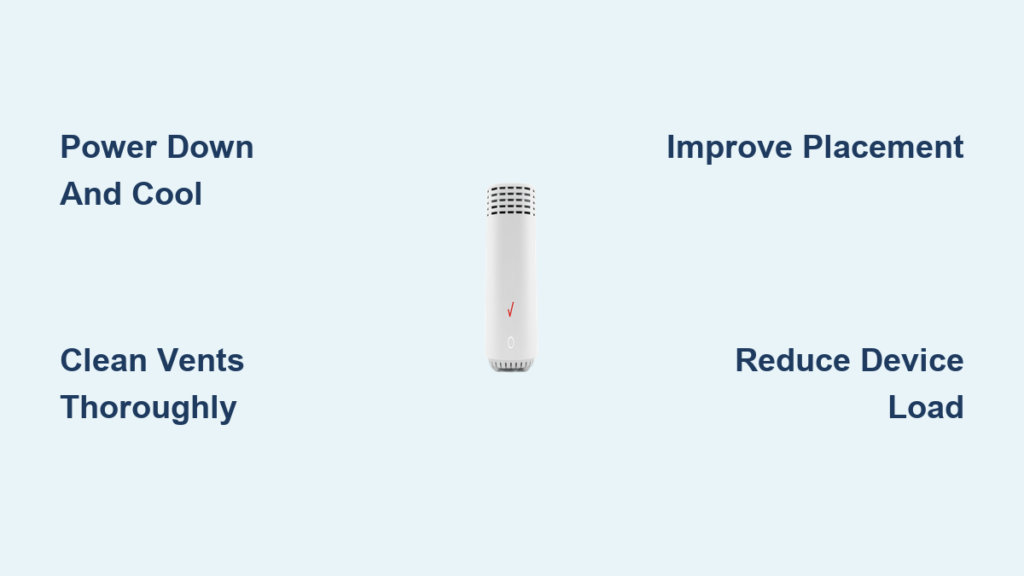
Your Verizon router keeps shutting down or your internet slows to a crawl because the device feels hot to the touch. You are not alone since Verizon router overheating is a common issue affecting Fios and 5G home internet users everywhere. When your router runs too hot it throttles performance drops connections or fails completely. Left unchecked this heat shortens your router lifespan and risks permanent internal damage.
The good news is that most overheating problems are preventable and fixable in under 30 minutes with the right steps. This guide reveals the root causes of router overheating and how to cool your device fast. You will learn specific signs to watch for and long-term fixes to keep your connection strong. Whether you have a Fios gateway or a 5G Home Router these solutions apply directly to your situation.
Spot Overheating Warning Signs Before Failure
Identifying the problem early prevents total system failure and protects your hardware investment. You need to look for physical and digital cues that indicate your device is struggling.
Check for Excessive Physical Heat
Turn off the router and unplug it carefully before touching the top and sides. If the surface is too hot to keep your hand on for five seconds then it is definitely overheating. Normal operating temperature feels warm but never scalding to the touch. Persistent high heat indicates poor ventilation or significant internal strain on the components.
Monitor Connection and Speed Issues
Overheating often shows up in your network performance before you feel the heat on the case. Watch for frequent disconnections or slow speeds despite having a good data plan. Your router might reboot without warning or show no internet on all connected devices. These symptoms signal thermal throttling which is a safety mode to prevent damage.
Interpret Router Status Lights Correctly
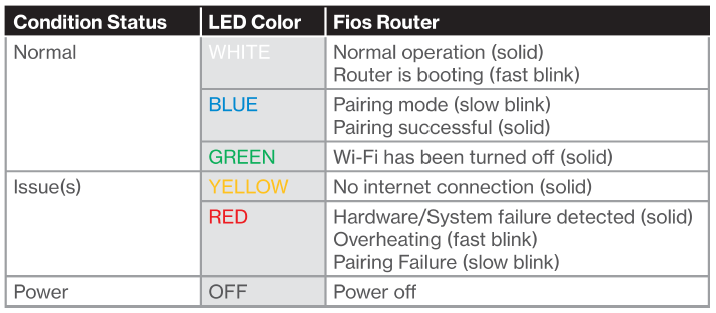
Verizon routers use LED indicators to signal specific hardware problems to users. A solid red or amber light on a Fios Router may indicate hardware stress. On a 5G Home Router a flashing red or constant amber network light can mean overheating. If lights behave abnormally after checking placement then heat is likely the culprit.
Find Common Heat Causes in Your Home
Understanding why your router gets hot helps you target the right solution effectively. Most causes relate to placement environment or usage habits.
Poor Router Placement Traps Heat
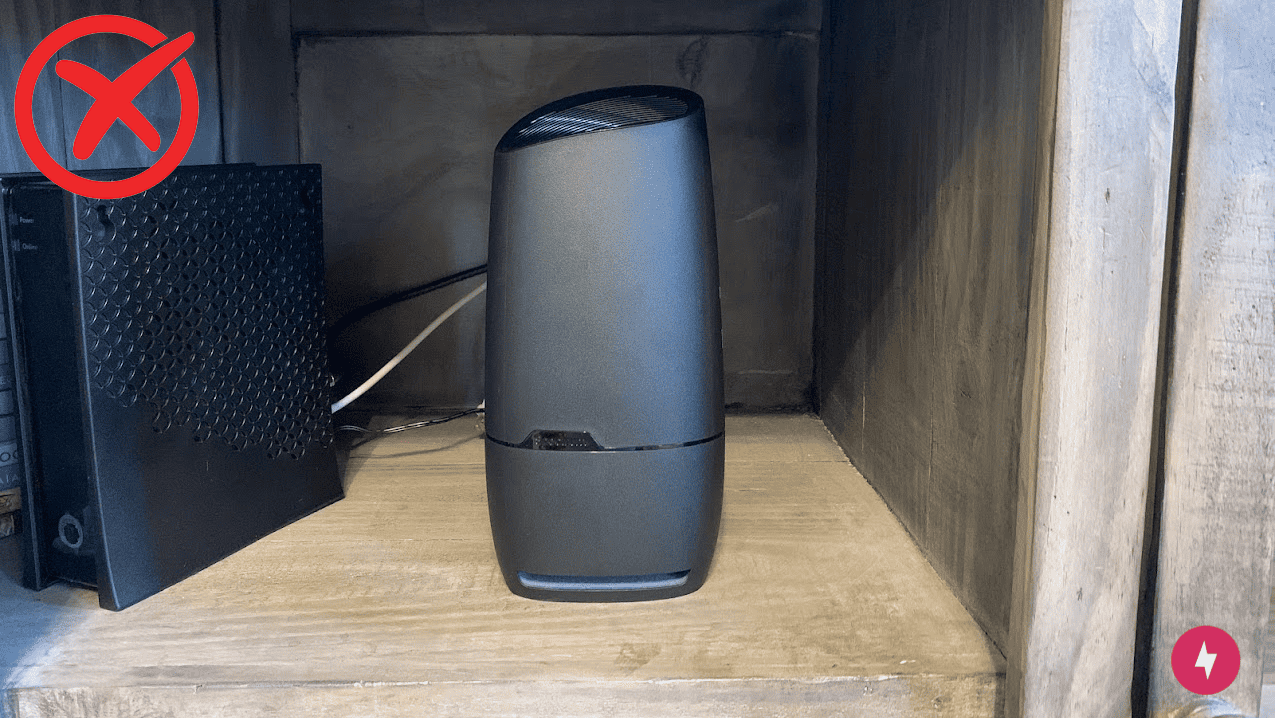
Most overheating starts with location because routers need consistent airflow to function. Common bad spots include inside closed cabinets or stacked under TVs and electronics. Placing the device near walls or in corners restricts air movement significantly. Even sitting on carpet or fabric surfaces traps heat and blocks vents.
Dust and Vent Blockage Insulate Heat
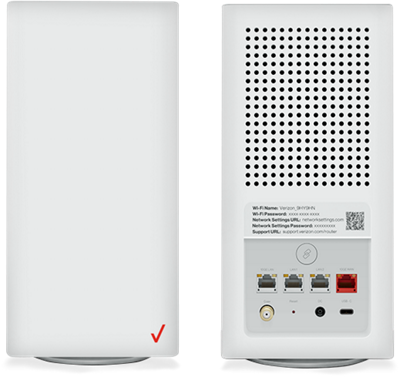
Dust clogs air vents and acts as an insulator that prevents heat escape. Over months this buildup prevents internal fans or passive cooling from working. Check vents on all sides especially the top and back of the unit. If they look dark or clogged then cleaning is urgent to restore airflow.
High Network Demand Increases Temperature
Streaming 4K content gaming online or hosting multiple video calls pushes your router hard. Heavy usage increases internal temperature as the processor works overtime. If your router heats up only during peak use then it lacks proper cooling for the load.
Direct Sunlight and External Heat Sources
Placing your router near windows with afternoon sun exposes it to direct radiation. Radiators heating vents kitchen appliances and incandescent lamps also add external heat. Even ambient room temps over 85 degrees Fahrenheit can trigger overheating issues.
Immediate Cooling Steps to Restore Service
Take action quickly to lower the temperature and prevent permanent hardware damage. These steps are safe and effective for most Verizon router models.
Power Down and Cool Off Safely
- Unplug the router completely for 15 to 30 minutes.
- Let it cool in a shaded open area away from direct sun.
- Wipe the exterior with a dry microfiber cloth to remove surface dust.
This resets the system and lowers internal temperature effectively. Never use water fans or ice since sudden cooling can cause condensation.
Clean Vents and Surfaces Thoroughly
- Use a dry brush or compressed air to clear dust from vents.
- Hold the can upright and spray in short controlled bursts.
- Focus on intake and exhaust areas usually found on top and sides.
- Wipe down the case with a dry or slightly damp cloth.
Do this monthly to prevent buildup and avoid vacuum cleaners entirely. Vacuum cleaners generate static electricity that can harm sensitive electronics.
Reboot After Cooling Period
Once cooled plug the router back in and wait for it to initialize. Allow 2 to 3 minutes for a full boot cycle to complete. Check lights and test your internet connection on multiple devices. A clean reboot often restores normal operation if heat was the only issue.
Optimize Router Placement for Better Airflow

Strategic placement solves most overheating issues by improving natural convection. You can improve performance just by moving the device a few inches.
Choose an Open Elevated Spot
Ideal location means placing the router on a hard flat surface like a desk. Keep it at least 6 inches from walls and centered in the room for signal. Stay away from thick furniture or metal objects that block airflow. Elevated placement improves both cooling and Wi-Fi coverage significantly.
Avoid Heat Generating Devices Nearby
Keep your router at least 2 feet away from TVs and game consoles. Laptops printers and microwaves also emit heat and electromagnetic interference. These devices worsen router strain and contribute to higher operating temperatures. Distance is your best friend when managing thermal output.
Use a Cooling Stand or Pad
Consider a ventilated router stand or cooling pad with open grills for better airflow. Some third-party stands include passive airflow design or USB-powered fans. Choose models made specifically for electronics to ensure safety. Avoid sticky or enclosed pads that trap heat instead of releasing it.
Reduce Internal Workload to Lower Temperature
Less data processing means less heat generation inside your router chassis. You can manage this by adjusting how your network operates.
Limit Connected Devices
Too many devices increase processing load and generate excess heat quickly. Disconnect unused items like old phones tablets or smart home gadgets. Guest devices should also be removed when not needed. Fewer connections mean less heat from data processing tasks.
Schedule Bandwidth Heavy Tasks
Avoid running multiple 4K streams large downloads or cloud backups at once. Spread out heavy usage throughout the day to reduce router strain. Use Quality of Service settings in your router app to prioritize traffic. This reduces overload and keeps temperatures manageable.
Upgrade to 5 GHz or Wi-Fi 6
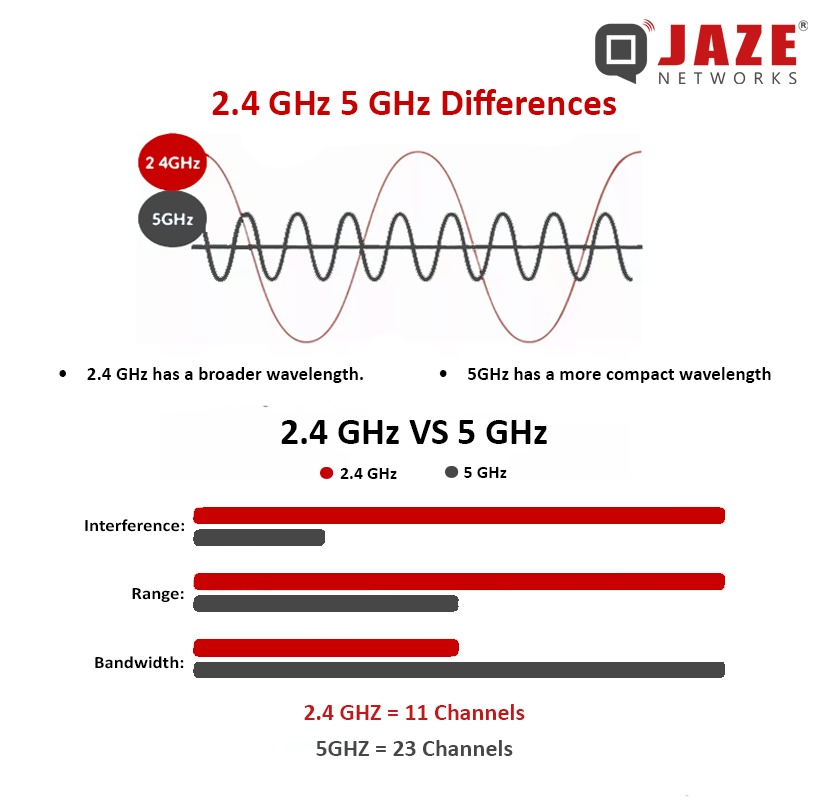
If your router supports dual-band connect high-demand devices to 5 GHz. This band is faster and less crowded than 2.4 GHz. Use 2.4 GHz for basic tasks like smart lights and clocks. Less congestion means less processing and less heat generation overall.
Prevent Future Overheating Issues
Consistent maintenance prevents heat problems from returning and extends device life. A small time investment now saves hours of downtime later.
Set Up Regular Maintenance Routine
Create a monthly routine to dust vents with compressed air. Check for firmware updates and reboot the router once a month. Inspect cords and power supply for any signs of wear. Prevention takes 10 minutes a month but saves significant trouble.
Monitor Room Temperature
Keep your router in a room under 80 degrees Fahrenheit if possible. Use a smart thermostat or thermometer to track environmental conditions. In summer run AC or fans nearby but not directly on the router. Ambient temperature plays a huge role in device health.
Use a Smart Plug for Auto Reboots
Plug your router into a smart outlet to automate maintenance tasks. Schedule a weekly reboot at 2 a.m. to clear memory. This resets connections and prevents heat buildup from long uptime. Automation ensures your router stays fresh and cool.
When to Replace or Contact Verizon Support
Sometimes hardware limitations require professional intervention or a new device. Know when to stop troubleshooting and call for help.
Check Router Age and Model
Verizon routers over 3 to 5 years old may lack modern cooling efficiency. Older models include the Actiontec MI424WR or early Nokia 5G Hotspots. If your router is outdated and overheats often request a replacement. Age is a critical factor in thermal performance.
Request a Router Upgrade
Verizon may replace your router for free if it is under warranty. They often help if it is a known overheating model or you are a long-term customer. Call their support line or use the My Verizon app to request service. Do not hesitate to ask for hardware assistance.
Consider a Third Party Router
You can replace your Verizon router with a compatible third-party model. Options like TP-Link Archer or Netgear Nighthawk work well for Fios. Use bridge mode on the Verizon device to avoid double NAT issues. Third-party routers often have better heat dissipation designs.
Frequently Asked Questions About Verizon Router Overheating
How hot is too hot for a Verizon router?
If you cannot hold your hand on the router for five seconds it is too hot. Normal operation feels warm but never scalding or painful to touch. Persistent high heat indicates a cooling failure or blockage.
Can overheating permanently damage my router?
Yes continuous overheating can shorten the lifespan of internal components. It may cause permanent failure of the processor or power supply. Immediate cooling and prevention are essential to avoid replacement costs.
Why does my router get hot only at night?
Nighttime heat often results from scheduled backups updates or heavy streaming. Check if automatic tasks are running during these hours. Reducing simultaneous usage can lower nighttime temperatures significantly.
Is it safe to put my router in front of a fan?
Yes indirect airflow from a room fan helps cool the device safely. Do not use compressed air cans while the device is powered on. Ensure the fan does not blow dust directly into the vents.
How often should I clean my router vents?
You should clean router vents with compressed air once a month. Heavy dust environments may require cleaning every two weeks. Regular cleaning prevents clogs that lead to overheating issues.
Key Takeaways for Fixing Verizon Router Overheating
Verizon router overheating is a solvable problem that often stems from poor placement or dust buildup. By moving your device to an open spot cleaning the vents and reducing network load you can restore performance quickly. Regular maintenance and monitoring prevent future heat issues effectively.
Start by powering down your router to let it cool and then check its location today. If simple fixes do not work contact Verizon support to discuss a hardware upgrade. Your internet connection depends on a cool and healthy router.



