
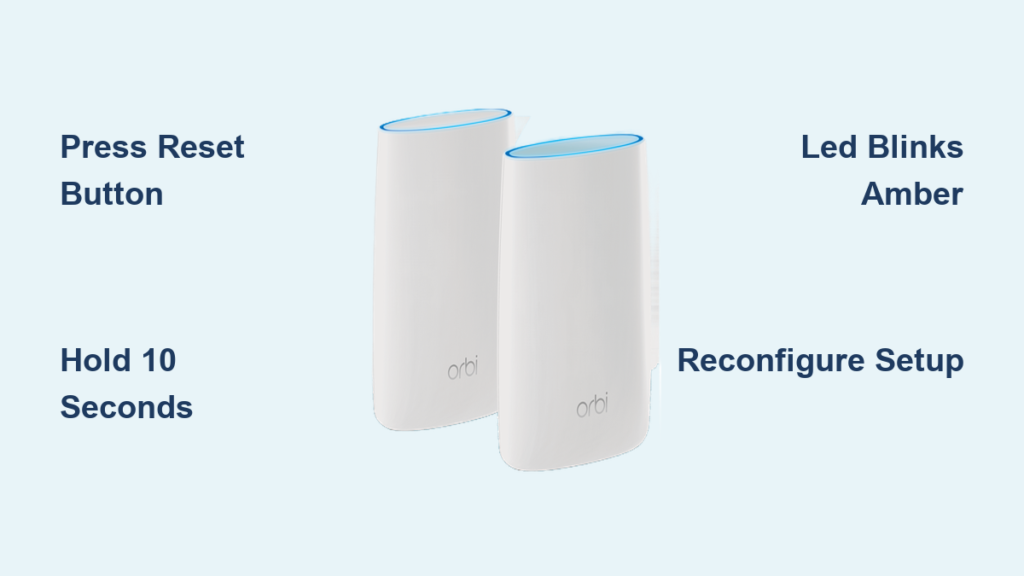
Your Orbi router no longer connects devices smoothly, the Wi-Fi keeps dropping, or you have forgotten the admin password. A factory reset wipes all custom configurations and restores default settings, which solves many stubborn network problems. If you are searching for how to reset Orbi router, this guide walks you through every step using methods that work across all Orbi models, including Wi-Fi 5, Wi-Fi 6, Wi-Fi 6E, and Wi-Fi 7 systems.
Resetting your Orbi returns the device to its original out-of-the-box state. Your network name (SSID), password, parental controls, and any NETGEAR Armor subscriptions are erased. After the reset, you must set up your Orbi again using the Orbi app or a web browser. The entire process takes only a few minutes and requires no technical background.
When to Reset Your Orbi Router
Fix Persistent Network Problems
If your Orbi Wi-Fi drops frequently or refuses to connect to nearby devices, a reset can clear corrupted settings. This is especially helpful after firmware updates or power surges that disrupt normal operation.
Recover a Forgotten Admin Password
Lost access to your Orbi admin login? A factory reset restores the default credentials so you can sign in and create a new password.
Prepare the Router for Sale or Relocation
Before selling or moving your Orbi system, a reset wipes private data, Wi-Fi passwords, and connected device history completely.
How to Perform a Factory Reset on an Orbi Router
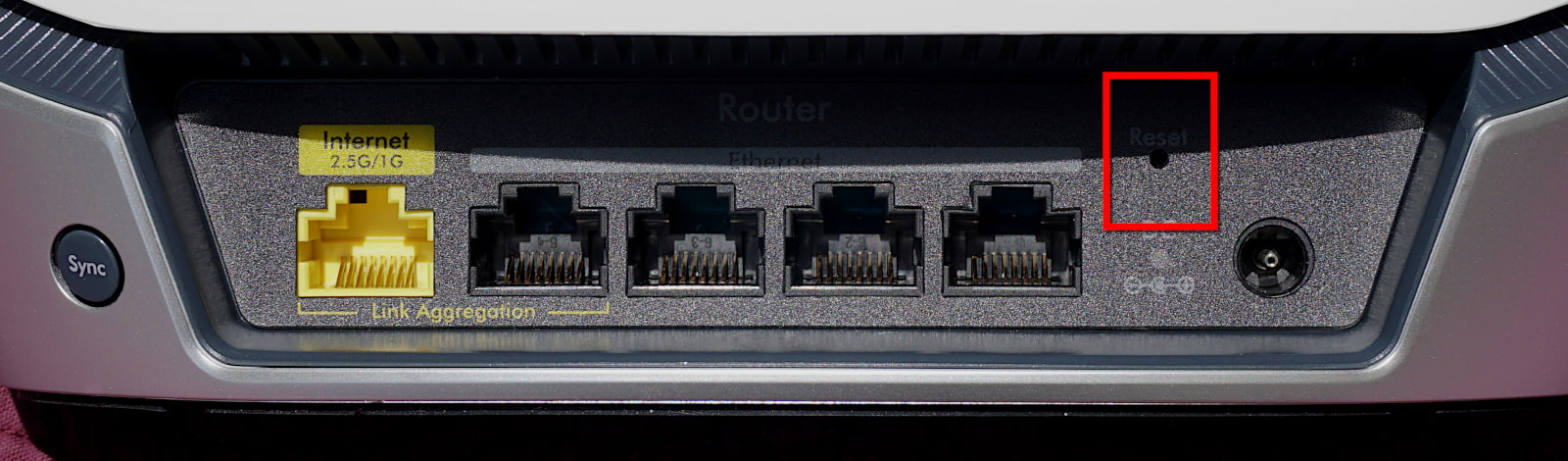
Use the Physical Reset Button
This universal method works on every Orbi router and satellite, regardless of generation.
-
Confirm the Orbi device is powered on.
Plug it directly into a wall outlet. Avoid power strips or surge protectors during the reset. -
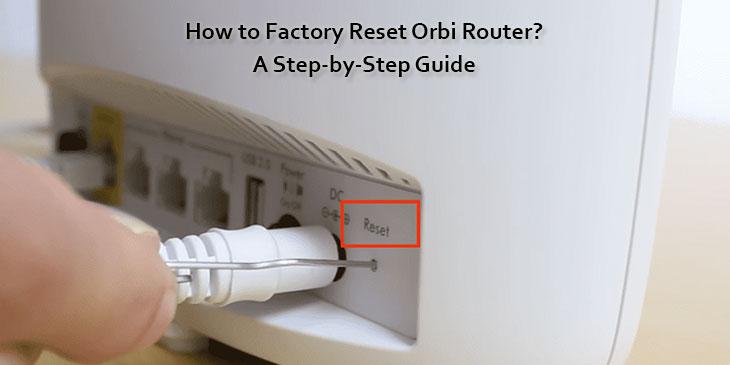
Locate the Reset button on the device.
It is a small pinhole on the back or bottom of the unit. -
Press and hold the button with a paperclip.
Insert a straightened paperclip and press firmly without wiggling. -
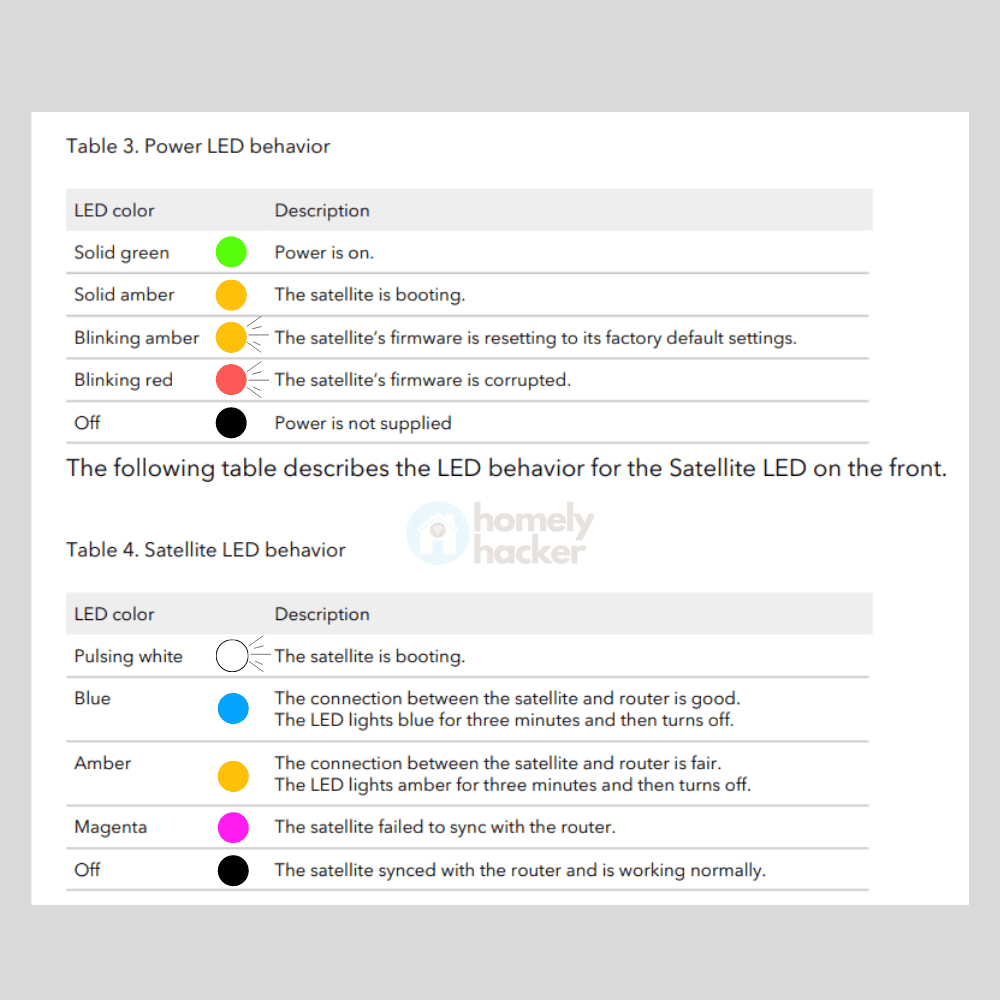
Watch for the LED indication.
• On main routers: the Power LED blinks amber
• On wall-plug satellites: the ring LED blinks amber
Release the button once the blinking begins. The reset is now complete.
Pro Tip: Hold the button for about 10 seconds. If no LED change appears after 15 seconds, unplug the device and try again.
Restart Through the Orbi App (Soft Reset)
The Orbi app does not offer a full factory reset remotely, but it can reboot your system without touching the hardware.
- Open the Orbi app on your phone.
- Tap the Settings gear icon.
- Select Reboot System.
- Confirm the action.
This restarts your router and satellite while keeping all custom settings intact. It is ideal for temporary slowdowns.
What Happens After an Orbi Factory Reset
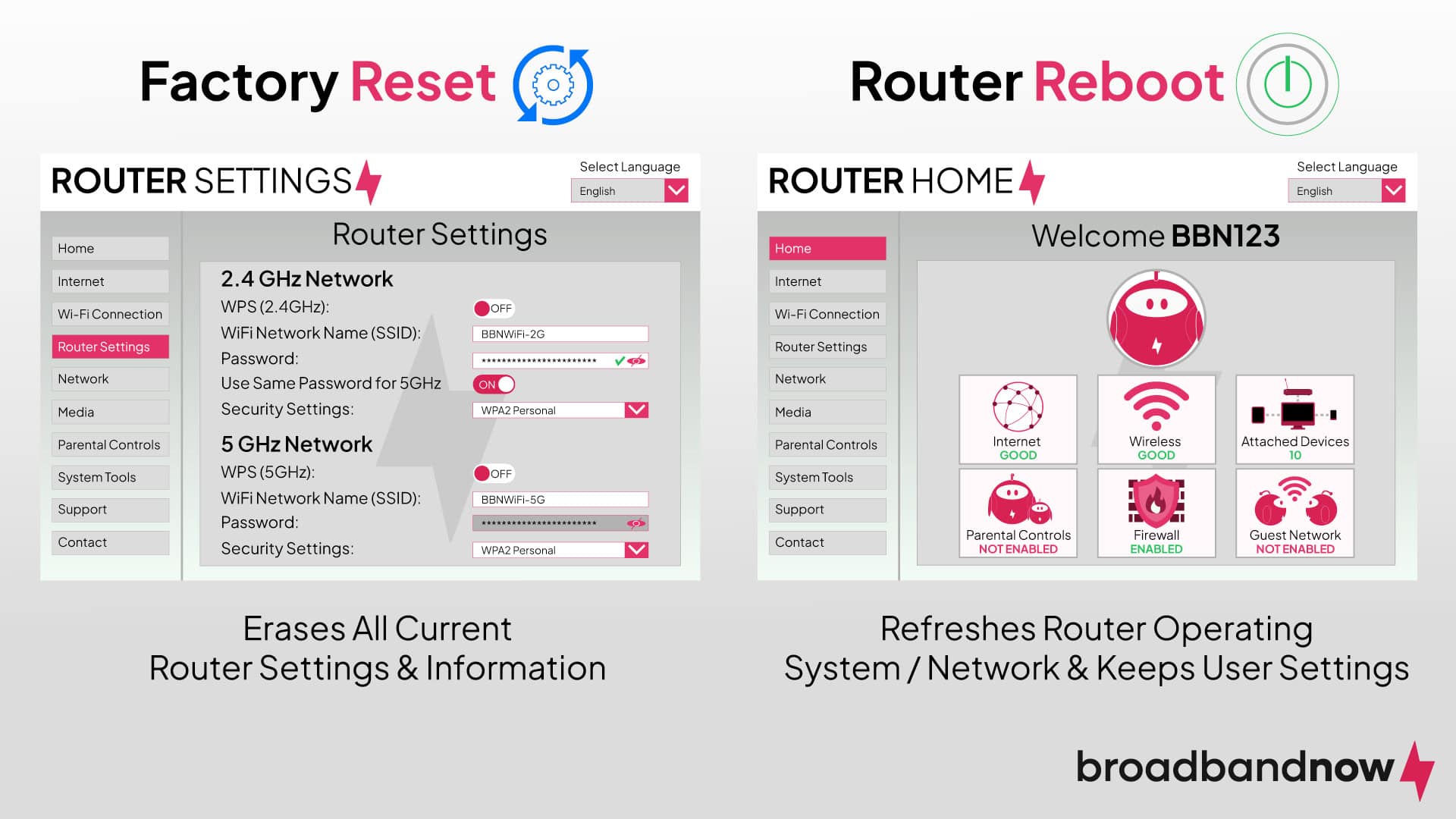
All Custom Settings Are Erased
Once the reset completes, the following changes take effect:
• Wi-Fi name (SSID) and password return to default values
• Admin login reverts to admin / password
• Static IP assignments disappear
• Port forwarding rules and DNS settings clear
• Guest networks turn off
Note: An active NETGEAR Armor or Smart Parental Controls subscription must be reactivated manually after setup.
Locate the Default Network Labels
Find the default SSID and password on the sticker at the bottom of your Orbi device. Common default formats include:
• Network Name (SSID): Orbi52, Orbi-XX, or NETGEARXX
• Password: A 12-character WPA2 key
Set Up Your Orbi After a Reset
Recommended Setup Using the Orbi App
- Download the Orbi app on iOS or Android.
- Connect your phone to the default Orbi network.
- Follow the in-app prompts to:
• Rename your Wi-Fi network
• Set a strong new password
• Register the device
• Reactivate NETGEAR Armor or Smart Parental Controls if needed
Setup Tip: Stay on a 5 GHz connection during setup for faster configuration.
Alternative Setup Using a Web Browser
- Connect a computer to the Orbi via Ethernet or Wi-Fi.
- Open a browser and visit http://www.orbi.login or http://192.168.1.1.
- Log in with default credentials (admin / password).
- Follow the Setup Wizard to complete the process.
Troubleshooting Reset Issues
Reset Button Not Responding
Check the Power Source First
• Confirm the Orbi is plugged into a working outlet
• Look for any LED activity, even a faint glow
• Try a different power adapter if available
Verify Your Button Press Technique
• Use a thin, rigid object such as a SIM eject tool
• Press straight in without wiggling
• Hold continuously for 10 to 15 seconds
Warning: Avoid sharp metal objects that could damage internal components.
LED Not Blinking Amber During Reset
For Main Router Units
• The Power LED should blink amber during a successful reset
• A solid white or blue LED means the reset failed and must be retried
For Satellite Units
• Wall-plug satellites show the ring LED blinking amber
• Desktop satellites show the Power LED blinking amber
If LEDs stay off or blink red, unplug the device for 30 seconds and retry. Test the outlet with another device to confirm power is reaching the unit.
Orbi Models That Support This Reset Method
Universal Compatibility Across All Generations
The physical reset process is identical across every Orbi system, including:
Orbi Cable Series
• CBK40, CBK43, CBK752, CBK753, CBR40, CBR750
Wi-Fi 5 (Wireless AC) Models
• RBK12, RBK13, RBK20, RBK22, RBK23, RBK352, RBK353, RBK40, RBK43, RBK50, RBK50v2, RBK52W, RBK53, RBK53S, RBR10, RBR20, RBR350, RBR40, RBR50, RBR50v2, RBS10, RBS20, RBS350, RBS40, RBS50, RBS50Y, and many more
Orbi Voice Models
• RBK50V, RBS40V, RBS40V-200
Wi-Fi 6 Models
• RBK652S, RBK653, RBK752, RBK753, RBK753S, RBK754, RBK842, RBK843S, RBK852, RBK853, RBK854, RBK862S, RBK863S, RBK864SB, RBR660, RBR750, RBR760, RBR840, RBR850, RBR860, RBS660, RBS750, RBS760, RBS840, RBS850, RBS860, and more
Orbi Cellular Models
• LBK1220, LBR1020, LBR20, NBK752, NBR750
Wi-Fi 6E Models
• RBKE953S, RBKE962, RBKE963, RBKE963B, RBKE964, RBKE965, RBRE950, RBRE960, RBRE960B, RBSE950, RBSE960, RBSE960B
Wi-Fi 7 Models
• RBE260, RBE261, RBE262, RBE263, RBE360, RBE361, RBE362, RBE363, RBE370, RBE371, RBE372, RBE373, RBE374, RBE770, RBE771, RBE772, RBE773, RBE870, RBE870B, RBE871, RBE872, RBE873, RBE970, RBE970B, RBE971, RBE971B, RBE972S, RBE972SB, RBE973S, RBE973SB
Good News: No matter which Orbi model you own, the physical reset steps remain exactly the same.
Prevent the Need for Future Resets
Keep Firmware Updated
Outdated firmware creates bugs and security risks. Enable automatic updates or check monthly:
- Log into orbi.login.
- Navigate to Advanced > Administration > Firmware Update.
- Install any available updates promptly.
Schedule Regular Reboots
Unlike a factory reset, a reboot keeps your settings while clearing memory. Use the Orbi app to schedule weekly reboots and improve overall stability.
Use Strong, Memorable Passwords
Avoid future lockouts with these habits:
• Save admin credentials in a trusted password manager
• Enable two-factor authentication when supported
• Choose passwords you can recall without writing them down
Final Steps After Resetting Your Orbi Router
Reconnect All Your Devices
Rejoin phones, tablets, smart TVs, and IoT devices to your newly configured Wi-Fi network.
Re-enable Security Features
Do not skip this critical step:
- Reactivate NETGEAR Armor for ongoing malware protection.
- Configure Smart Parental Controls if your household needs them.
- Set up a guest network for visitors.
Test Your Internet Speed
After setup, run a speed test to confirm everything works:
• Visit speedtest.net from a connected device
• Compare results with your internet service provider plan
• Verify both 2.4 GHz and 5 GHz bands perform correctly
Frequently Asked Questions About Resetting an Orbi Router
How long does it take to reset an Orbi router?
The physical reset itself takes about 10 to 15 seconds of holding the button. The full process, including rebooting and reconnecting devices, usually finishes within five minutes.
Will resetting my Orbi router delete my Wi-Fi password?
Yes. A factory reset erases your custom Wi-Fi name (SSID) and password, returning them to the defaults printed on the device label. You must create a new password during setup.
Do I need to reset both the router and satellite?
If only the satellite is malfunctioning, reset that unit first. For whole-network issues, reset the main router and then resync each satellite using the Orbi app.
What happens to my NETGEAR Armor subscription after a reset?
Your subscription remains active in your NETGEAR account, but you must manually reactivate the Armor service through the Orbi app after completing the reset and setup.
Can I reset my Orbi router without the paperclip?
No reliable alternative exists for a true factory reset. The Orbi app only offers a reboot, which preserves your settings. A physical button press with a paperclip or SIM tool is required for a full reset.
Where do I find the default Orbi admin password?
The default username is admin and the default password is password. You can also find the default Wi-Fi credentials on the label located at the bottom of your Orbi device.
Key Takeaways for Resetting Your Orbi Router
Learning how to reset Orbi router equipment is a valuable skill for any homeowner. The physical reset button method works universally across every Orbi generation, from older Wi-Fi 5 units to the latest Wi-Fi 7 systems. Always remember to reactivate NETGEAR Armor or Smart Parental Controls after setup, since these services do not turn back on automatically. If network problems continue even after a successful reset, reach out to NETGEAR support or consider replacing the hardware to restore reliable connectivity.



