
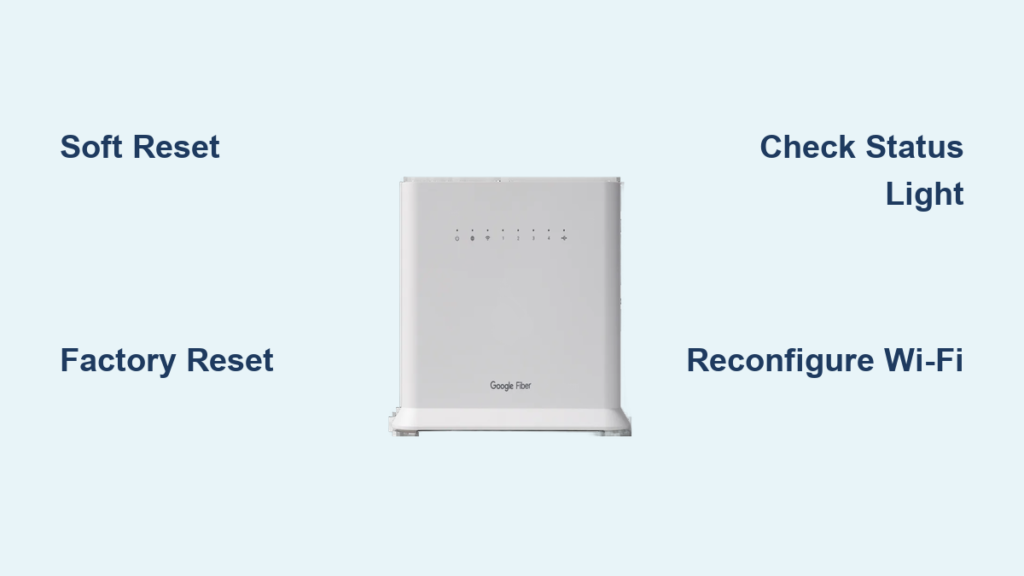
You’re streaming a movie, in the middle of a work call, or downloading an important file, and suddenly your internet cuts out. You check the Google Fiber router and notice the light blinking red or amber. Before calling support or scheduling a technician visit, there’s one simple step that resolves many connectivity issues: resetting your Google Fiber router.
Resetting your Google Fiber router clears temporary glitches, restores default settings, and brings your internet connection back online. This guide walks you through both soft and factory reset methods, explains when to use each approach, and helps you avoid common mistakes along the way.
When to Reset Your Google Fiber Router
Not every internet issue requires a full reset. Knowing when to reset and what type of reset to perform saves time and prevents unnecessary configuration loss.
Fix Common Connectivity Issues
Use a soft reset (reboot) for temporary problems like:
– Intermittent Wi-Fi disconnections
– Slow browsing or buffering
– Devices failing to connect
– Router unresponsiveness
A reboot clears memory glitches and renews the connection with Google Fiber’s network. It does not erase settings and usually takes under two minutes.
Restore Factory Defaults After Major Problems
Perform a factory reset if you:
– Forgot your Wi-Fi password
– Changed settings that caused connection failure
– Are moving to a new location
– Need to troubleshoot persistent errors
A factory reset erases all custom configurations and returns the router to its original state. You will need to set up Wi-Fi names and passwords again.
Reset After Service Outages or Updates
Power outages or system updates can leave the router in an unstable state. A reboot ensures it reconnects properly to the Fiber network. If the status light is solid red or amber after an outage, a reset is recommended.
Soft Reset: Reboot the Router Without Losing Settings
:max_bytes(150000):strip_icc()/how-to-properly-restart-a-router-modem-2624570-8ef8d3ea41a14c928947e58c32fa3646.png)
A soft reset restarts the device without changing any settings. It is the first step in any troubleshooting plan for a Google Fiber router.
Power Cycle the Device
- Locate the power cord connected to the back of the Google Fiber router.
- Unplug the power adapter from the wall outlet or surge protector.
- Wait 30 seconds to allow capacitors to discharge and clear residual data.
- Plug the power back in and wait up to two minutes for the router to fully boot.
The status light will cycle through colors. A solid white or blue light indicates normal operation.
Use the Google Fiber App (Optional)
If you have the Google Fiber app installed:
– Open the app and sign in.
– Tap your network name.
– Select “Restart Router.”
– Confirm the action.
The app will remotely reboot the router. This method takes about one to two minutes and preserves all settings.
Check Light Status After Reboot
- Solid White or Blue: Normal operation, internet is active.
- Blinking White: Booting up, wait up to two minutes.
- Solid Amber: Connection issue, proceed to factory reset.
- Solid Red: Hardware or service problem, contact support.
If the light remains amber or red after a reboot, move to a factory reset.
Factory Reset: Restore Original Router Settings
A factory reset erases all custom settings and returns the router to its default condition. Use this only when necessary.
Locate the Reset Button
The factory reset button is a small pinhole on the bottom of the Google Fiber router. You will need a paperclip or SIM eject tool to press it. Ensure the router is powered on before starting.
Press and Hold Reset
- Insert the tool into the reset hole.
- Press and hold the button for 15 seconds.
- Release when the status light turns solid amber.
The router will restart automatically. The entire process takes three to five minutes. If the light does not change, repeat the process.
Wait for Setup Mode
After the reset completes:
– The light will blink white, then turn solid blue or white.
– This indicates the router is ready for setup.
– You will need to reconfigure Wi-Fi settings using the Google Fiber app.
Warning: A factory reset removes all saved settings. Write down your SSID and password before proceeding if possible.
Set Up Wi-Fi After a Factory Reset

Once the router resets, you must reconfigure your network to restore internet access.
Connect via Ethernet (Recommended)
For best results during setup:
– Connect a computer to the router using an Ethernet cable.
– Open a browser and go to fiber.google.com/setup.
– Follow the prompts to create a new network name (SSID) and password.
Using a wired connection ensures stability during configuration.
Use the Google Fiber App
- Download the Google Fiber app on iOS or Android.
- Sign in with your Google account linked to Fiber service.
- Tap “Set up Wi-Fi” and follow the on-screen instructions.
- Choose a secure password and enable WPA2 encryption.
The app guides you through naming your network, setting guest access, and optimizing placement.
Reconnect Your Devices
After setup completes:
– On each device (phone, tablet, smart TV), open Wi-Fi settings.
– Select your new or restored network name.
– Enter the password.
Most devices remember the network after reconnection.
Troubleshoot Failed Resets

Sometimes a reset does not solve the problem or does not complete properly.
Router Won’t Restart
If the router does not power on after a reset:
– Check the outlet with another device.
– Try a different power cable if available.
– Ensure the power adapter is fully seated.
If no lights appear, contact Google Fiber support, as there may be a hardware issue.
Stuck in Amber Light Mode
A solid amber light after reset means the router cannot connect to the Fiber service. Possible causes include:
– Service outage in your area
– Damaged fiber terminal (ONT)
– Internal configuration error
Wait 10 minutes. If the light does not turn white or blue, call support.
App Can’t Detect Router
If the Google Fiber app fails to find the router:
– Make sure your phone is connected to the router’s Wi-Fi.
– Disable mobile data.
– Restart your phone.
– Try setup via Ethernet and web browser instead.
Prevent Future Router Issues
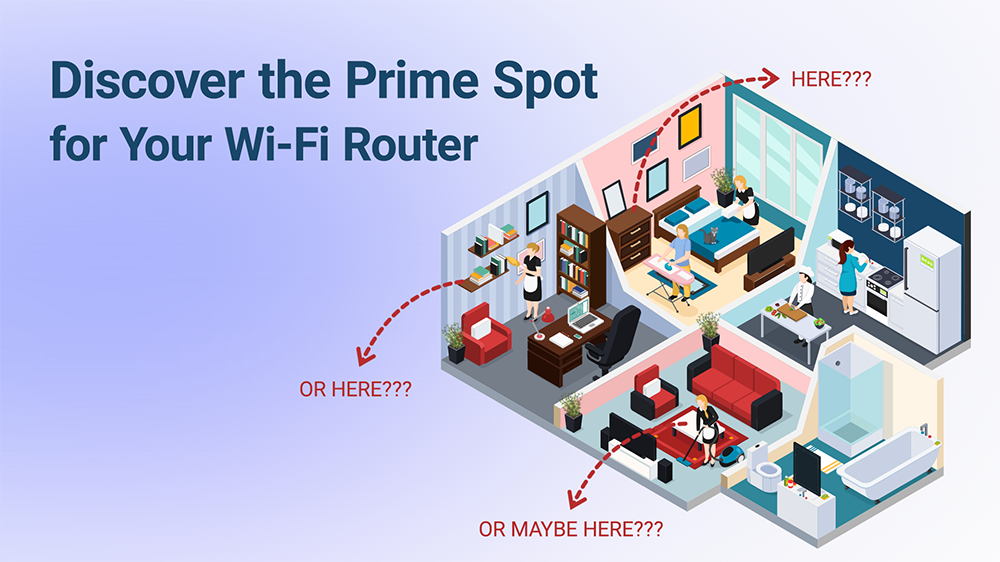
Regular maintenance helps avoid frequent resets and keeps your Google Fiber router running smoothly.
Schedule Monthly Reboots
Set a monthly reminder to reboot your router:
– Unplug for 30 seconds.
– Plug back in.
This clears memory leaks and maintains performance over time.
Keep Firmware Updated
Google Fiber routers update automatically. If you notice sluggishness:
– Open the Google Fiber app.
– Go to Settings then Device Info.
– Check for firmware updates.
Ensure your router stays connected so updates install properly.
Optimize Router Placement
Place the router:
– In a central location
– Away from microwaves, cordless phones, and metal objects
– Elevated on a shelf rather than the floor
Good placement reduces dead zones and interference.
Contact Google Fiber Support
If resets fail and internet remains down:
– Call 1-833-743-4231
– Use the Google Fiber app to chat with support
– Visit fiber.google.com/support
Have your account info ready. Support can run remote diagnostics and dispatch a technician if needed.
Frequently Asked Questions About Resetting Google Fiber Routers
How long does it take to reset a Google Fiber router?
A soft reset takes about two minutes. A factory reset takes three to five minutes, plus additional time to reconfigure your network settings.
Will resetting my Google Fiber router delete my settings?
A soft reset preserves all settings. A factory reset erases all custom configurations, including Wi-Fi names, passwords, and any advanced settings you configured.
Where is the reset button on a Google Fiber router?
The reset button is a small pinhole located on the bottom of the router. You need a paperclip or SIM eject tool to press it.
What does a solid amber light mean after a reset?
A solid amber light indicates the router cannot connect to the Fiber service. This may be due to a service outage, damaged fiber terminal, or internal configuration error.
Can I reset my Google Fiber router from my phone?
Yes, you can perform a soft reset using the Google Fiber app. Tap your network name and select “Restart Router.” Factory resets still require pressing the physical button.
Do I need to call support if the reset does not work?
If the router still shows a red or amber light after a factory reset, contact Google Fiber support. The issue may involve hardware or a service outage that requires a technician.
Key Takeaways for Resetting Your Google Fiber Router
Resetting your Google Fiber router is a fast, effective way to fix most connectivity problems. Use a soft reset for everyday glitches and reserve a factory reset for situations where settings are corrupted or forgotten. Always verify the status light after resetting and reconfigure your network carefully to avoid downtime.
With this guide, you can confidently reboot or restore your router and keep your internet running smoothly. For ongoing reliability, schedule regular reboots, keep your firmware updated, and optimize your router placement. If problems persist after a factory reset, reach out to Google Fiber support for further assistance.



