
Struggling with slow speeds or an aging Xfinity modem? Upgrading to a newer gateway like the XB7 can dramatically improve your internet experience with faster downloads, stronger Wi-Fi coverage, and better reliability. Whether you rent your equipment or own it, knowing how to change your Xfinity modem the right way saves you time, money, and frustration.
This guide covers everything you need: checking eligibility, receiving your new device, swapping hardware, activating through the Xfinity app, and returning old equipment without extra fees. You’ll also learn how to optimize placement and avoid common setup mistakes.
Check Eligibility for a Replacement Modem
Renters: Upgrade Through Xfinity
If you rent your modem from Xfinity, you may qualify for a free upgrade. Two convenient options exist:
- Online: Visit xfinity.com/equipmentupdate to request a new gateway
- In-Person: Swap your device at any Xfinity Retail Store
Xfinity often initiates replacements when older models like the XB3 reach end-of-life on their network.
Owners: Confirm Device Compatibility
If you own your modem, verify compatibility using the My Device Info portal. Not all third-party modems support current service tiers. Upgrading to a Wi-Fi 6-capable gateway like the XB7 ensures better speed and long-term compatibility.
Watch for Replacement Notifications
Xfinity alerts customers about required upgrades through:
– Email
– Text message
– Bill inserts
– Physical mail
These notifications include the serial number of the affected device. Respond promptly to avoid reduced service quality.
Understand Why Replacement Matters
Newer Tech Delivers Better Performance
Swapping an older XB3 for an XB7 brings real improvements:
– Faster download and upload speeds
– Wi-Fi 6 support for modern devices
– Improved signal stability
– Enhanced security features
– Support for higher-speed plans
Avoid Service Disruptions
Skipping a required replacement can cause:
– Slower connection speeds
– Intermittent connectivity
– Inability to access certain network features
Staying current keeps your browsing, streaming, and gaming running smoothly.
Know the Costs and Installation Options
Self-Installation Is Free
You can install the new modem yourself at no cost. Most customers finish in under 30 minutes using the Xfinity app.
Professional Installation Has a Fee
If you’d rather have a technician handle setup, a service fee applies. This option works best if you’re uncomfortable with cables or troubleshooting.
Receive and Prepare Your New Equipment
Delivery Takes 3–5 Business Days
If Xfinity mails your new gateway, expect arrival within 3–5 business days. A tracking number is sent when your email is verified on file.
Unbox and Inspect Contents
Your XB7 Gateway includes:
– New coax cable
– Power adapter
– Quick start guide
Pro Tip: Reuse your existing coax cable unless it’s damaged. The new one is just a backup.
Replace Your Old Modem: Setup Steps
Disconnect the Old Modem Safely
- Power down your old XB3 by unplugging the power cord
- Wait 30 seconds before disconnecting any cables
- Label Ethernet cables if you have multiple wired devices
Transfer Cables to the New Gateway
Reconnect the Coax Cable
- Unscrew the coax cable from the back of the XB3
- Attach it to the coax port on the back of the XB7
- Hand-tighten only to avoid damaging the connector
Plug in Ethernet and Phone Lines
- Remove cables from the old gateway
- Insert them into the yellow-labeled Ethernet ports on the XB7
- Press down the plastic locking lever until it clicks to secure each connection
The XB7 has four Ethernet ports, all identical in function. Use any for wired devices like PCs, smart TVs, or gaming consoles.
Power Up the New Gateway
- Connect the barrel power adapter to the blue port on the bottom of the XB7
- Plug into a wall outlet
- Wait for the LED light to begin cycling
Monitor LED Status Lights
| Light Pattern | What It Means |
|---|---|
| Solid Orange | Booting up |
| Solid Green | Acquiring signal |
| Blinking White | Configuring network |
| Solid White | Ready to activate |
Critical: Wait for a solid white light before activating. This can take 5–10 minutes.
Activate Your Gateway Using the Xfinity App
Install and Sign In
- Download the Xfinity app (iOS or Android)
- Sign in with your Xfinity username and password
Start Gateway Activation
- Tap Account at the bottom of the screen
- Scroll to “Activate Xfinity Gateway or Modem”
- Select “Activate Xfinity Gateway” → “Get Started” → “Use the Camera”
Scan the Barcode
Point your phone at the barcode on the bottom of the XB7. The app detects the device automatically and begins activation.
Follow Placement Tips
The app recommends optimal placement:
– Position in a central, elevated location
– Keep away from microwaves, metal objects, and cordless phones
– Avoid enclosing in cabinets
Good placement maximizes Wi-Fi 6 coverage and reduces dead zones.
Finalize Setup and Test Your Connection
Confirm Activation and Security
After scanning completes:
1. Confirm activation in the app
2. Enable security settings (highly recommended)
3. Wait for automatic firmware update (2–5 minutes)
During the update, the gateway reboots. The LED cycles through orange, green, and blinking white before returning to solid white.
Test Your Internet
Once the reboot finishes:
1. Connect a device via Wi-Fi or Ethernet
2. Open a browser and load any website
3. Run a speed test at speedtest.net
Compare your results to your plan’s advertised speeds. You should notice a clear improvement over the XB3.
Return Old Equipment on Time
Return Within 30 Days
To avoid unreturned equipment charges, bring back your old modem within 30 days of receiving the replacement.
Where to Return
- Xfinity Retail Store
- Comcast Store
Bring:
– The old gateway
– Its power adapter
– Any included cables
Note: Keep the new coax cable from the XB7 kit. It’s yours to use.
Handle DVR and Recording Changes
Non-X1 TV Boxes: Recordings Don’t Transfer
If you’re replacing a non-X1 TV box, all recorded shows are lost. You’ll need to reconfigure recordings manually.
X1 TV Boxes: Cloud Recordings Are Saved
For Xfinity X1 users, cloud DVR recordings transfer automatically. Local recordings may not carry over. Check your box type in account settings.
Avoid Common Setup Mistakes
Don’t Use the New Coax Cable Unnecessarily
Unless your current coax line is damaged or you’re upgrading wiring, reuse the existing cable. Save the new one for backup.
Don’t Skip the Locking Lever
Ethernet cables must be secured with the plastic lever. If it doesn’t click, connections may drop intermittently.
Don’t Ignore LED Signals
- No light? Check the power connection
- Stuck on orange? Wait longer, boot time varies
- Blinking white forever? Restart the device or contact support
Don’t Forget to Return Old Gear
Unreturned equipment triggers fees. Set a reminder to return within 30 days.
Maximize Performance After Your Upgrade
Optimize Wi-Fi Coverage
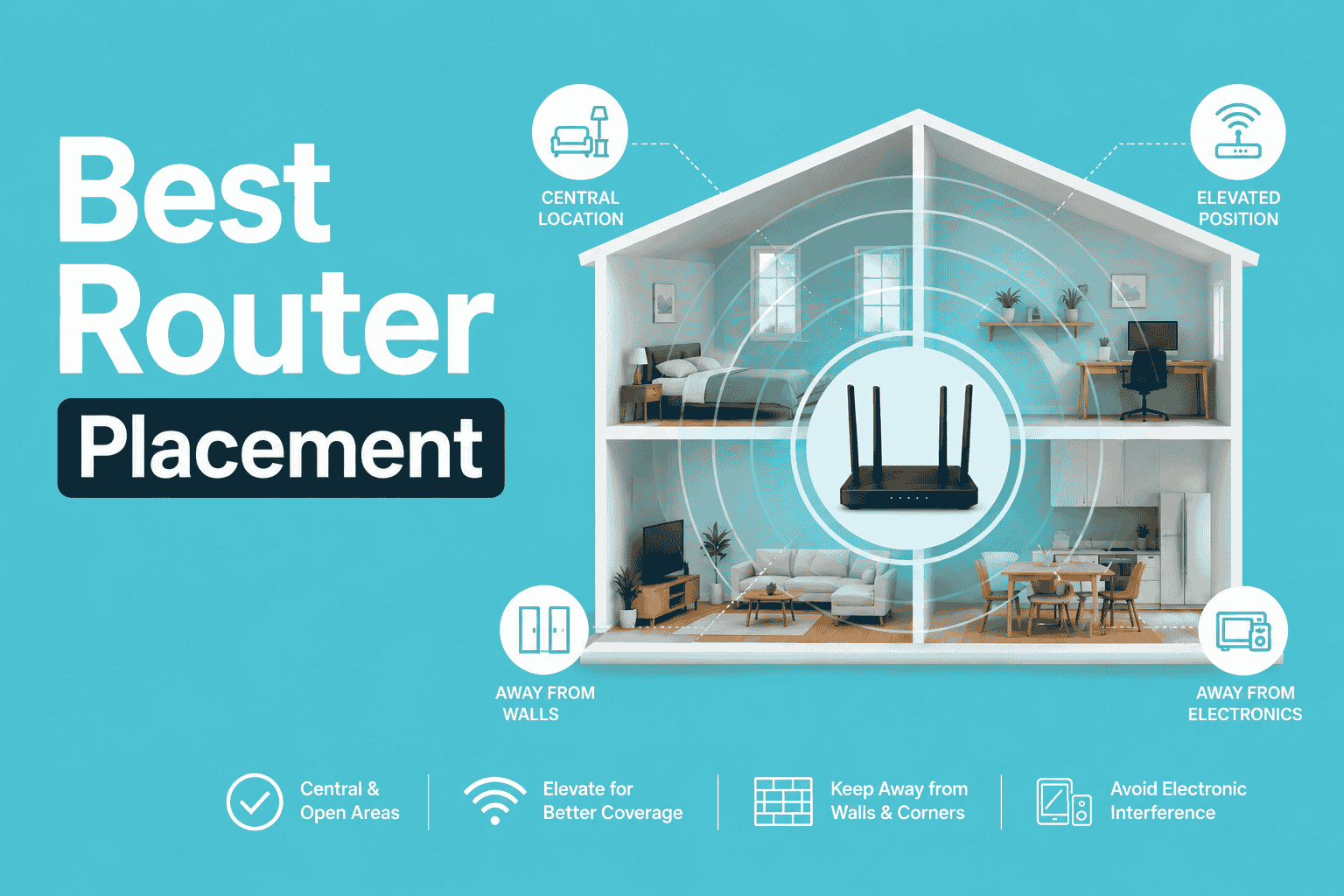
Place the XB7:
– Centrally in your home
– Off the floor on a shelf or table
– Away from thick walls and appliances
This boosts Wi-Fi 6 range and connectivity.
Connect Multiple Devices
The XB7 supports more simultaneous connections than older models. It handles smart homes, gaming consoles, streaming devices, and video conferencing with ease.
Monitor connected devices through the Xfinity app.
Run Regular Speed Tests
Test speeds at different times of day, on various devices, and over both Wi-Fi and Ethernet. Consistent results near your plan’s limit confirm a successful upgrade.
Get Help When You Need It
Use the Xfinity App for Support
The app offers 24/7 tools including:
– Real-time outage maps
– Bill payment
– Equipment management
– Live chat and troubleshooting
Contact Xfinity Assistant
For activation issues or connection problems, use the Xfinity Assistant in the app or visit the online support center.
Visit a Store for Hands-On Help
If you’re stuck, visit an Xfinity Retail Store. Technicians can activate, test, and optimize your setup in person.
Frequently Asked Questions About Changing an Xfinity Modem
How long does it take to change an Xfinity modem?
Most self-installations take under 30 minutes, including activation through the Xfinity app. Delivery of new equipment adds 3–5 business days if Xfinity mails it.
Do I have to pay to replace my Xfinity modem?
If you rent your modem and qualify, replacement is free. Self-installation is also free. Professional installation by a technician carries a service fee.
What happens if I don’t return my old Xfinity modem?
You’ll be charged unreturned equipment fees if your old modem isn’t returned within 30 days of receiving the replacement.
Do my DVR recordings transfer when I change my modem?
Cloud DVR recordings on X1 TV boxes transfer automatically. Recordings on non-X1 boxes are lost and must be reconfigured manually.
Can I keep my old coax cable when installing a new modem?
Yes. Reuse your existing coax cable unless it’s damaged. The new cable included with the XB7 is just a backup option.
What does the solid white light mean on my Xfinity modem?
A solid white LED means your gateway is online and ready for activation. Wait for this status before scanning the barcode in the Xfinity app.
Key Takeaways for a Smooth Xfinity Modem Replacement
Changing your Xfinity modem doesn’t have to be complicated. Start by checking your eligibility online or at a retail store, then wait 3–5 business days for delivery if Xfinity mails your new XB7 gateway. Reuse your existing coax cable, hand-tighten all connections, and click Ethernet cables into the locking levers for a secure fit. Wait for the solid white LED before activating through the Xfinity app, and let the automatic firmware update finish before testing your speeds. Finally, return your old equipment within 30 days to avoid extra charges.
Next Step: Open the Xfinity app, confirm your account credentials are current, and schedule your replacement today to start enjoying faster, more reliable Wi-Fi 6 speeds throughout your home.



